Sidebar
The sidebar brings FolderSpan's common features together and shows the current state of device connections, sharing services, network connections, and sync tasks. Selecting an entry opens its page in the content area on the right.
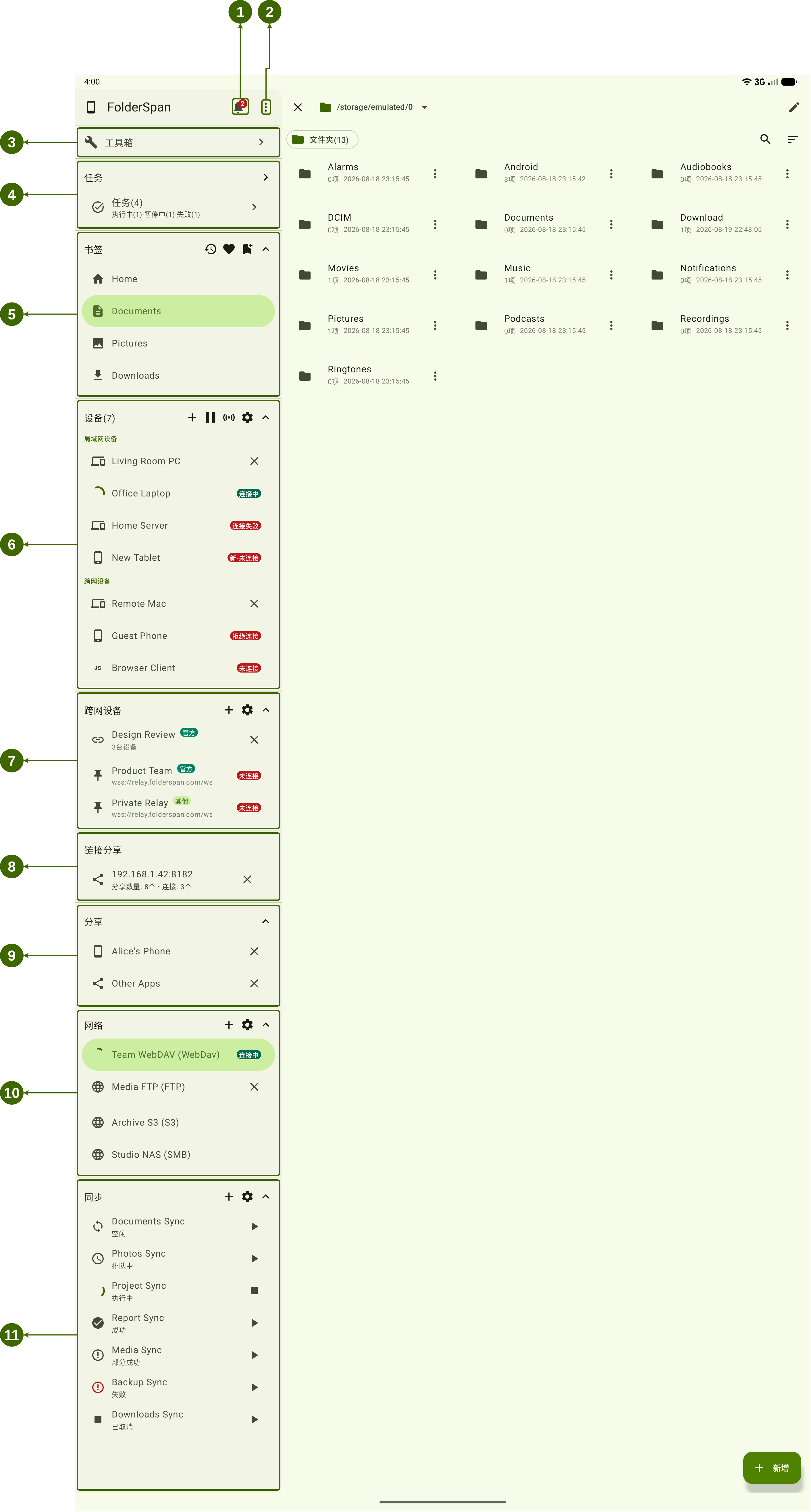
Page layout (screenshot numbers)
- Notifications: opens notifications. A red badge indicates notifications, and its number shows the count.
- More menu: opens additional application actions.
- Toolbox: a shared entry point for device, cross-network, sharing, network, sync, and file type filter management.
- Tasks: shows the total task count and counts for running, paused, and failed tasks. Open it to view task progress.
- Bookmarks: lists frequently used paths. Select an entry to open its location. Shortcuts beside the heading open Recent and Favorites, add a bookmark, or expand and collapse the list.
- Devices: groups discovered devices into local-network and cross-network devices and shows their connection states. The heading shows the device count. Controls on the right add devices, control discovery or connections, open settings, and expand or collapse the list.
- Cross-network devices: lists rooms, signaling addresses, sources, and connection states. Controls on the right add a room, open cross-network management, or disconnect.
- Link sharing: shows the service address, shared-item count, and connection count. Select an entry to open link sharing, or close it to stop the service.
- Sharing: lists available device or application sharing sources. Select an entry to browse its content, or close it to disconnect that share.
- Network: lists saved WebDAV, FTP, S3, SMB, and other remote connections with their connection states. Controls add, manage, disconnect, and expand or collapse entries.
- Sync: lists sync tasks and their states: idle, queued, running, successful, partially successful, failed, or cancelled. Task controls run or stop a task. Heading controls add tasks, open sync management, or expand the list.
Basic use
- Find the feature or entry you need in the sidebar.
- Select its heading or entry to open the page or file location on the right.
- Use heading shortcuts to add, manage, or expand content. Use entry controls to run, stop, or disconnect an operation.
- Check the state text and badges for devices, rooms, network connections, and sync tasks.