Bookmarks
Bookmarks save shortcuts to frequently used directories. On the bookmark management page, you can select a bookmark, open its directory, and add, edit, delete, filter, or reorder bookmarks.
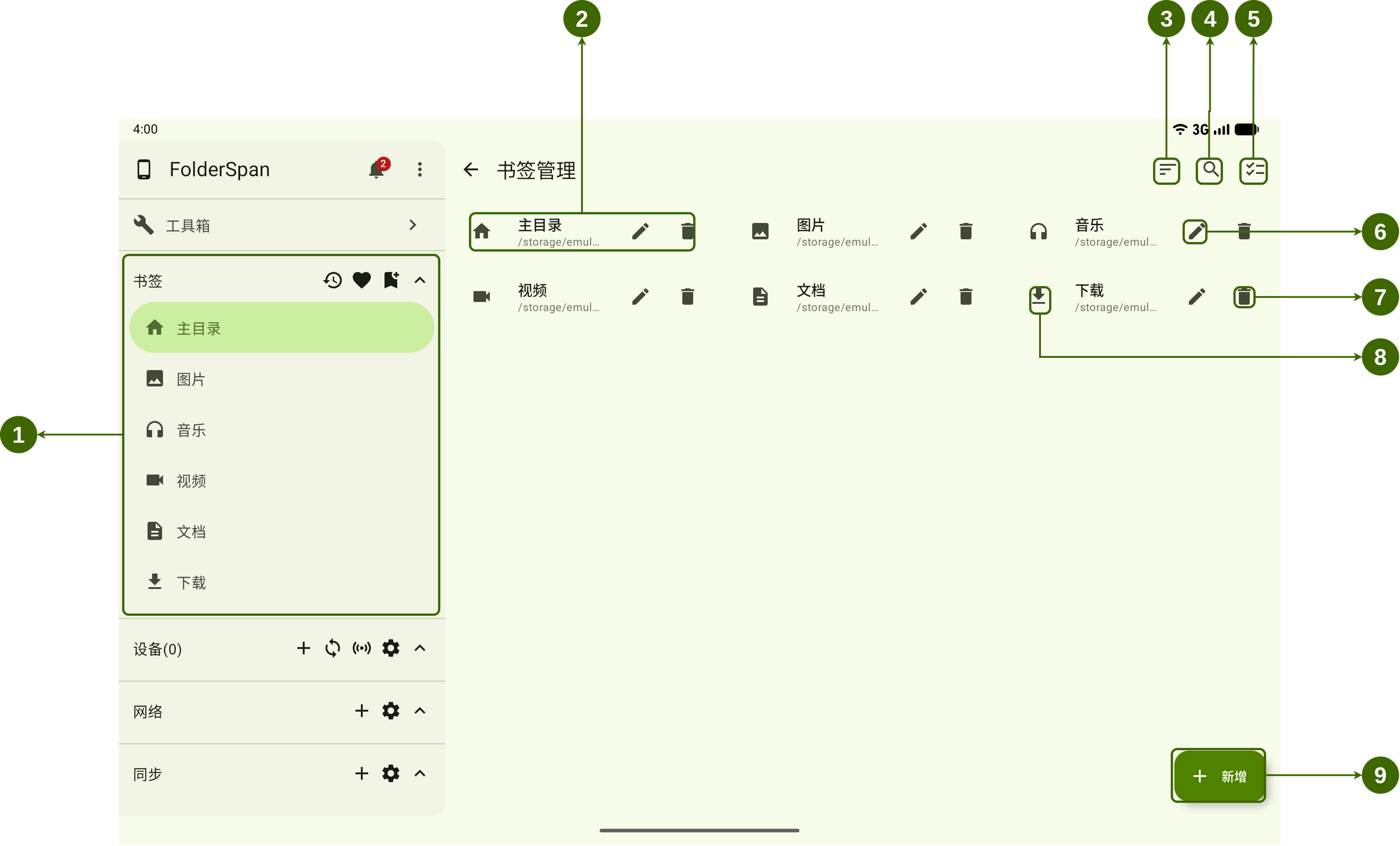
Page layout (screenshot numbers)
- Bookmark list: saved bookmarks and the current selection appear on the left.
- Bookmark card: shows the type icon, name, and directory path. Select the card to open the directory.
- Reorder button: enters drag-to-reorder mode.
- Search button: opens search and type filters.
- Batch management button: enters multi-select mode to select and delete bookmarks in bulk.
- Edit button: changes the bookmark's path, name, and type.
- Delete button: deletes the current bookmark.
- Bookmark selection icon: shows the bookmark type. Select the icon to select the bookmark; the screenshot uses the
Downloadstype. - Add button: opens the Add bookmark dialog.
Bookmark information
- Path: the target directory. Enter it manually or select a directory with the folder button.
- Name: the label shown in the sidebar and management page.
- Type: determines the icon and supports filtering. Choose
Home,Pictures,Music,Videos,Documents,Downloads, orOther.
Operations
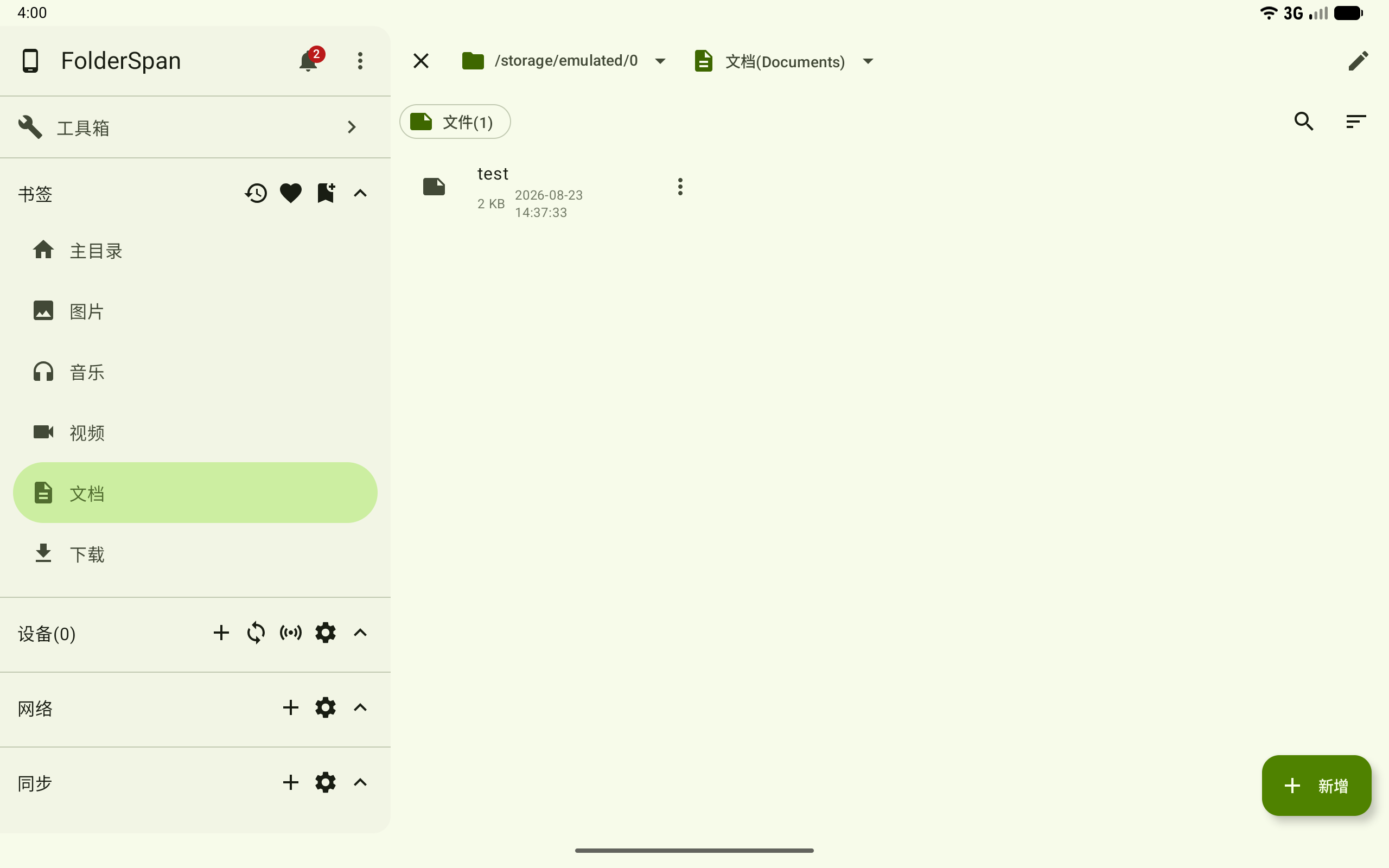
1. Open a bookmarked directory
Select a bookmark card (number 2) to open its directory in the content area.
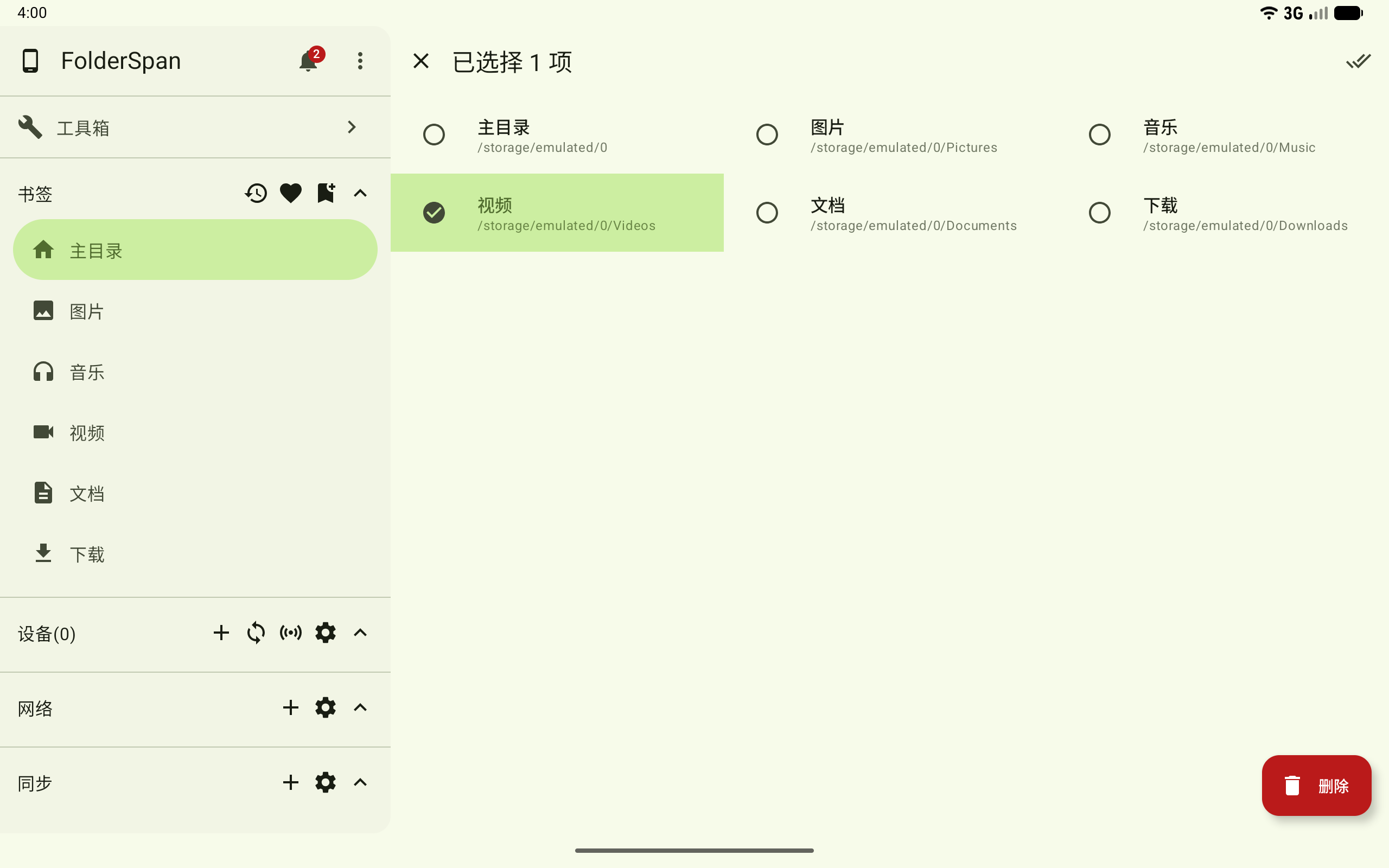
2. Select a bookmark
Select the type icon on the left (number 8) to select the bookmark.
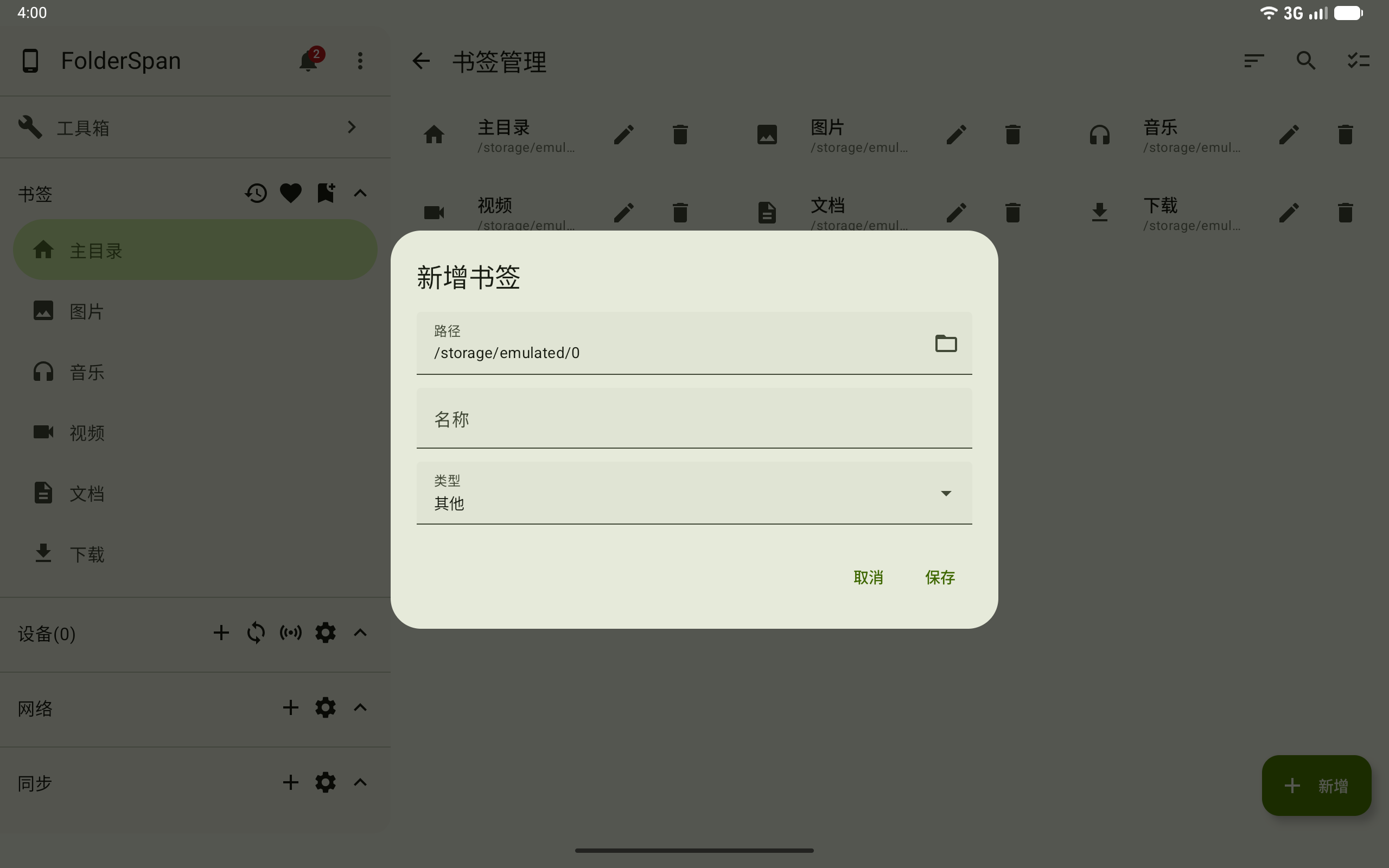
3. Add a bookmark
- Select
Addat the bottom right to open Add bookmark. - Enter the directory in
Path, or use the folder button to choose one. - Enter a
Nameand choose aType. - Select
Saveto add it, orCancelto discard the operation.
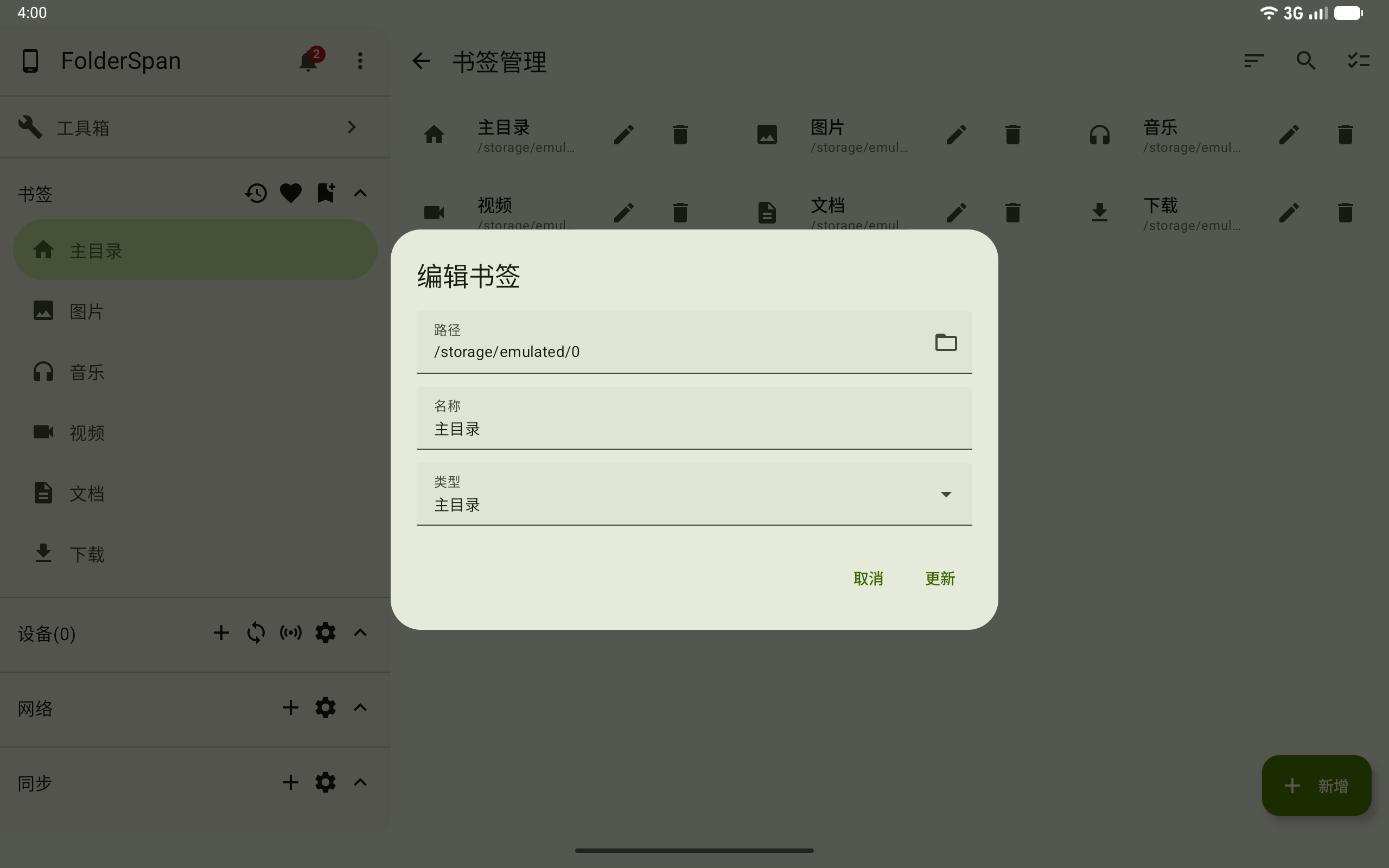
4. Edit a bookmark
- Select the edit button on the right of a bookmark card to open Edit bookmark.
- Change its
Path,Name, orType. - Select
Updateto save, orCancelto keep the existing information.
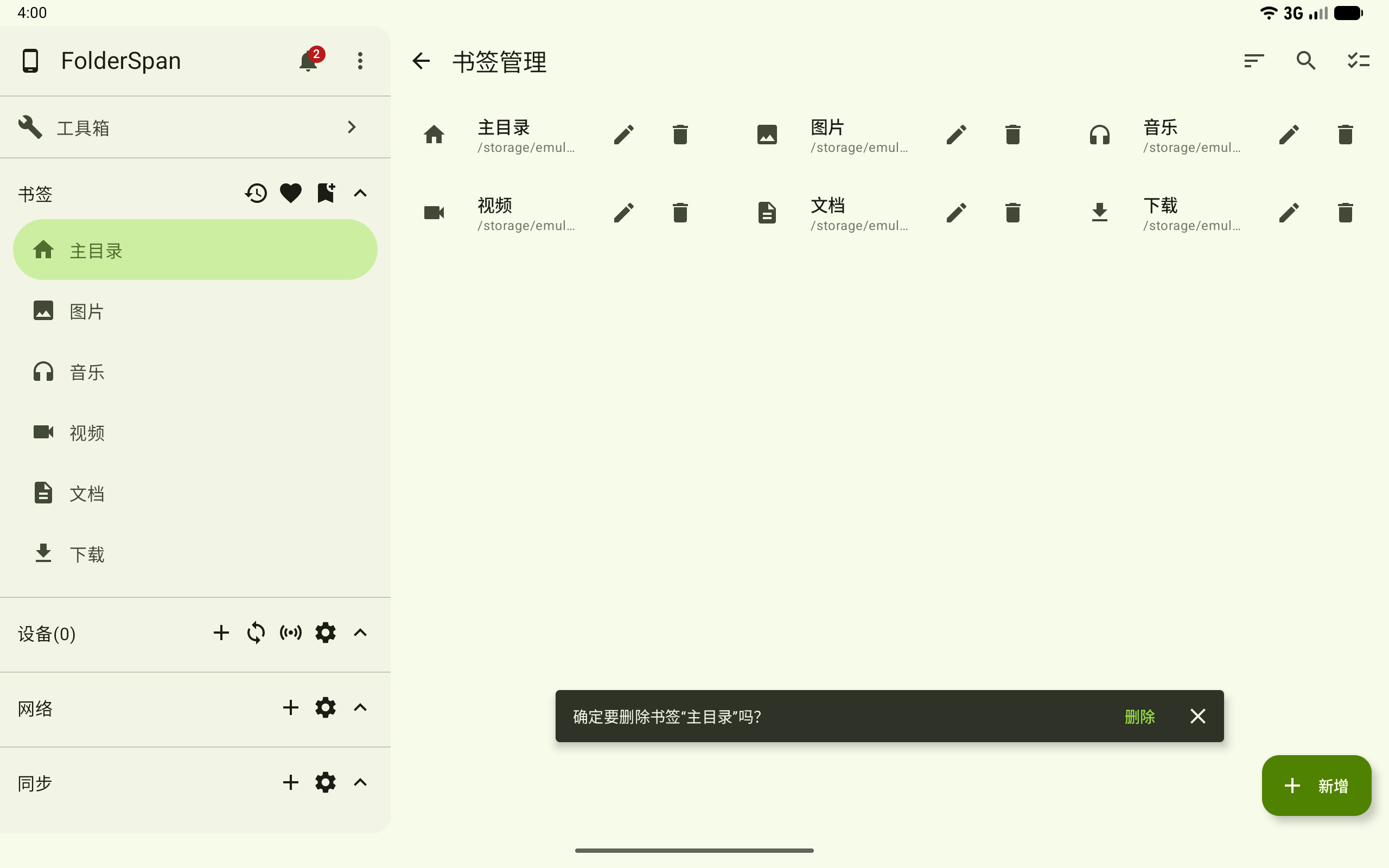
5. Delete one bookmark
Select the delete button on the bookmark card. When the deletion prompt appears at the bottom, select Delete to confirm, or close it to cancel.
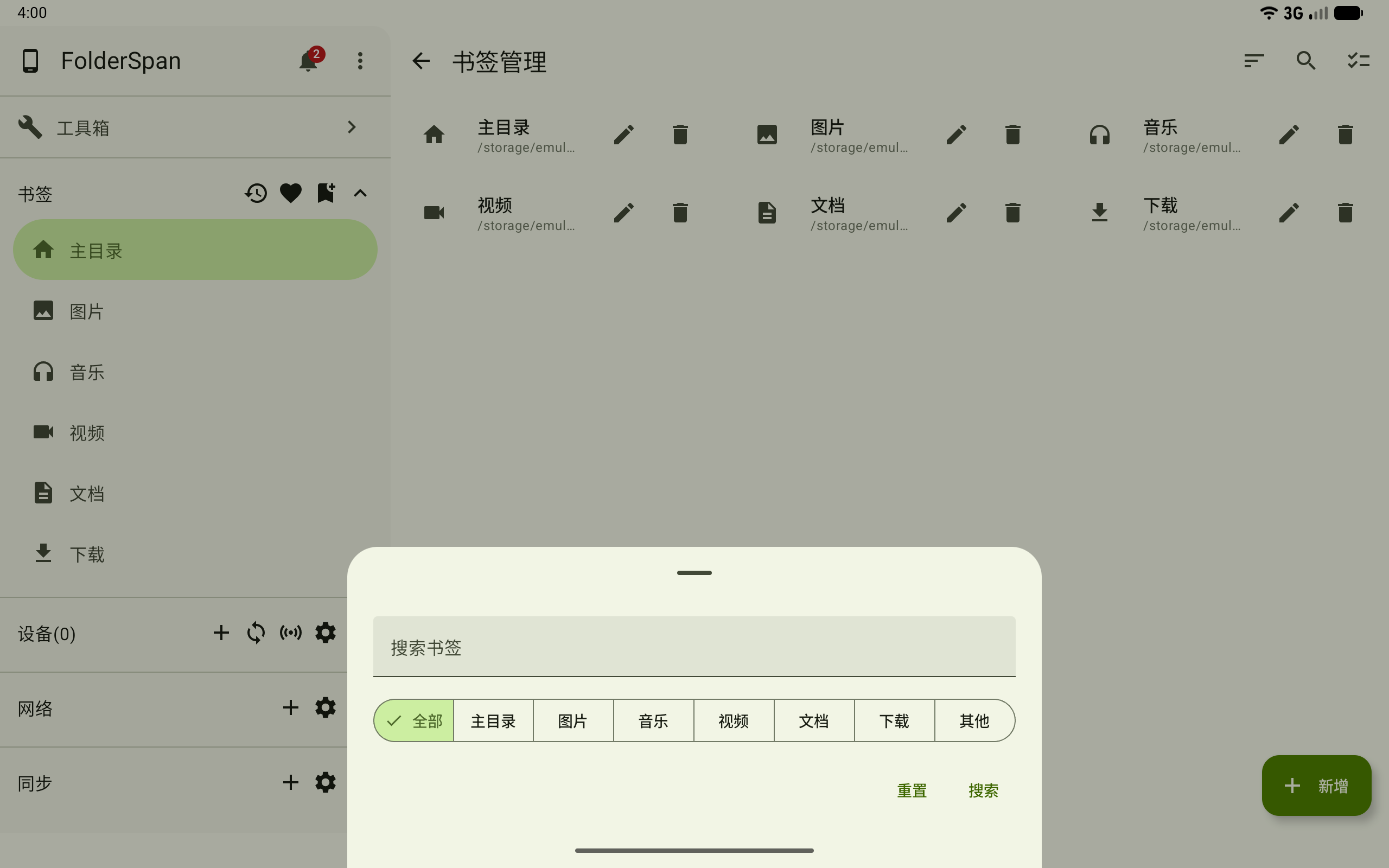
6. Search and filter bookmarks
- Select the search button at the top right.
- Enter a name or path keyword in
Search bookmarks. - Choose
All,Home,Pictures,Music,Videos,Documents,Downloads, orOtheras needed. - Select
Searchto apply the conditions, orResetto clear both the keyword and type filter.
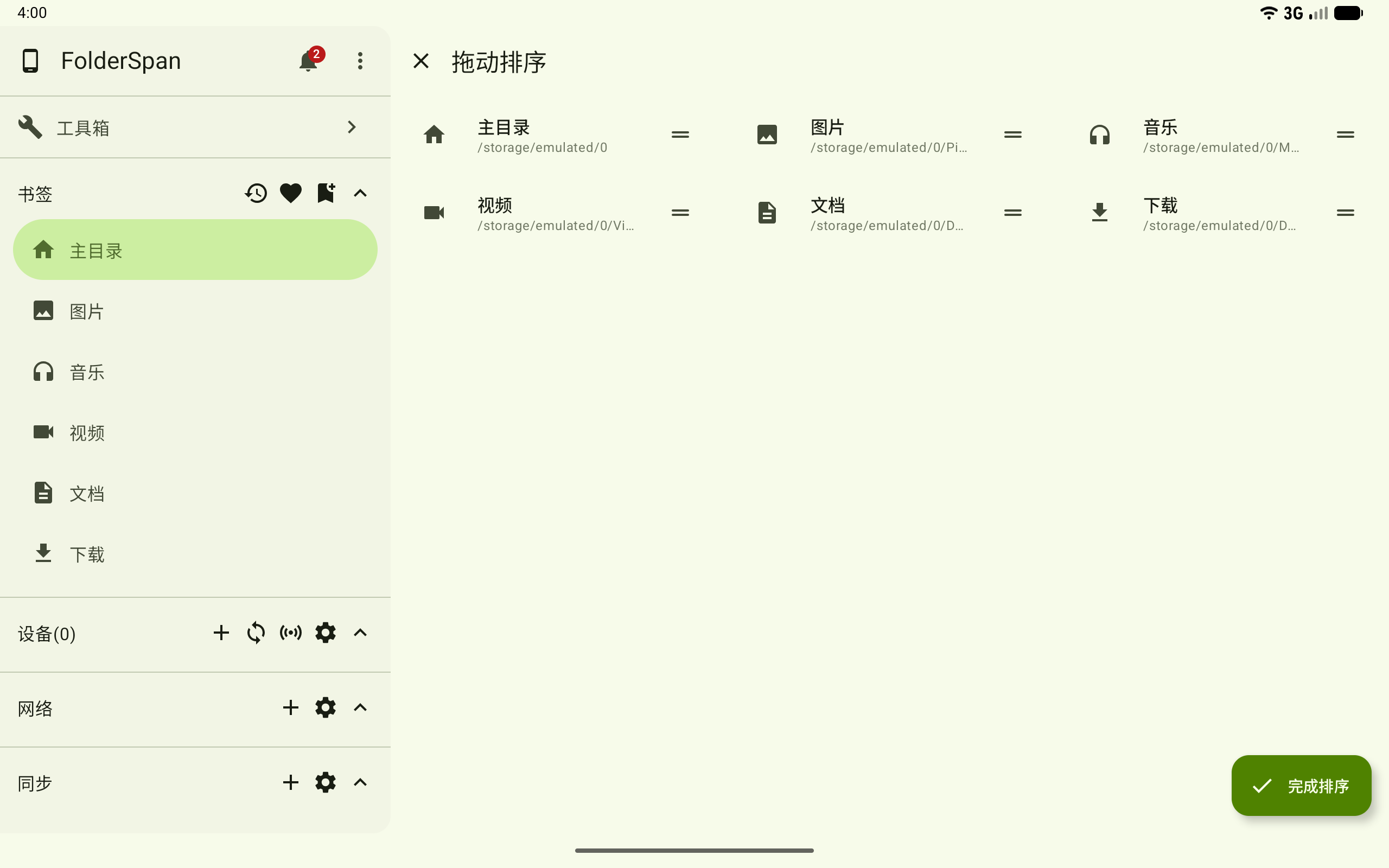
7. Reorder bookmarks
- Select the reorder button at the top right to enter drag-to-reorder mode.
- Hold the handle on the right of a bookmark and drag it to the desired position.
- Select the done icon or
Finish sortingto save. Close with the top-left button to leave reorder mode.
8. Delete bookmarks in bulk
- Select the batch management button at the top right to enter multi-select mode.
- Select the circles on the left. The header shows
N items selected. - Use the select-all button at the top right to select every bookmark, or
Deleteat the bottom right to delete the selected bookmarks. - Close with the top-left button to leave multi-select mode.
Related documentation
- Files: continue browsing and managing files after opening a bookmark.