Favorites
Favorites keep frequently used directories in one place. Add directories from the file list or the Favorites page, then search, filter, pin, delete, or manage several entries together.
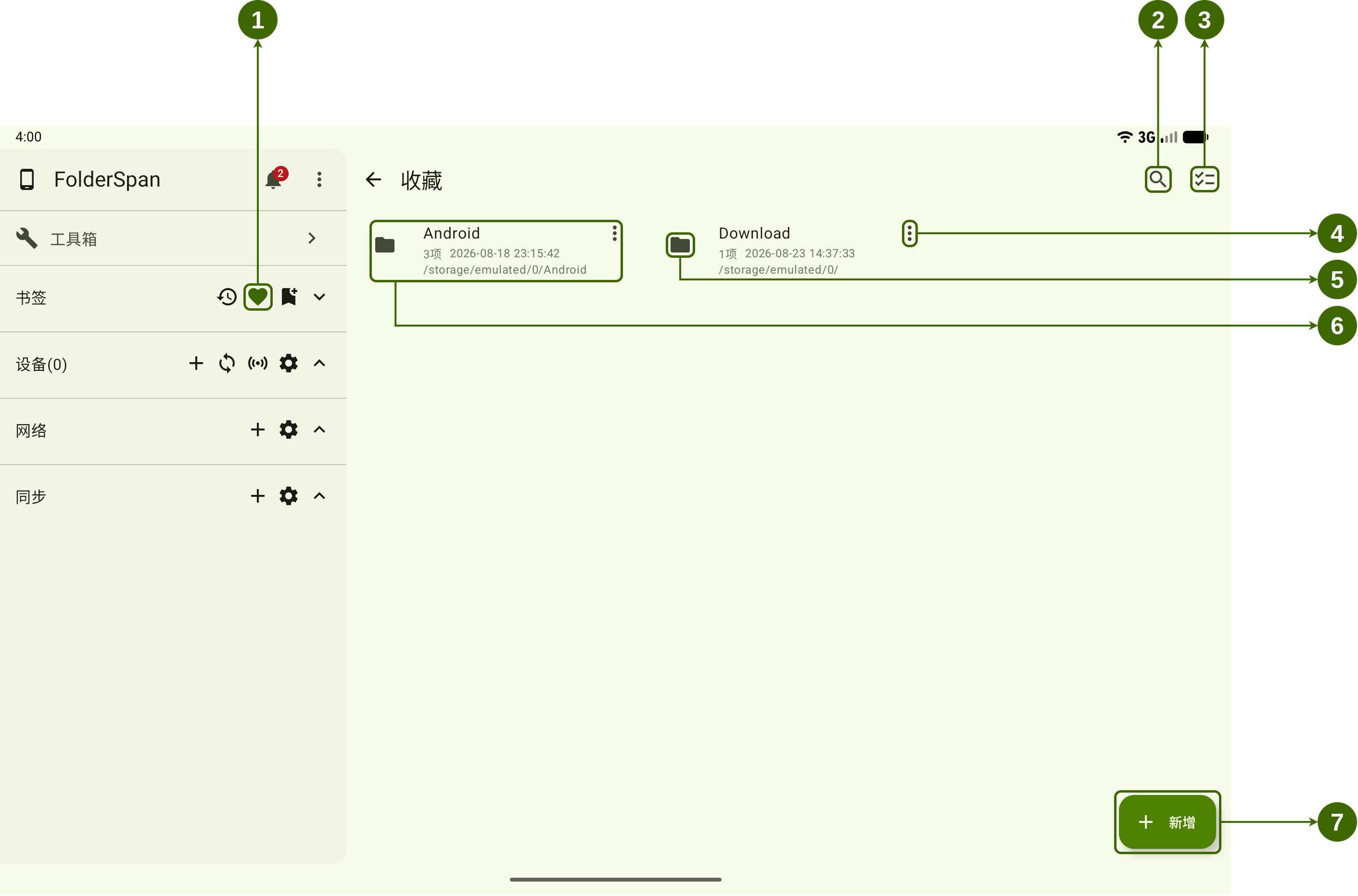
Page layout (screenshot numbers)
- Favorites shortcut: the heart button in the sidebar's bookmark area opens Favorites.
- Search button: opens search and filters.
- Batch management button: enters multi-select mode to pin or delete several favorites.
- Item menu: provides
PinandDeletefor the current favorite. - Favorite icon: shows the directory type. Select it to select the favorite and enter multi-select mode.
- Favorite card: shows the directory name, child-item count, modification time, and path. Select the card to open the directory.
- Add button: opens Select favorites, where you can choose directories to add.
Favorite information
- Name: the directory name shown in the list.
- Child-item count: the number of items currently in the directory.
- Modification time: when the directory was last modified.
- Path: the directory's actual location.
- Pinned state: pinned favorites appear first for quick access.
Operations
1. Open Favorites
Select the heart button in the sidebar's bookmark area (number 1).
2. Open a favorite directory
Select a favorite card (number 6) to open its directory in the file area.
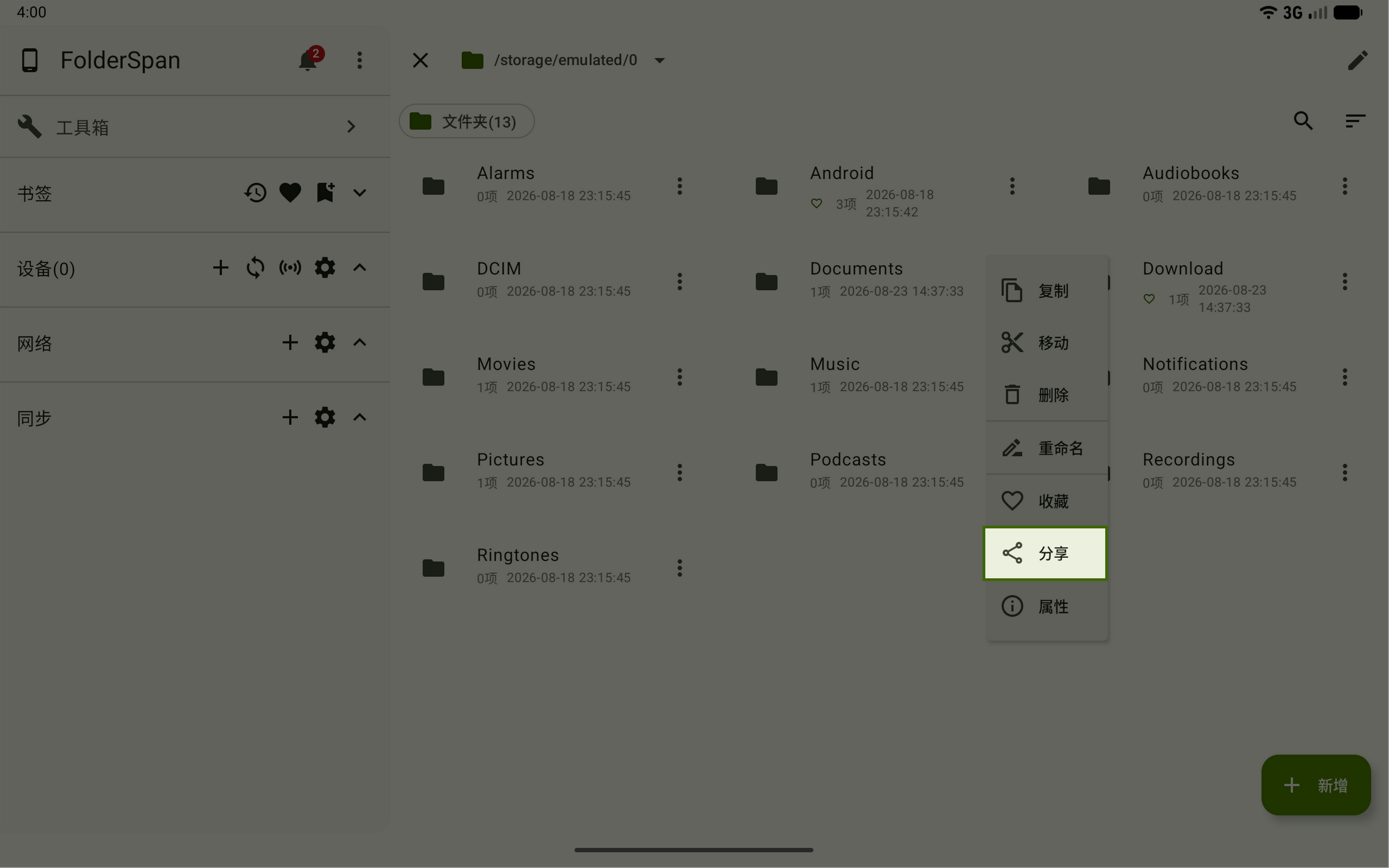
3. Add from the file list
- Find the directory you want to save.
- Open its more menu on the right.
- Choose
Favorite.
Saved directories show a green heart and appear on the Favorites page.
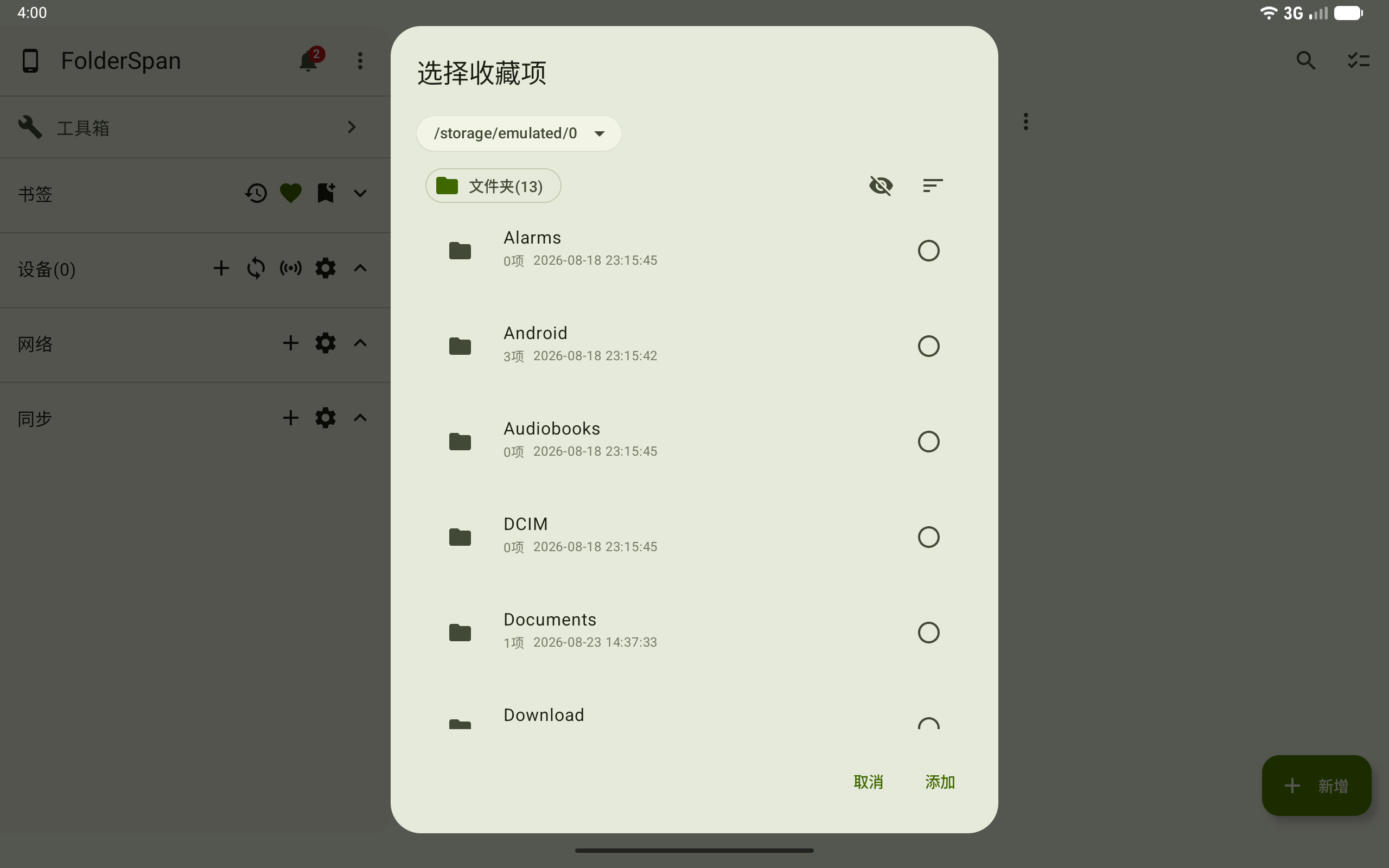
4. Add from the Favorites page
- Select
Addat the bottom right (number7) to open Select favorites. - Use the path selector at the top to reach the target location.
- Select the circles on the right of the directories you want to save.
- Select
Addto finish, orCancelto close without adding them.
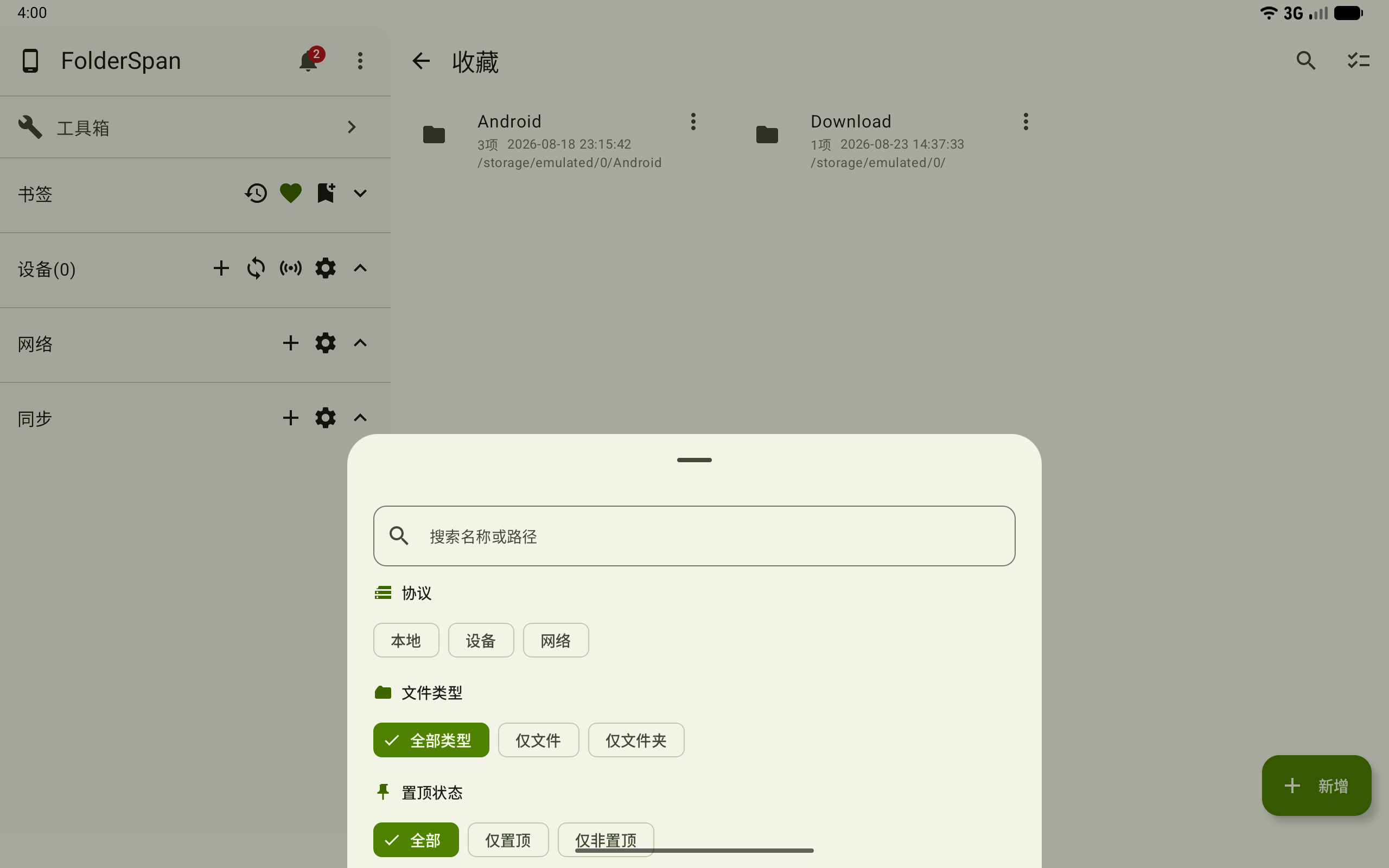
5. Search and filter favorites
Select the search button at the top (number 2). Use these conditions to narrow the list:
- Enter a directory name or path keyword in
Search name or path. - Choose
Local,Device, orNetworkinProtocol. - Choose
All types,Files only, orFolders onlyinFile type. - Choose
All,Pinned only, orUnpinned onlyinPinned state.
6. Pin a favorite
- Open the favorite's more menu on the right (number
4). - Choose
Pinto move it to a priority position in the list.
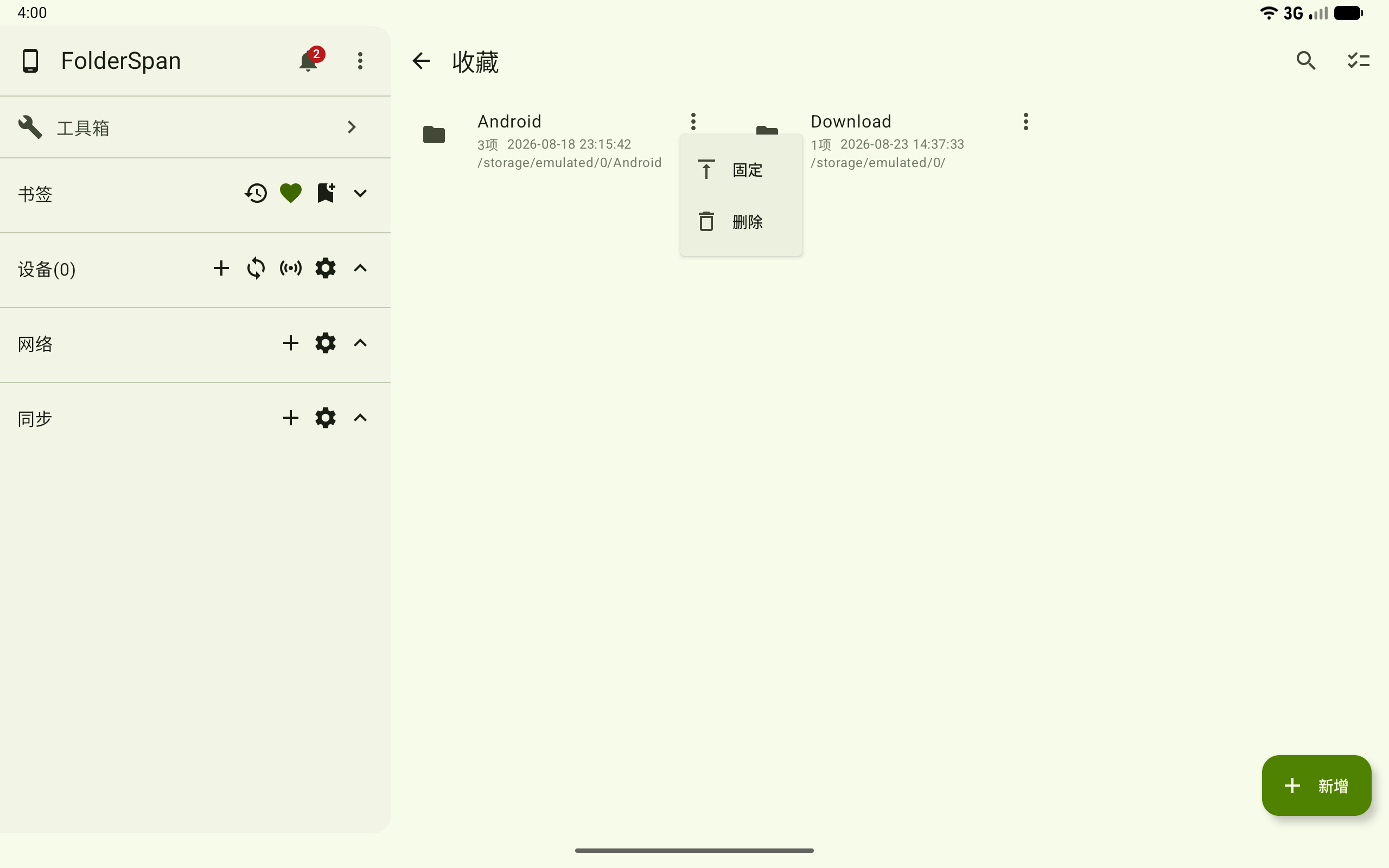
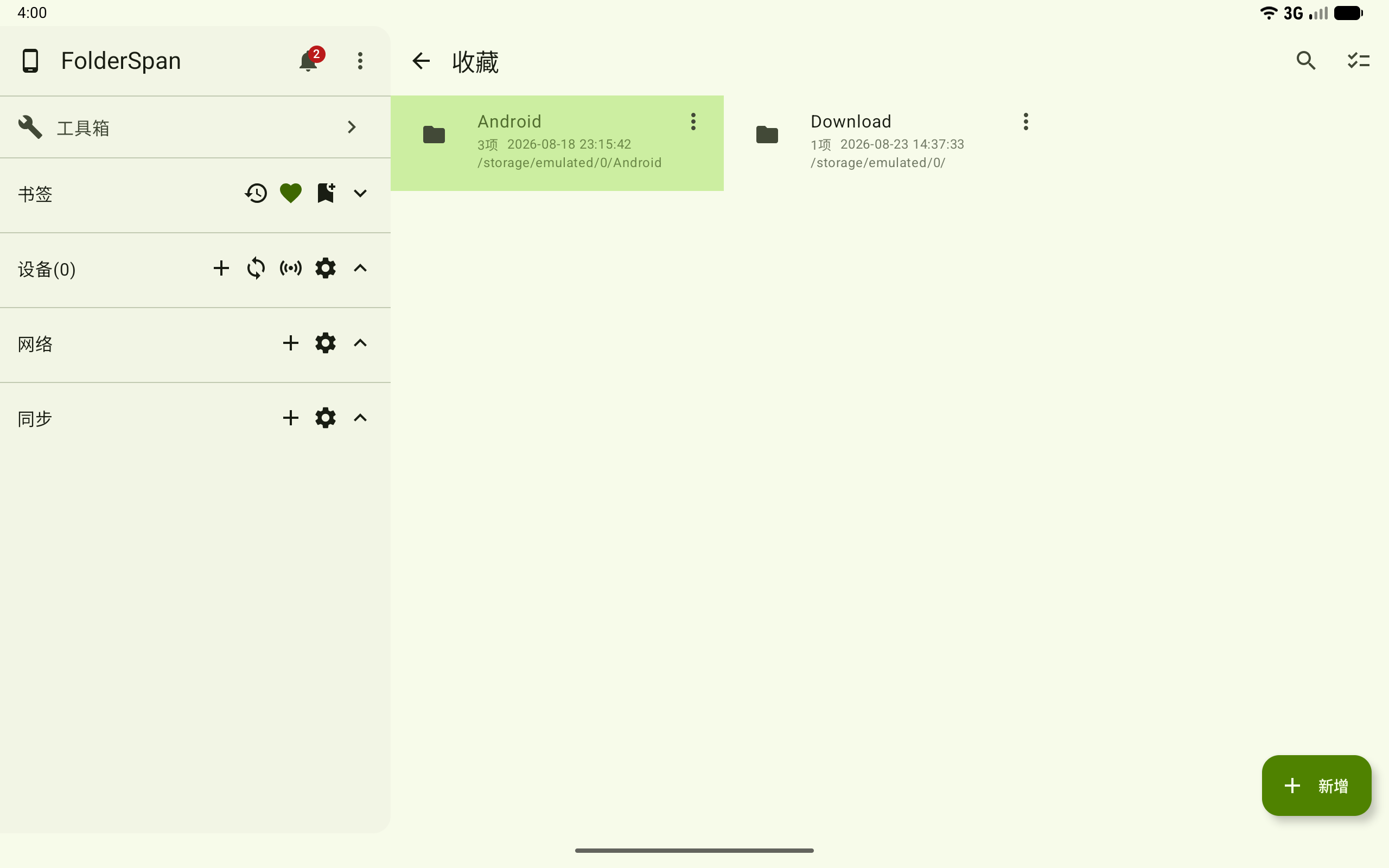
The favorite is then shown as pinned.
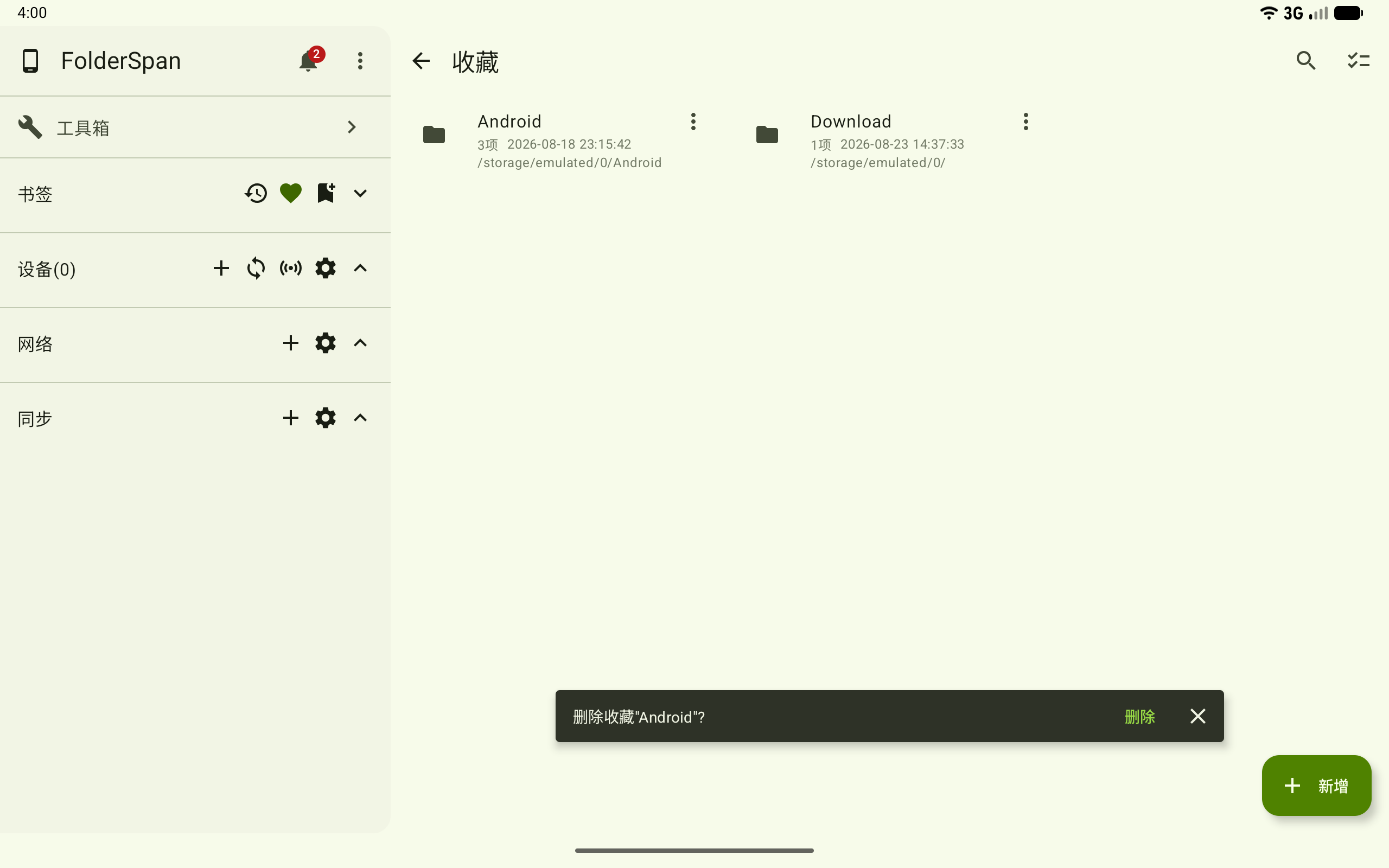
7. Delete one favorite
- Open the favorite's more menu on the right (number
4). - Choose
Delete. - When the bottom deletion prompt appears, select
Deleteto confirm, or close it to cancel.
Deleting a favorite removes only its saved entry, not the original directory.
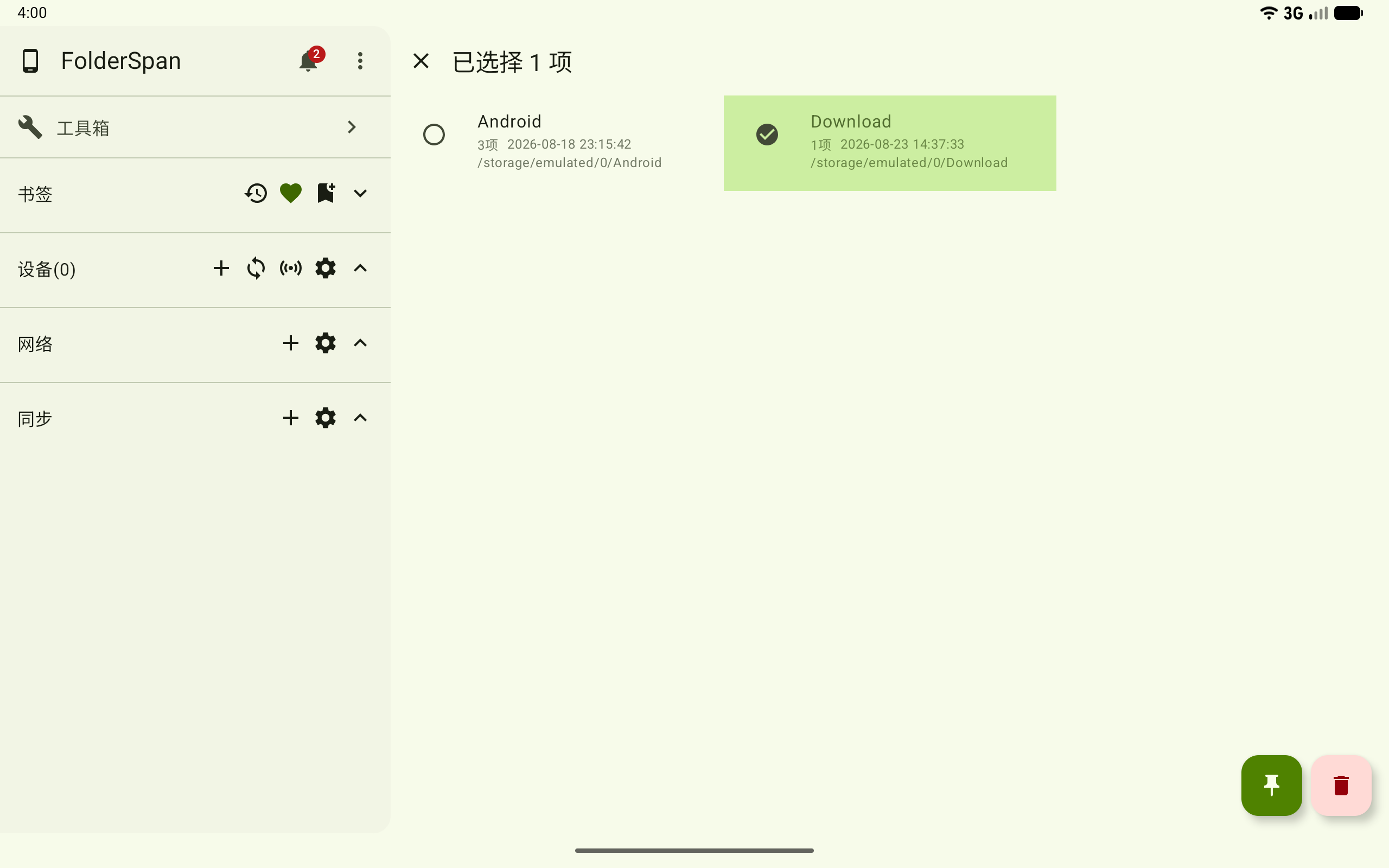
8. Manage favorites in bulk
- Select a favorite icon (number
5) to select it and enter multi-select mode, or use the batch management button at the top (number3). - Select or deselect entries with their circles. The header shows
N items selected. - Use the pin button at the bottom right to pin the selection, or the delete button to remove the saved entries.
- Close with the top-left button to leave multi-select mode.
Related documentation
- Files: add favorites from the file list or continue working after opening a favorite directory.