Files
The Files page browses files and folders stored locally or on another device. Choose a file source and path first, then use type filters, search, and sorting to find content. An item's right-hand menu acts on that item; selecting its type icon on the left enters multi-select mode.
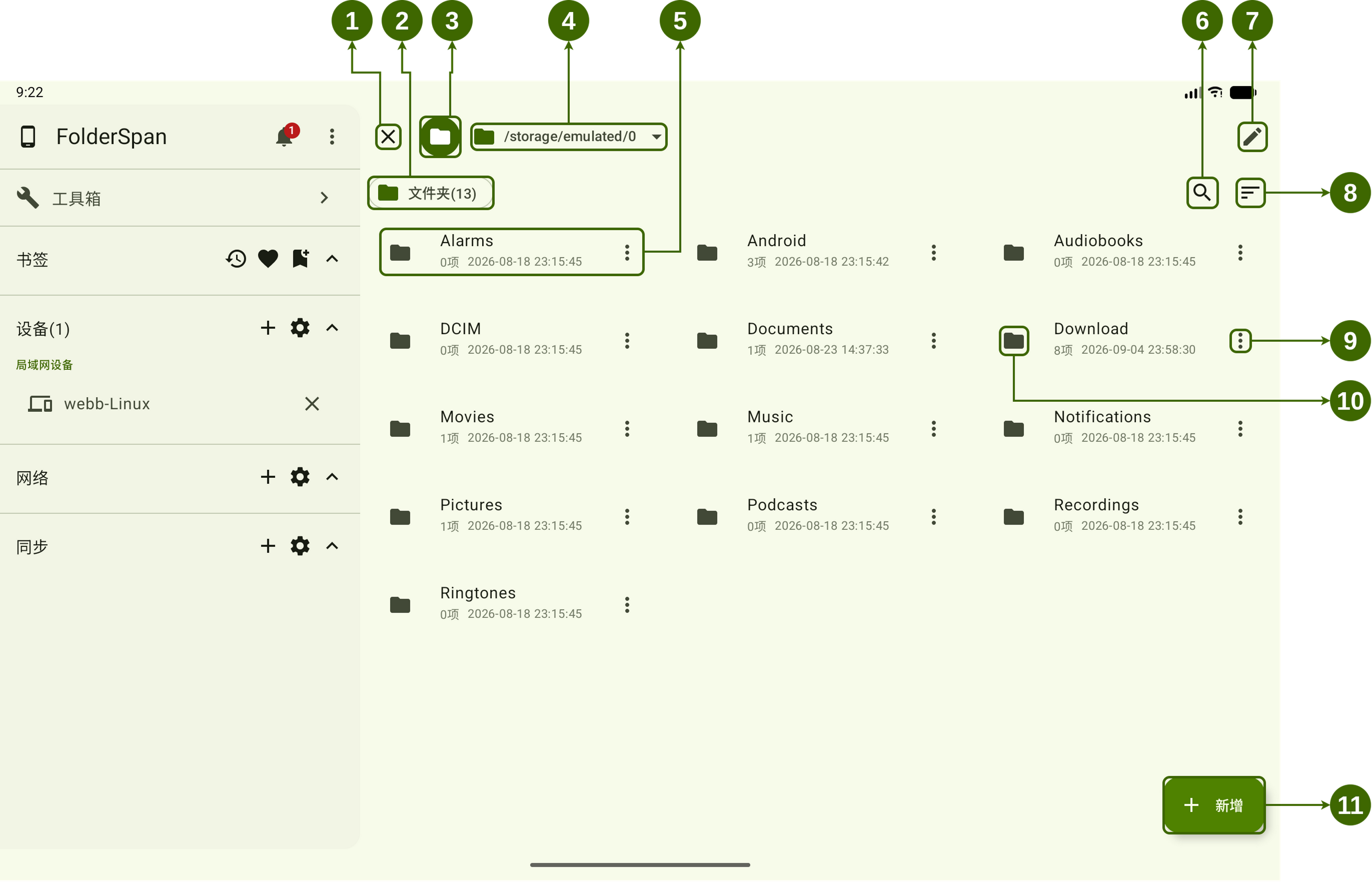
Page layout (screenshot numbers)
The numbers below match the overview above.
- Close sidebar: collapses the sidebar to give the file area more space.
- File type filters: filters the current directory by
Folders,Files,Documents,Web pages, and other types. The number in parentheses is the matching item count. - File source: selects local files or files on an available device.
- Path bar: shows the current location and lets you switch storage locations through a dropdown.
- File item: shows its name, child-item count or size, and modification time. Select a folder's name or content area to open it.
- Search button: opens Search files to find items in the current directory by keyword.
- Change directory button: opens Change directory to navigate to a path you enter.
- Sorting and display menu: chooses the sort order and whether hidden files are shown.
- Item menu: copies, moves, deletes, renames, or otherwise acts on one file or folder.
- Multi-select: select the type icon on the left to select the item and enter multi-select mode.
- Add button: opens New item to create a file or folder in the current directory.
File information
- Name and type: the name and type icon distinguish folders and file types.
- Count and size: folders show their child-item count; files show their size.
- Modification time: when the item was last modified.
- Selection state: selected entries show a checkmark and highlighted background. The bottom toolbar shows the selected count and batch actions.
Operations
1. Switch file sources
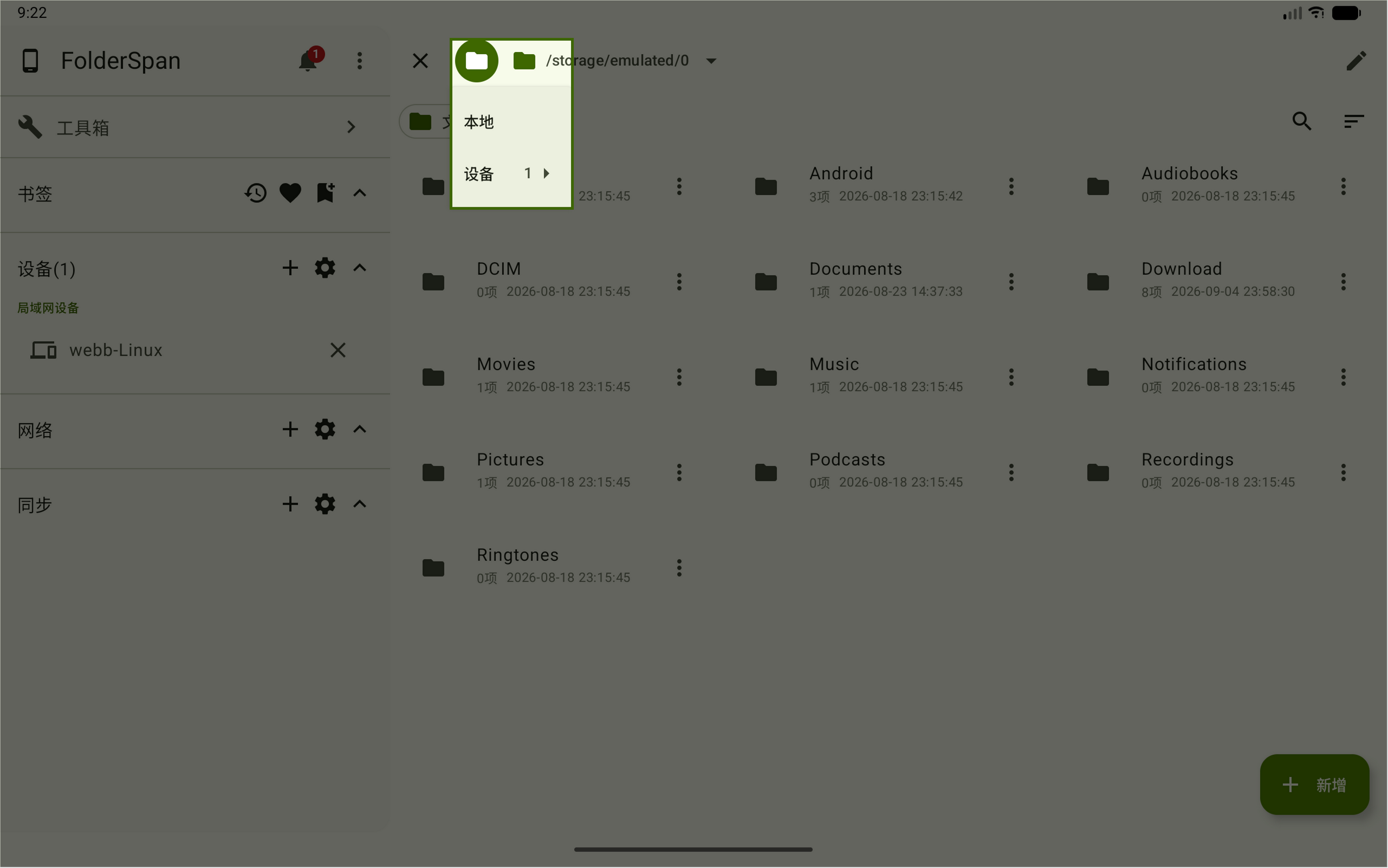
- Select the file-source button to the left of the path bar (overview number
3). - Choose
Localfor this device, or expandDeviceand choose a device to access. - After switching sources, choose a location in the path bar. The number beside
Deviceis the available-device count; the screenshot shows1.
2. Switch storage locations
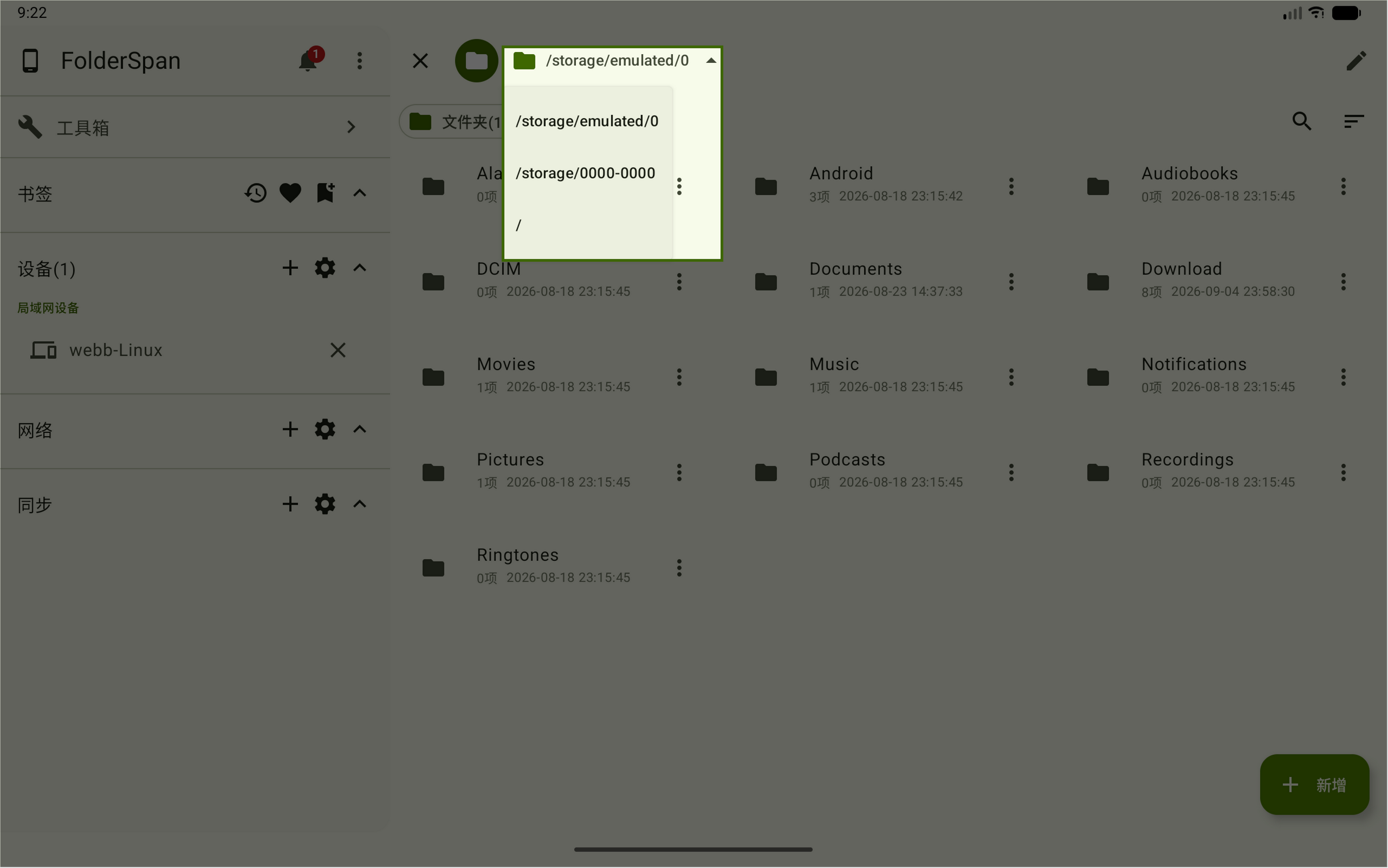
Select the dropdown arrow beside the storage path (overview number 4), then select a path. The screenshot offers /storage/emulated/0, /storage/0000-0000, and /. Other sources may provide different paths.
3. Open a folder
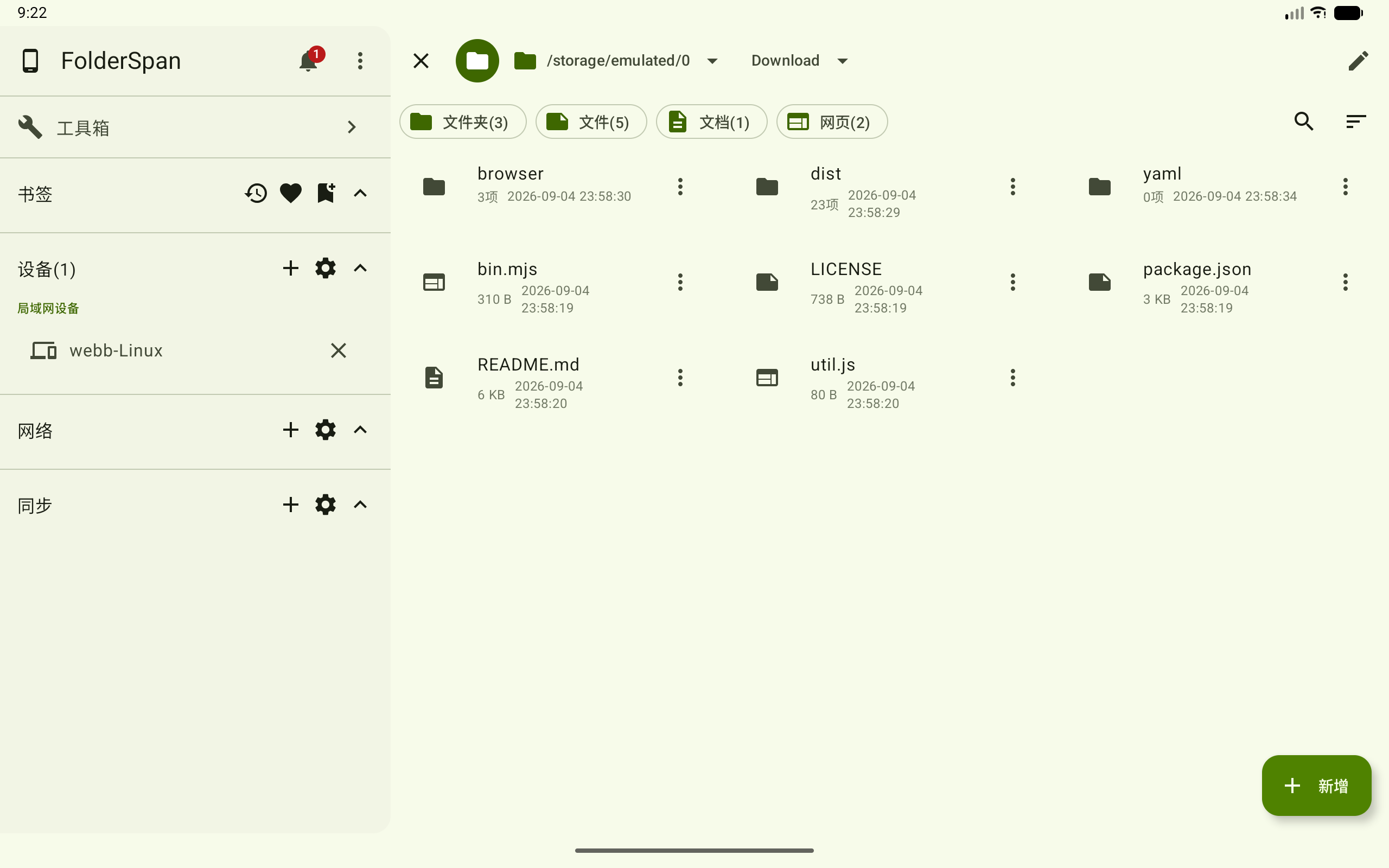
Select a folder's name or content area (overview number 5). The path bar shows the new directory hierarchy, and the list and type filters update.
The example below shows the Download folder. Folders display child-item counts, and files display sizes.
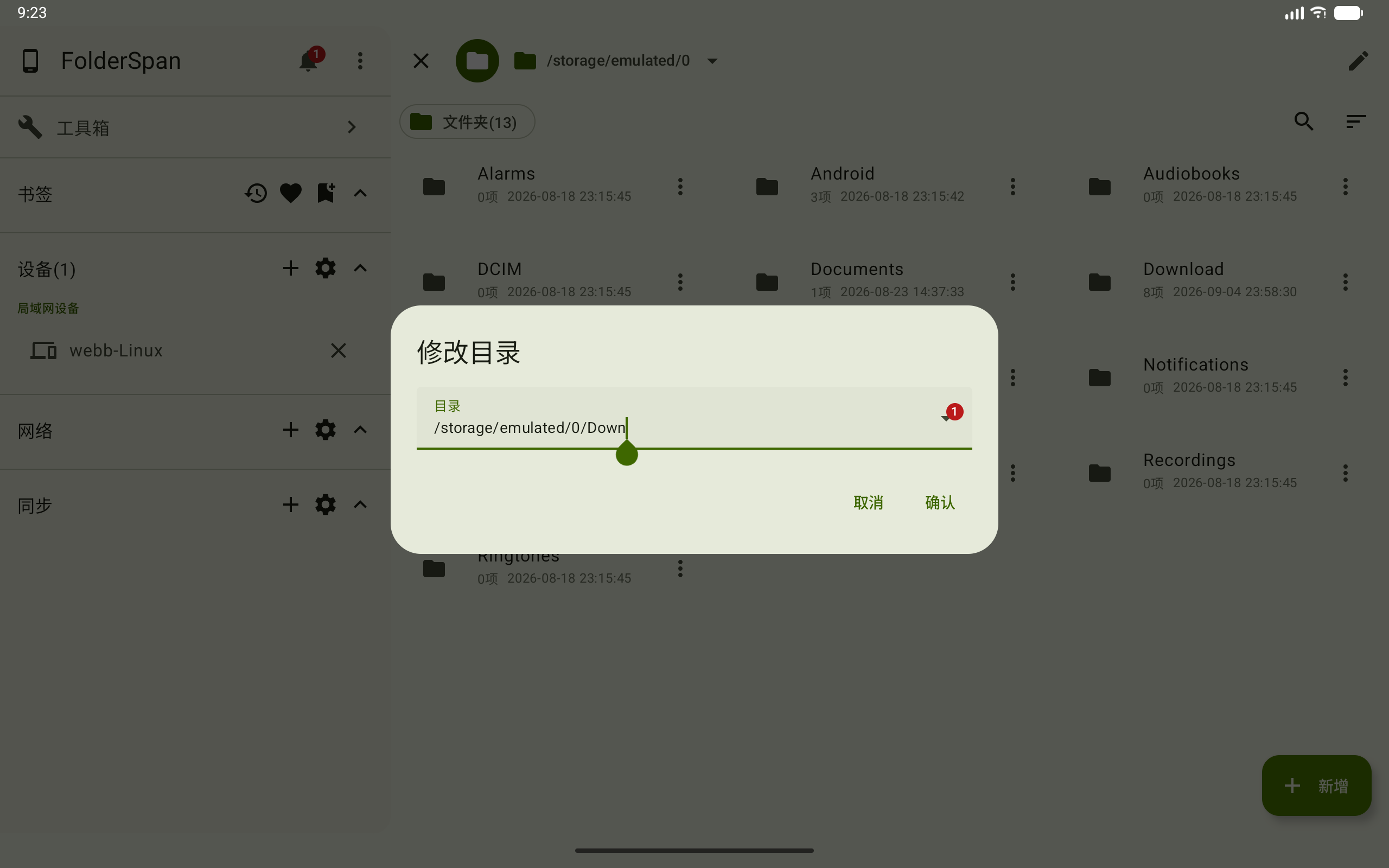
4. Enter a directory path
- Select the change-directory button at the top right (overview number
7). - Enter a path in
Directory, such as/storage/emulated/0/Download. - Select
Confirmto open it, orCancelto stay at the current location.
5. Filter by type
- Select a type below the path bar (overview number
2), such asFoldersorFiles. - Select additional types to show their matching items in the same list.
- Select an active type again to remove it. Deselect every type to clear the filter.
See File type filters for type definitions, counts, and management.
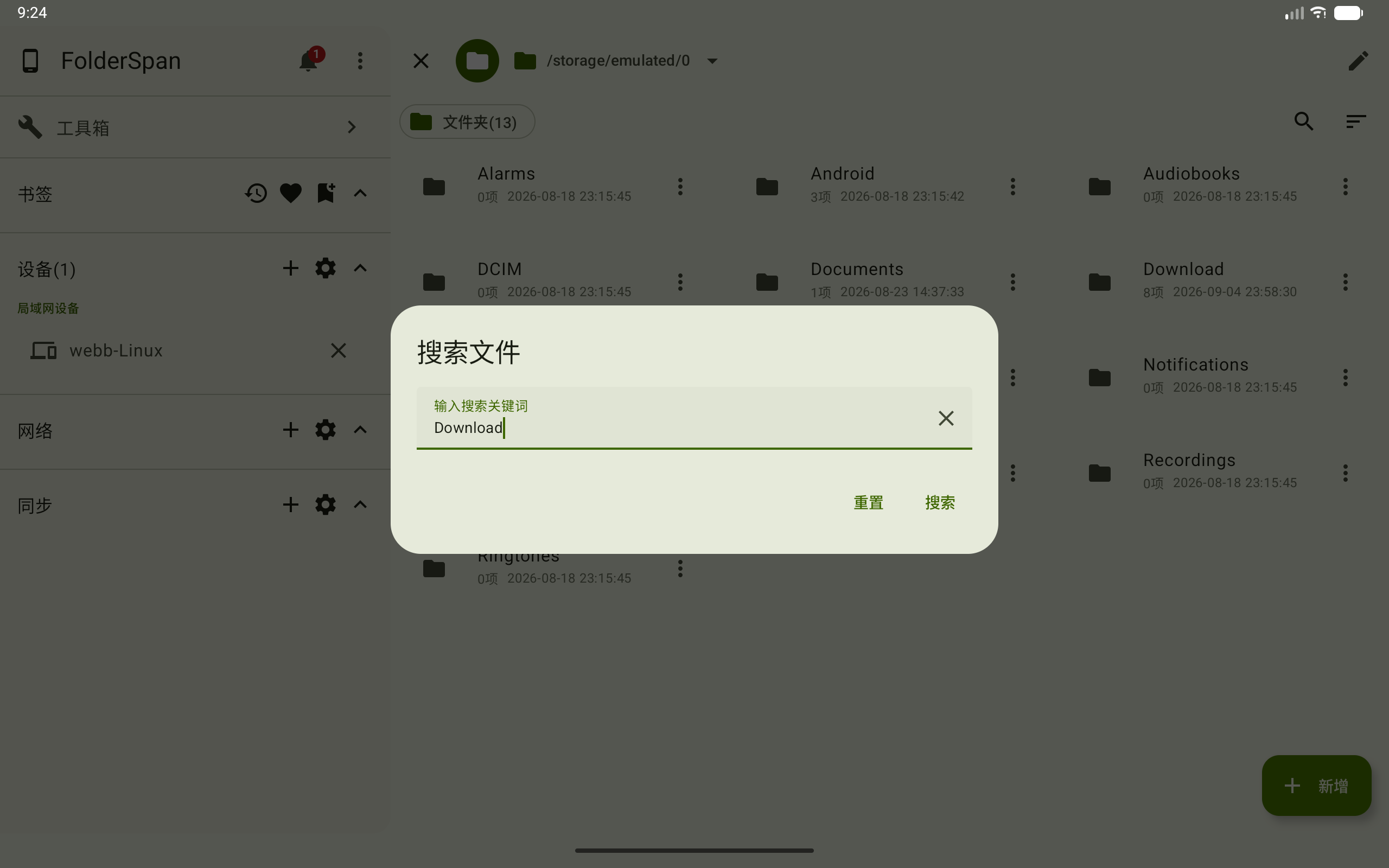
6. Search files
- Select the search button (overview number
6) to open Search files. - Enter a keyword in
Enter search keywords, such asDownload. - Select
Searchto show matching items.
The search button is highlighted when a search is active. The example below searches for Download.
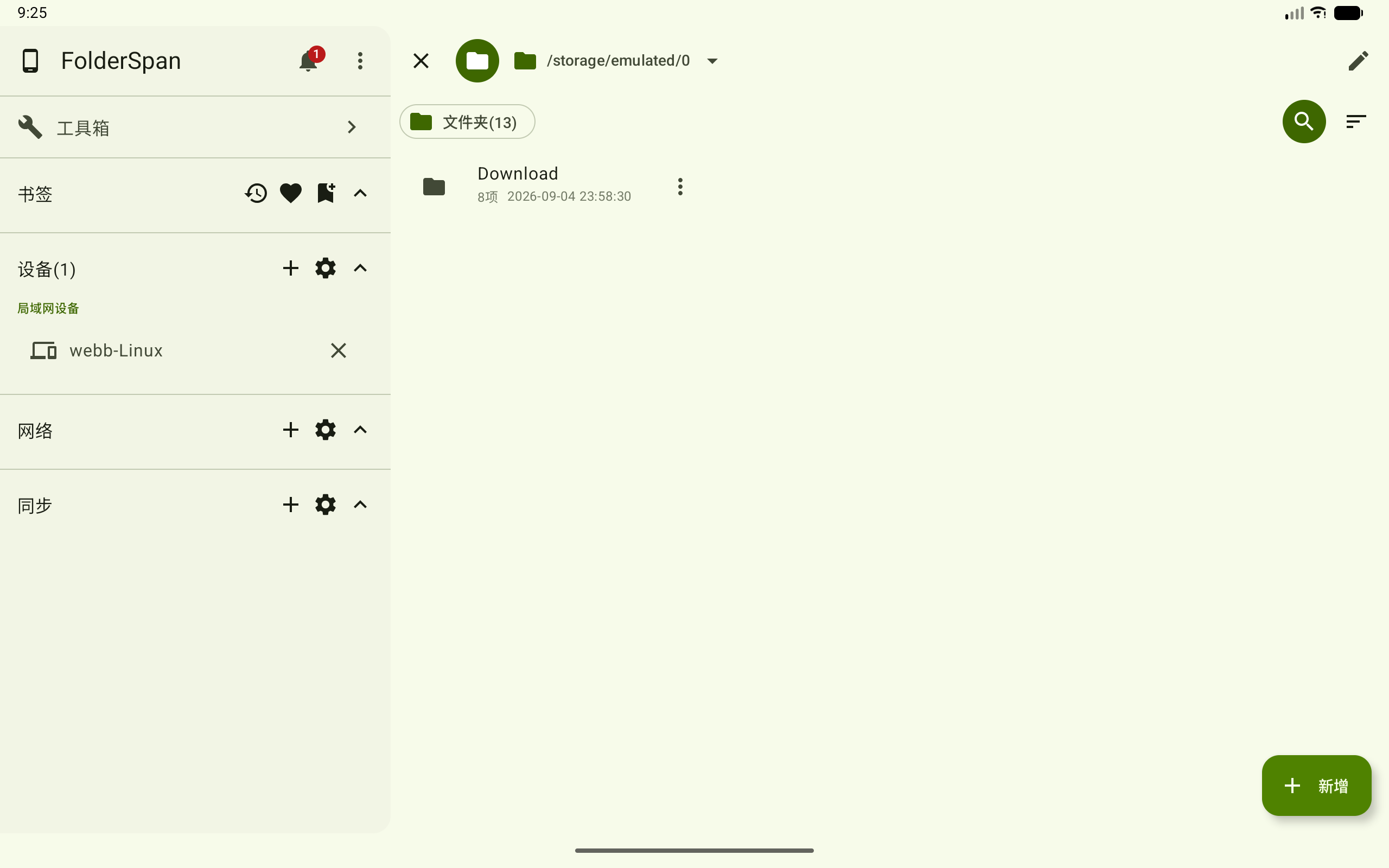
To clear the search, open the dialog again and select Reset. The close icon beside the input clears its text.
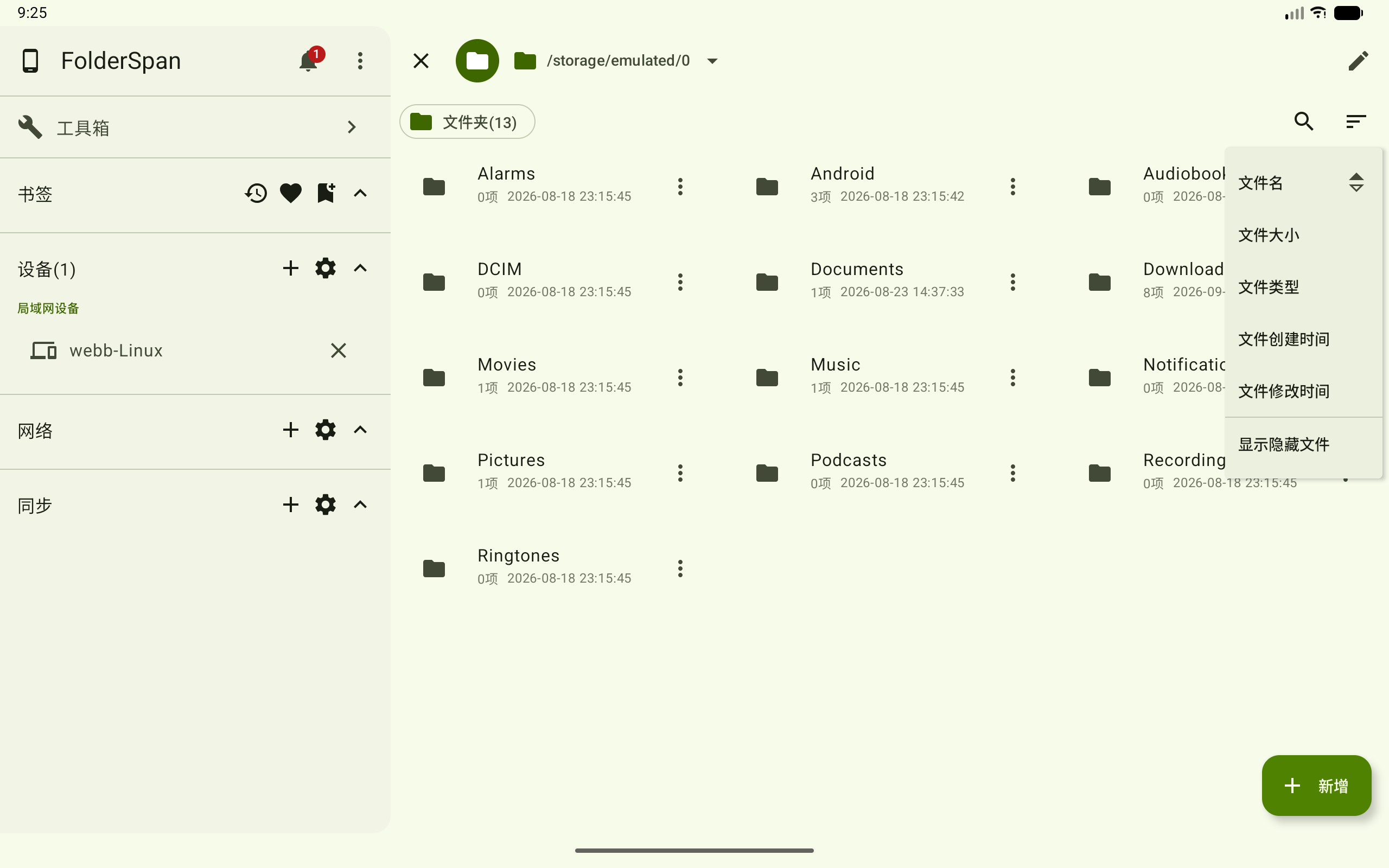
7. Sort and show hidden files
Select the sort button (overview number 8) and choose File name, File size, File type, File creation time, or File modification time. A direction icon marks the current sort field.
Use Show hidden files at the bottom of the menu to change hidden-file visibility.
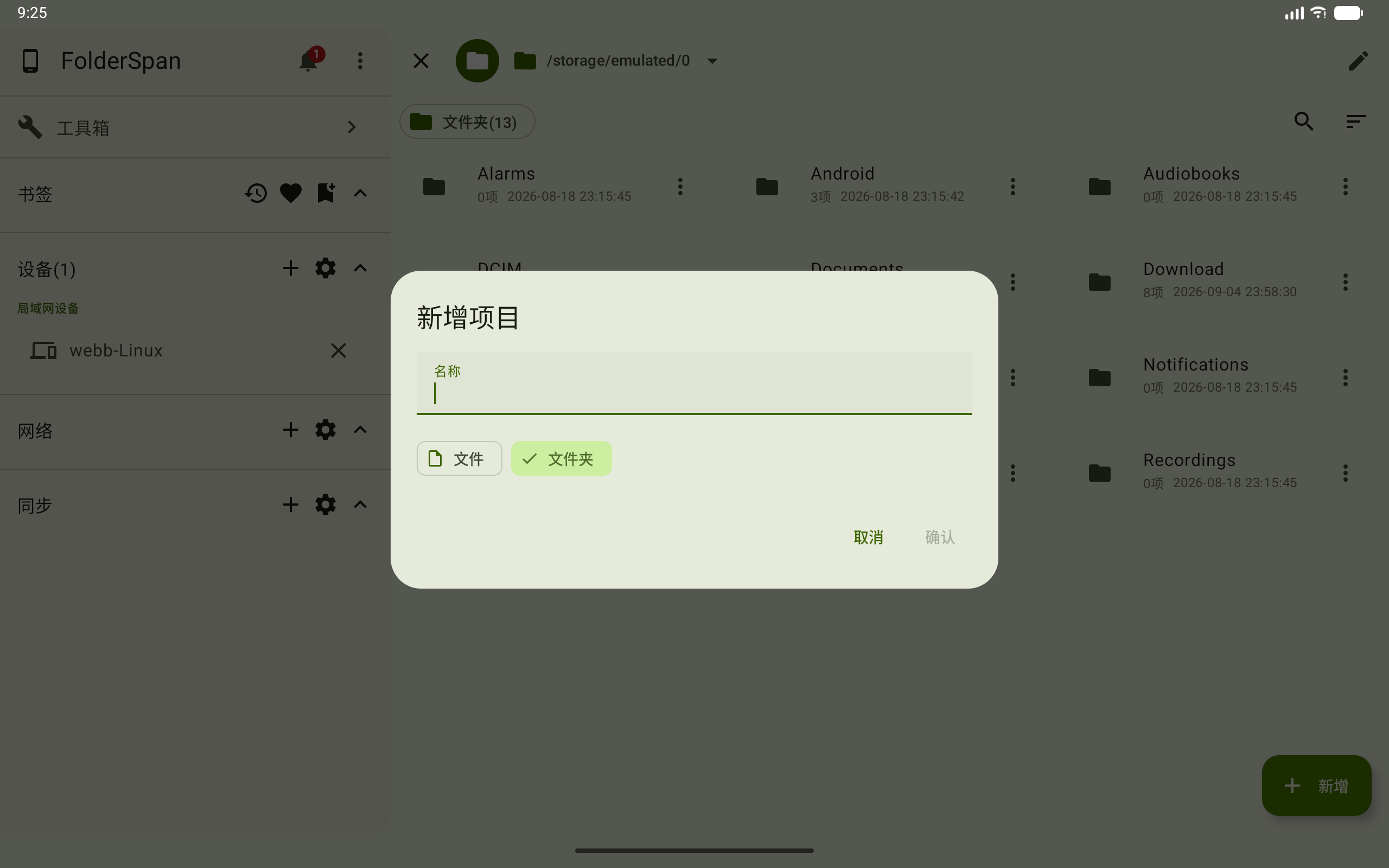
8. Create a file or folder
- Open the target directory and select
Addat the bottom right (overview number11). - Enter a
Namein New item. - Choose
FileorFolder. - Select
Confirmto create it, orCancelto discard the operation.
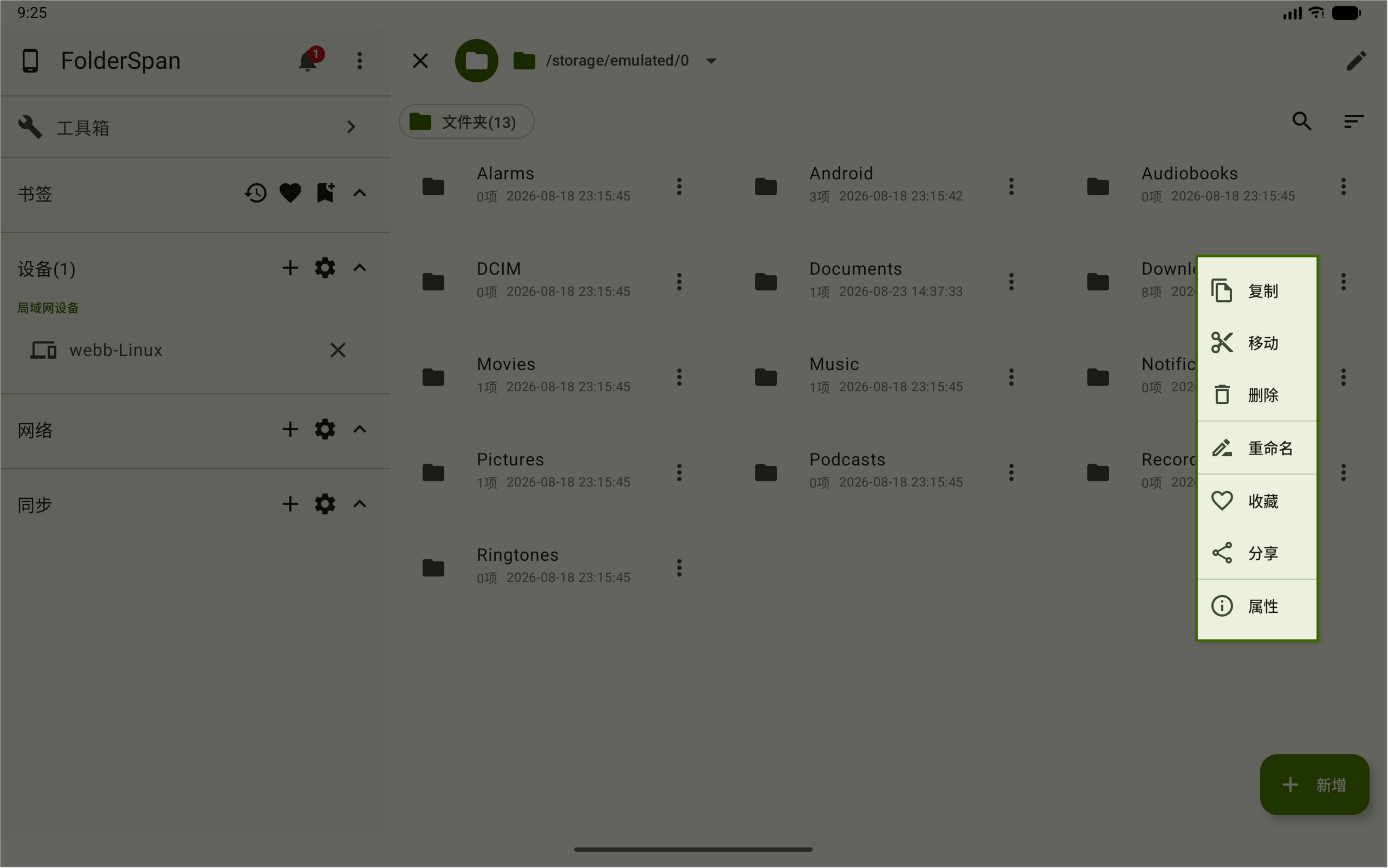
Single-item actions
Open an item's more menu on the right (overview number 9). The example for Download includes Copy, Move, Delete, Rename, Favorite, Share, and Properties.
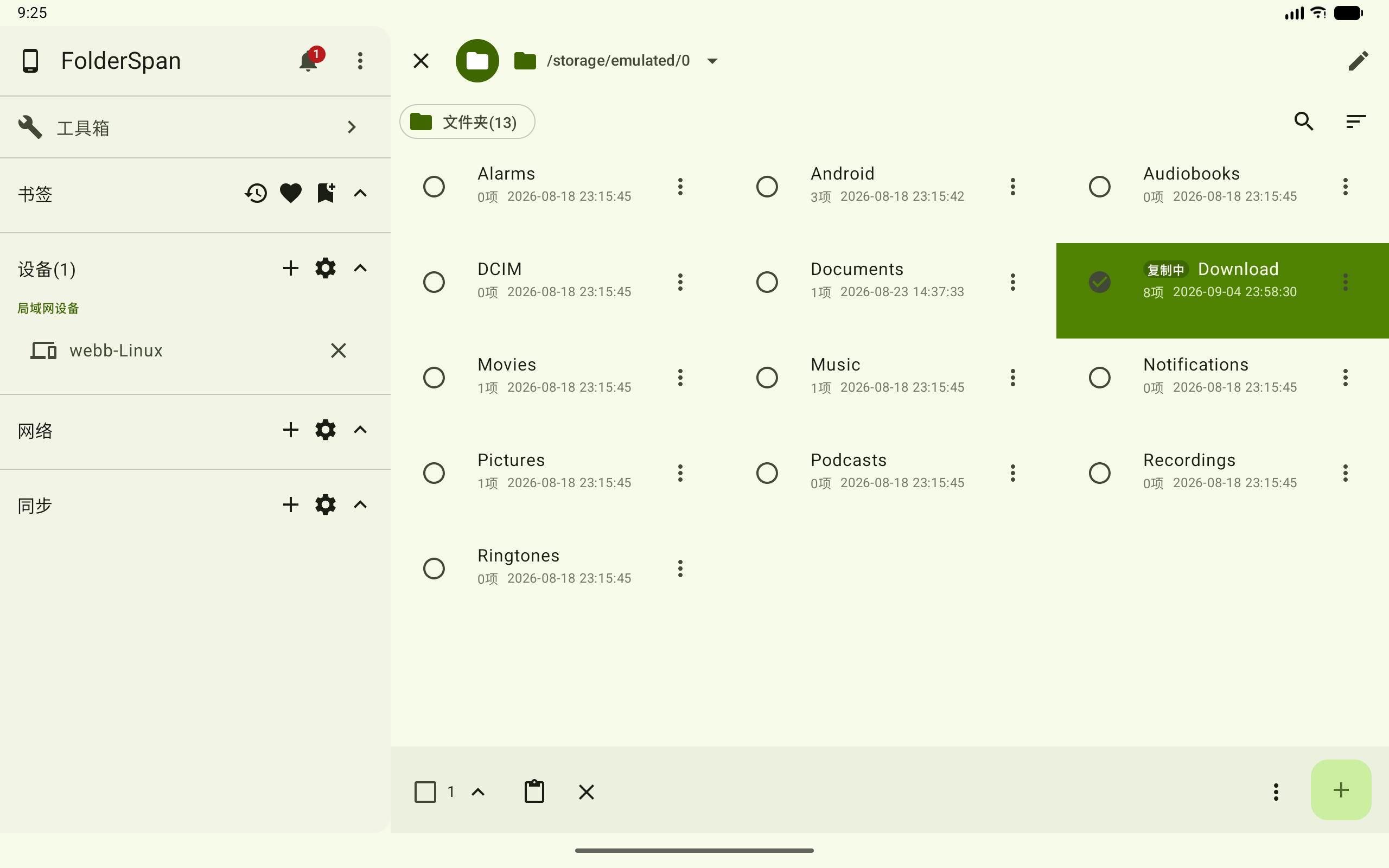
1. Copy
- Choose
Copy. The item is selected and marked as copying, and a paste button appears at the bottom. - Open the destination directory and select the paste button (clipboard icon) to start copying there.
- Select the bottom close button to abandon the operation.
2. Move
- Choose
Move. The item is selected and marked as moving. - Open the destination directory and select the bottom paste button to start moving there.
- Select the bottom close button to abandon the operation.
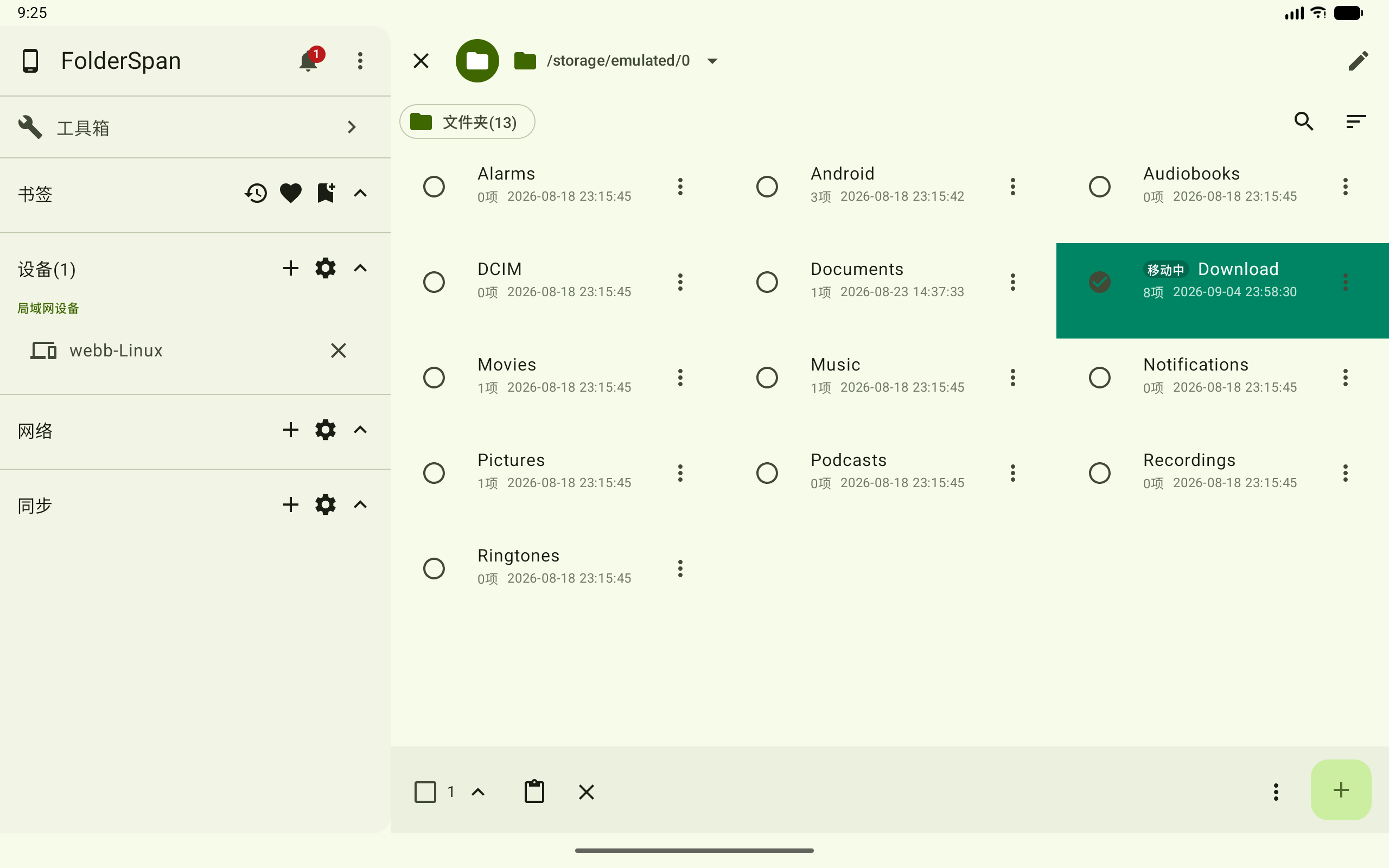
Choosing Copy or Move only prepares the operation; it runs after you open a destination and paste. Copy keeps the original content. Move places it at the destination when complete. View progress in Tasks.
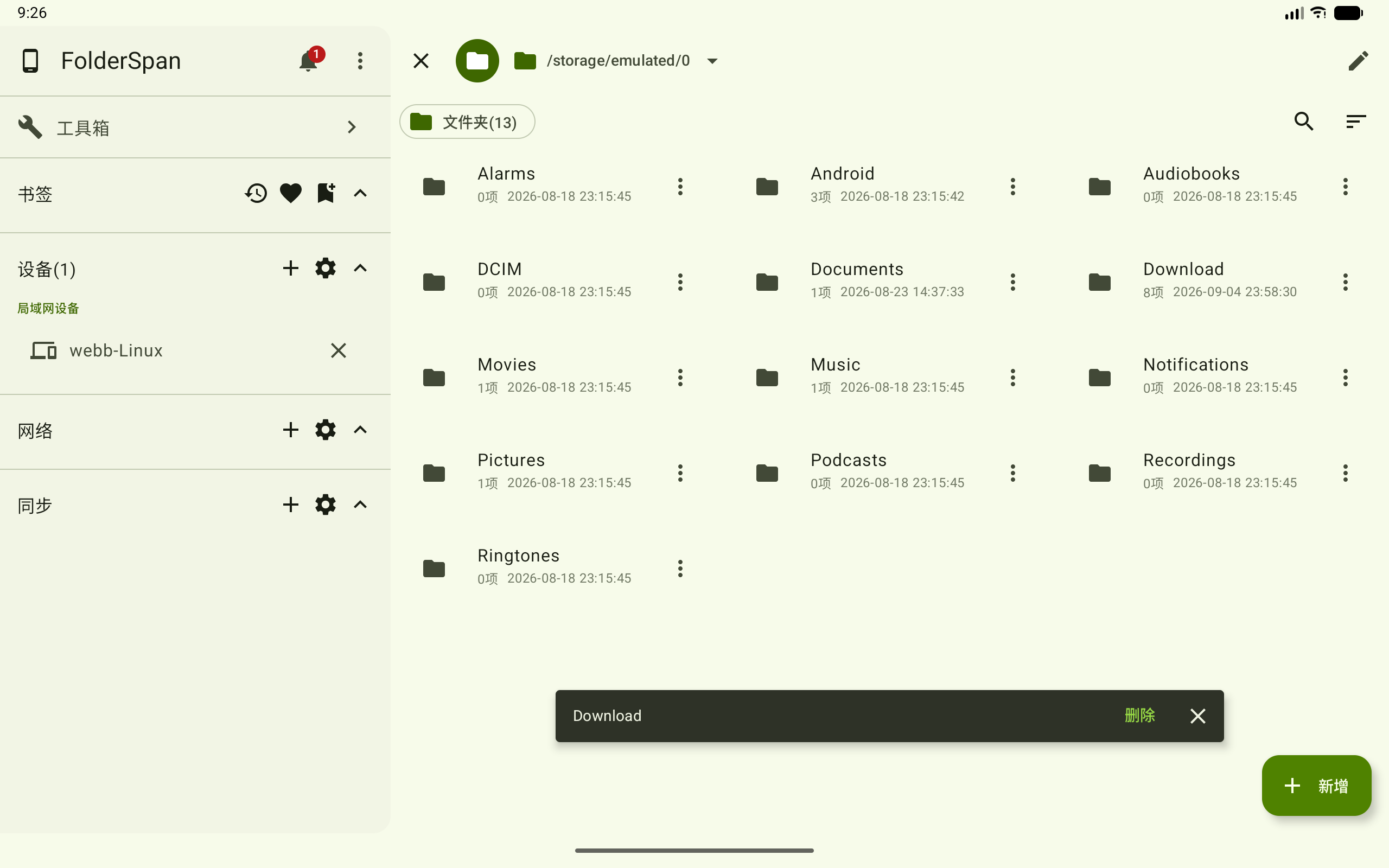
3. Delete
- Choose
Deletefrom the item menu. - Check the item name in the bottom deletion prompt and select
Deleteto confirm. - Close the prompt with its right-hand button to cancel.
This deletes the actual file or folder. Deleting a folder also deletes its contents.
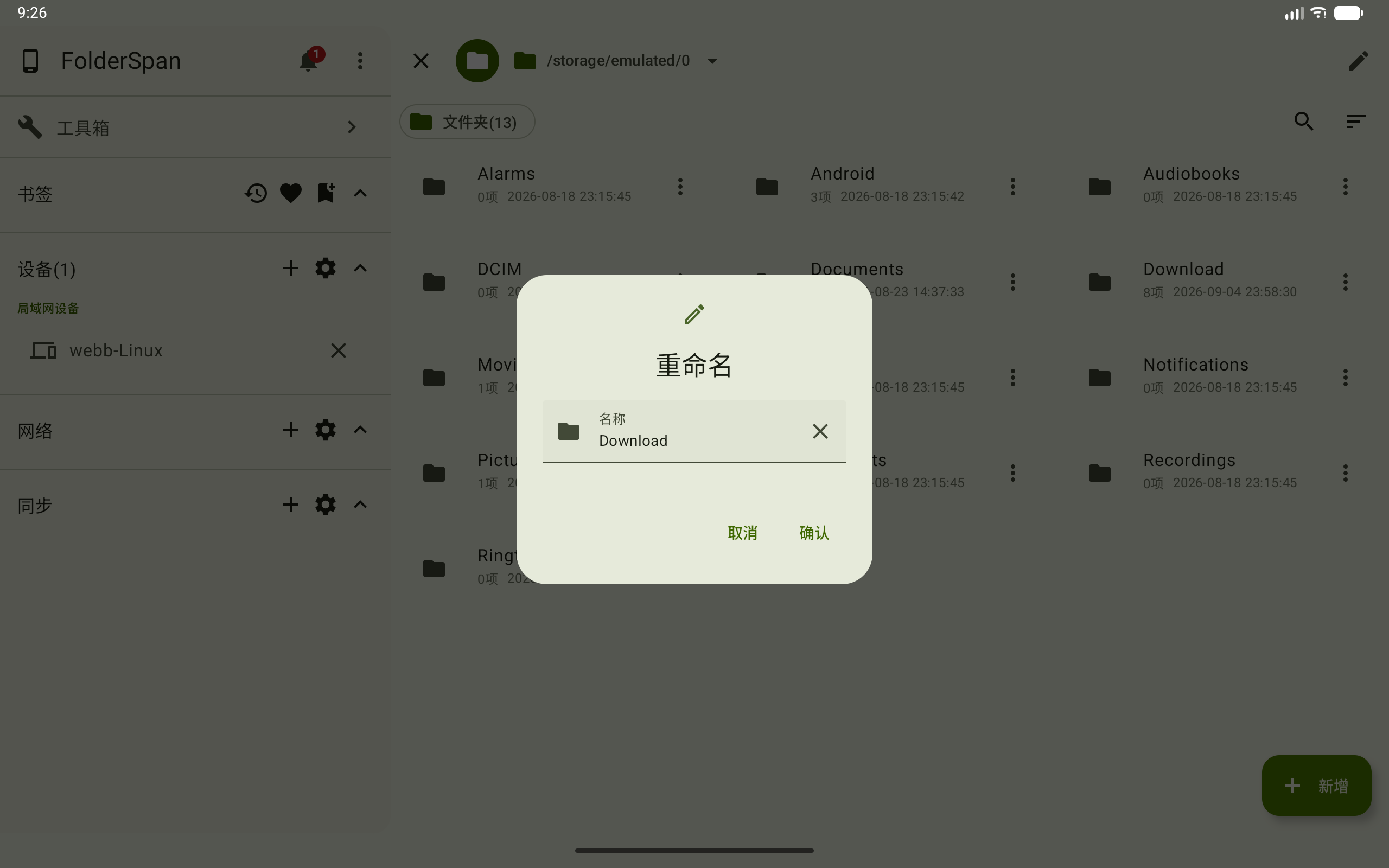
4. Rename
- Choose
Renameto open its dialog. - Change the
Nameand selectConfirm. - Select
Cancelto discard changes.
5. Favorite and share
- Favorite: choose
Favoriteon a directory to save it to Favorites for later access. - Share: choose
Shareto start sharing an item. See Sharing management for sharing methods and receiving content.
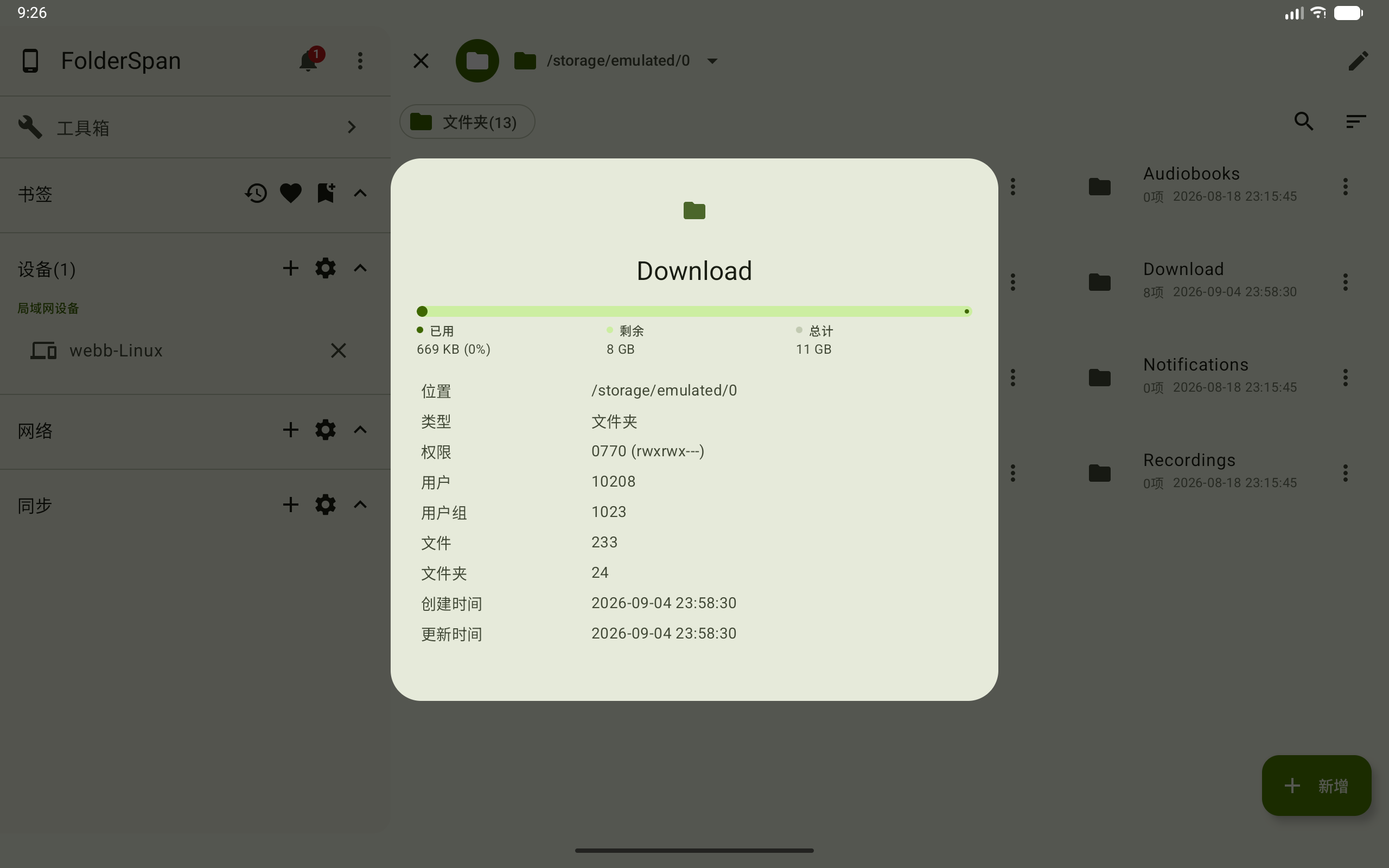
6. View properties
Choose Properties to open the details dialog. The Download folder example includes:
- Capacity:
Used,Free, andTotal. - Location and type: the path and whether the item is a file or folder.
- Permissions:
Permissions,User, andGroup. - Content counts: numbers of
FilesandFolders. - Times:
Creation timeandUpdate time.
Batch actions
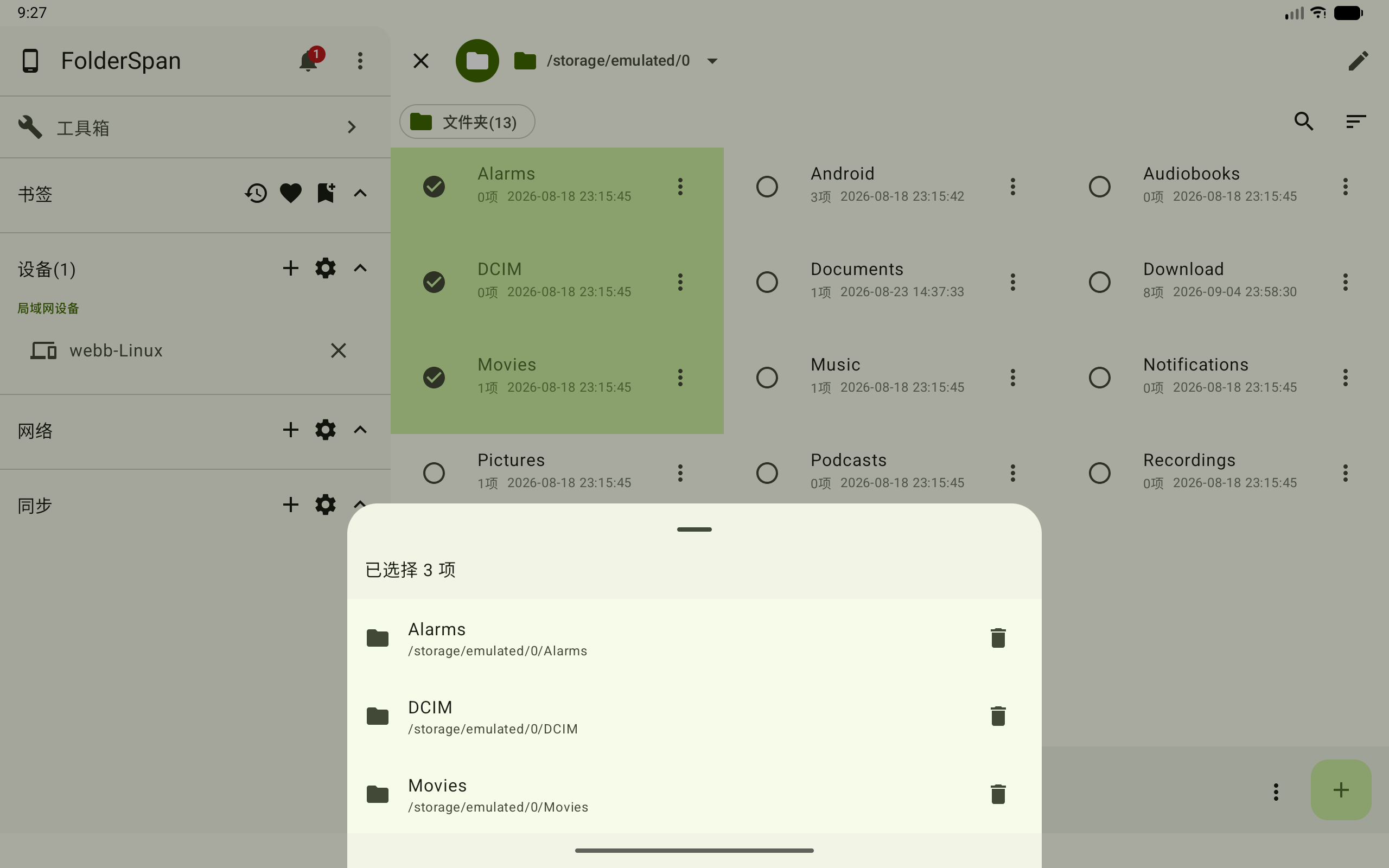
Selecting an item's type icon enters multi-select mode and opens the bottom toolbar. The example selects Alarms, DCIM, and Movies, so the count is 3.
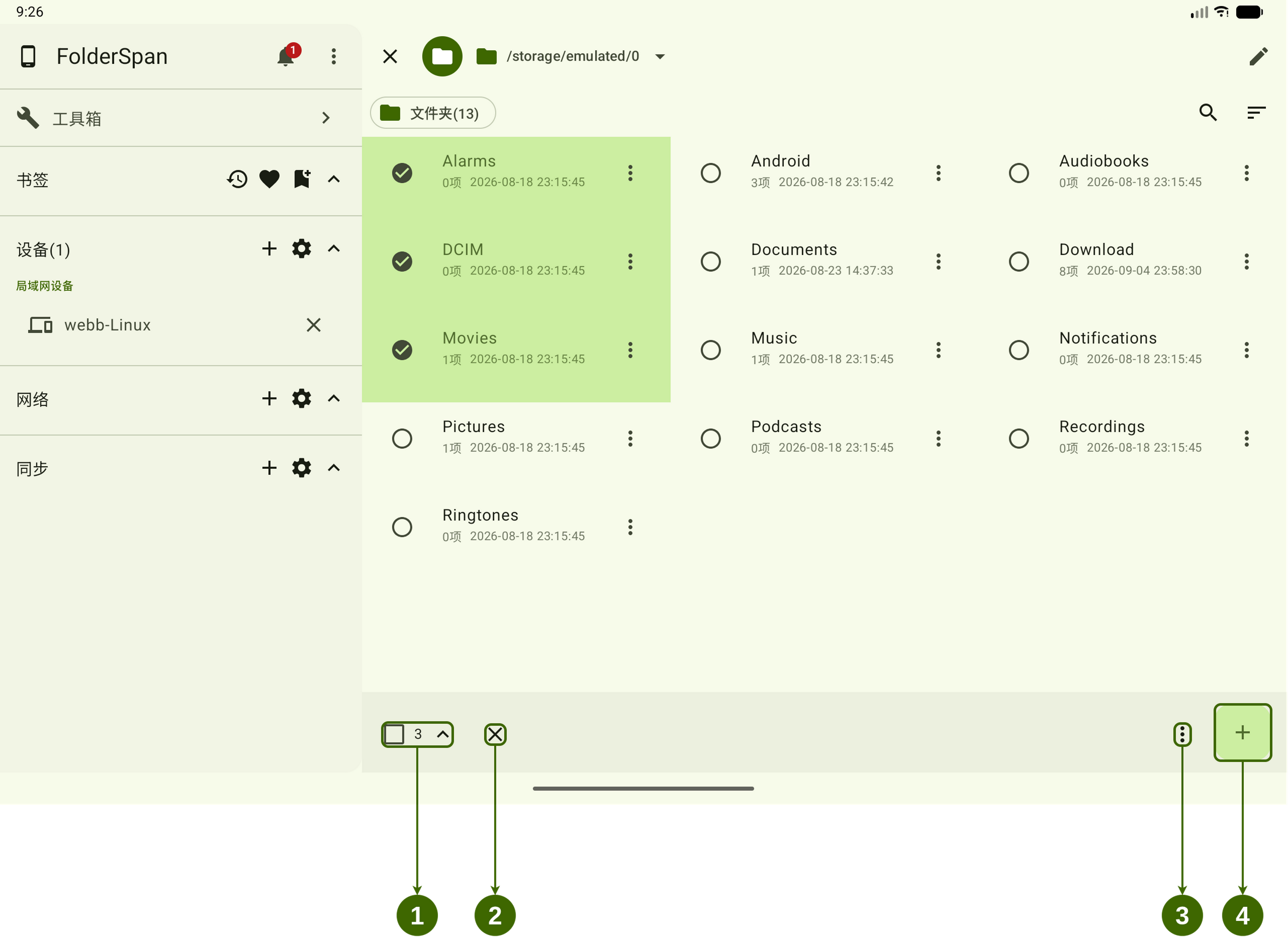
Bottom toolbar (numbers in the selection screenshot):
- Select all and selected-items list: the left checkbox selects or deselects all items. The middle number is the selected count. The arrow on the right expands the selected names and paths.
- Exit selection: leaves multi-select mode.
- Batch menu: provides
Copy,Move,Delete,Favorite,Share, andPropertiesfor the selection. - Add: the plus button opens New item to create a file or folder in the current directory.
1. Select several items
- While browsing, select any item's type icon on the left (overview number
10). - Select other items' circles to add them, or select a checked item again to deselect it.
- Use the bottom-left select-all checkbox (selection screenshot number
1) to select all items; select it again to clear the selection. - Check the selection marks and count before proceeding.
2. View the selected-items list
- Select the arrow beside the bottom selected count (selection screenshot number
1). - Check
N items selectedat the top, and verify each name and full path. - Use an item's remove button to deselect it. This changes the selection only; it does not delete the original file or folder.
3. Run a batch action
After checking the selection, open the bottom toolbar's more menu (selection screenshot number 3) and choose an action.
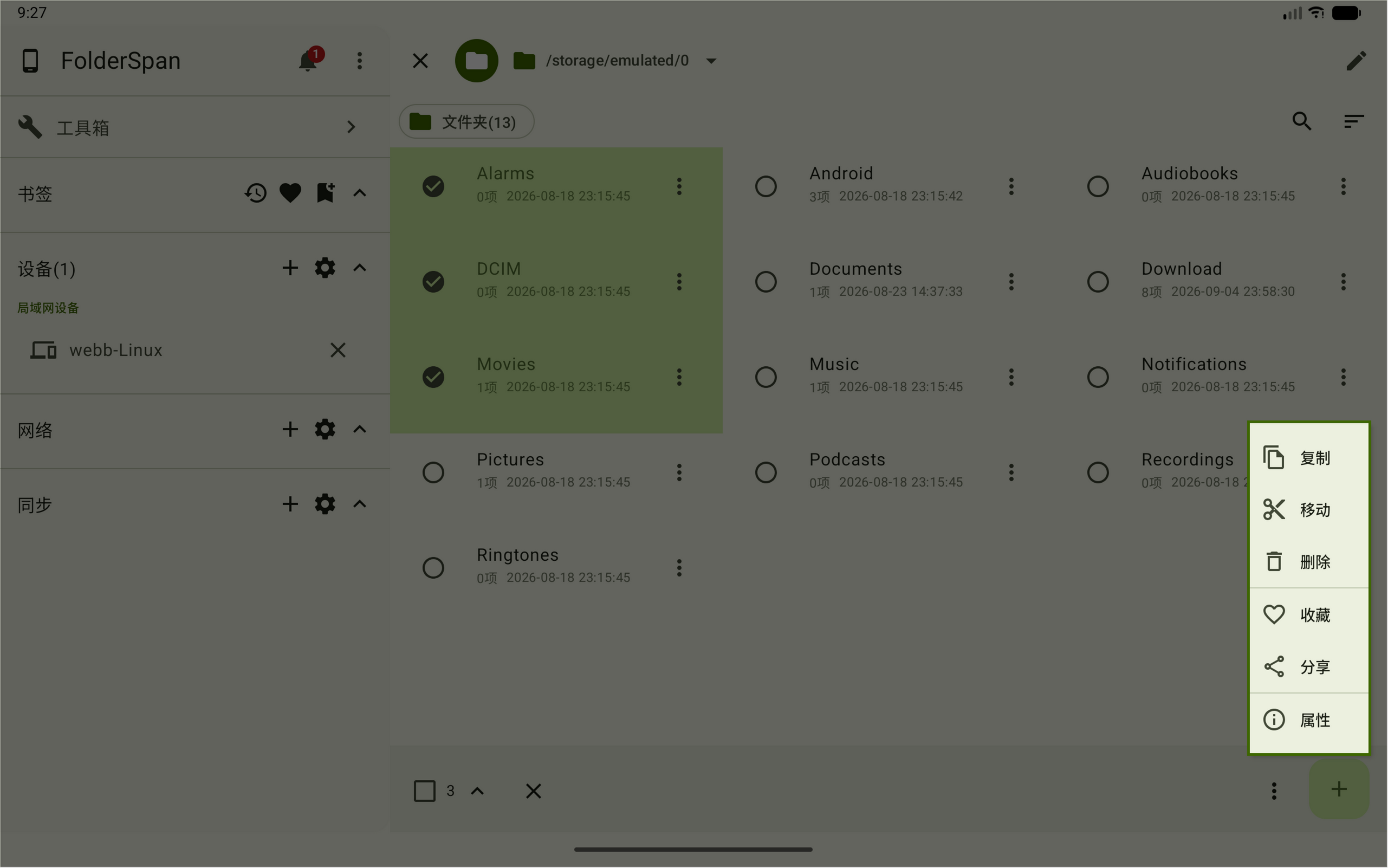
Copy: prepares the selected content. Open a destination and select the bottom paste button to run it.Move: prepares the selected content. Open a destination and select the bottom paste button to run it.Delete: shows a prompt. Check the targets and selectDelete, or close the prompt to cancel.Favorite: saves the selected directories to Favorites.Share: starts sharing the selected items.Properties: shows properties for the selection.
4. Create an item in selection mode
Select the plus button at the far right (selection screenshot number 4). In New item, enter a Name, choose File or Folder, and select Confirm to create it in the current directory. Select Cancel to discard the operation.
5. Exit multi-select mode
Select the bottom toolbar's close button (selection screenshot number 2) to return to normal file browsing.