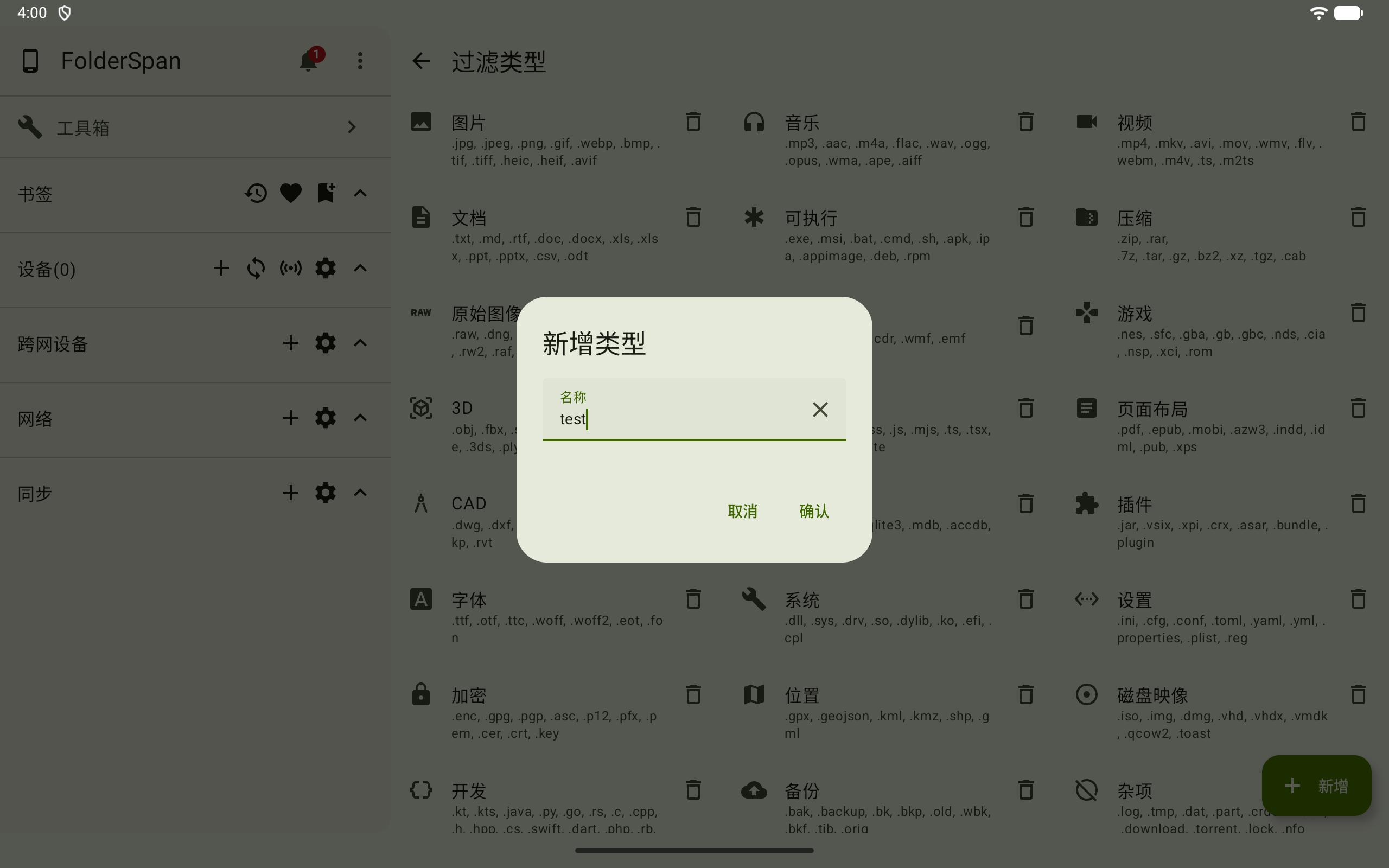
Filter type management
Home → Toolbox → Filter type management
Manage the categories used by the file list's type filter. The page shows each type and its extensions and lets you open extension management, add types, and delete types.
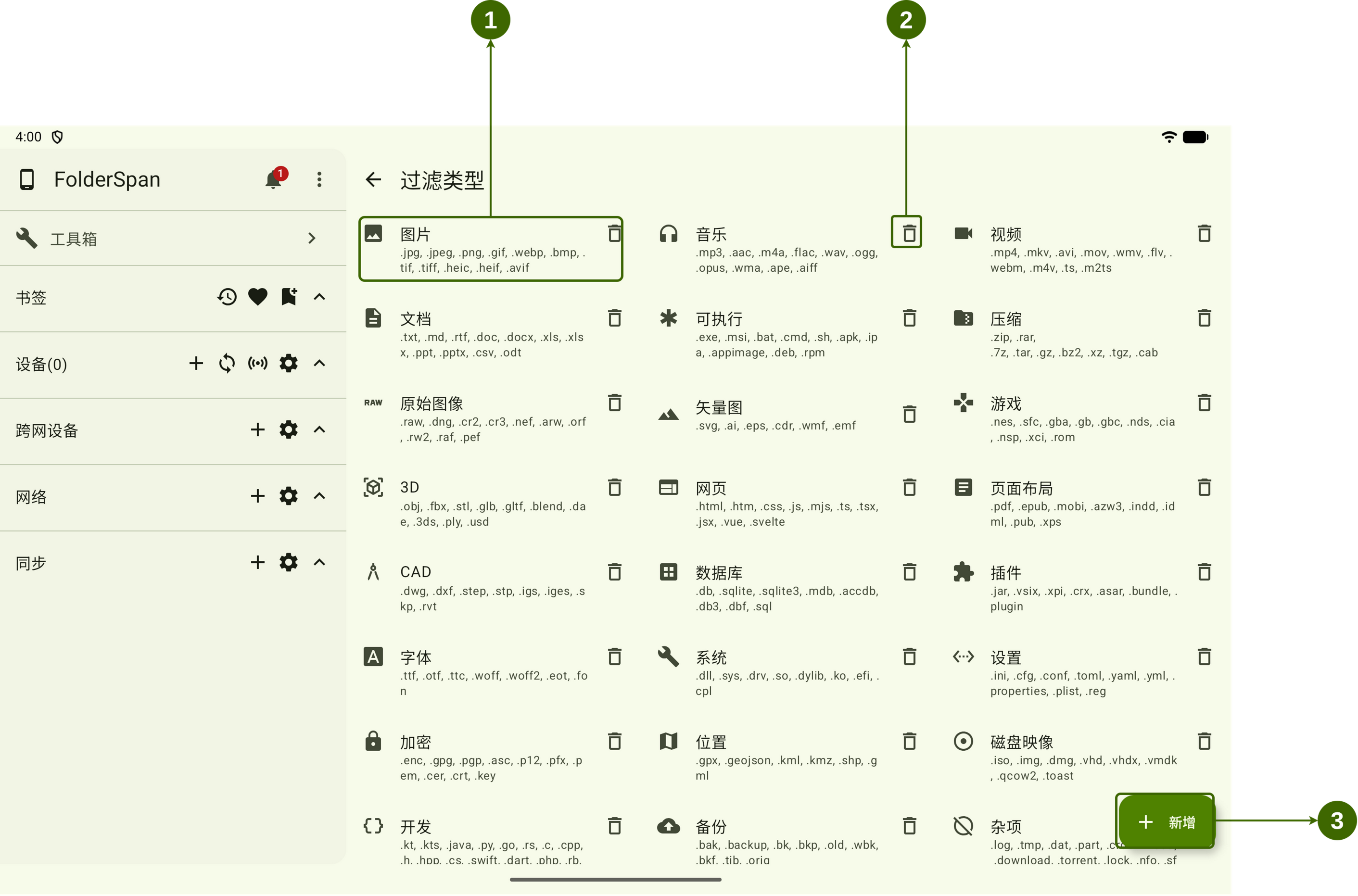
Page layout (screenshot numbers)
- Filter type entry: shows its icon, name, and extensions. Select it to open Filter extensions.
- Delete button: deletes the current type.
- Add button: opens New type.
Features
- Type name: distinguishes categories in the filter bar and management page, such as
Pictures,Music,Documents, andWeb pages. - File extensions: the extensions assigned to the type. Files are classified by extension.
- Extension management: open a type to view and maintain its extensions.
Operations
1. Manage a type's extensions
Select a type to open its Filter extensions page, then view, add, or delete extensions.
See Filter extensions for the steps.
2. Delete a type
- Select the delete button to the right of the type.
- A confirmation bar with the type name appears at the bottom.
- Select
Deleteto confirm, or close the bar to cancel.
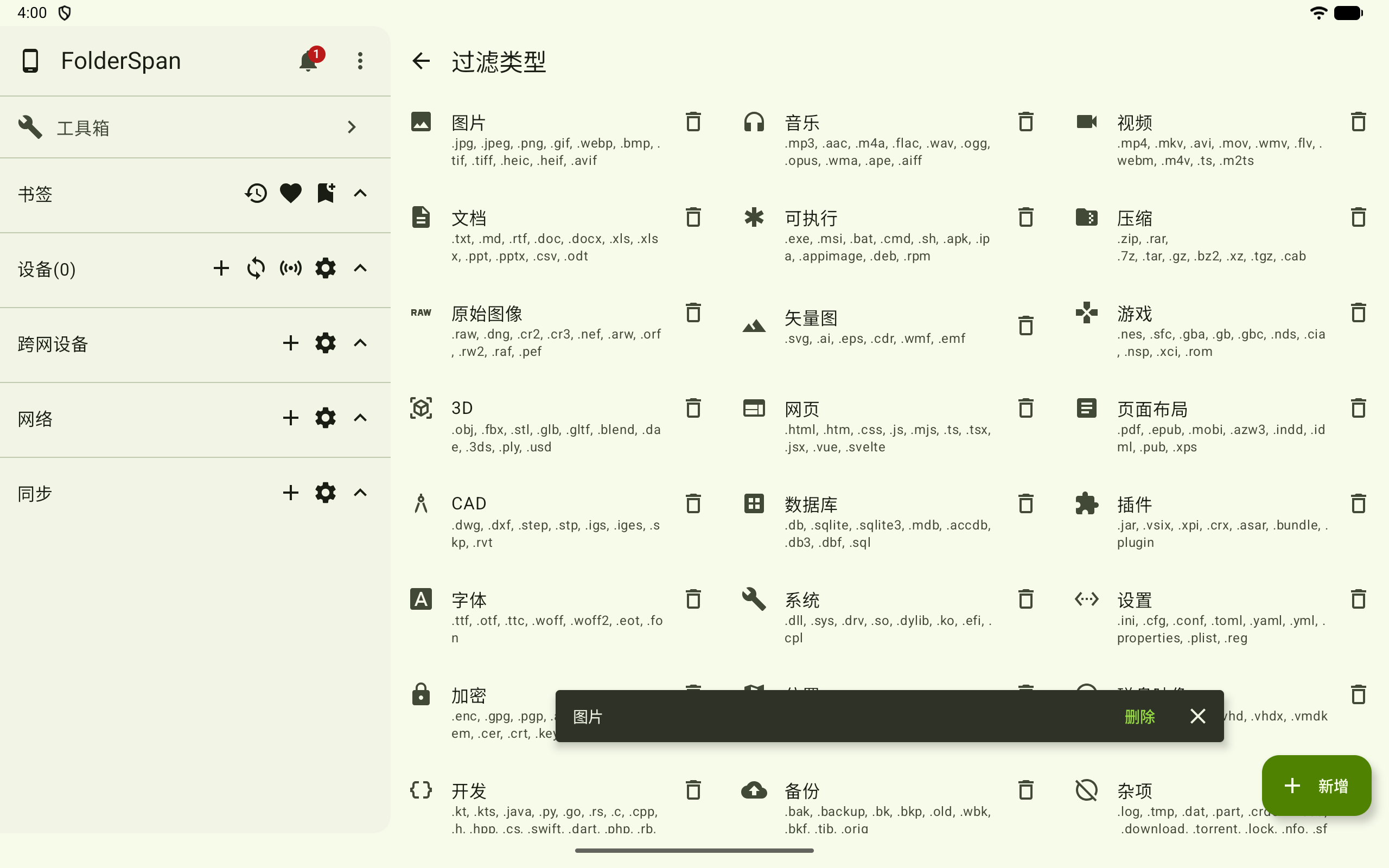
3. Add a type
- Select
Addat the bottom right. - Enter the type's
Namein New type. - Select
Confirmto add it, orCancelto close without saving.