Notifications
Notifications collect device requests, transfer results, storage and sync states, and announcements. Filter by category and read state, view details, handle device requests, or update and delete several notifications together.
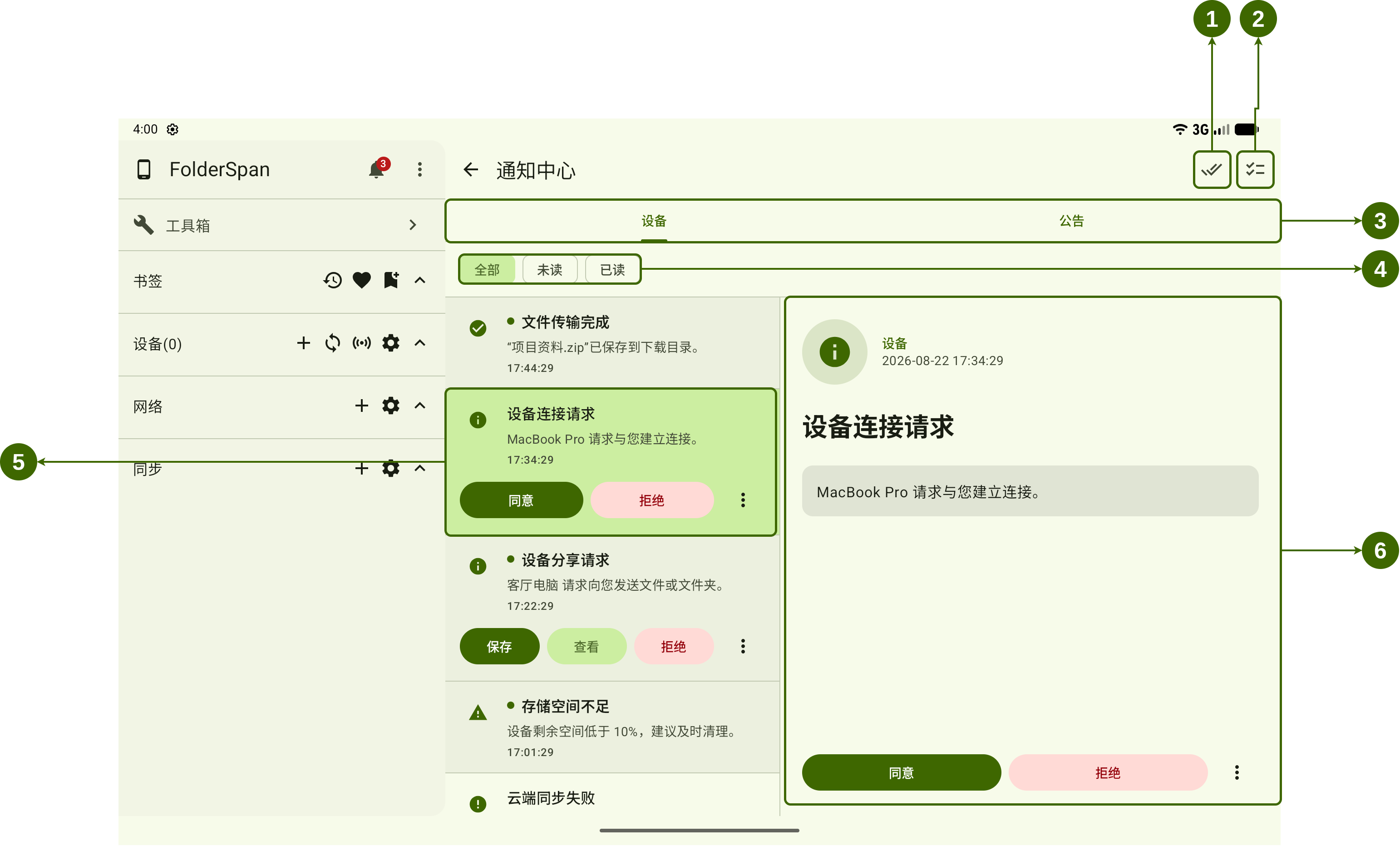
Page layout (screenshot numbers)
- Mark all read: the double-check button marks notifications as read together.
- Batch management: enters selection mode to mark several notifications read or unread, or delete them.
- Categories: switch between
DevicesandAnnouncements. - Read-state filter: choose
All,Unread, orReadwithin the current category. - Selected notification: a green background marks the selection. It shows the title, summary, time, and shortcuts such as
AcceptandReject. - Details and actions: shows the source, time, and full content, with actions appropriate to the notification type at the bottom.
Notification types and actions
- Device notifications: device connection requests, device sharing requests, transfer results, storage reminders, cloud sync states, and related messages.
- Announcements: announcement messages, filtered separately from device notifications.
- Device connection request: check the requesting device, then choose
AcceptorReject. - Device sharing request: choose
Save,View, orReject, depending on the actions available in the notification. - More actions: open the more button on the right for additional actions available to that notification.
Operations
1. Filter and view notifications
Choose Devices or Announcements in area 3, then All, Unread, or Read in area 4. Selecting a notification highlights it in area 5 and shows its source, time, and full content in area 6.
2. Handle one request
Select the request, check its content in area 6, then choose an action:
- For a device connection request, choose
Acceptto connect orRejectto decline. - For a device sharing request, choose
Save,View, orRejectas needed.
The shortcuts in area 5 and the buttons at the bottom of area 6 act on the same notification. You can use either.
3. Mark all notifications read
Select the double-check button (number 1) to mark notifications as read together. Use selection mode if you only want to update some of them.
4. Manage notifications in bulk
Select batch management (number 2), then select notifications. The header shows the count, and Select all selects the current list.
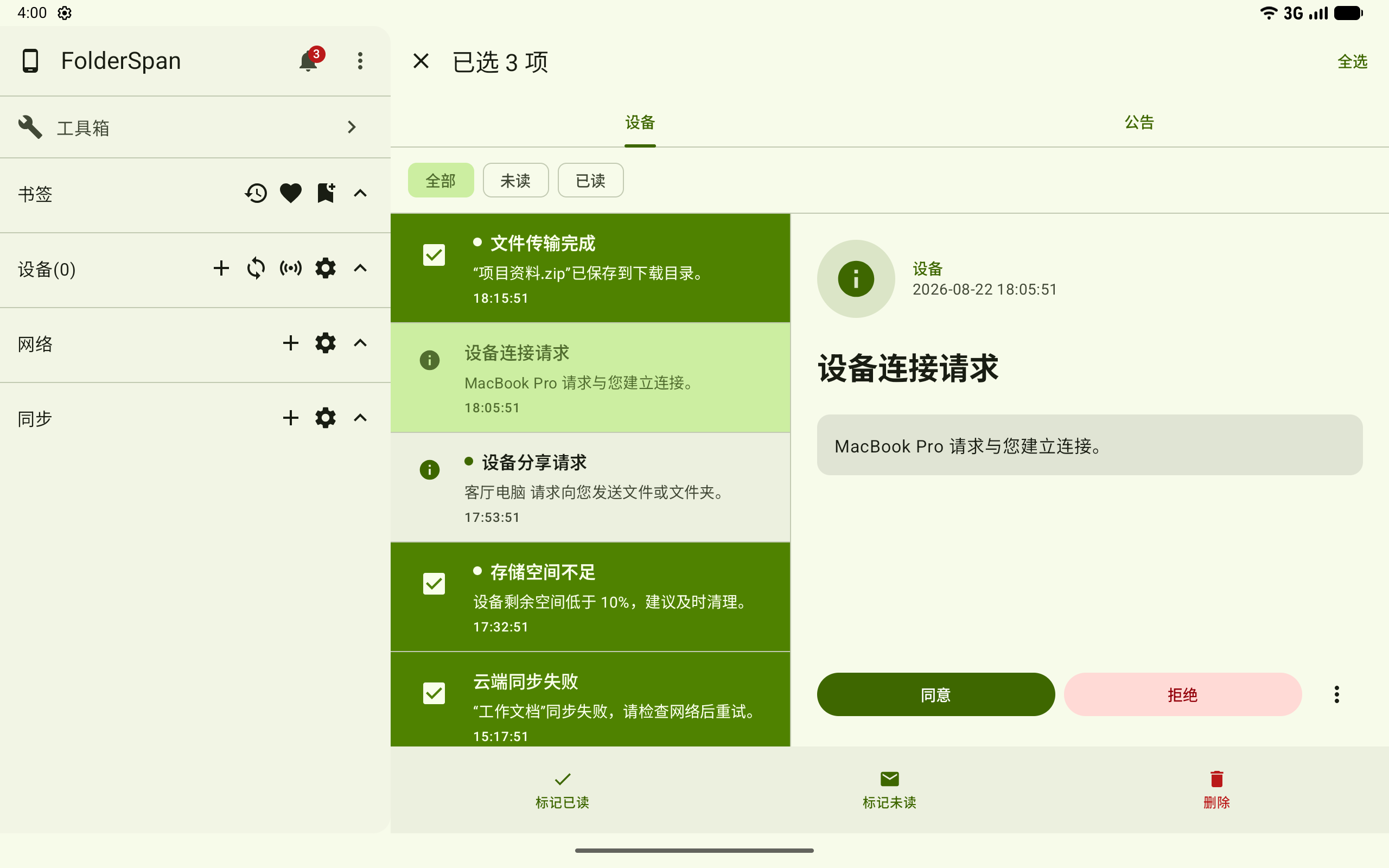
Use the bottom toolbar:
Mark read: marks selected notifications as read.Mark unread: marks selected notifications as unread.Delete: deletes selected notifications.
Close with the top-left button to leave selection mode.
Related documentation
- Tasks: view the progress and results of file tasks mentioned in notifications.