Recent items
Recent items lists files and directories you have visited so you can open them again. Filter by name, path, protocol, file type, or time range, and select and remove history entries you no longer need.
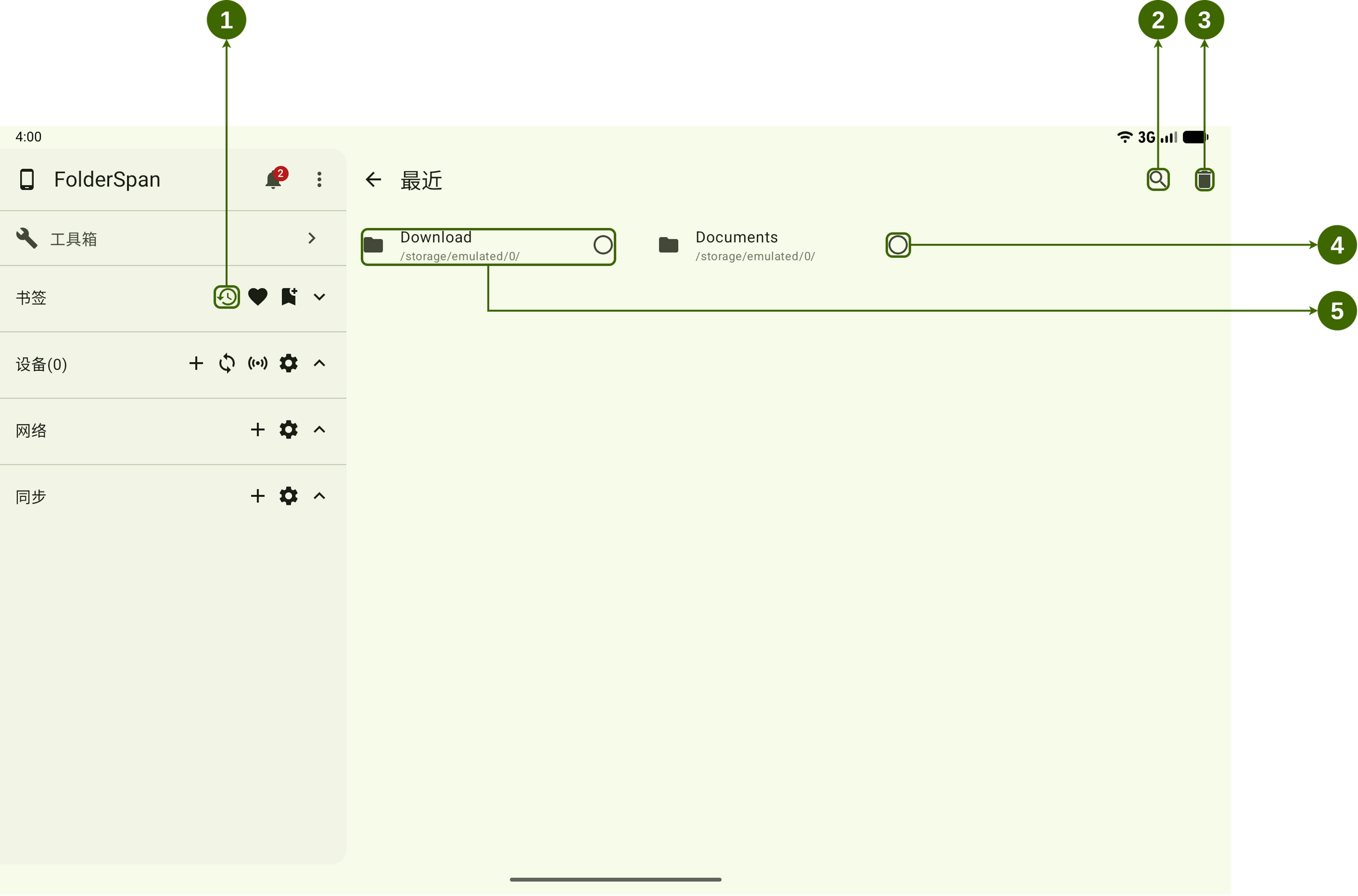
Page layout (screenshot numbers)
- Recent shortcut: opens this page from the sidebar's bookmark area.
- Search button: opens search and filters for history entries.
- Delete button: opens a deletion prompt after entries are selected.
- Selection button: selects or deselects a history entry. The screenshot points to
Documents. - Recent-item card: shows its type icon, name, and path. Select it to open the location.
Entry information
- Type icon: identifies a file or directory.
- Name: the visited item's name, such as
DownloadorDocuments. - Path: its location, such as
/storage/emulated/0/. - Selection state: an empty circle becomes a checkmark when selected, and the card has a green background.
Operations
1. Open Recent items
Select the Recent button in the sidebar's bookmark area (number 1). The page lists existing history entries.
2. Open a recent item
Select a card (number 5) to open the corresponding file or directory location.
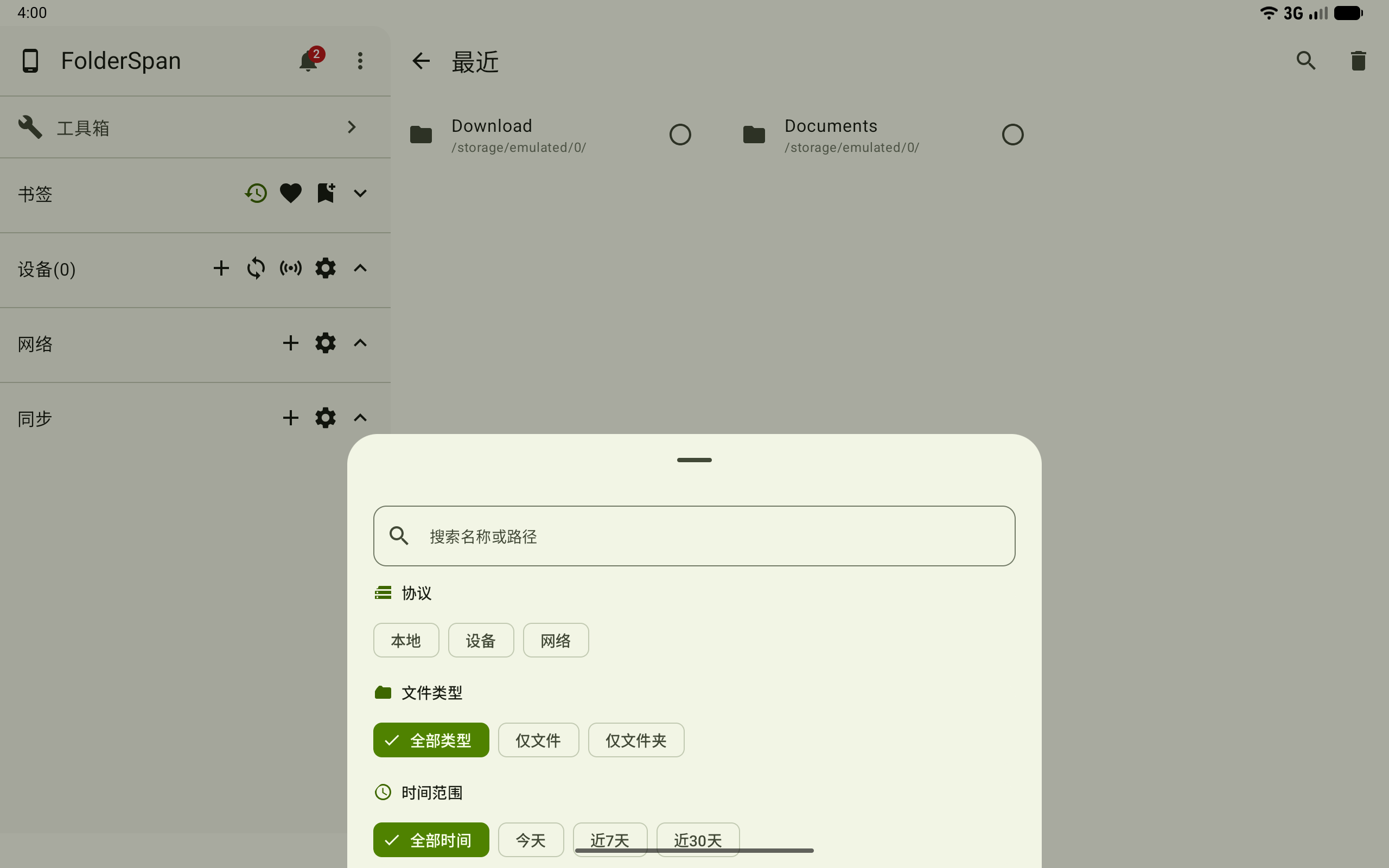
3. Search and filter history
Select the search button at the top (number 2). Available conditions include:
Search name or path: a file name, directory name, or path keyword.Protocol:Local,Device, orNetwork.File type:All types,Files only, orFolders only.Time range:All time,Today,Last 7 days, orLast 30 days.
4. Select history entries
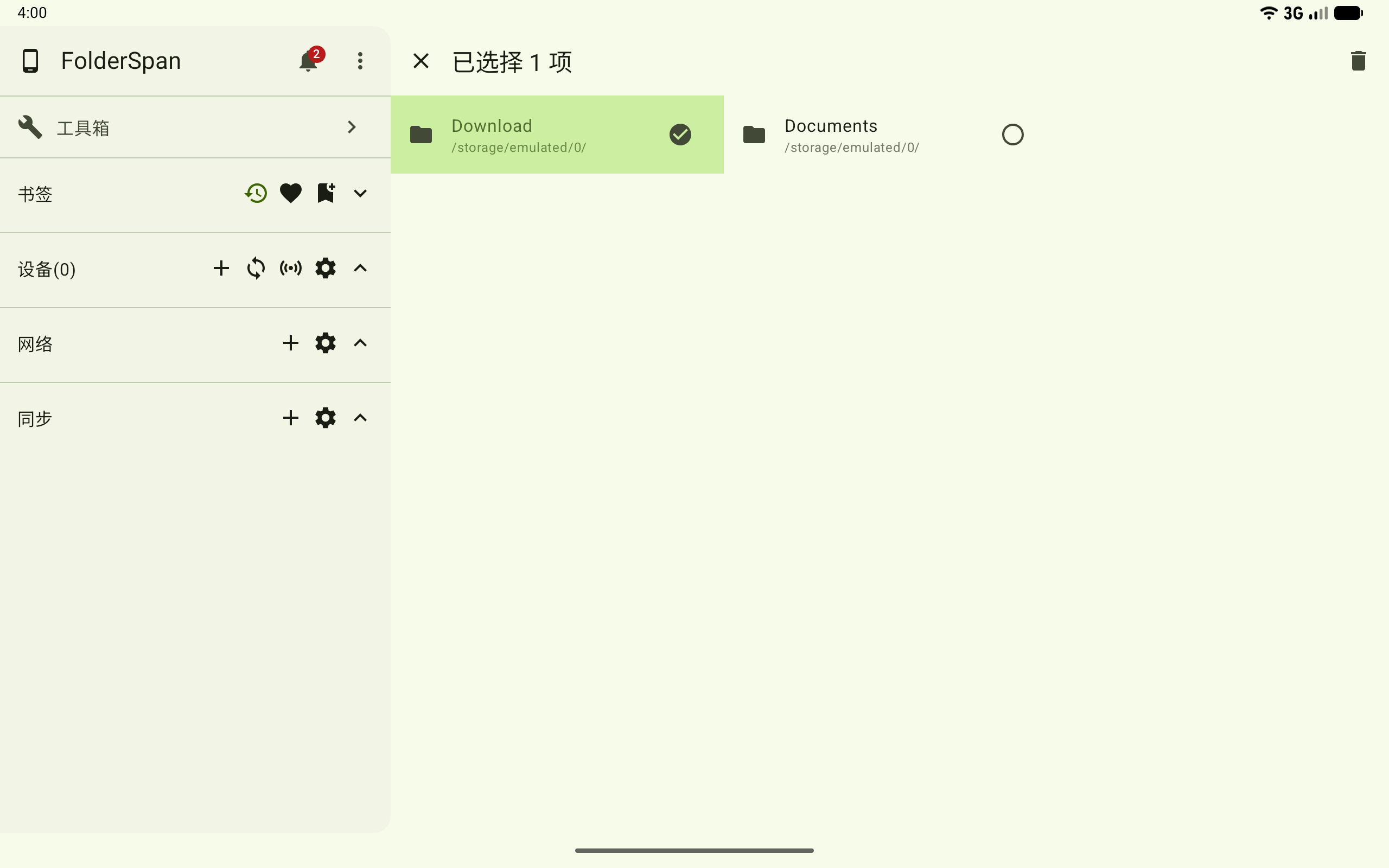
- Select an entry's right-hand selection button (number
4) to enter selection mode. - Select more entries to include them, or select a checked entry again to deselect it.
- The header shows
N items selected; selected entries have a green background and a checkmark. - Close with the top-left button to leave selection mode.
5. Delete history entries
- Enter selection mode and select the entries to remove.
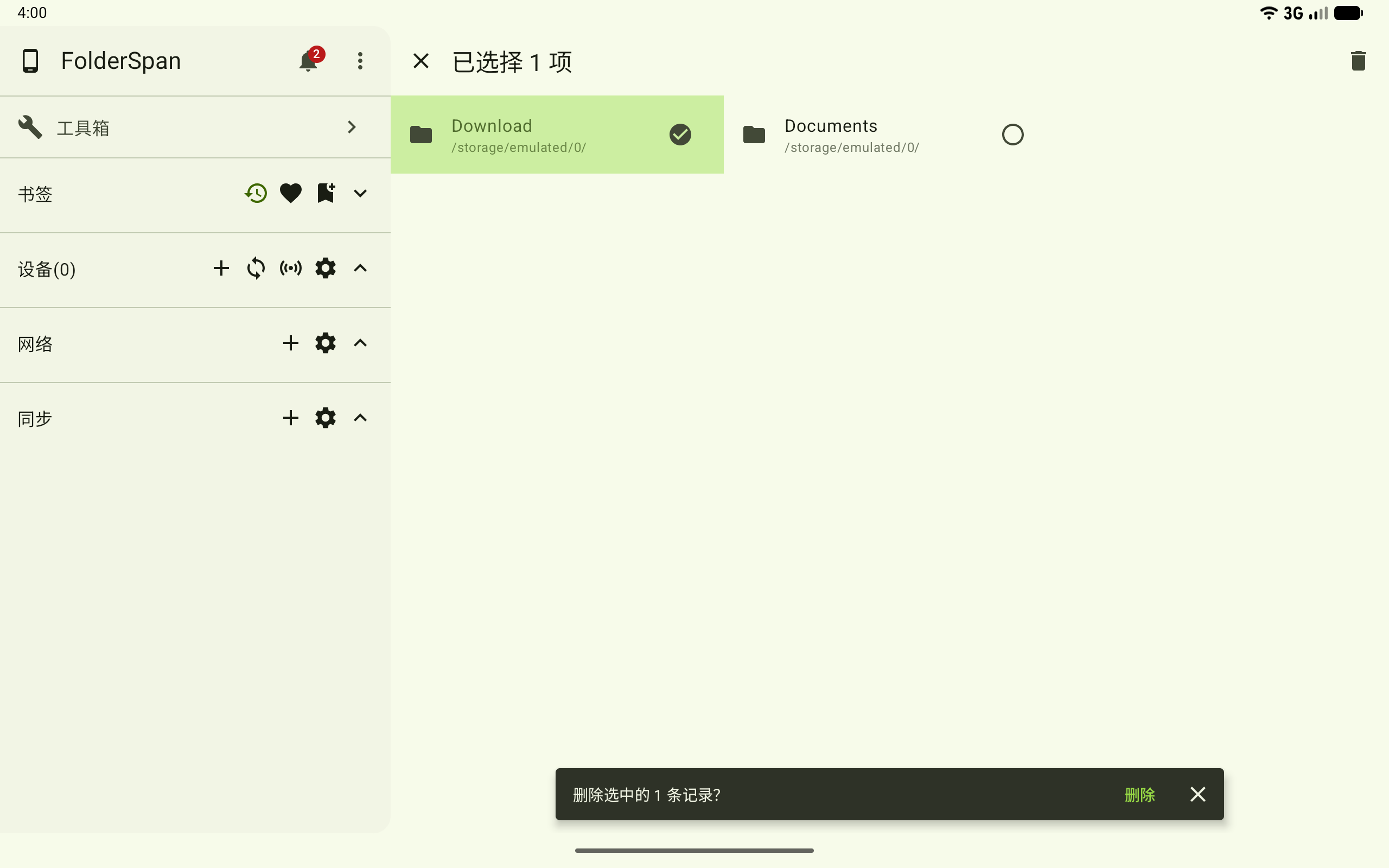
- Select the top delete button (number
3). - When
Delete N selected records?appears at the bottom, selectDeleteto confirm, or close the prompt to cancel.
This removes history entries only. It does not delete the original files or directories.
Related documentation
- Files: continue browsing and managing files after opening a recent location.