Tasks
Task management shows the progress of file operations such as copying, moving, and deleting. Filter by state, pause, resume, or cancel one task, view detailed progress, or manage several tasks in selection mode.
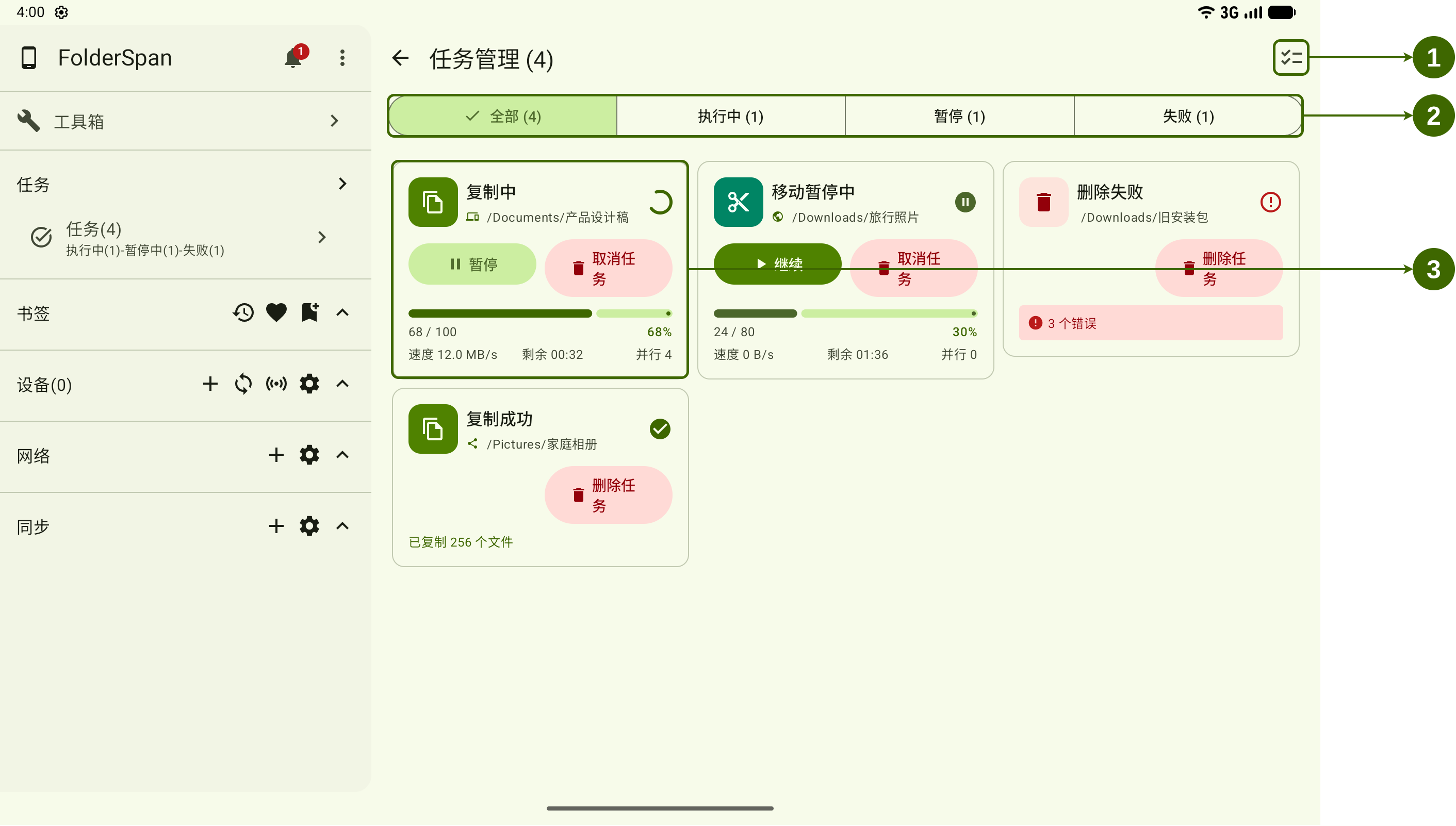
Page layout (screenshot numbers)
- Batch management button: enters multi-select mode to pause, resume, or delete several tasks.
- State filter bar: switches between
All,Running,Paused, andFailed, with counts in parentheses. - Task card: shows the task type, state, related paths, progress, and available actions. Select it for details.
States and information
- Running: processing files. The card shows completed and total counts, percentage, speed, estimated remaining time, and parallelism. Available actions include
PauseandCancel task. - Paused: further processing has stopped temporarily. Progress is retained, and
ResumeorCancel taskis available. - Failed: the task did not finish and shows an error count. After addressing the problem, use
Delete taskto remove its entry. - Successful: the task finished and shows the processed-file count. Use
Delete taskto clear its entry.
Information varies by state. A failed deletion without progress mainly shows errors; completed tasks mainly show results.
Operations
1. Filter tasks
Select All, Running, Paused, or Failed in the top filter bar. Successful tasks have no dedicated filter; find them under All.
2. Control one task
Use the actions available for its current state:
Pauseon a running task temporarily stops further processing.Resumeon a paused task continues from its current progress.Cancel taskends a running or paused operation.Delete taskremoves a failed or successful entry from the list.
Use Cancel task to end unfinished work and Delete task to clear failed or completed entries.
3. View task details
Select a task card to open its details. The dialog shows total, completed, and remaining counts, speed, estimated remaining time, and parallelism.
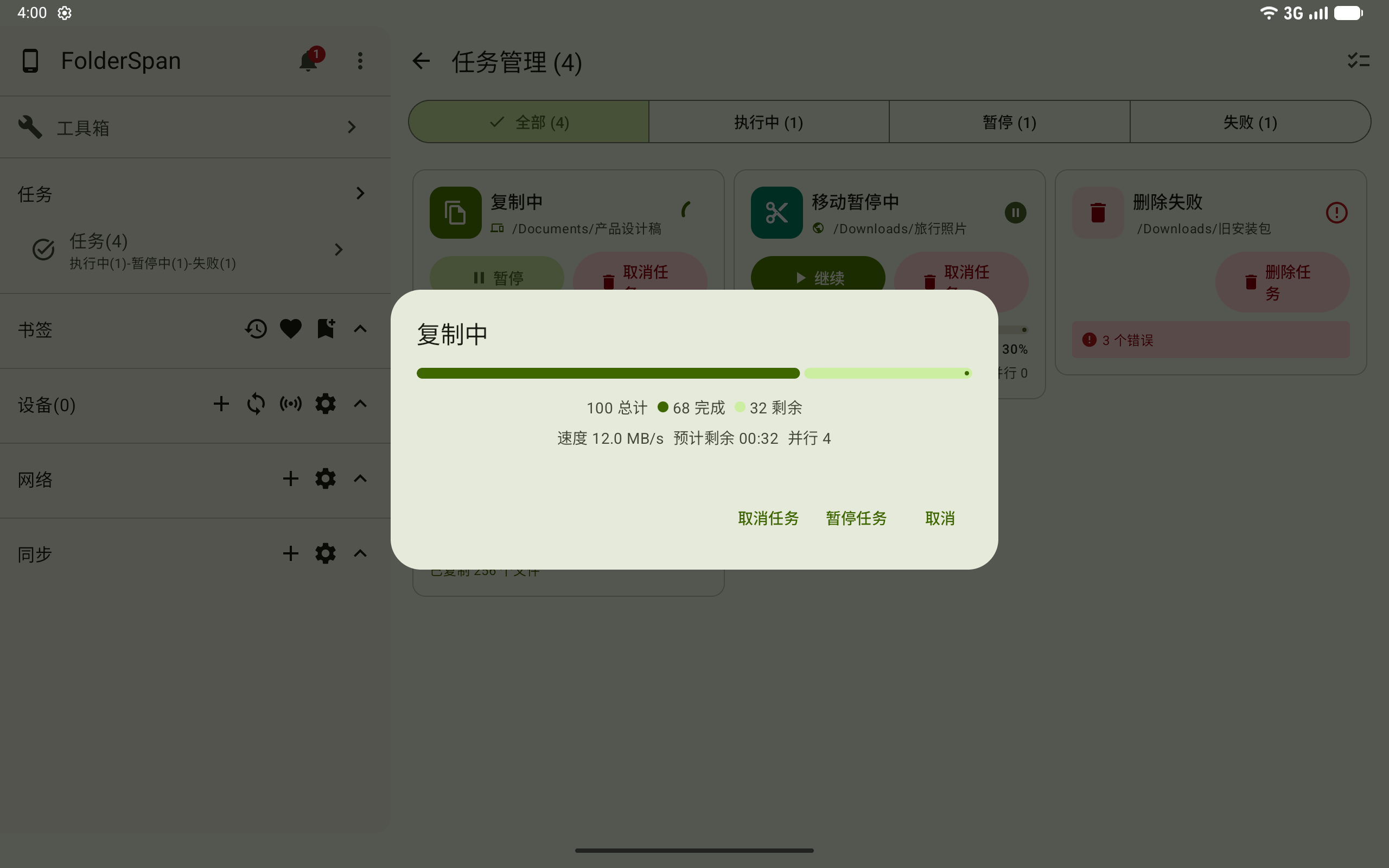
Use Pause task or Cancel task to control it. Select Cancel to close the dialog and return to the list.
4. Manage tasks in bulk
Select batch management at the top right, then select task cards. The header shows N items selected; use Select all or Deselect all to adjust the selection.
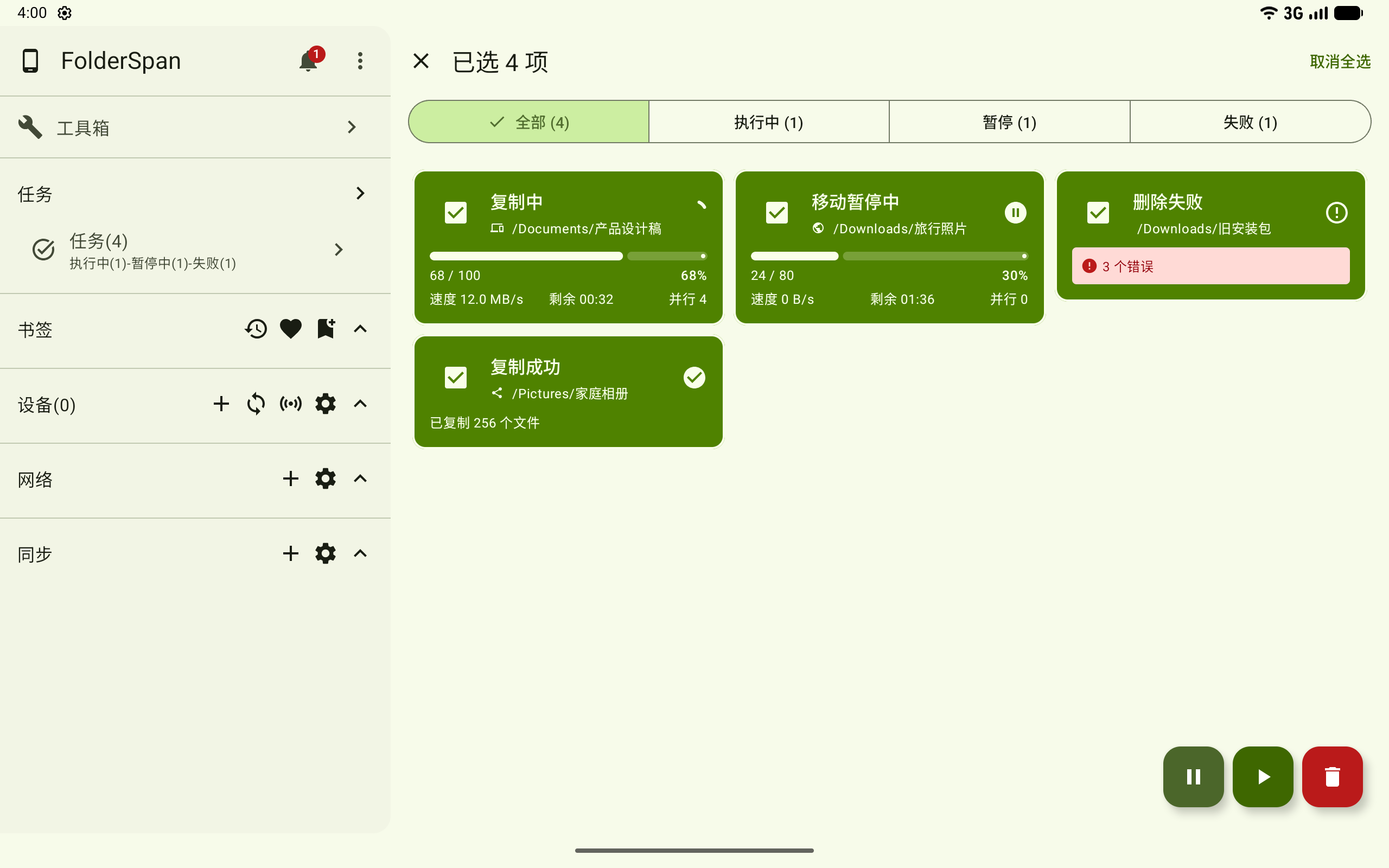
Batch actions at the bottom right include:
- Pause: pauses eligible selected tasks.
- Resume: resumes selected paused tasks.
- Delete: removes selected task entries.
Close with the top-left button to leave multi-select mode and return to the list.
Related documentation
- Files: start copy, move, delete, and other tasks from the file list.