Manage devices
View, search, and maintain recorded devices, with separate policies for inbound access and accessing other devices. A device menu edits its name or deletes that device. Selection mode changes connection methods and access roles or deletes several devices together.
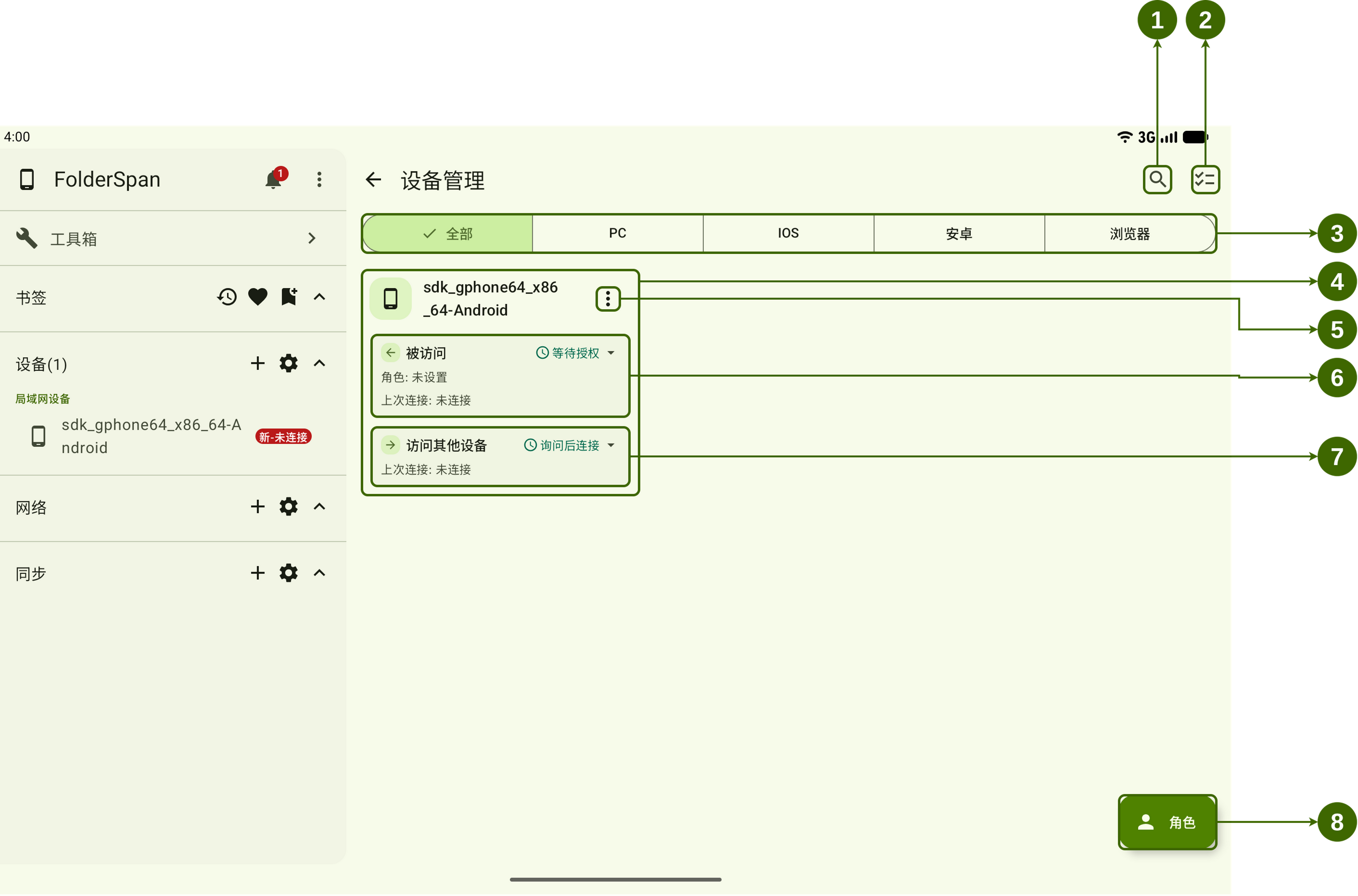
Page layout (screenshot numbers)
The numbers match the overview above.
- Search button: opens Search devices to find devices by name.
- Batch actions button: enters selection mode to update policies or delete several devices.
- Device type filters:
All,PC,IOS,Android, orBrowser. - Device card: shows the device type icon and name.
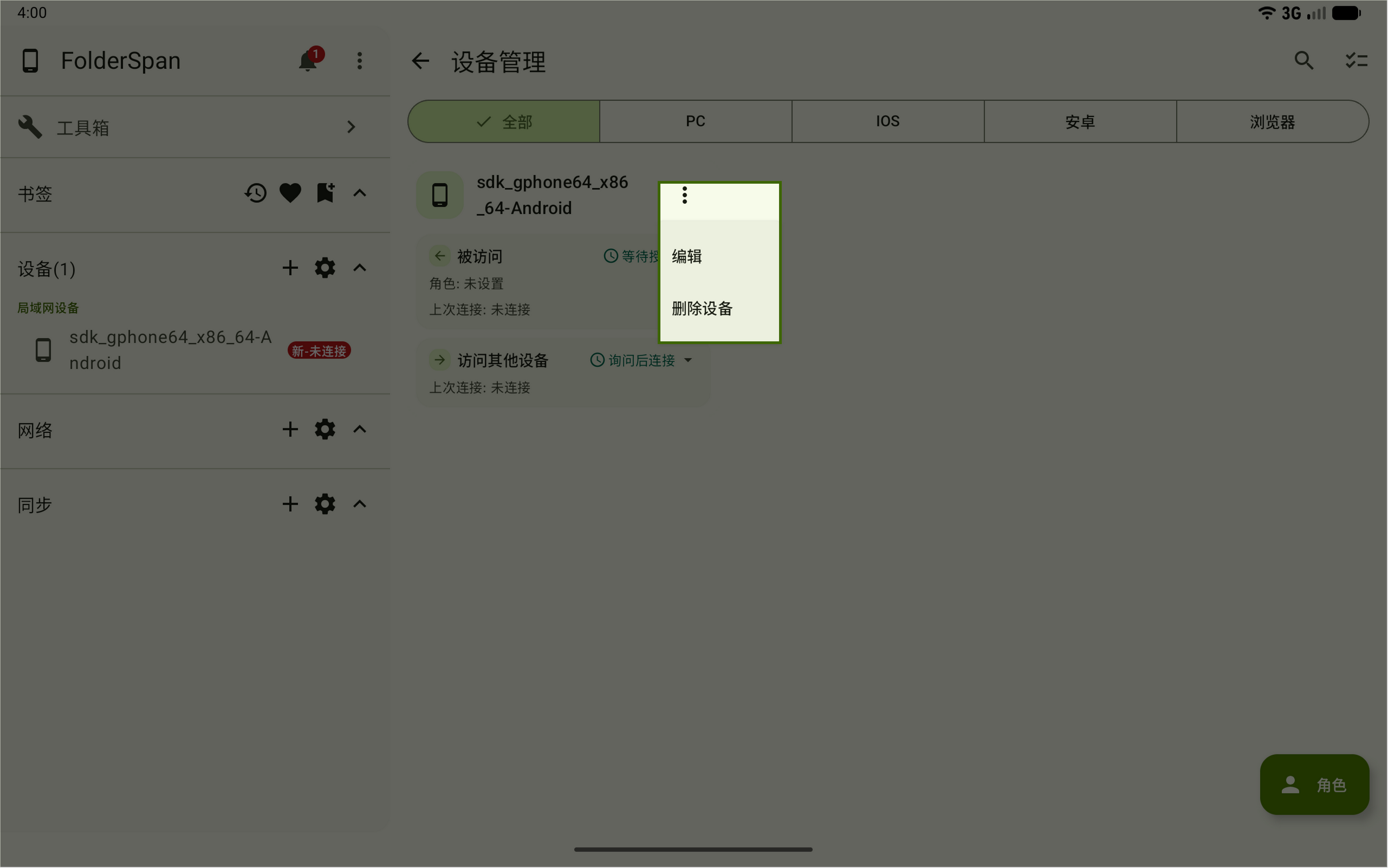
- Device menu: provides
EditandDelete device. - Inbound access: sets authorization for other devices connecting here and shows the access role and last connection time.
- Access other devices: sets how this device connects outward and shows the last connection time.
- Roles shortcut: the bottom-right
Rolesbutton opens Device roles.
Connection information
- Inbound access: authorization for other devices connecting to this device:
Auto-approve,Always reject, orRequire approval. - Access role: shown in the inbound area, this controls the paths and actions available to the other device. Shows
Not setif unassigned. Combine permissions into Device roles; see Device permissions for paths and operations. - Access other devices: outbound connection policy:
Auto-connectorAsk before connecting. - Last connection: the most recent connection time in that direction, or
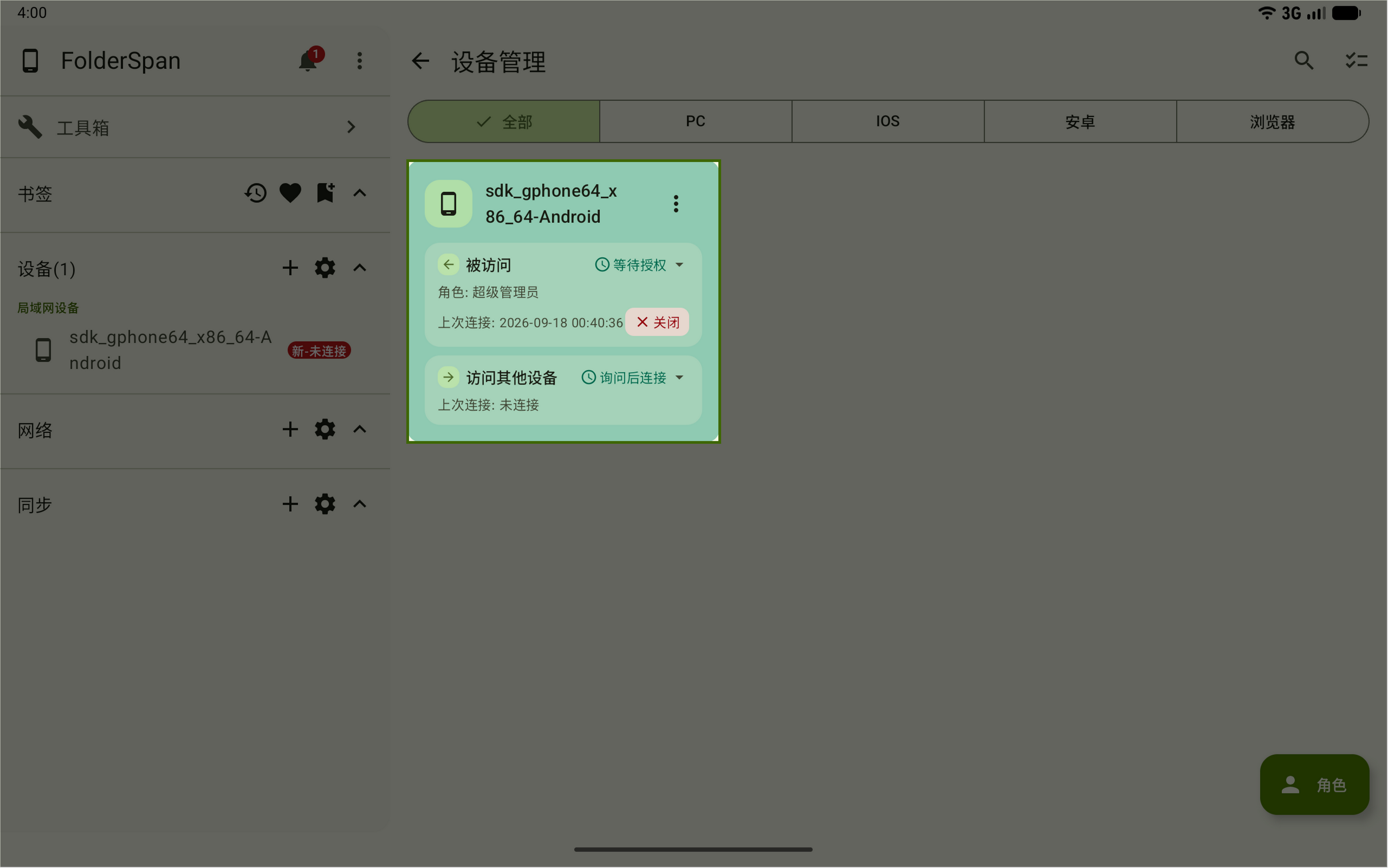
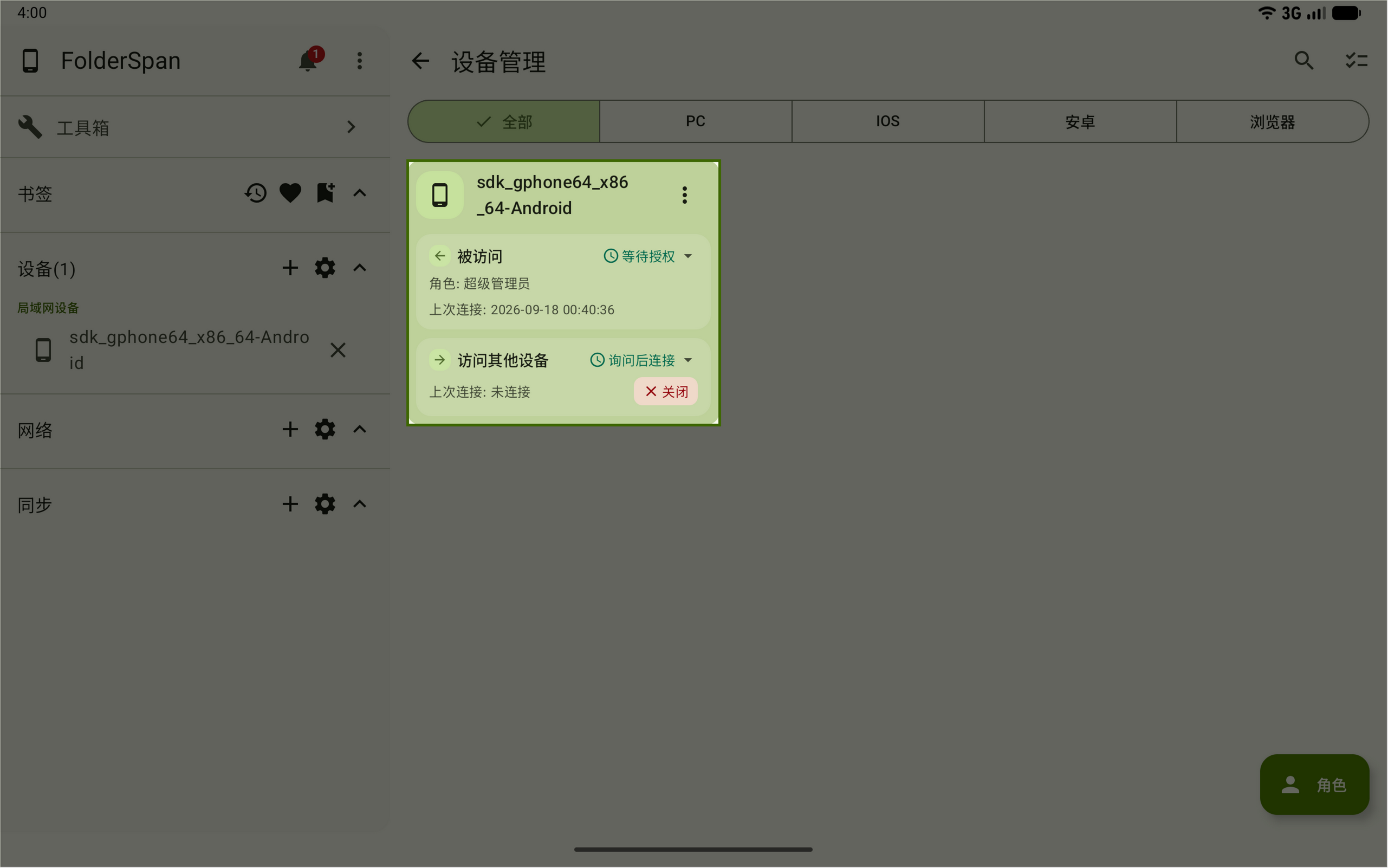
Not connectedif none is recorded. - Close: appears in a direction with an active connection and disconnects that connection. A card with an active connection is highlighted.
Operations
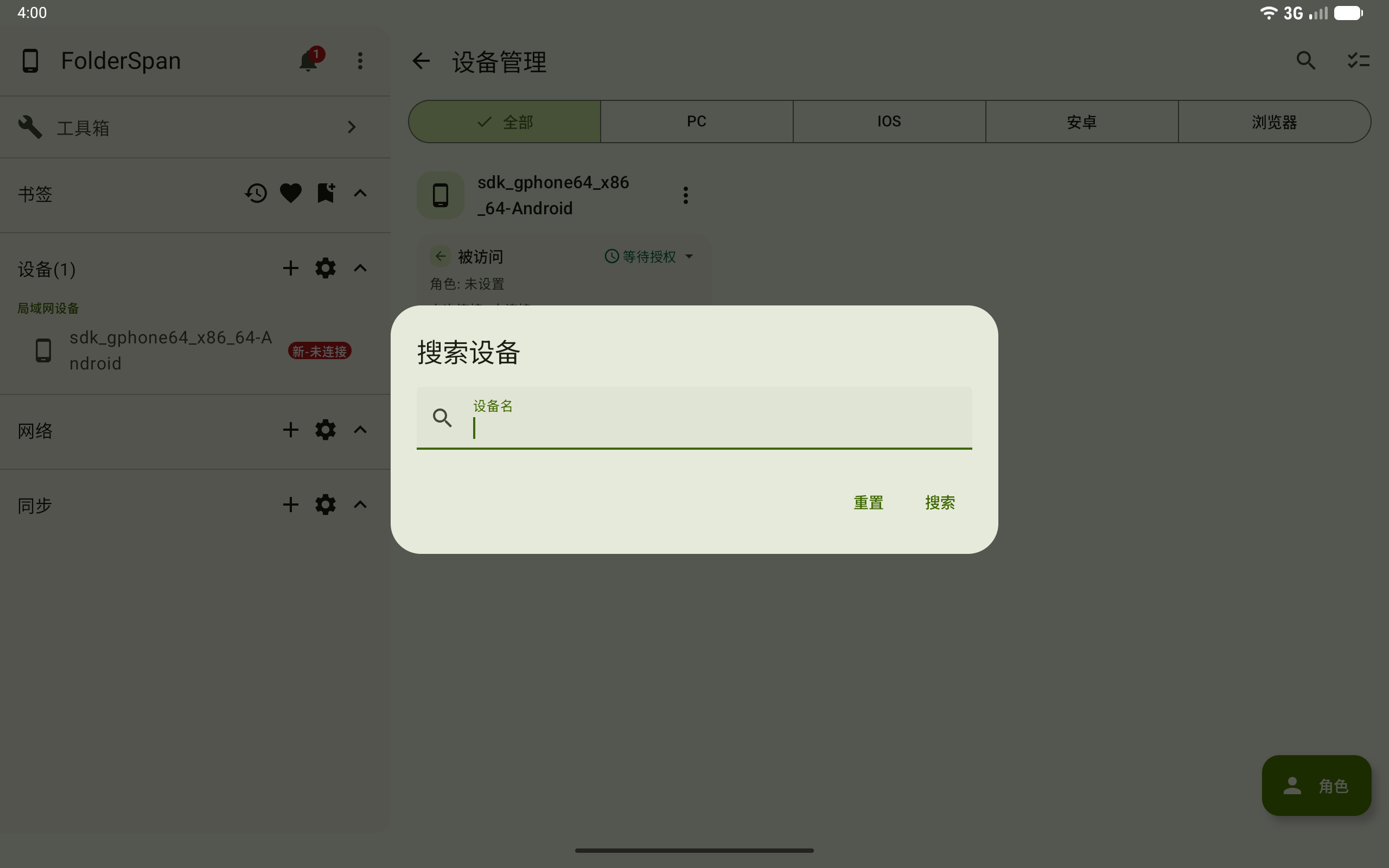
1. Search devices
- Select the search button at the top (overview number
1). - Enter a keyword in
Device name. - Select
Searchto show matching devices. - To clear the search, reopen the dialog and select
Reset.
2. Filter by device type
Select a type above the list (overview number 3): All, PC, IOS, Android, or Browser. The active type has a highlighted background and checkmark.
3. Open role management
Select Roles at the bottom right (overview number 8) to manage assignable Device roles.
Single-device actions
Open the device card's more button (overview number 5) for Edit and Delete device.
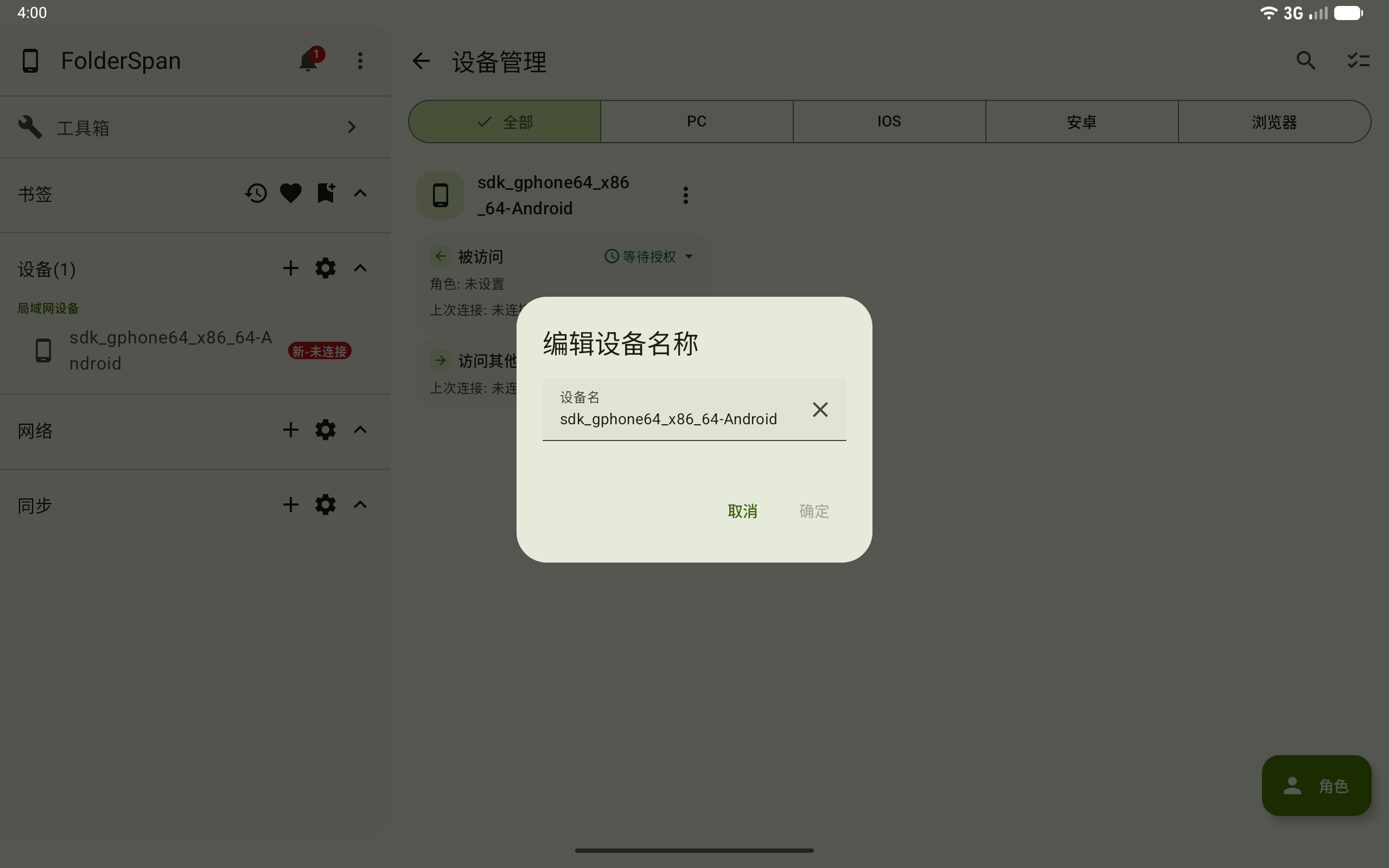
1. Edit a device name
- Choose
Editto open Edit device name. - Change
Device name; it cannot be empty. - Select
Confirmto save orCancelto discard changes. The close icon beside the input clears the name.
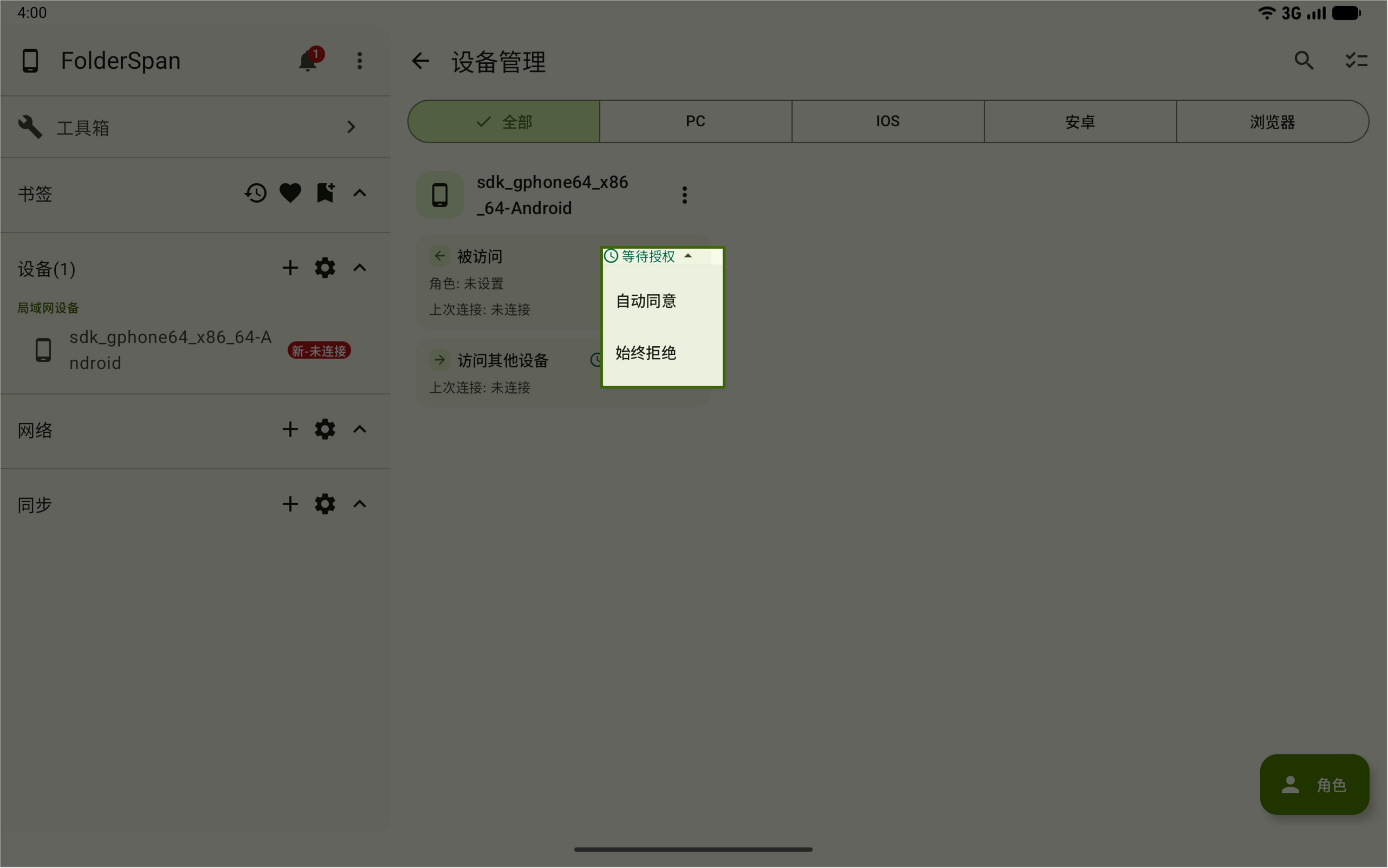
2. Change inbound access
Select the authorization method in the inbound area (overview number 6). The menu heading shows the current state; other states are listed below.
Auto-approve: automatically accepts incoming connections.Always reject: rejects incoming connections immediately.Require approval: requires manual confirmation.
When an inbound connection is active, this area shows its last connection time and a Close button, and the card is highlighted. Select Close to disconnect it.
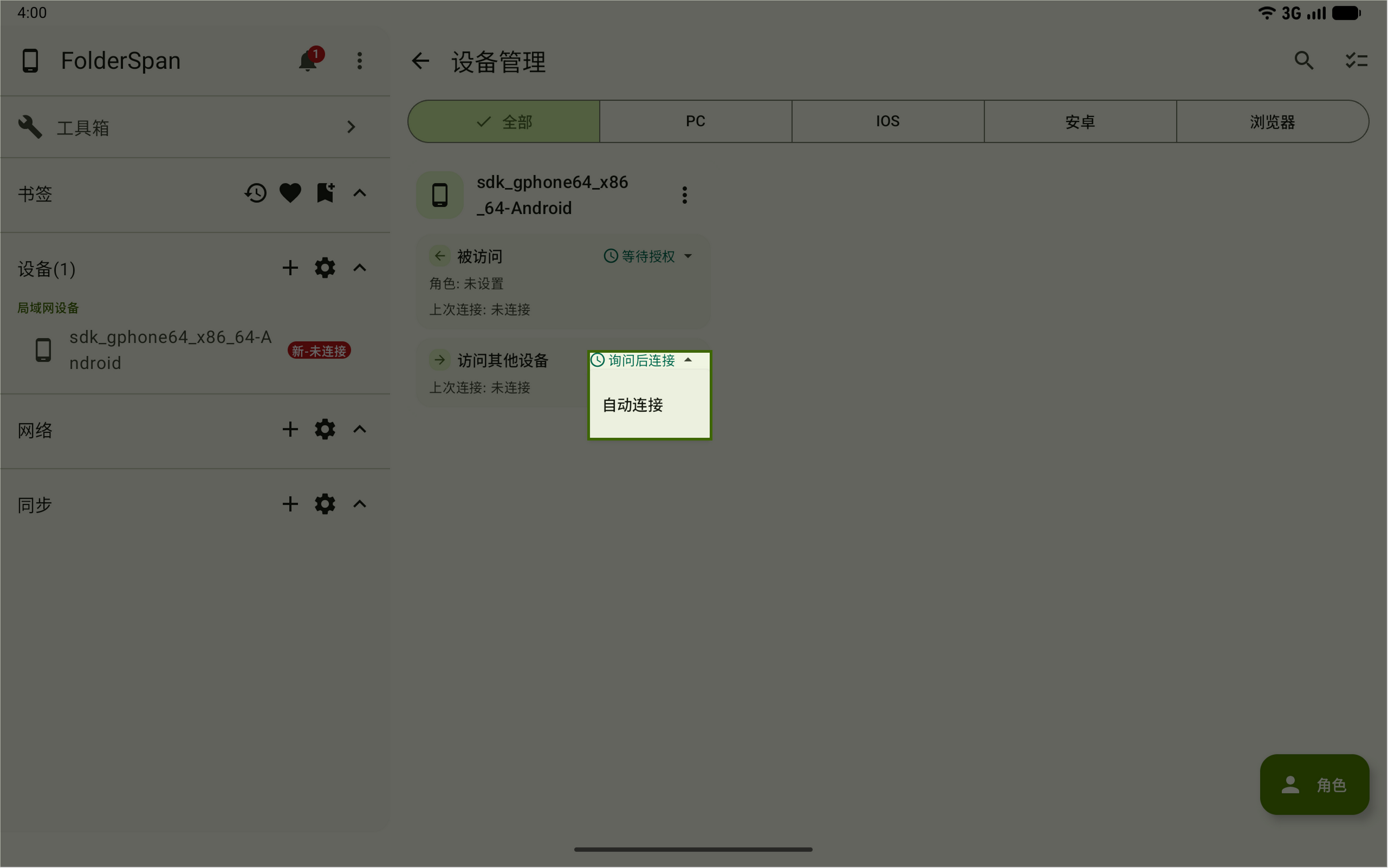
3. Change outbound access
Select the connection method in Access other devices (overview number 7). The menu heading shows the current state, with alternatives below.
Auto-connect: automatically initiates connections to other devices.Ask before connecting: requires user confirmation before connecting.
When an outbound connection is active, select Close in this area to disconnect it.
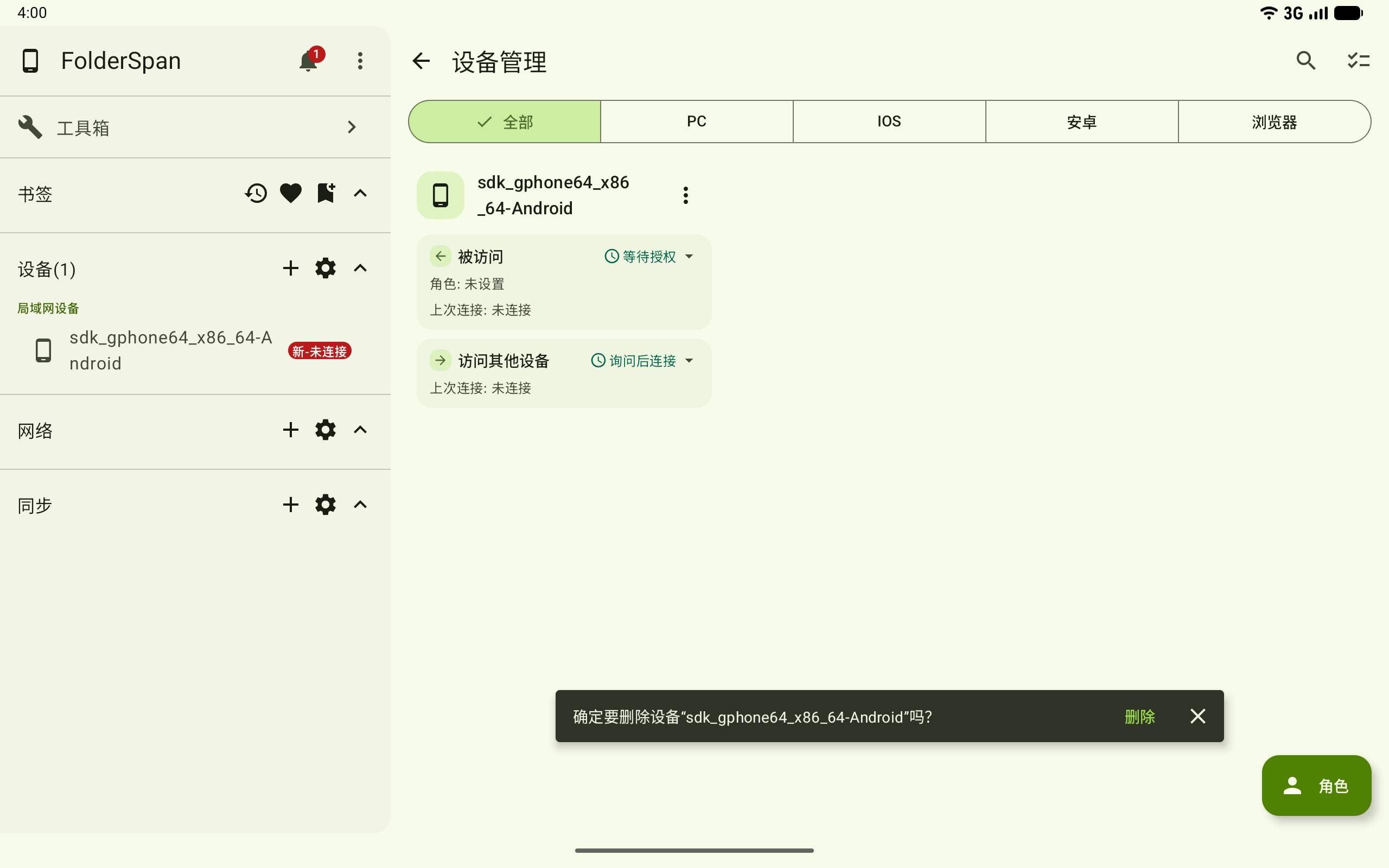
4. Delete one device
- Choose
Delete devicefrom its menu. - Check the device name in the bottom deletion prompt and select
Deleteto confirm. - Close the prompt with its right-hand button to cancel.
This removes the device record.
Batch actions
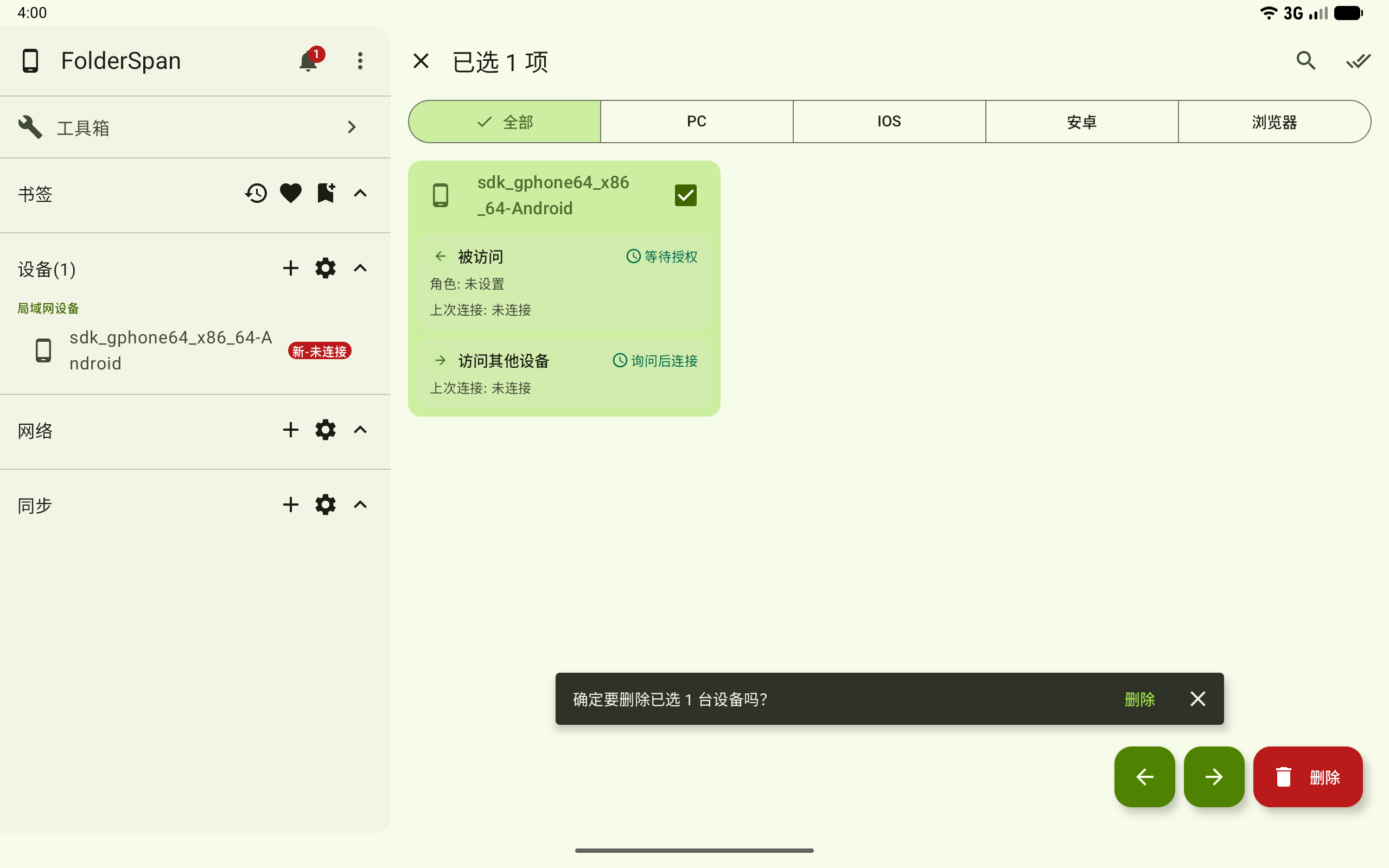
Select batch actions at the top (overview number 2). The header shows the selected count and batch buttons appear at the bottom right. The example selects one device and shows 1 item selected.
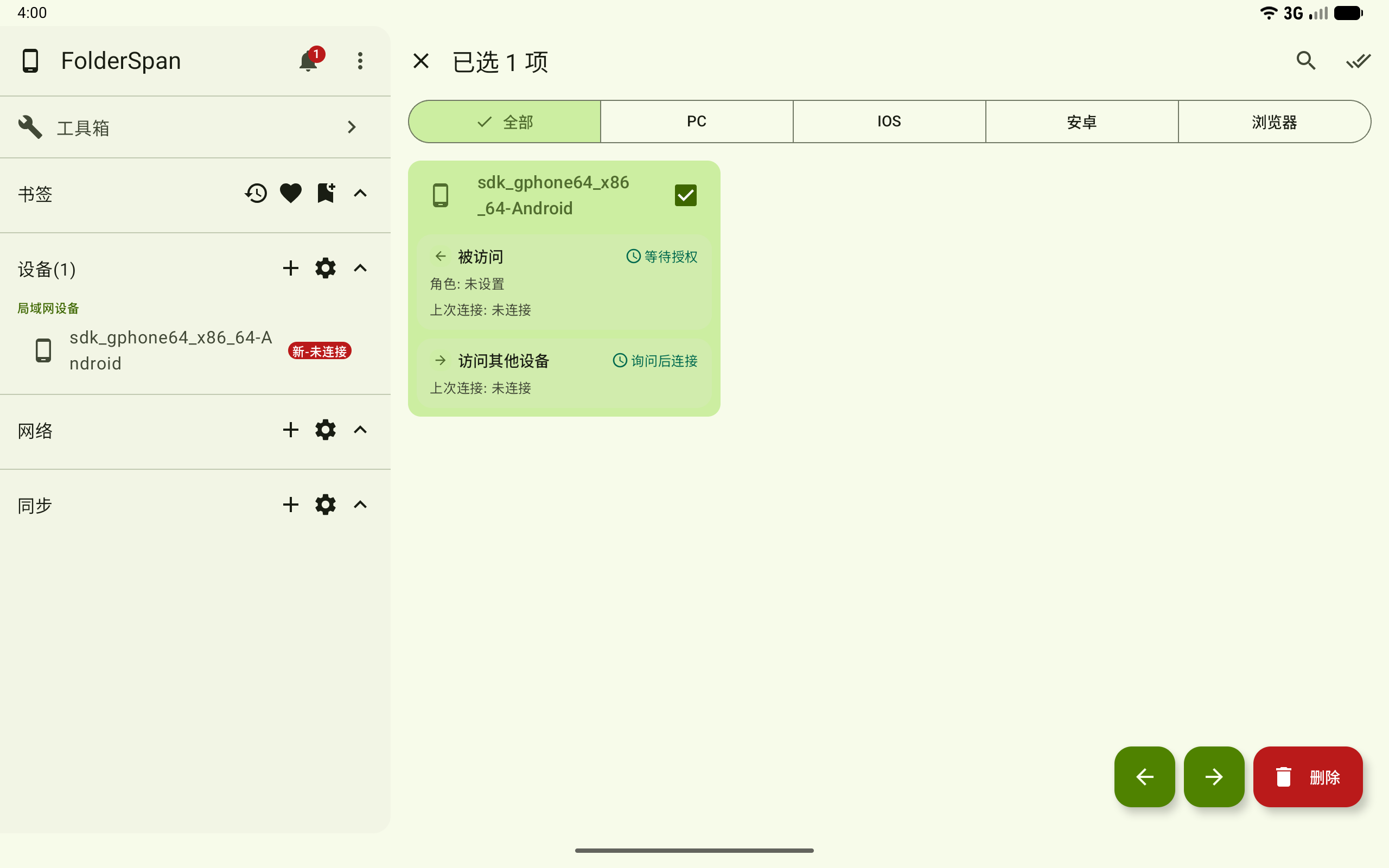
Bottom-right buttons:
- Change inbound access: the left-arrow button changes selected devices' inbound authorization and access roles.
- Change outbound access: the right-arrow button changes how selected devices connect to other devices.
- Delete: deletes selected device records.
1. Select devices
- Select the top batch actions button.
- Select device cards to select or deselect them. A checkmark and highlighted background mark selected devices.
- Use the top select-all button to select all visible devices, or select it again to clear them.
- Check the count in the header before proceeding.
2. Change inbound access in bulk
- Select devices and use the bottom-right left-arrow button to open Change inbound access in bulk.
- Check the number of devices that will be updated.
- Choose an
Authorization methodandAccess role. - Select
Saveto apply, orCancelto discard changes.
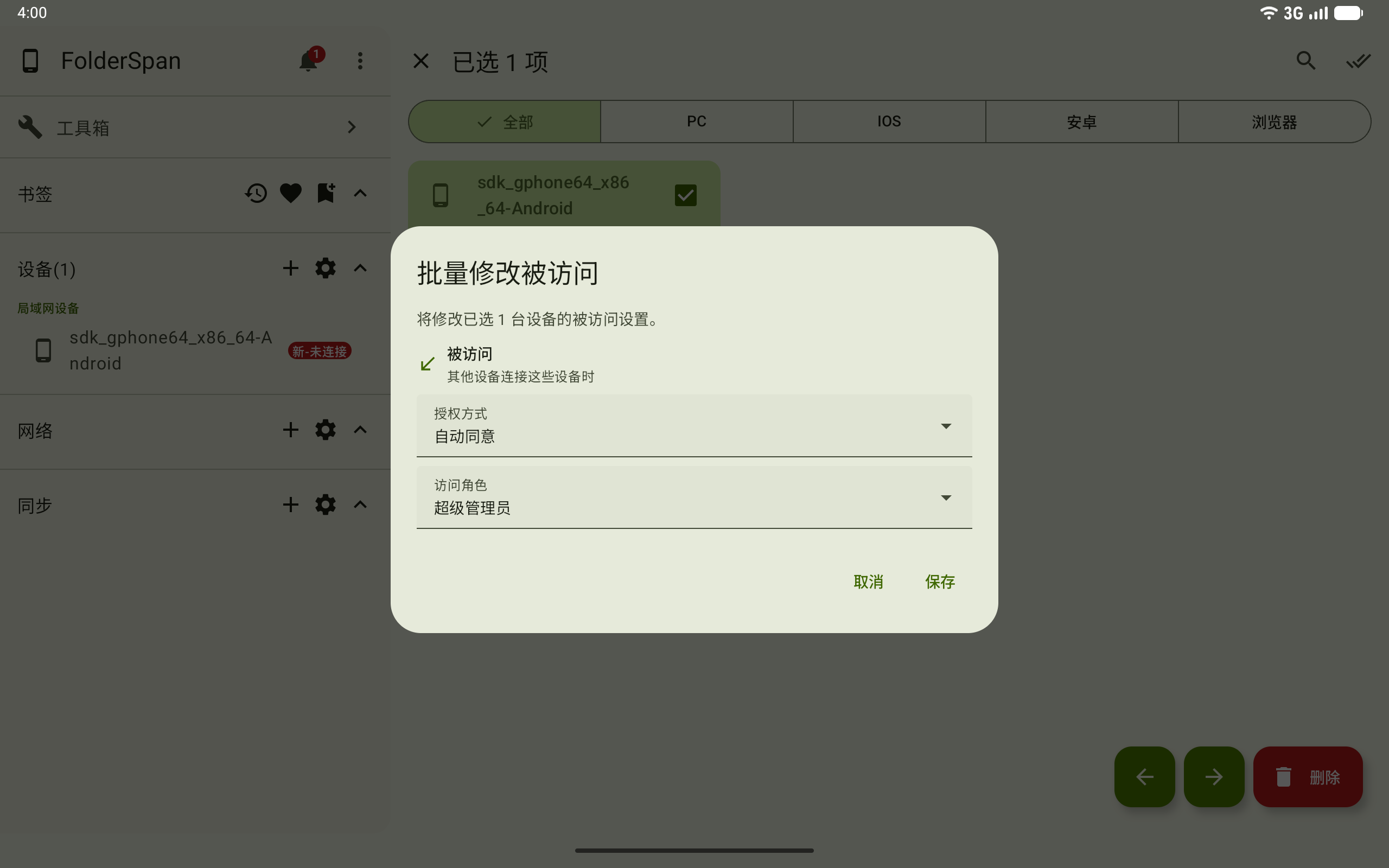
Authorization methods are Auto-approve, Always reject, and Require approval. The access role determines the permissions available to other devices connecting to these devices.
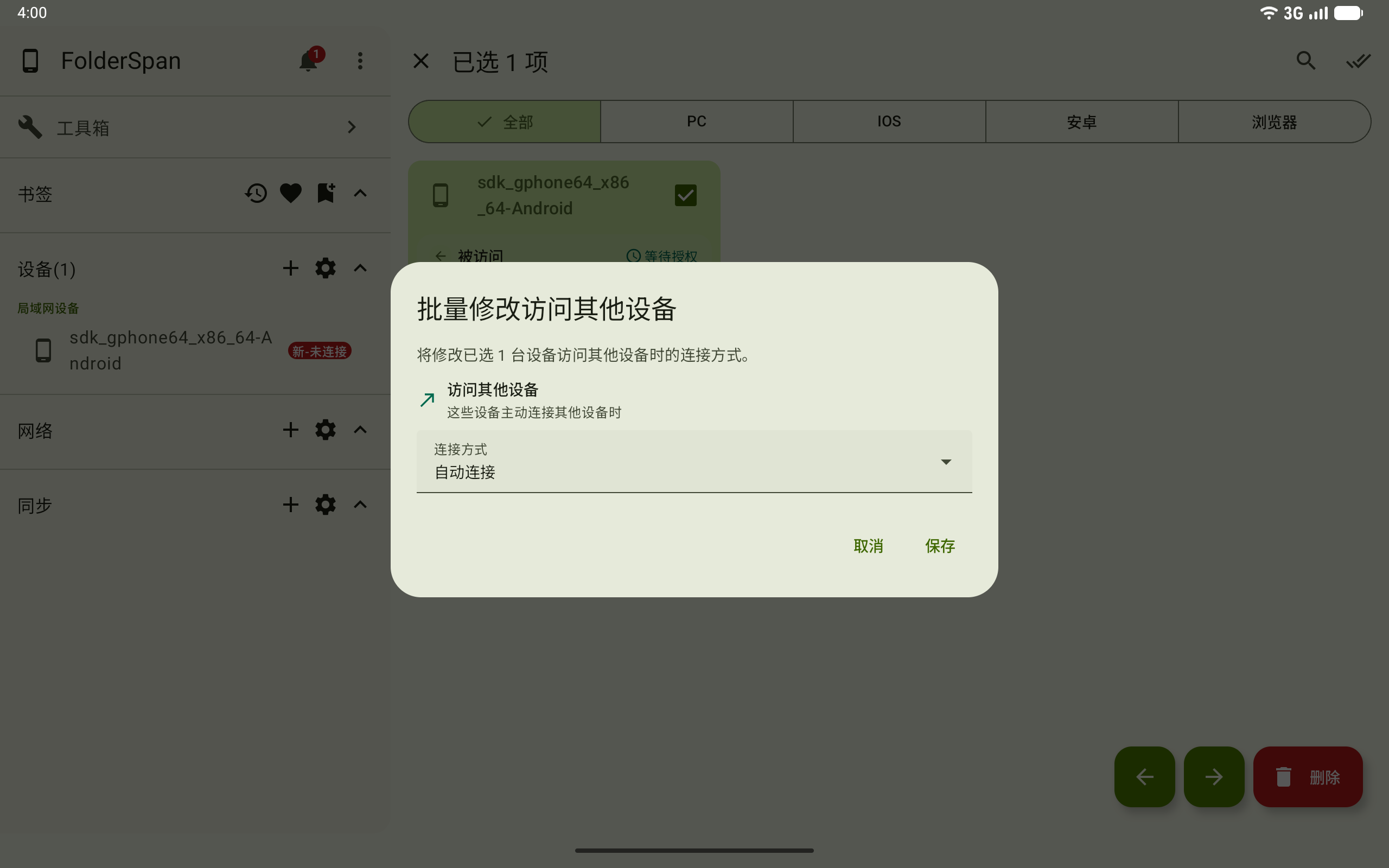
3. Change outbound access in bulk
- Select devices and use the bottom-right right-arrow button to open Change outbound access in bulk.
- Check the number of devices that will be updated.
- Choose a
Connection method. - Select
Saveto apply, orCancelto discard changes.
This changes only the policy for initiating connections to other devices.
4. Delete devices in bulk
- Select devices and choose
Deleteat the bottom right. - Check the count in the bottom confirmation asking whether to delete the selected devices, then select
Delete. - Close the prompt with its right-hand button to cancel.
5. Exit selection mode
Select the close button beside the heading to return to normal device management.
Recommendations
- Check roles and permission scope in Device roles before assigning roles to devices.
- Use
Require approvalorAlways rejectfor unfamiliar devices' inbound access. - Test a policy on one device before applying it in bulk.
- For active connections, decide whether to disconnect before changing authorization or deleting the device.