Device permissions
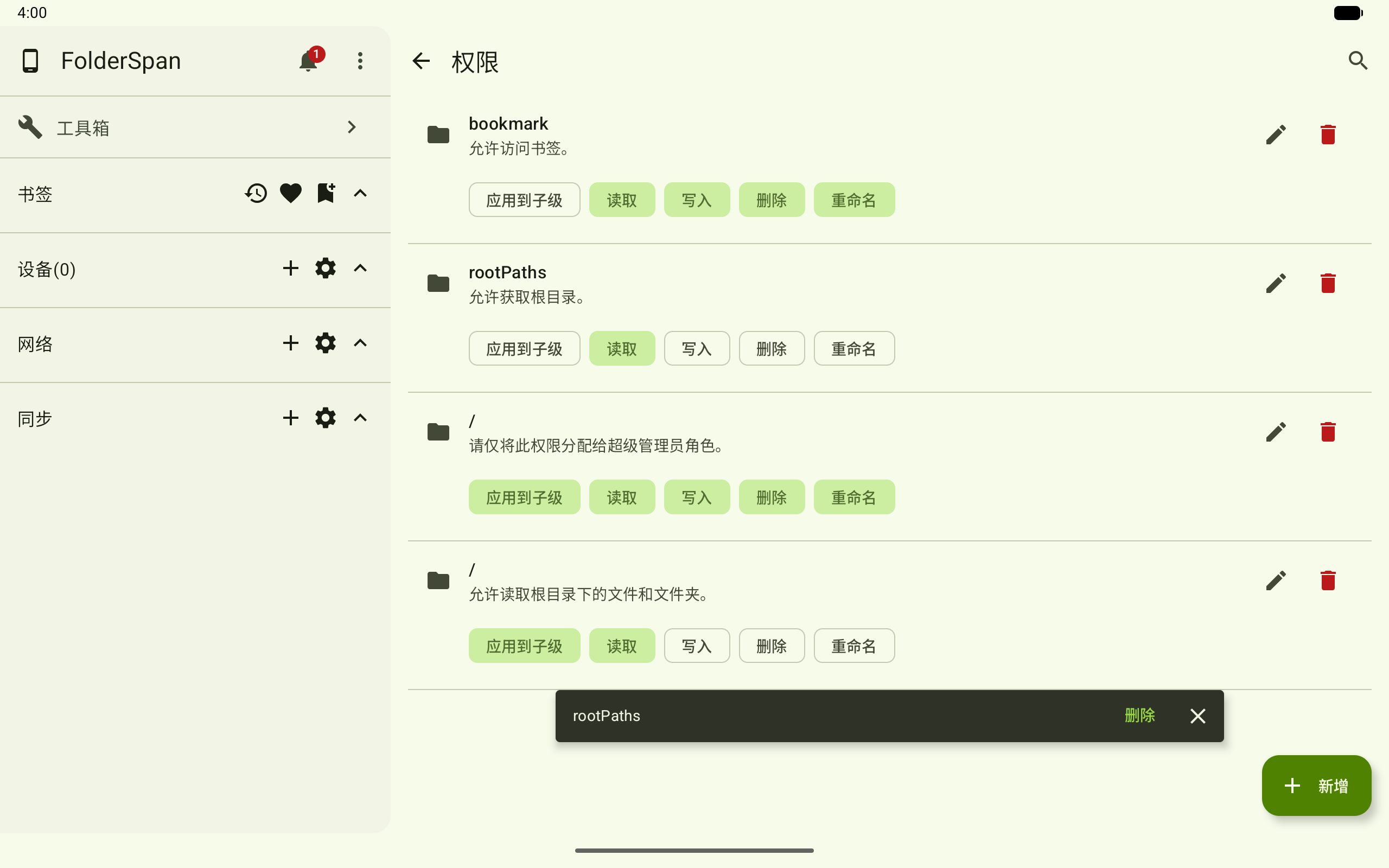
Device permissions control which file operations are allowed on a specified path. Each entry includes a path, notes, and operation permissions, with an option to apply to children.
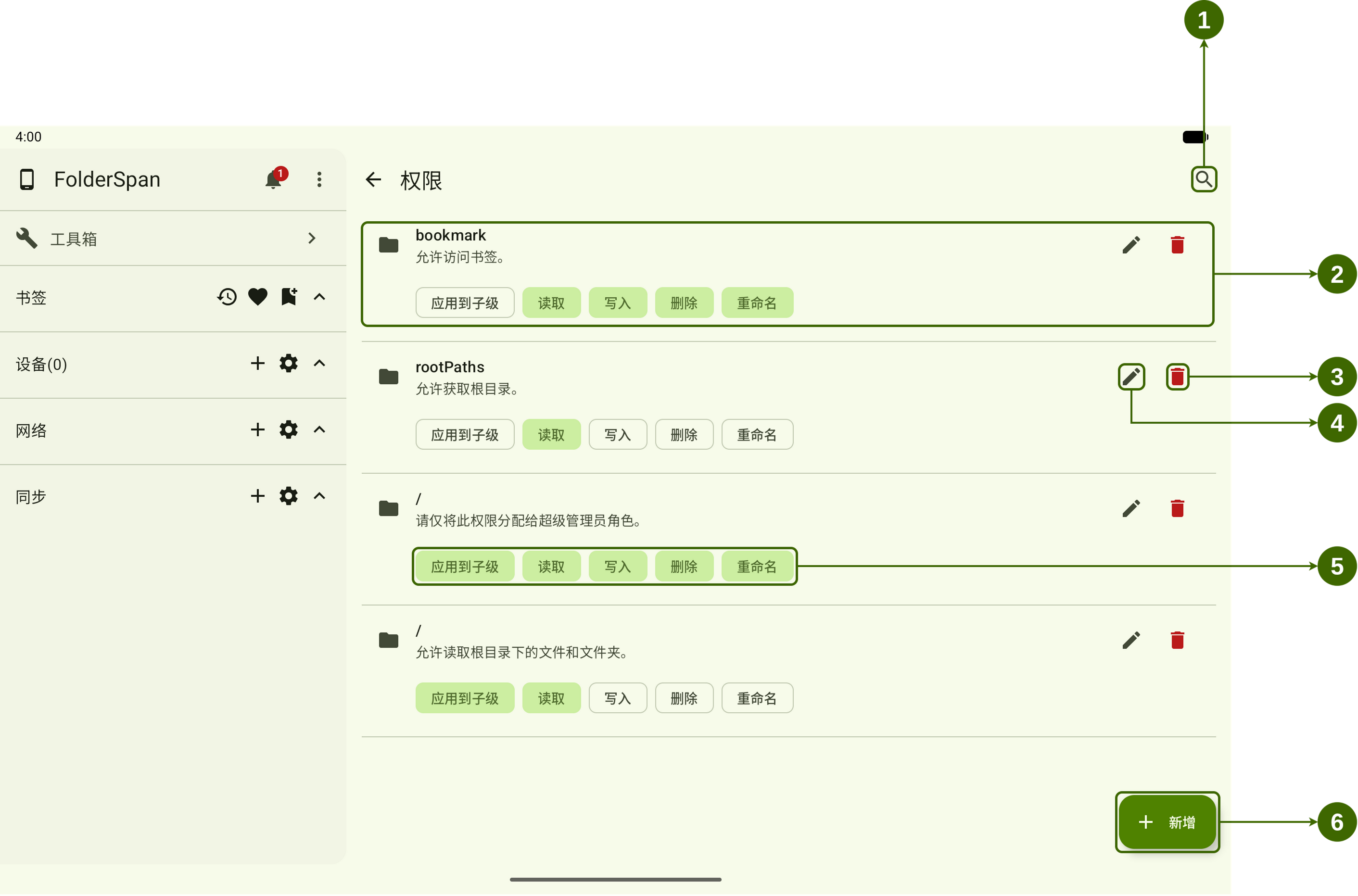
Page layout (screenshot numbers)
- Search button: opens Search permissions to search by path or notes.
- Permission entry: shows the path, notes, and enabled permissions.
- Delete button: deletes the entry after a bottom confirmation prompt.
- Edit button: opens Edit permission to change its path and notes.
- Permission controls: enable or disable operations for the path.
- Add button: opens New permission.
Permission definitions
- Path: the directory to which the permission applies, such as
bookmark,rootPaths, or/. - Notes: the purpose of the entry.
- Apply to children: applies the permission to files and folders under the path as well.
- Read: allows reading files or listing directory contents.
- Write: allows creating or modifying file contents.
- Delete: allows deleting files or folders.
- Rename: allows changing file or folder names.
Green buttons are enabled. Outlined buttons are disabled.
Operations
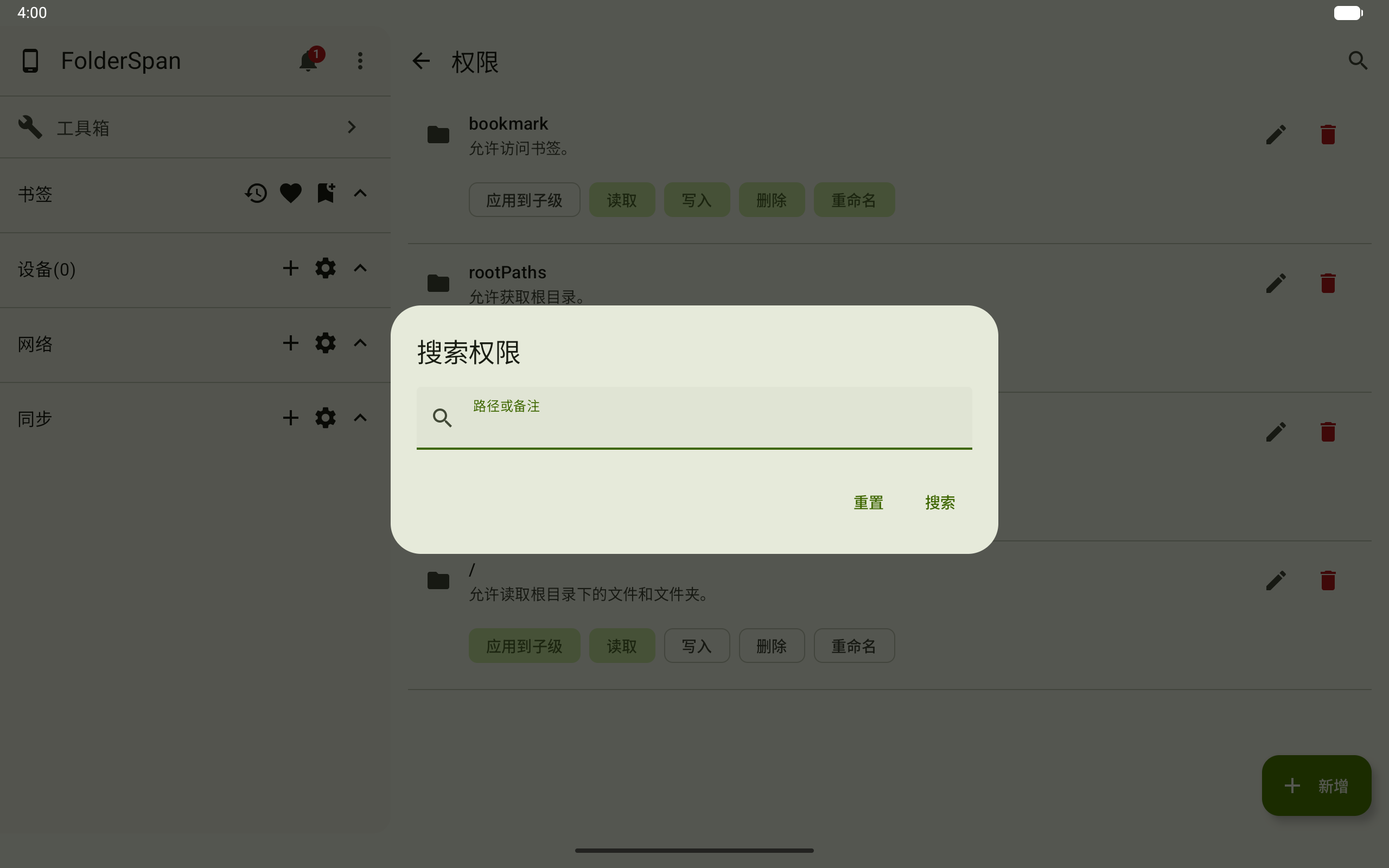
1. Search permissions
- Select the search button (overview number
1). - Enter a keyword in
Path or notes. - Select
Searchfor matching permissions, orResetto clear the conditions.
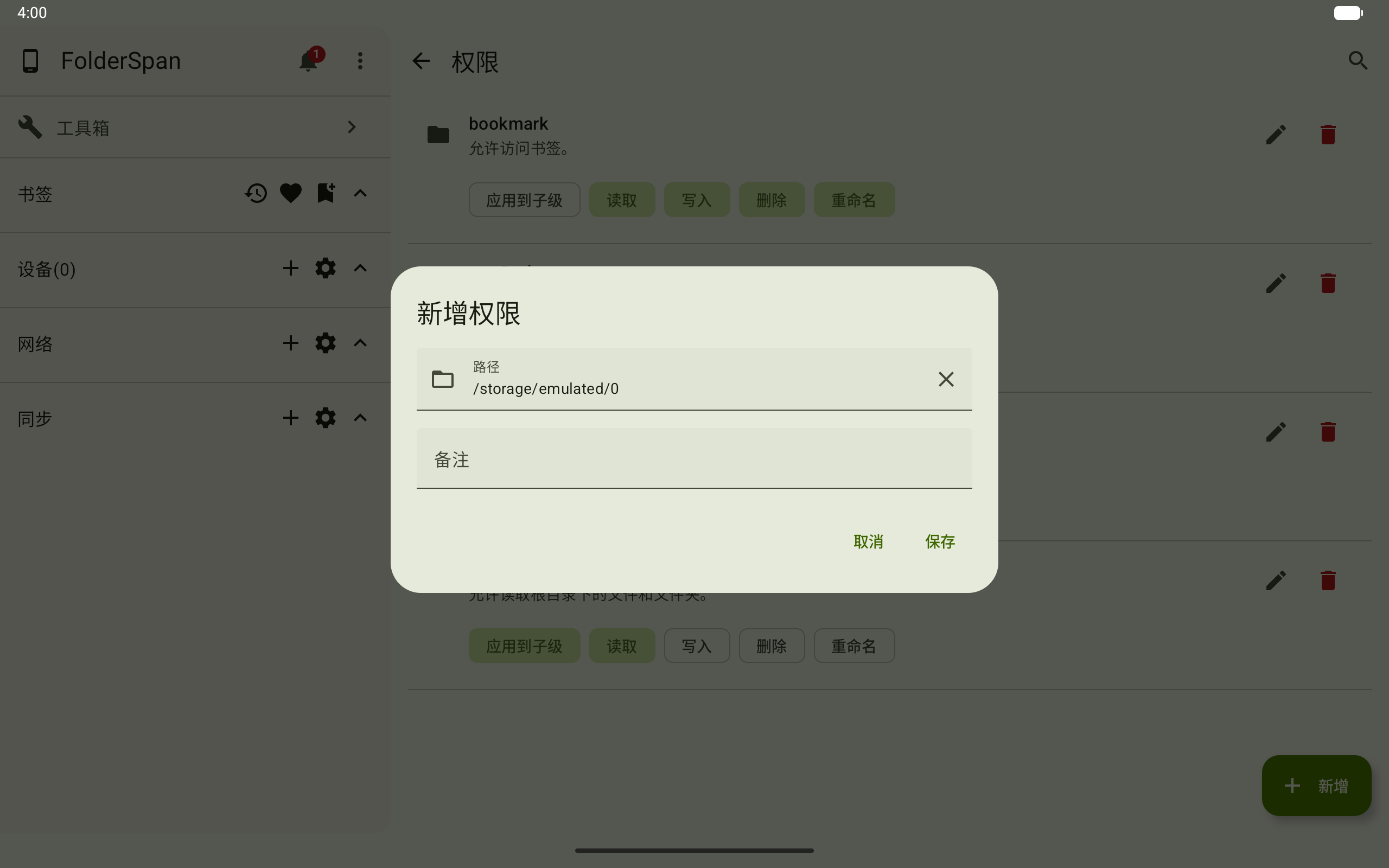
2. Add a permission
- Select
Add(overview number6). - Enter a directory in
Path, or choose one with the folder button on the left. The right-hand close button clears the path. - Add
Notesif needed. - Select
Saveto create it, orCancelto discard the operation.
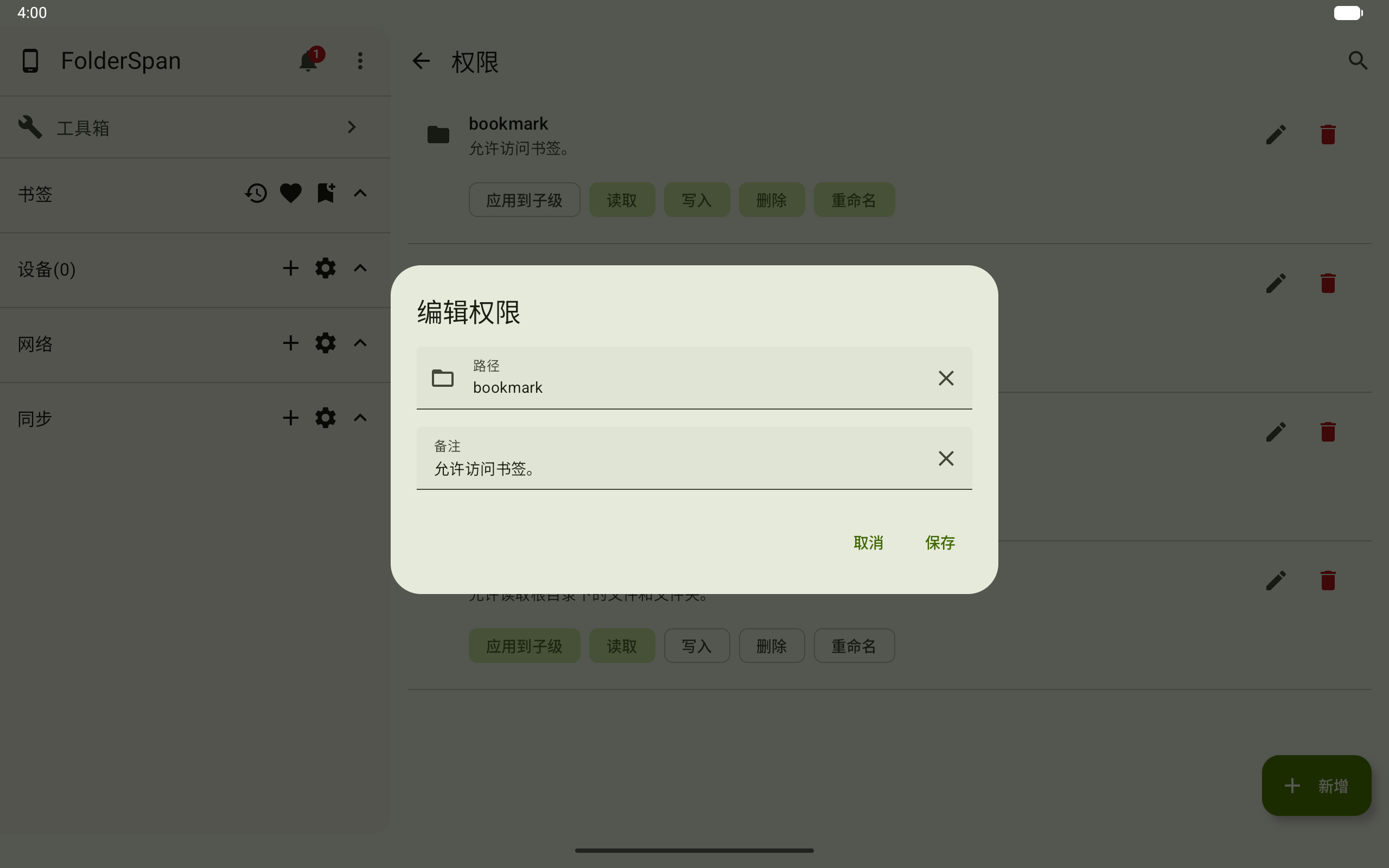
3. Edit a permission
- Select the edit button (overview number
4). - Change its
PathorNotes. Close buttons beside the inputs clear their contents. - Select
Saveto apply, orCancelto discard changes.
4. Enable or disable operations
- Find the permission entry to configure.
- Select a permission button (overview number
5), such asRead,Write,Delete, orRename. - A green button means the operation is enabled. Select it again to disable it.
5. Delete a permission
- Select the delete button (overview number
3). - Check the path in the bottom confirmation.
- Select
Deleteto confirm, or close the prompt on the right to cancel.
Recommendations
- Enable only necessary operations for paths that actually need access.
- The root path
/provides the broadest scope; assign it only to an administrator role. - Use notes to explain permissions for searching and future maintenance.
Related documentation
- Device roles: combine path permissions into roles, then assign them to devices.