MCP service
FolderSpan can run an MCP (Model Context Protocol) service on this device, allowing trusted AI clients or automation on the same network to discover and call tools for files, bookmarks, favorites, tasks, devices, network locations, and sync.
The MCP service supports Android, desktop, and iOS, uses Streamable HTTP, and defaults to port 52137. The Web edition cannot accept inbound MCP connections. There is no stdio transport. After connecting, read Using MCP tools. For third-party clients, see Connect Codex or Connect Claude Code.
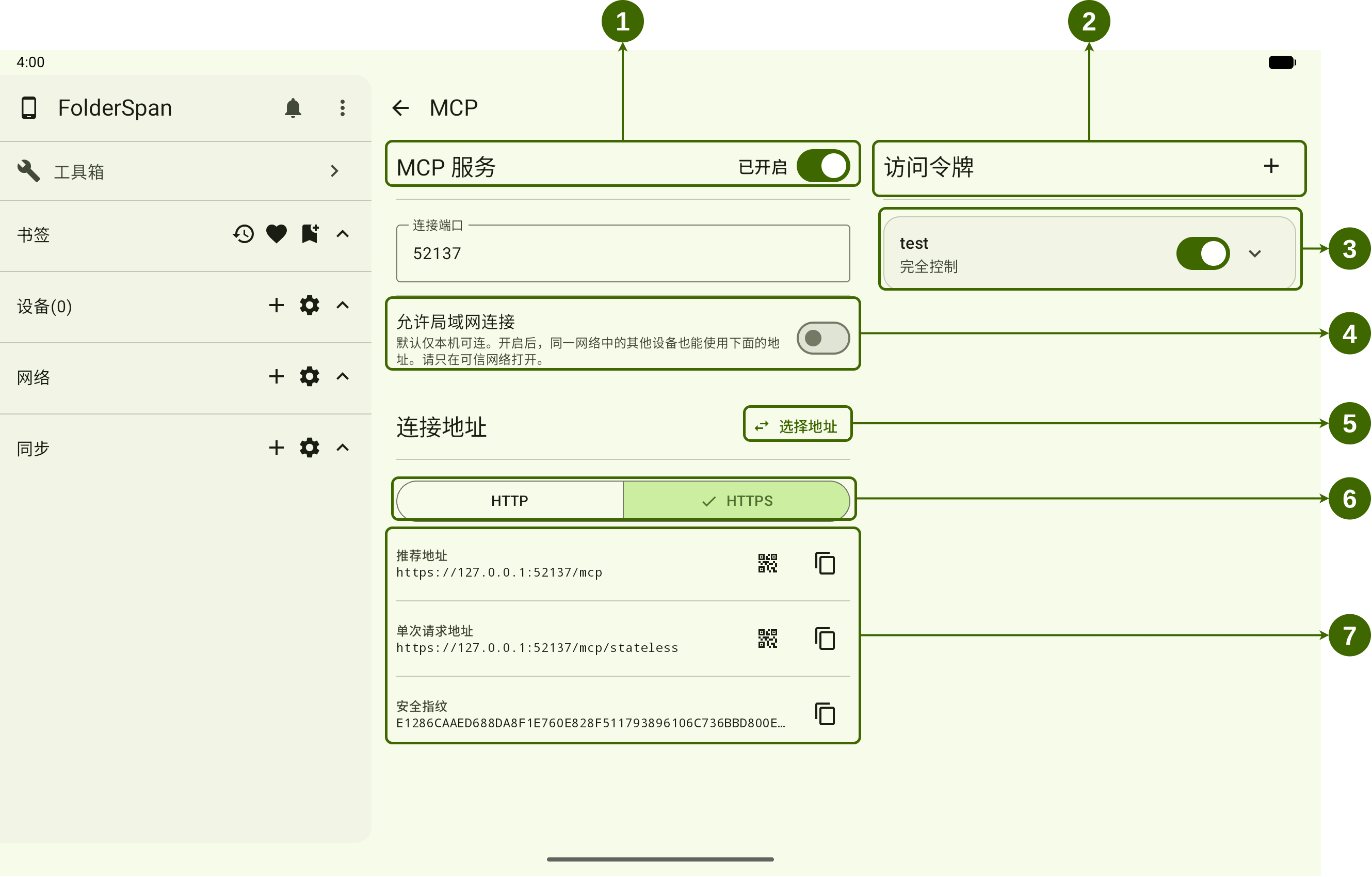
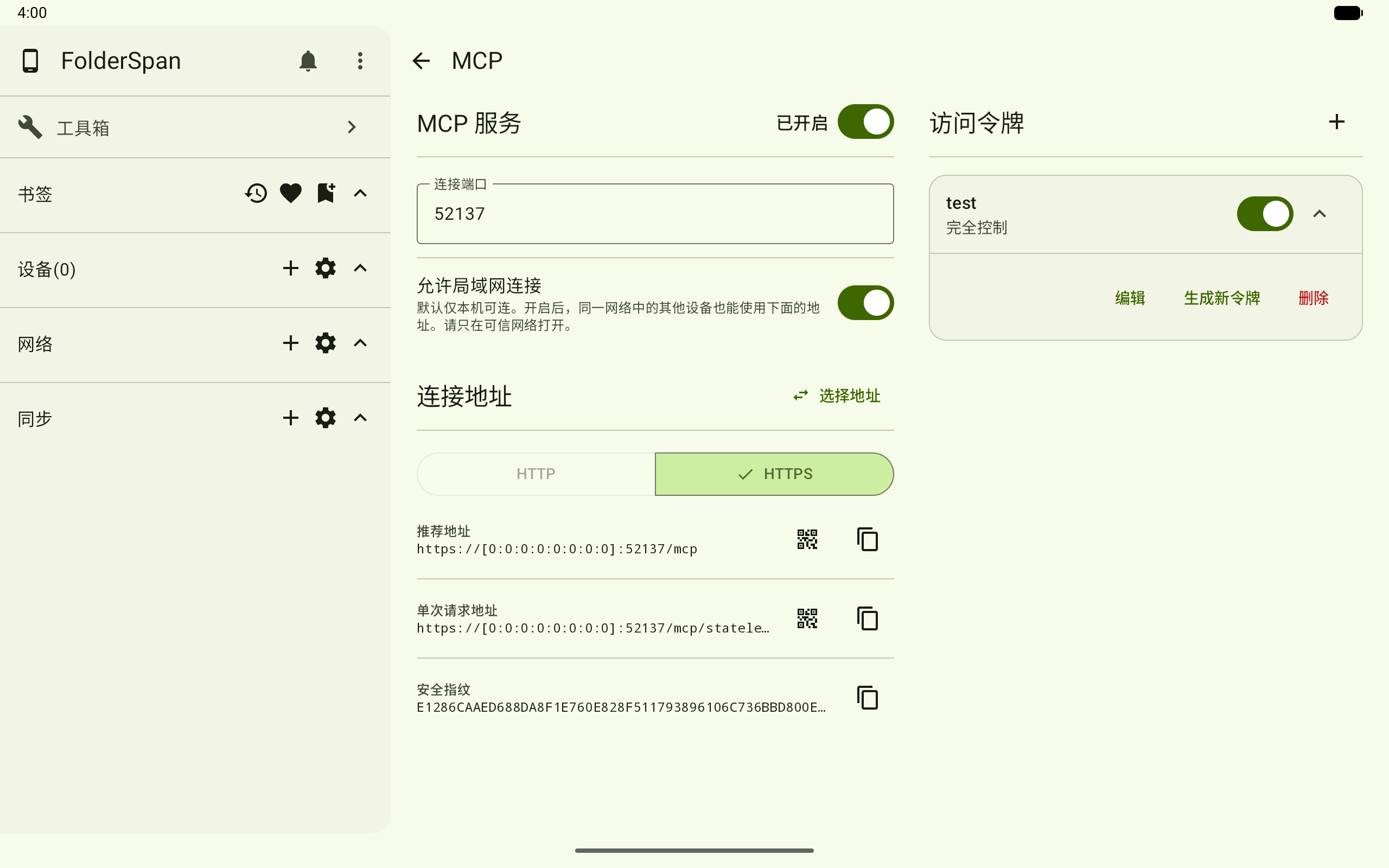
Page layout (screenshot numbers)
- MCP service: starts or stops the service and sets the client connection port.
- Access tokens: the
+button creates a token. - Token card: shows its name and permission level, enables or disables it, and expands management actions.
- Allow LAN connections: lets other devices on the same network connect.
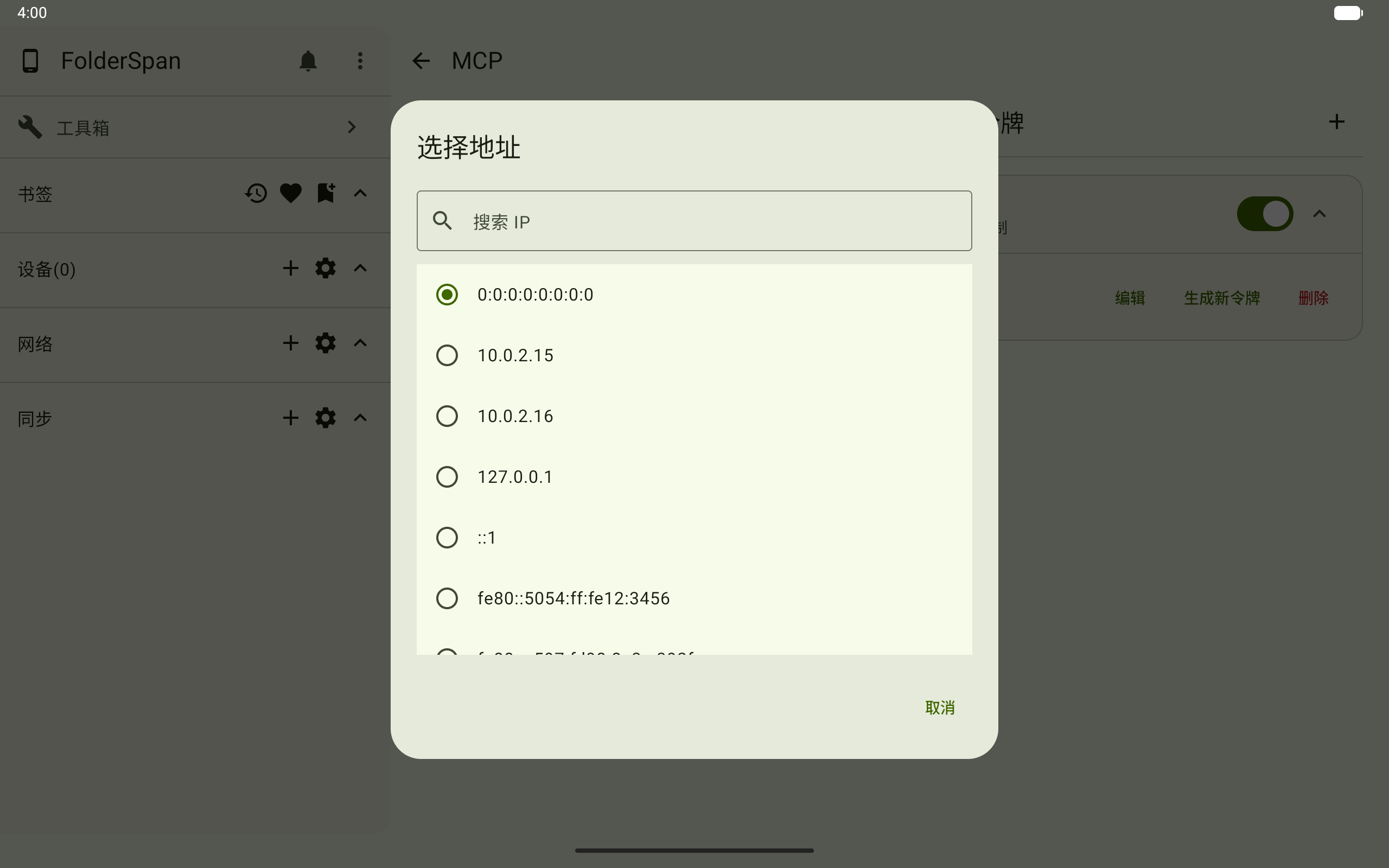
- Select address: chooses the local IP used to generate connection addresses.
- Protocol: switches between
HTTPandHTTPS; prefer HTTPS. - Connection information: view or copy the recommended address, single-request address, and security fingerprint, or display a QR code.
How it works
- Open
Toolbox→MCPand start the independent MCP service. - Create a token with only the permissions the client needs.
- The client connects using the displayed address and Bearer Token.
- It discovers authorized tools through
tools/list, then calls them in response to your prompts. See Using MCP tools for examples.
Tools lacking permission are absent from tools/list. Direct calls are also rejected before the operation executes.
Operations
1. Start the service
Open MCP from Toolbox, check the connection port, and enable the service. When it shows Enabled, active tokens can use the displayed addresses.
Update the client's address if you change the port.
2. Create a token
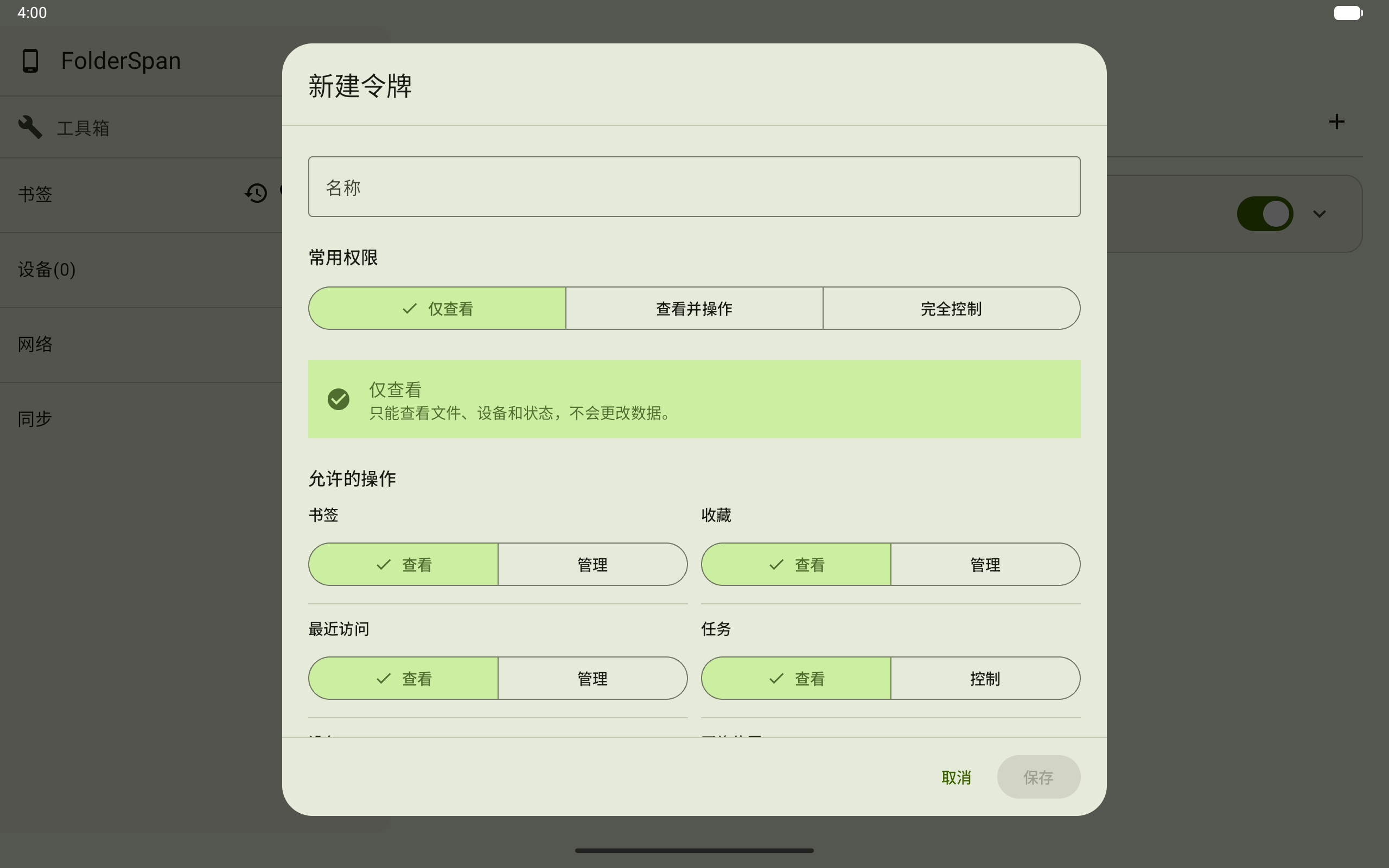
Select + beside Access tokens and enter a name in New token. Choose View only, View and operate, or Full control, or adjust individual permissions. Select Save.
The resulting dialog asks you to save the token. Use its copy button or Copy token to save the complete value. It cannot be viewed again after closing the dialog. Generate a new token if it is lost.
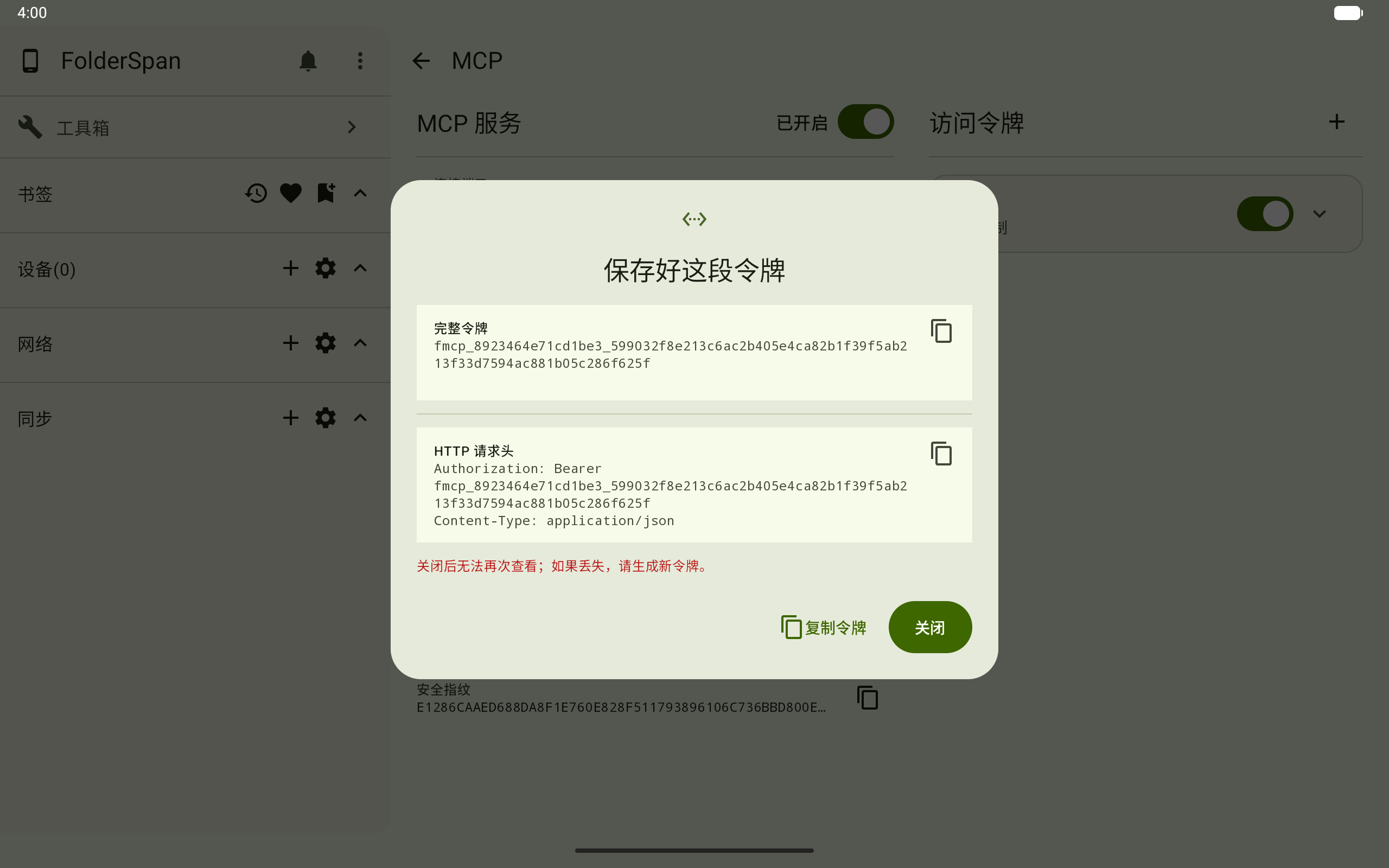
A complete token is an access credential. Do not paste it into chats, screenshots, or public documents. Save it only in the MCP configuration of a trusted client.
3. Manage tokens
The switch on a card enables or disables the token. Expand it for Edit, Generate new token, and Delete.
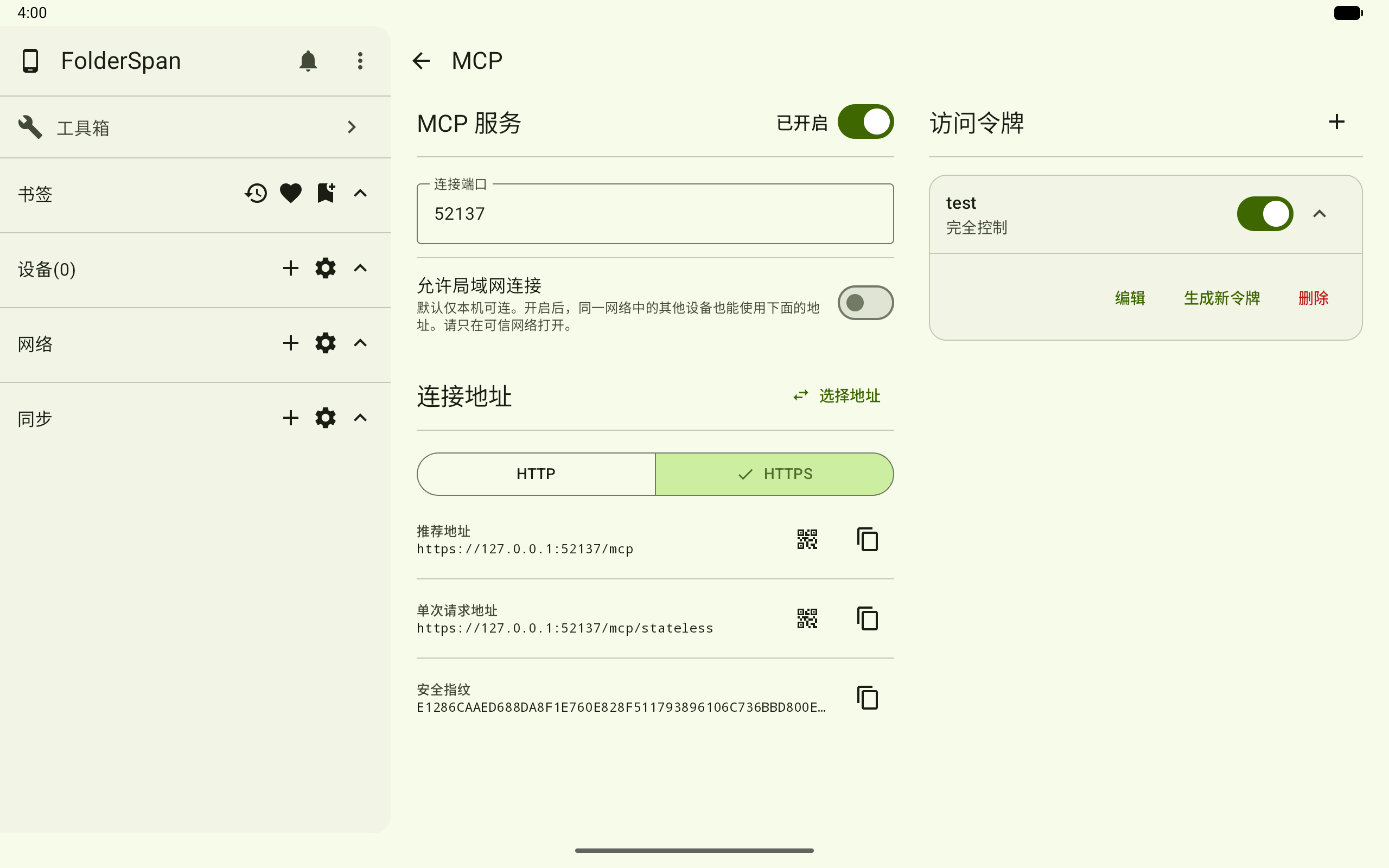
Disabling rejects new requests without deleting the configuration. Enable it again to restore use.
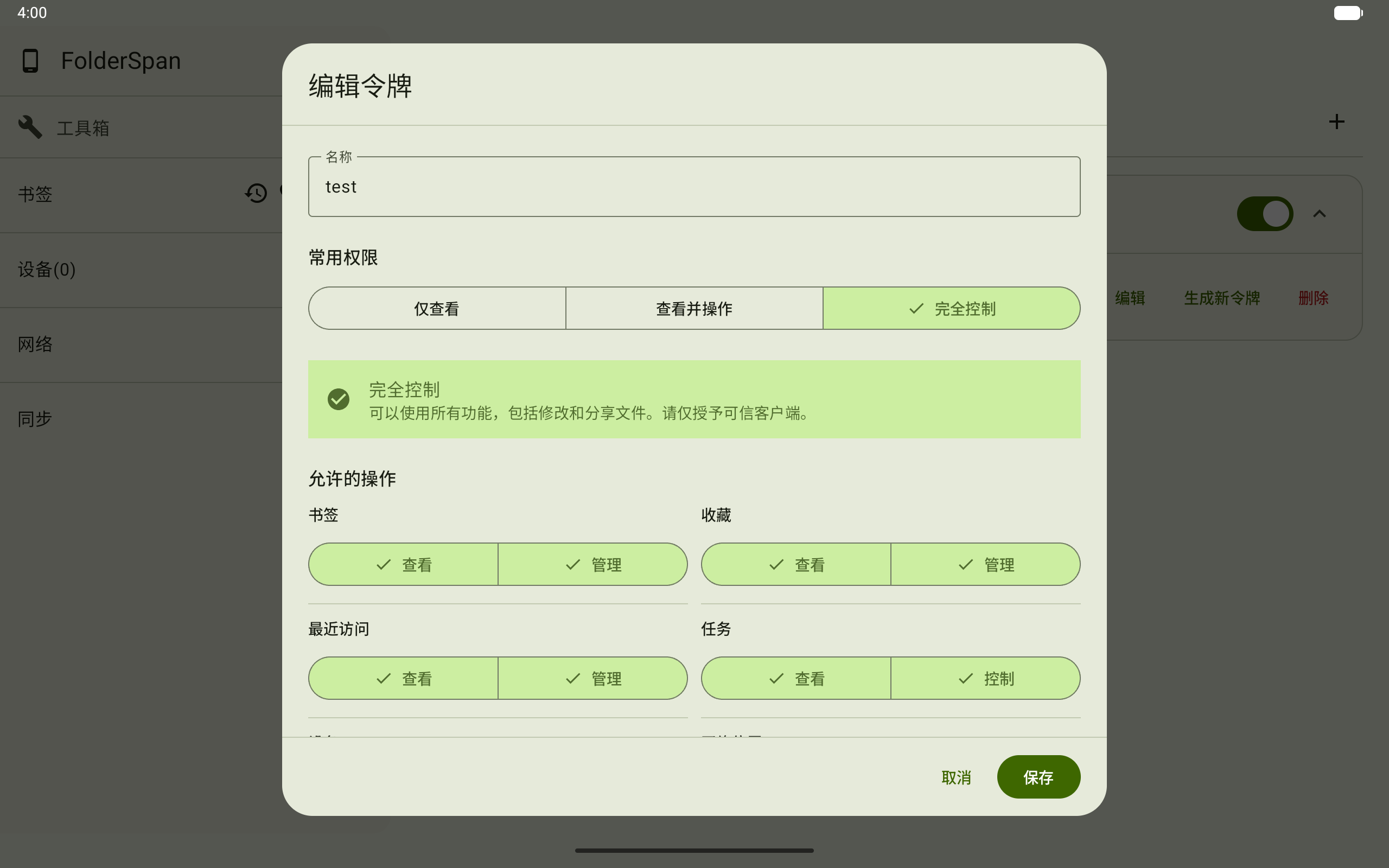
4. Edit a token
Expand the card and choose Edit to change its name, common permissions, or individual operation permissions. Save when finished. The existing token value is retained.
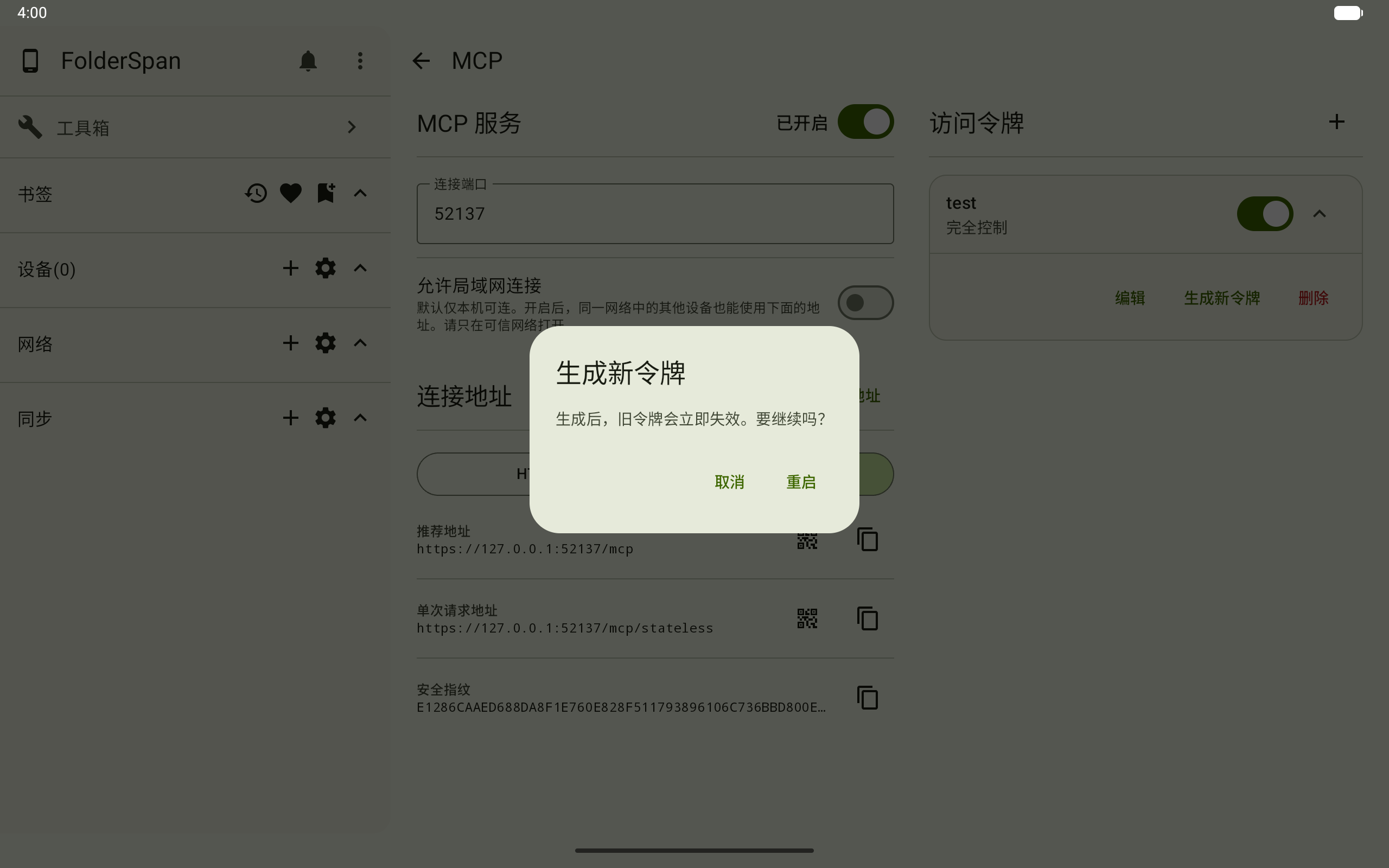
5. Generate a replacement token
If a token is lost or suspected to be exposed, expand its card and choose Generate new token. Confirm with Restart. The old token immediately becomes invalid, and clients must use the replacement.
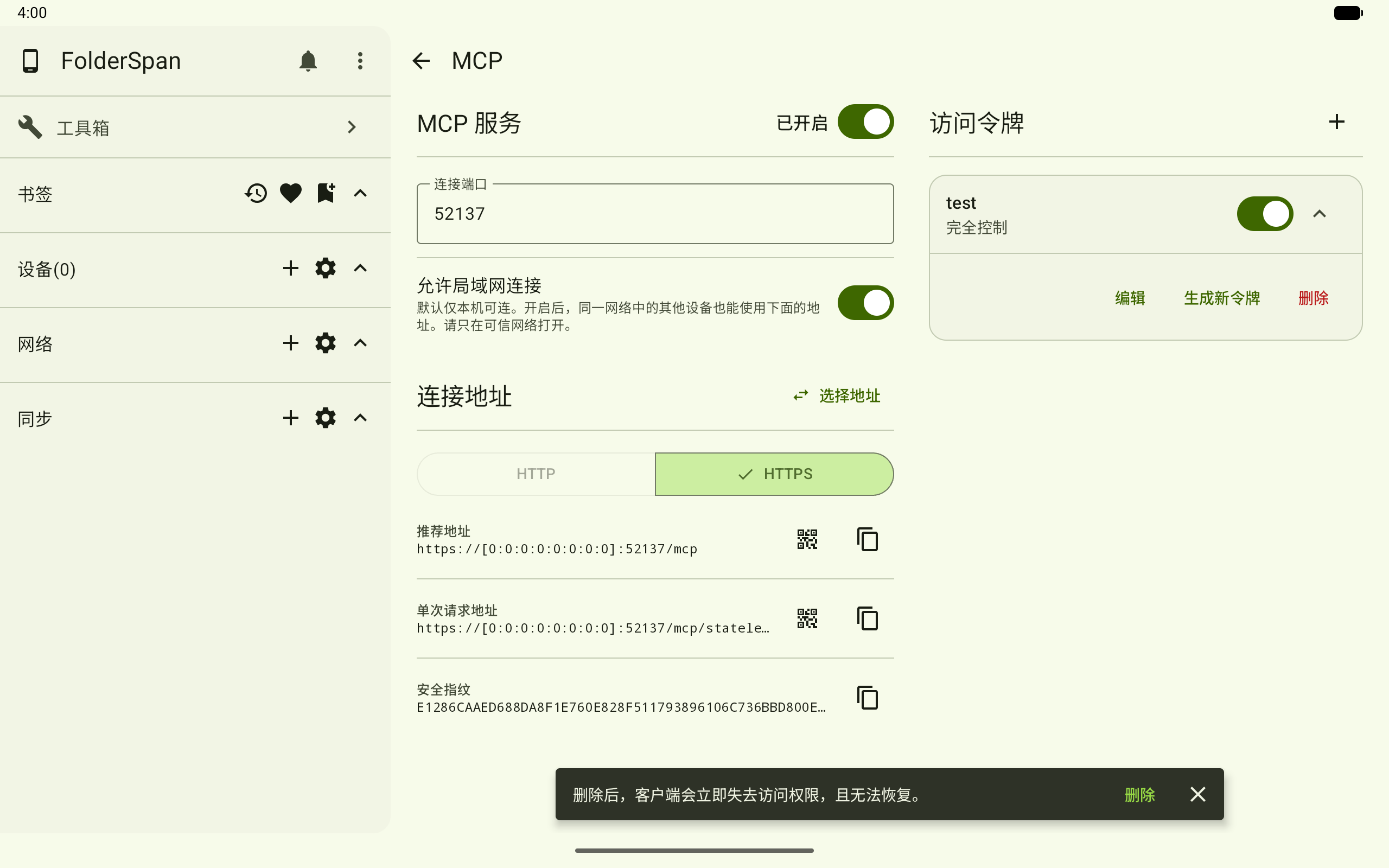
6. Delete a token
Expand the card, choose Delete, then confirm Delete in the bottom prompt. The client immediately loses access, and deletion cannot be undone.
Use the tools
Once connected, ask the AI in natural language to view or manage files, bookmarks, favorites, tasks, devices, network locations, and sync tasks. Using MCP tools covers prompts, response fields, permissions, and errors for each group.
Connection addresses
The page shows HTTPS and HTTP, preferring HTTPS. Both protocols use the same public port.
| Page label | Path | Use case |
|---|---|---|
| Recommended address | /mcp | Stateful Streamable HTTP for most clients; supports POST, GET/SSE, and DELETE. |
| Single-request address | /mcp/stateless | Stateless, POST-only requests for clients that explicitly support this mode or for debugging. |
Stateful connections return Mcp-Session-Id. Sessions expire after 30 idle minutes, with at most 32 active sessions per token. The service supports MCP versions 2025-06-18 and 2025-11-25, negotiating the newer mutually supported version during initialization.
HTTP does not encrypt Bearer Tokens, paths, or request parameters. Use it only on a trusted local network. Prefer HTTPS and compare the security fingerprint on the MCP page when a client asks you to confirm the device certificate.
1. Allow LAN connections
By default, only this device can connect. To allow another device, enable Allow LAN connections and keep the client and FolderSpan host on the same trusted network.
2. Choose an address
Use Select address to choose an available local IP. For a client on the same device, use 127.0.0.1 or ::1. For another LAN device, choose the host's actual IP on that network.
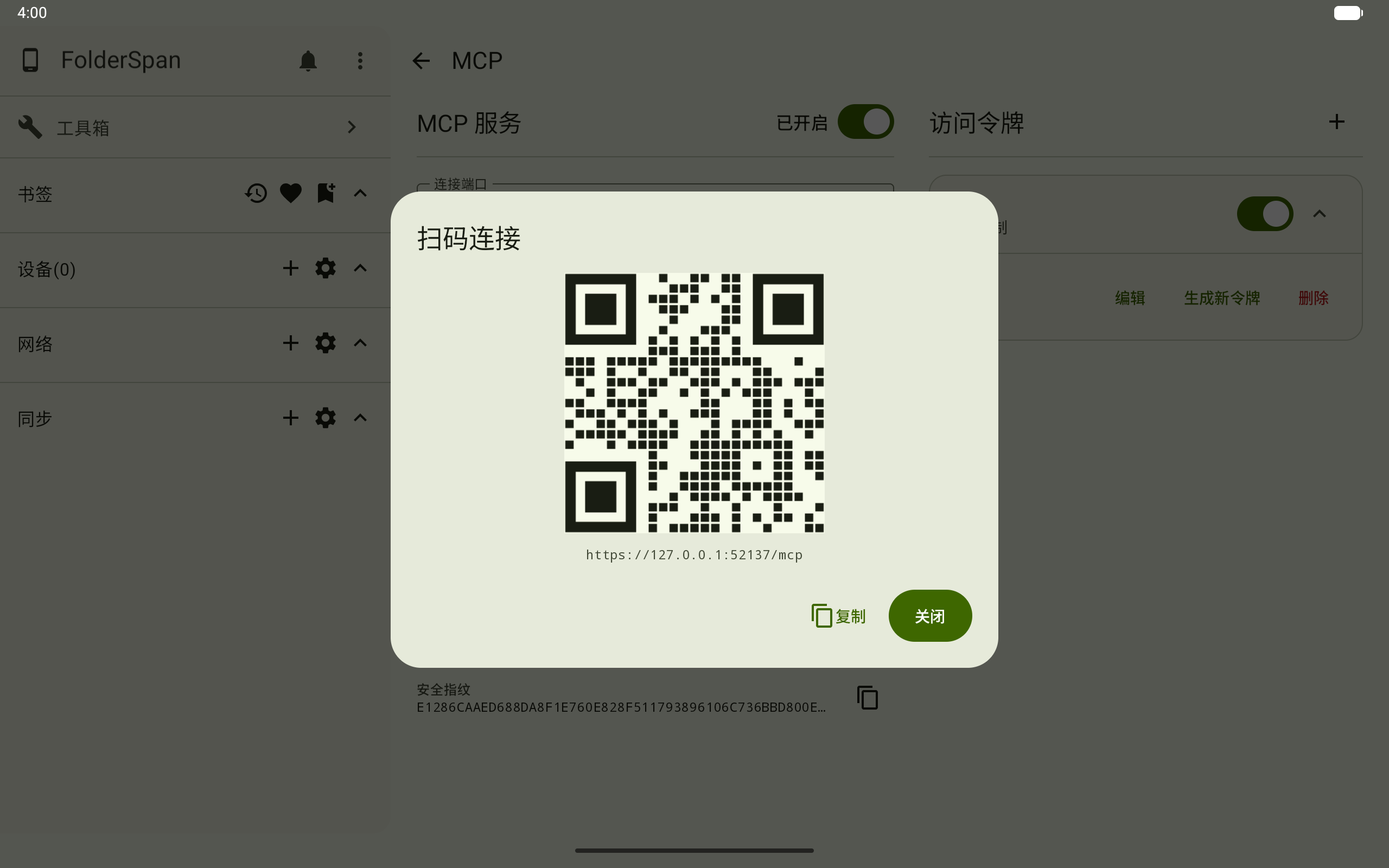
3. Copy or scan connection information
Use copy buttons for addresses or the fingerprint. The QR button beside the recommended address opens Scan to connect. Its QR code and text contain the same recommended address.
Security boundaries
- Every request must include
Authorization: Bearer <complete-token>. files.read,files.write, andfiles.sharecannot bypass sensitive-path protection.- File tools check endpoint capabilities, device path permissions, normalized path boundaries, and symbolic links, rejecting access beyond authorized roots.
- Protected items visible in an authorized parent's listing still expose no read, write, rename, delete, or share capabilities. Their metadata and contents cannot be read directly.
- Errors and logs do not return tokens, saved credentials, file contents, or rejected target paths.
- Browser requests with a non-loopback
Originare rejected to prevent cross-site calls and DNS rebinding.
Create a separate token for each third-party client and prefer View only or custom permissions. Disable or delete unused tokens. Regenerating immediately invalidates the old value.