Network management
Add, connect, and maintain remote file services using FTP, SFTP, SMB, S3, WebDAV, or share links. Find connections, edit settings, pin frequently used entries, or connect, pin, and delete several entries together.
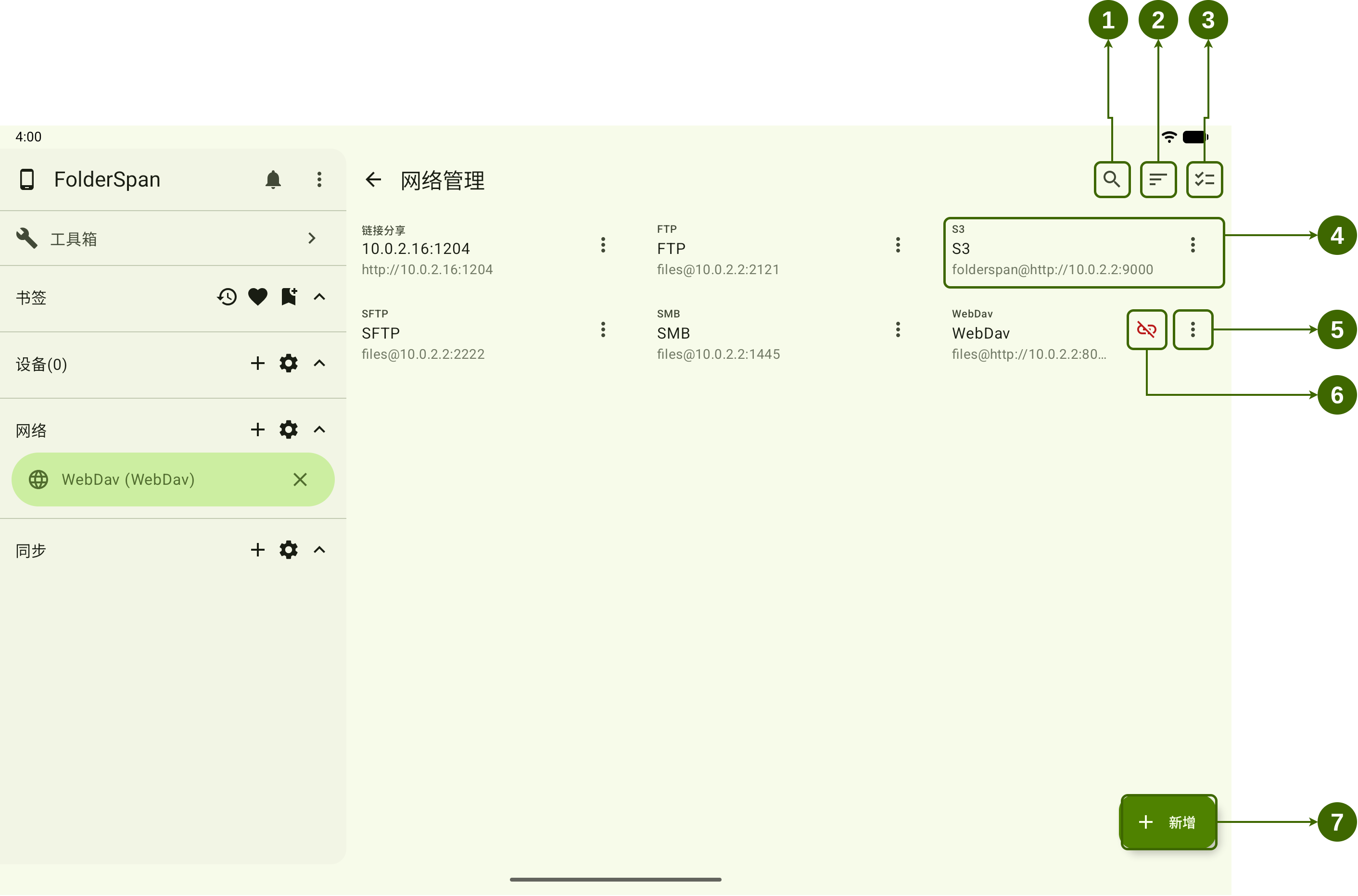
Page layout
Select the gear beside Network in the sidebar to open management. Numbers in the overview refer to:
- Search and filters: the top magnifying glass searches by name, host address, and protocol.
- Sort: chooses a field and ascending or descending order.
- Batch actions: enters multi-select mode.
- Network entry: shows the protocol, name, and address. Connections using a username also show
username@address. Select an entry to connect. - More menu: the vertical dots on the right provide
Pin,Edit,Copy, andDelete. - Disconnect: a red icon on connected entries disconnects that network.
- Add: the bottom-right
Addbutton creates a connection.
Connected networks appear under Network in the sidebar. Select a name to browse its remote directories, or the cross beside it to disconnect.
Features
- Connection configuration: the protocol, address, and credentials needed to access the remote service. See the protocol guides below for specific fields.
- Connected state: a red disconnect icon appears, and a sidebar entry becomes available. Saving a configuration does not connect it; connect before browsing remote files from the sidebar.
- Pinned state: a pin beside the protocol name marks entries that appear before ordinary entries.
- Batch selection: the header shows a selected count, selected entries have checkmarks, and batch buttons appear at the bottom right.
Recommended reading order
- FTP: connect to FTP or FTPS servers.
- SFTP: connect to SSH file services using a password or private key.
- SMB: connect to shared directories on a local network.
- S3: connect to Amazon S3 or compatible object storage.
- WebDAV: connect to WebDAV drives or file services.
- Share links: connect to links generated by FolderSpan.
Operations
1. Add a network connection
Select Add (overview number 7) to open New network.
- Choose the service type in
Protocol. - Enter a
Name, address, and credentials. Adjust protocol settings to match the service. - Select
Test connectionto check the configuration. - Once it works, select the save icon at the bottom right.
The FTP example shows Name, Connection address, Username, Password, and FTP settings. Red fields and the address-required message indicate missing required information.
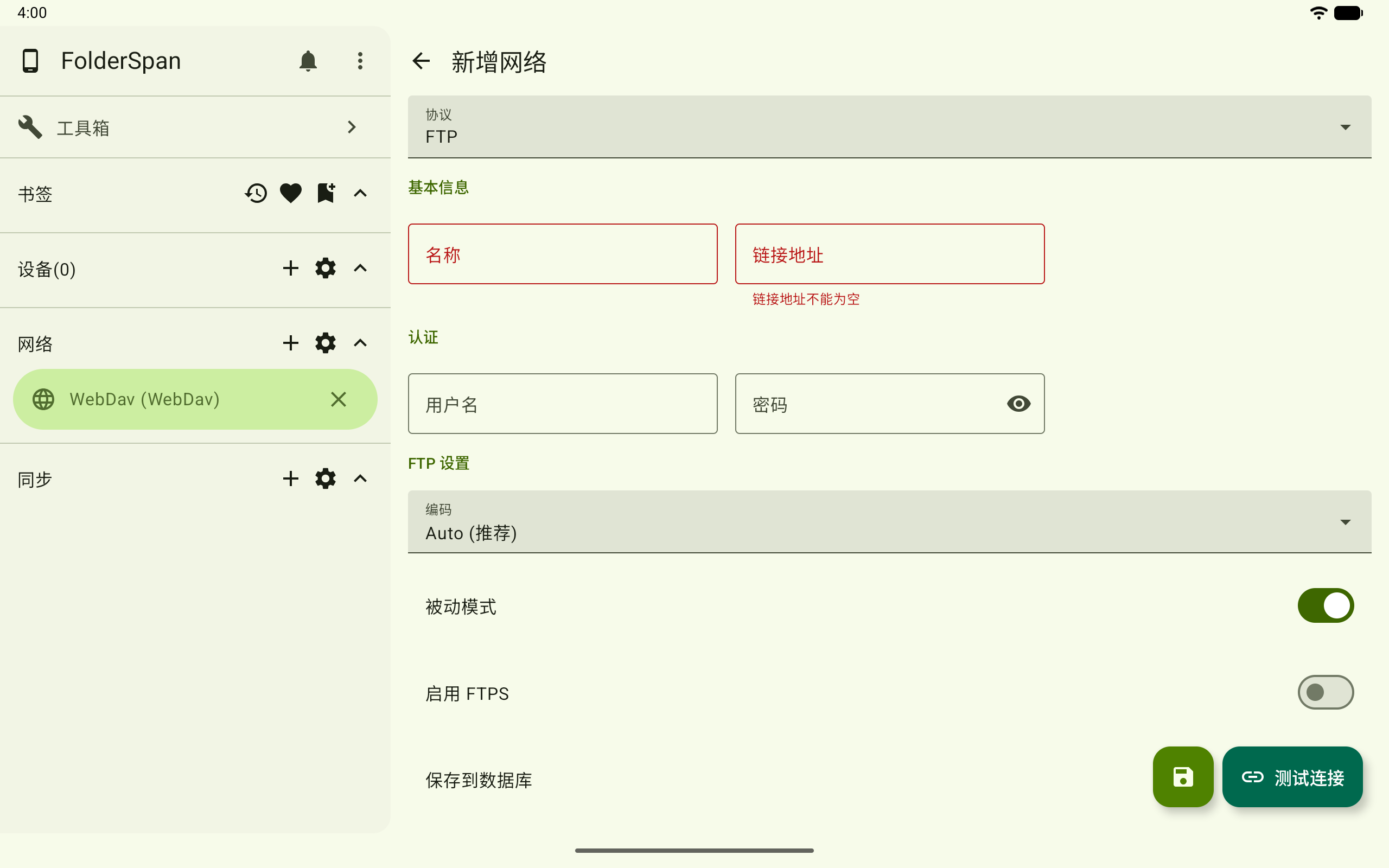
Enable Save to database to retain the configuration. Disable it for a temporary connection. See the protocol guide for address formats and authentication.
2. Connect a network device
Select an entry (overview number 4) to open Connect network device. Check its name and select Connect, or Cancel to close.
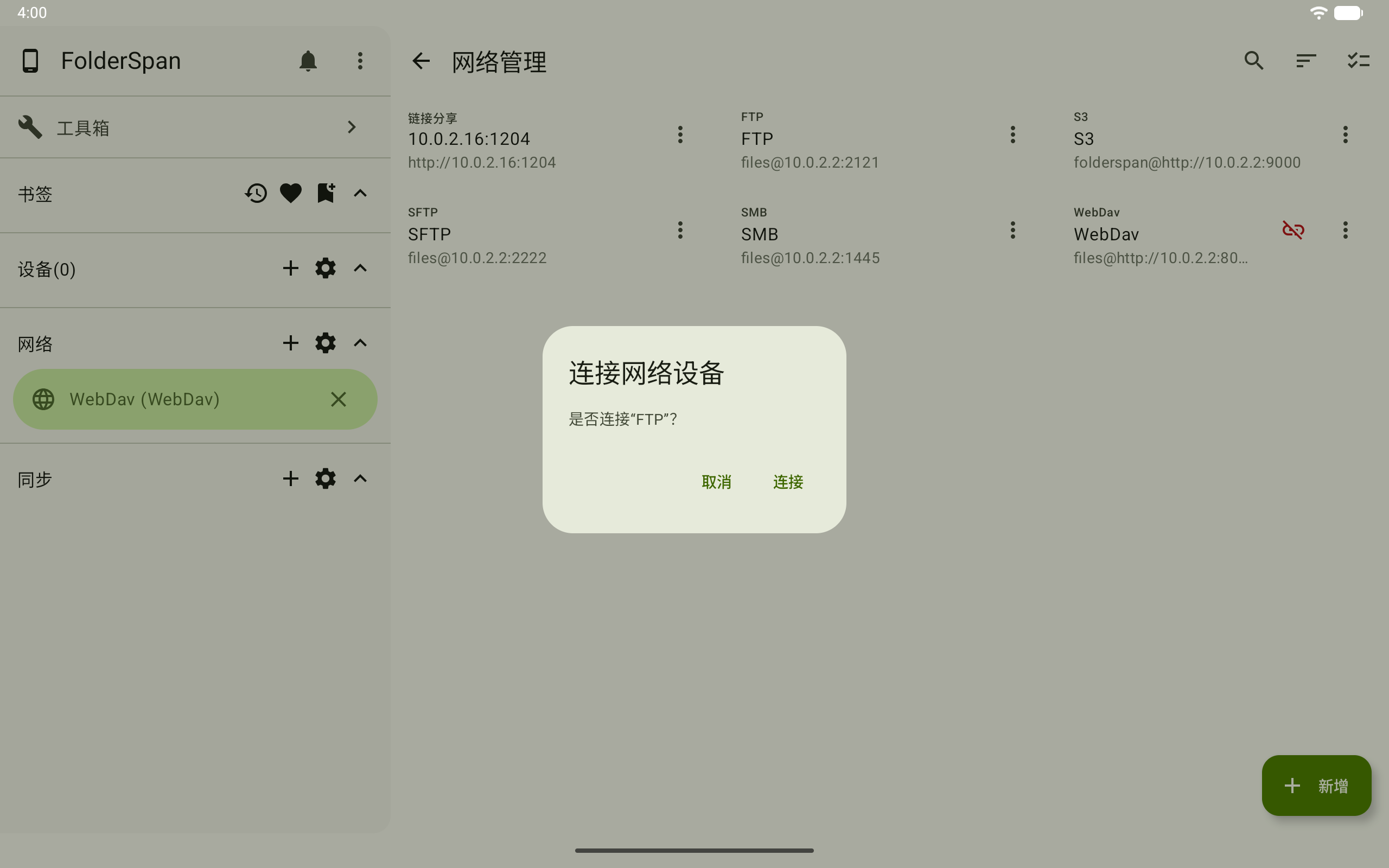
After connecting, the entry appears under Network in the sidebar. Return to file browsing and select its sidebar name to browse the remote root directory.
3. Disconnect a network
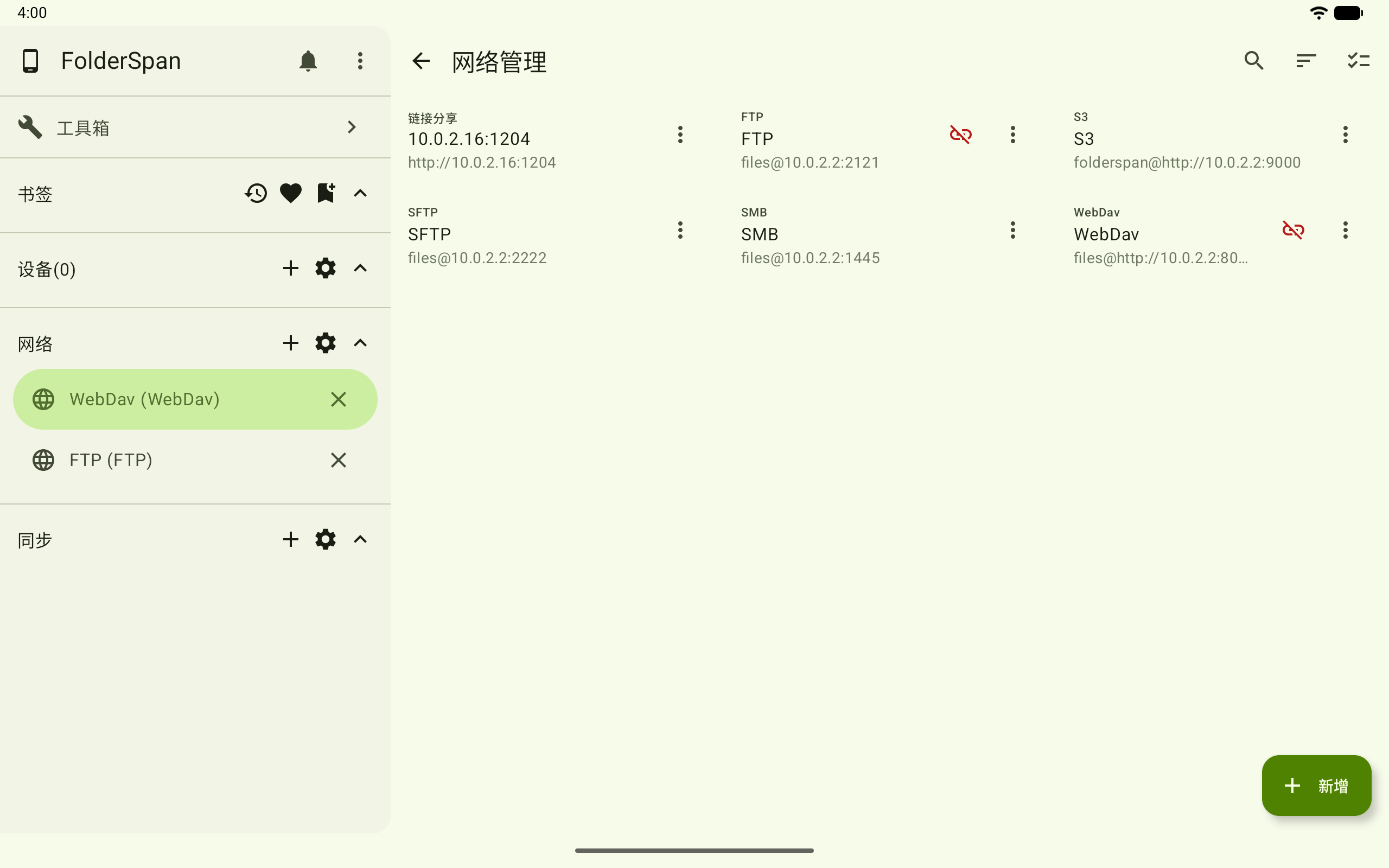
Select the red disconnect icon beside a connected entry (overview number 6), or the cross beside its sidebar name.
The example shows an active FTP connection. Disconnecting removes its sidebar entry. If you are browsing that network, the page returns to local files.
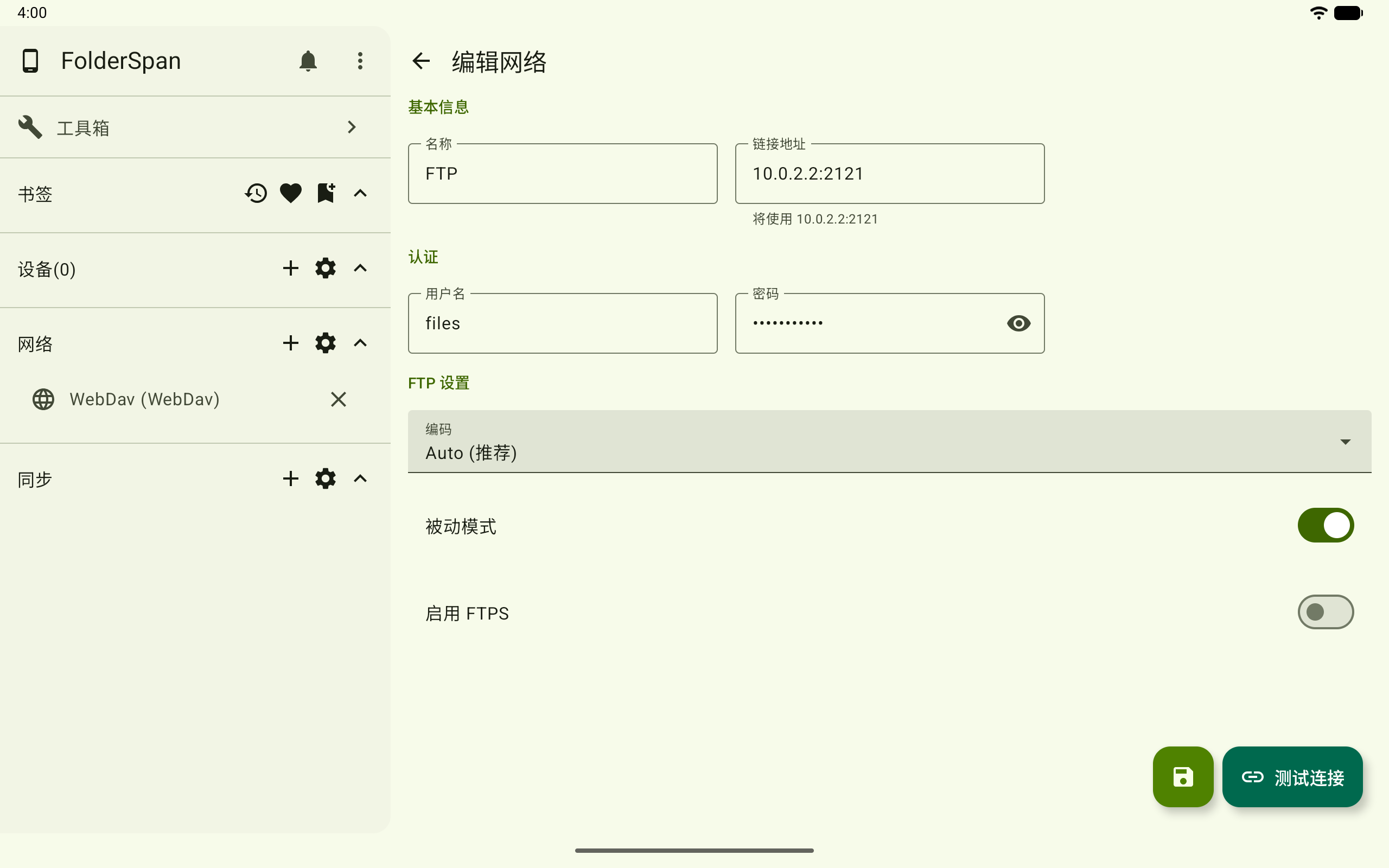
4. Edit network settings
Open the vertical-dot menu (overview number 5) and choose Edit to open Edit network.
Change the name, address, credentials, or protocol settings, then use Test connection before saving. The example edits an existing FTP connection.
5. Pin or unpin
Open an entry's more menu and choose Pin.
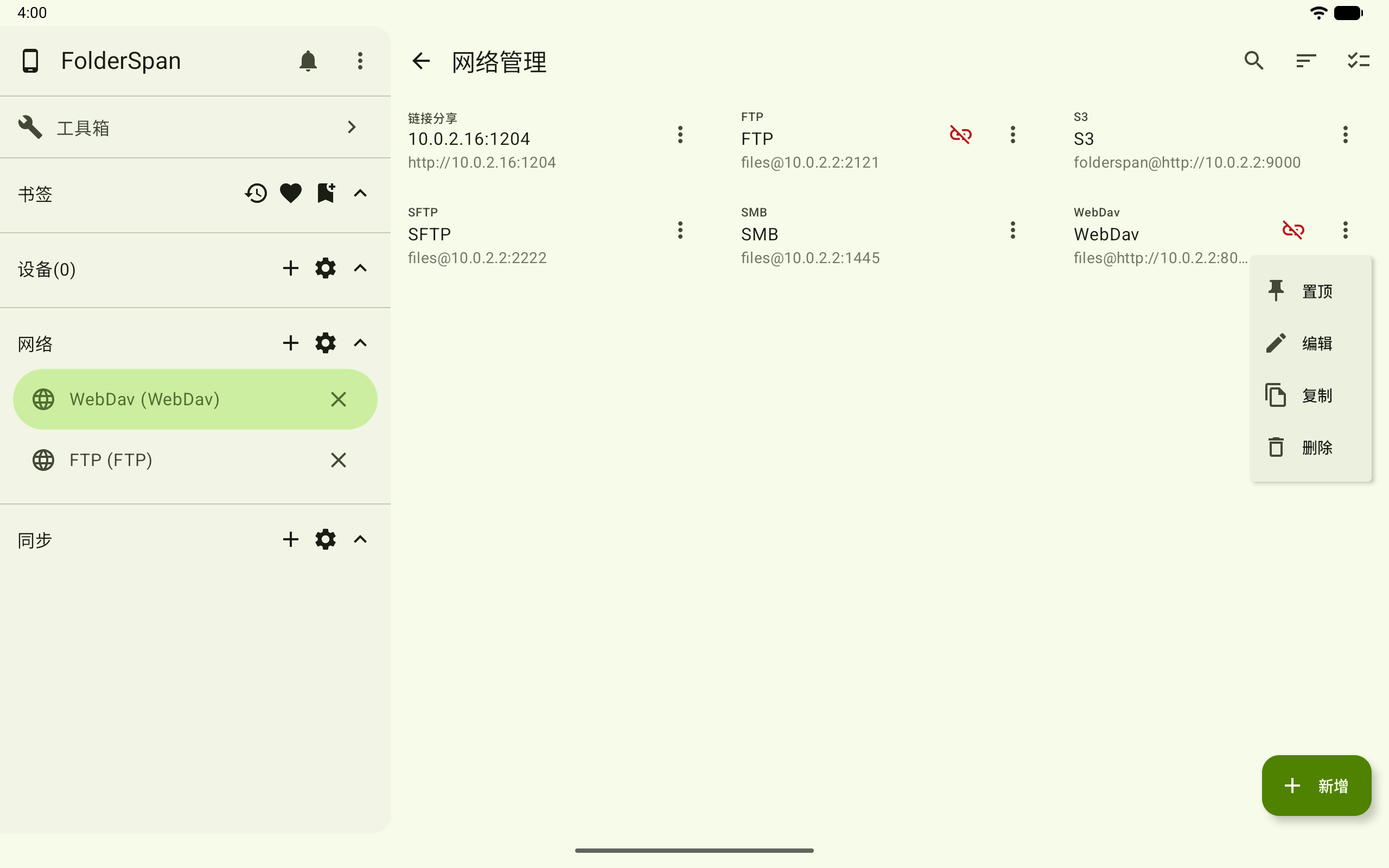
The entry moves to the front of the list and shows a pin beside the protocol name. WebDAV is pinned in the example.
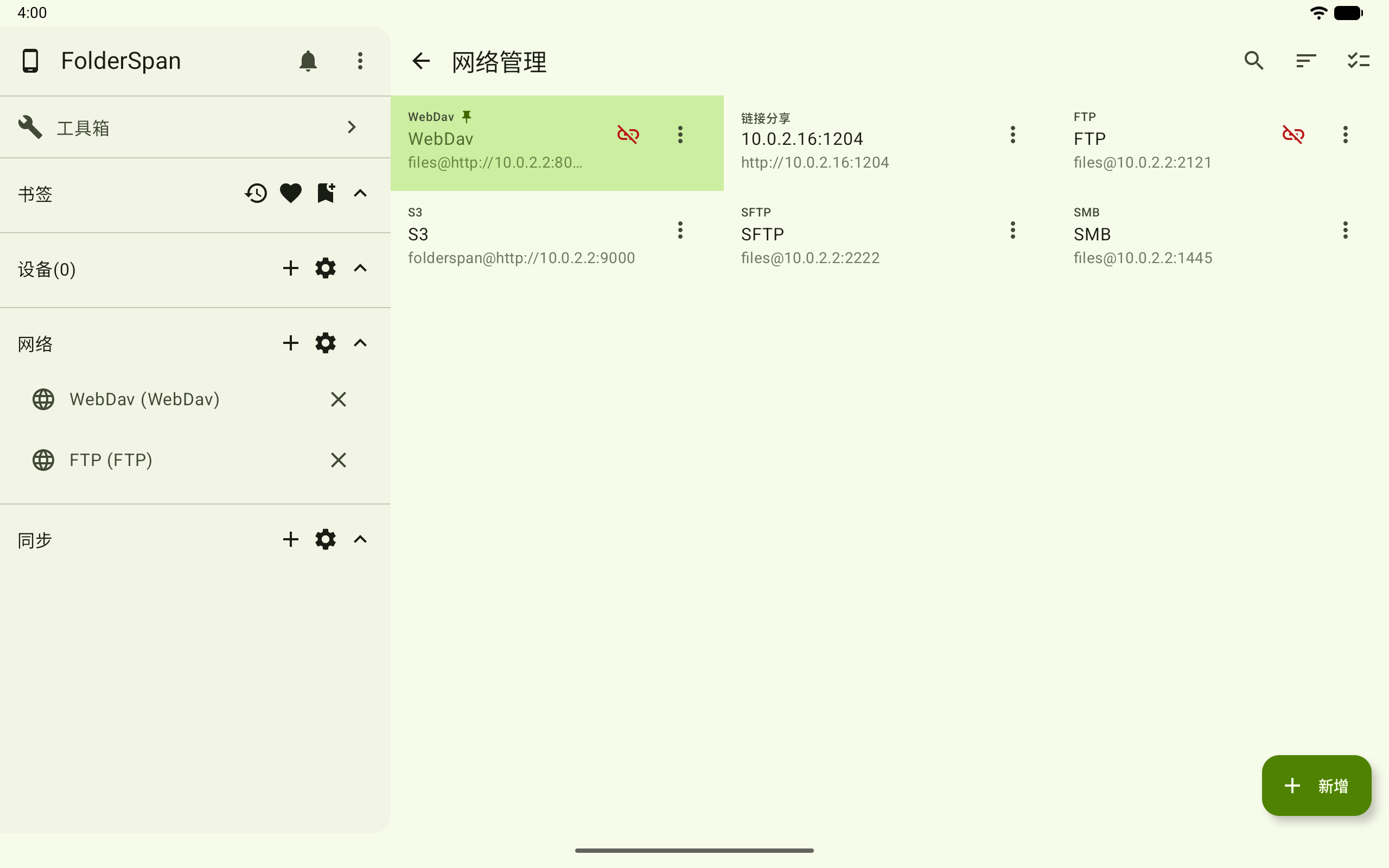
To restore normal sorting, open its menu again and choose Unpin.
6. Copy a configuration
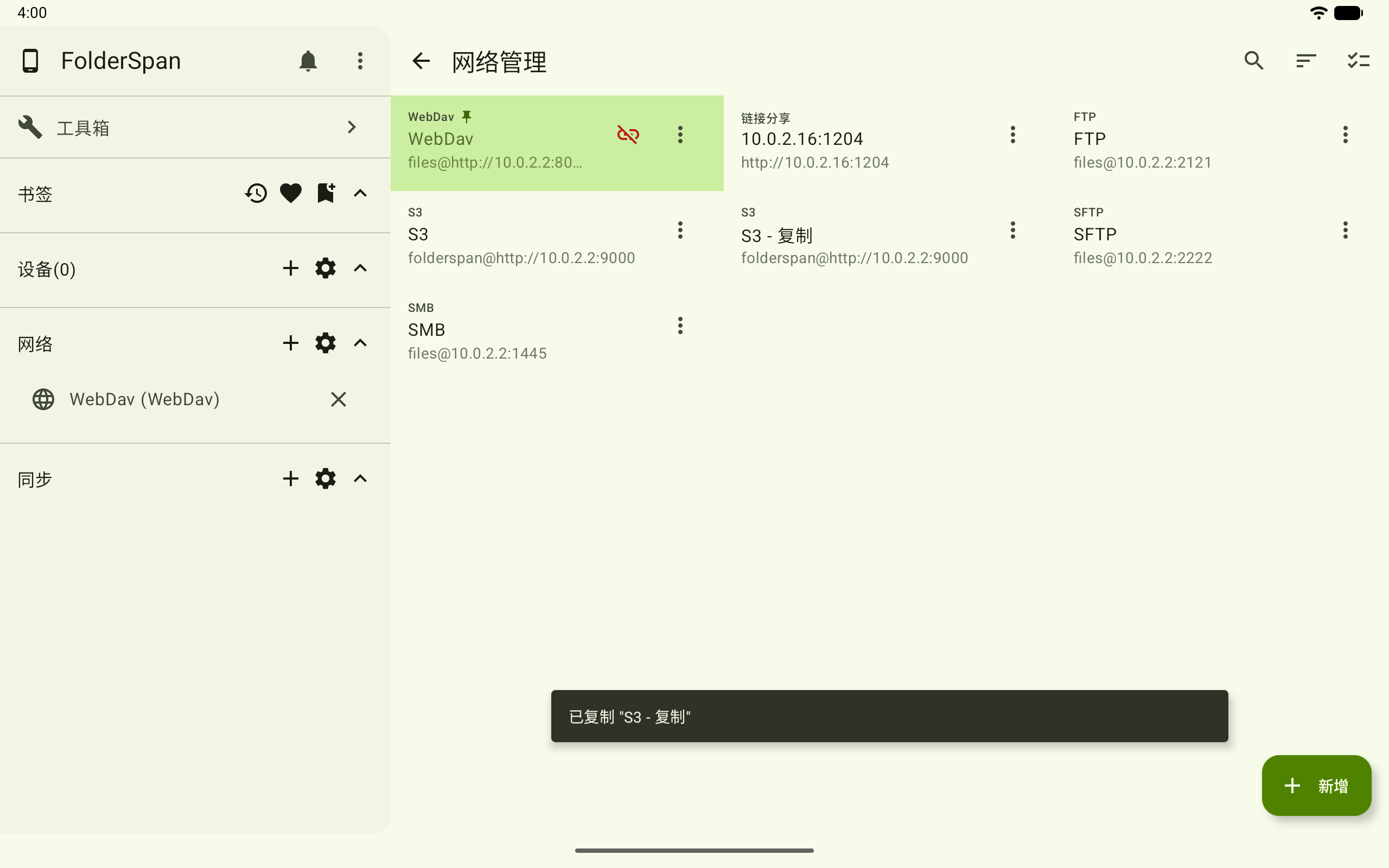
Choose Copy from an entry's menu. A new entry with a - Copy name suffix is created, and a completion message appears.
The example copies S3, creating S3 - Copy. Open the copy's menu and choose Edit to change its name or address.
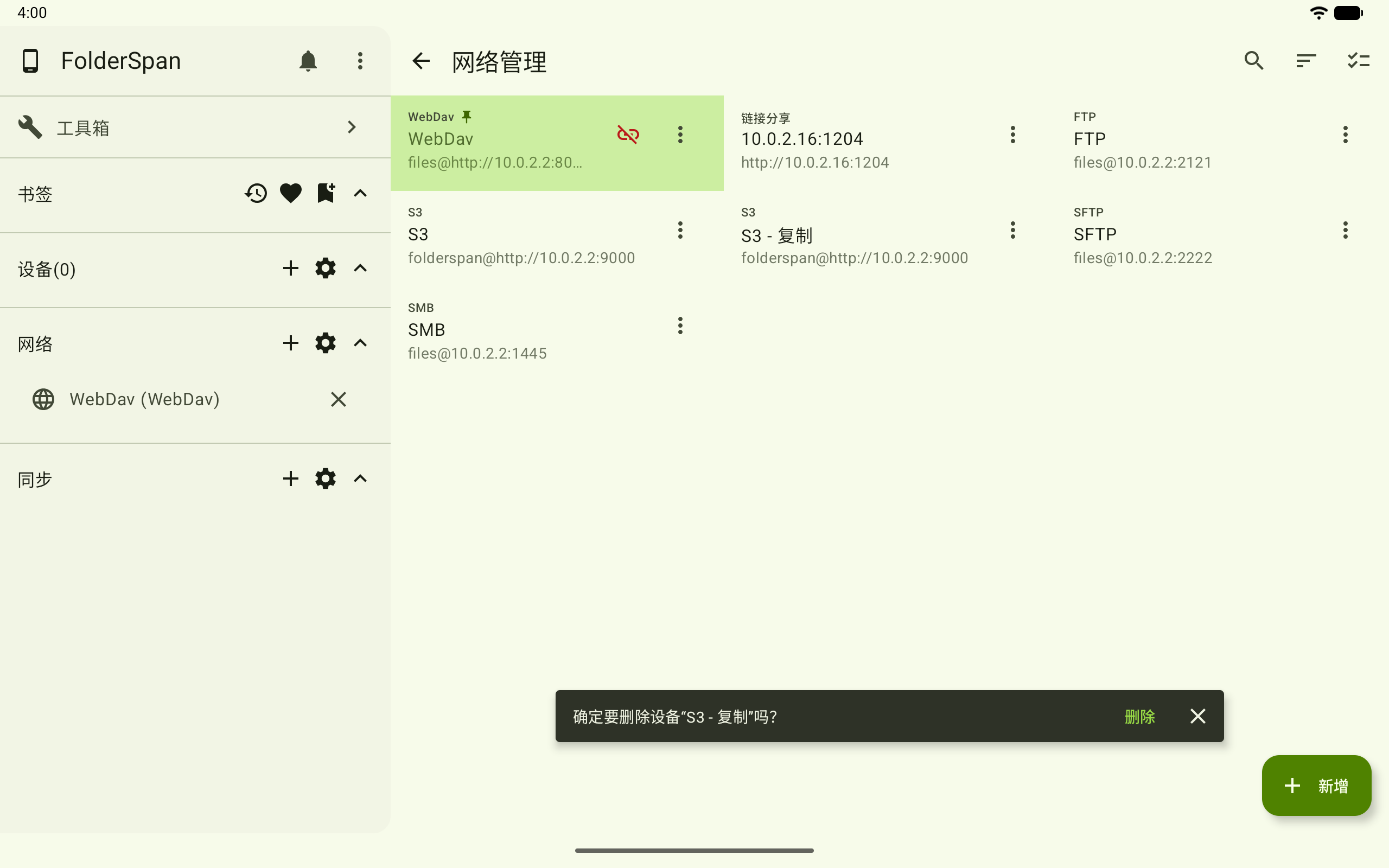
7. Delete a configuration
Choose Delete from the menu. Check the connection name in the bottom confirmation, then select Delete to remove it, or the cross to cancel.
The example deletes S3 - Copy. If the deleted network is currently being browsed, the page returns to local files.
8. Search and filter
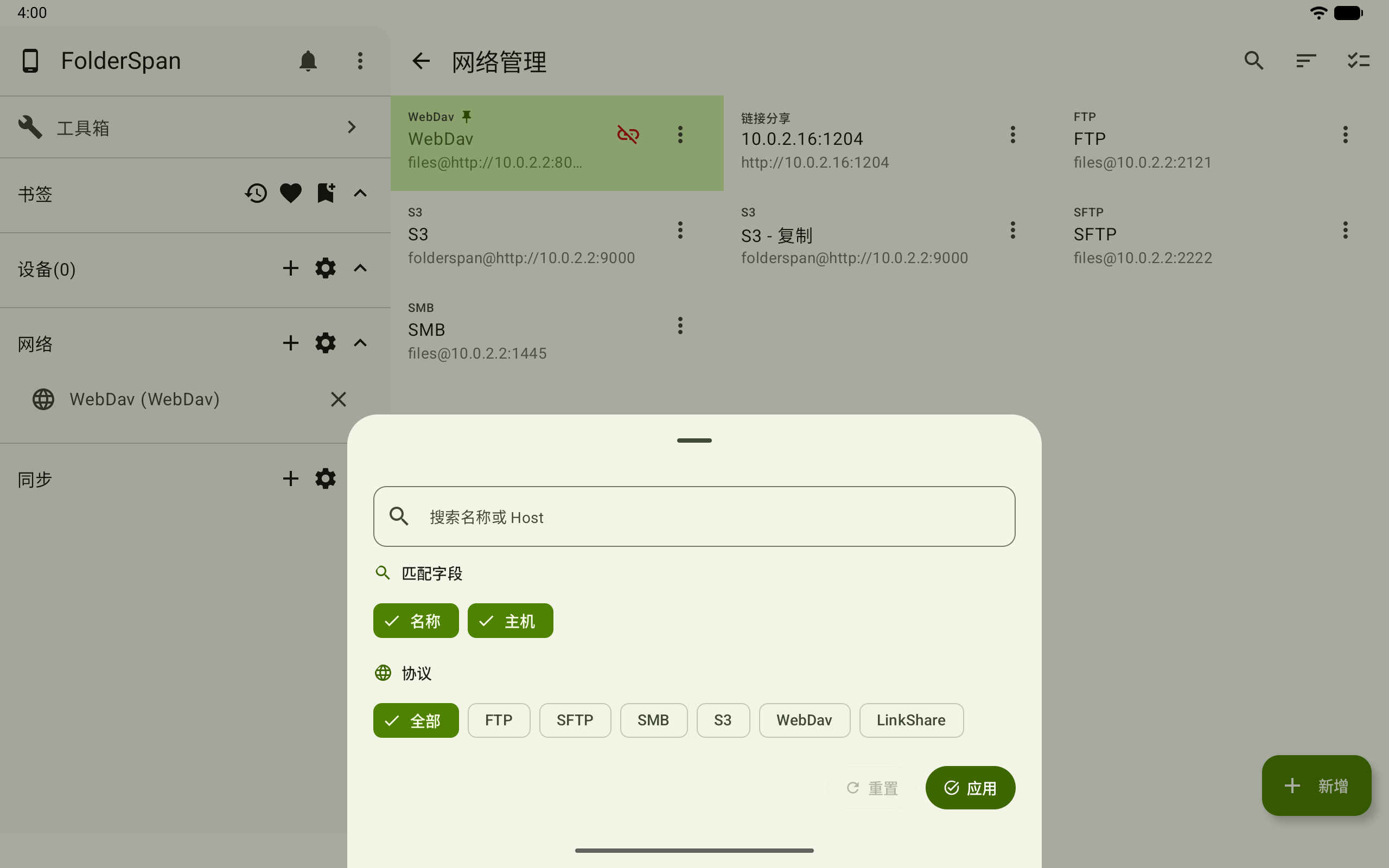
Select the magnifying glass (overview number 1).
- Search input: enter a keyword in
Search name or Host. - Matching fields: select
Name,Host, or both. - Protocol: select
All, or limit results toFTP,SFTP,SMB,S3,WebDAV, orLinkShare.
Select Apply to filter the list. To clear conditions, select Reset, then Apply.
9. Sort the network list
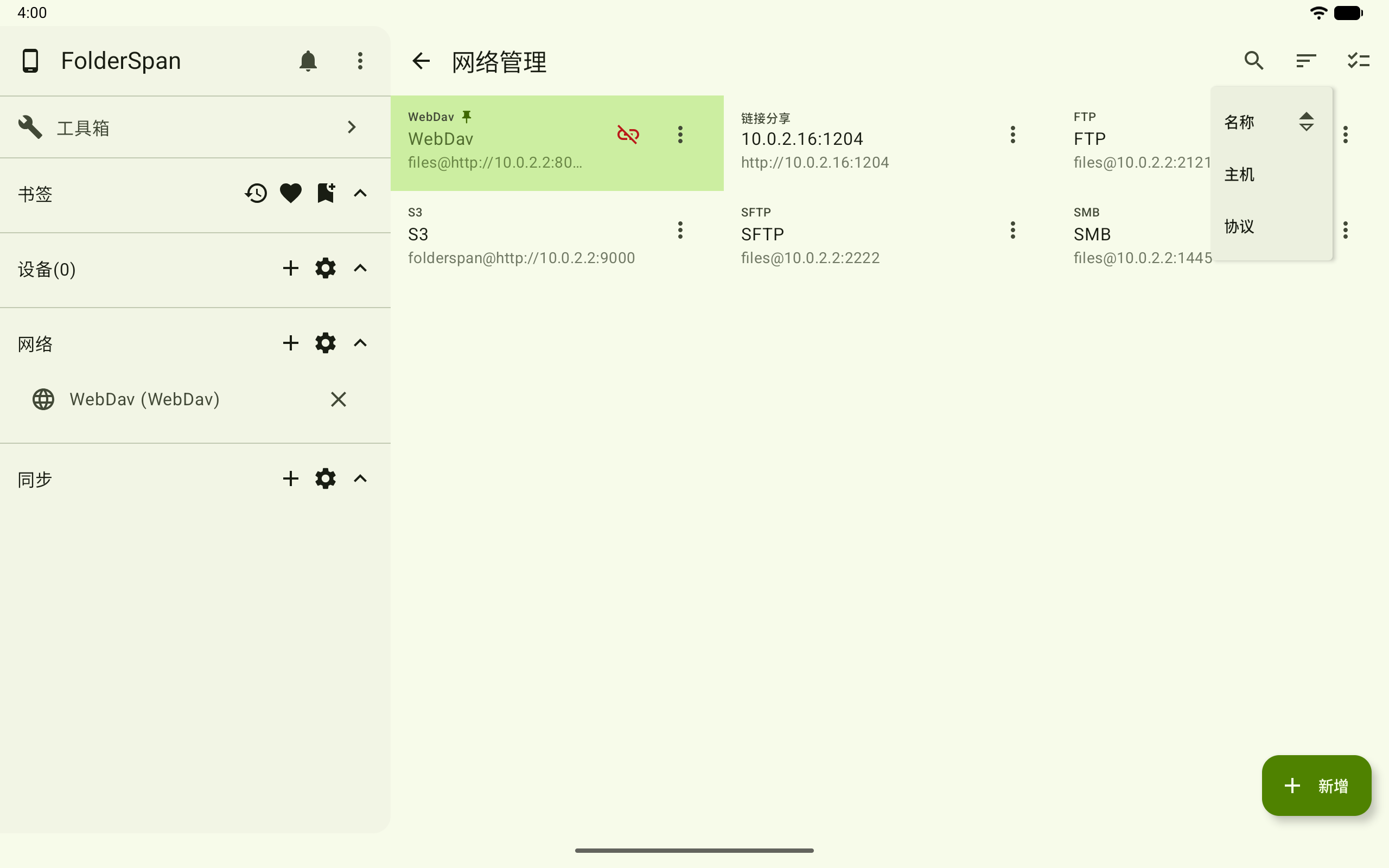
Select the sort icon (overview number 2) and choose Name, Host, or Protocol.
The current field shows a direction icon. Select it again to switch ascending and descending order. Pinned entries still appear first.
10. Batch actions
Enter selection mode
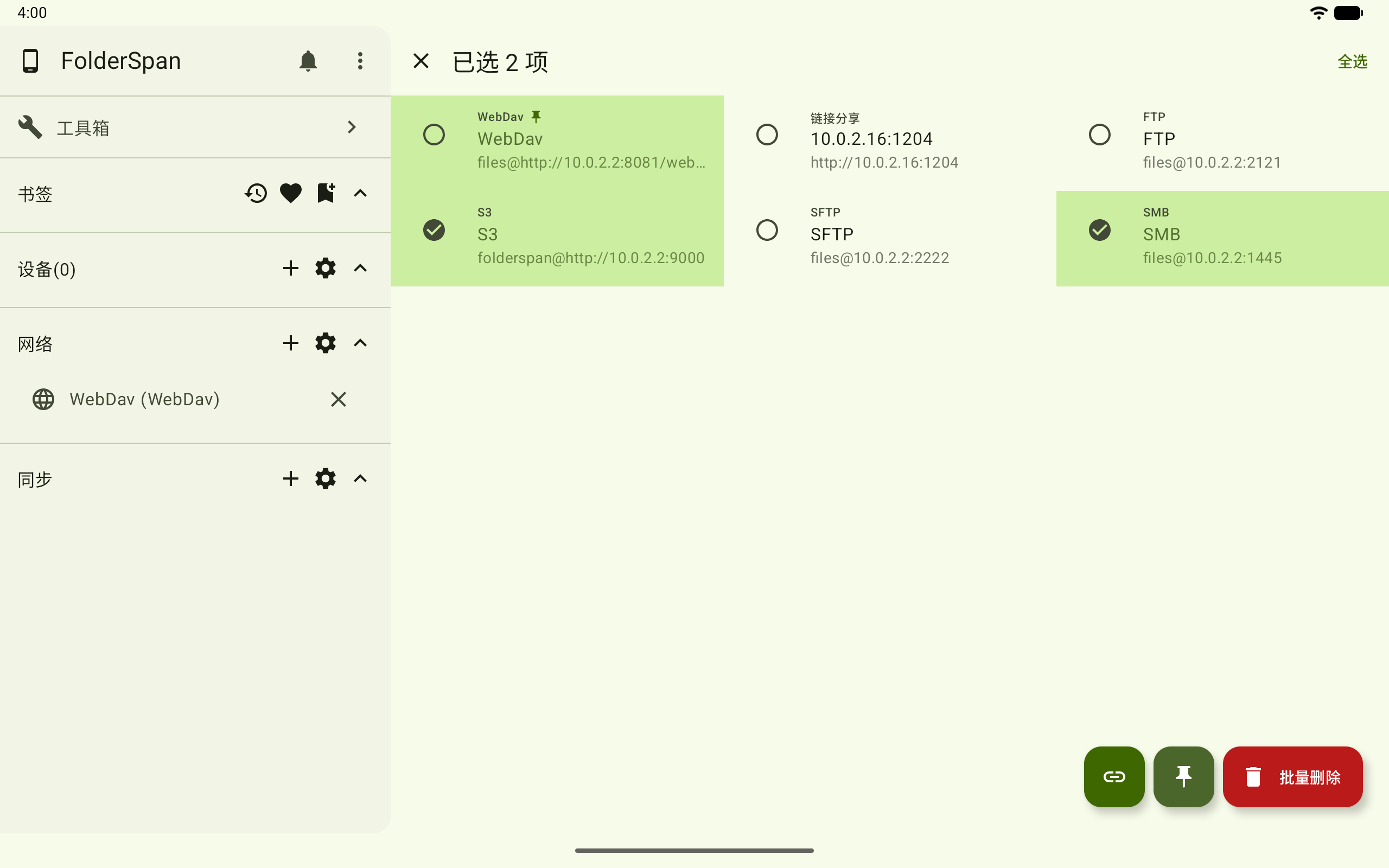
Select batch actions (overview number 3). Use the circles beside entries to select or deselect them. The header shows the count; use Select all at the top right to select the current list, or close at the top left to leave.
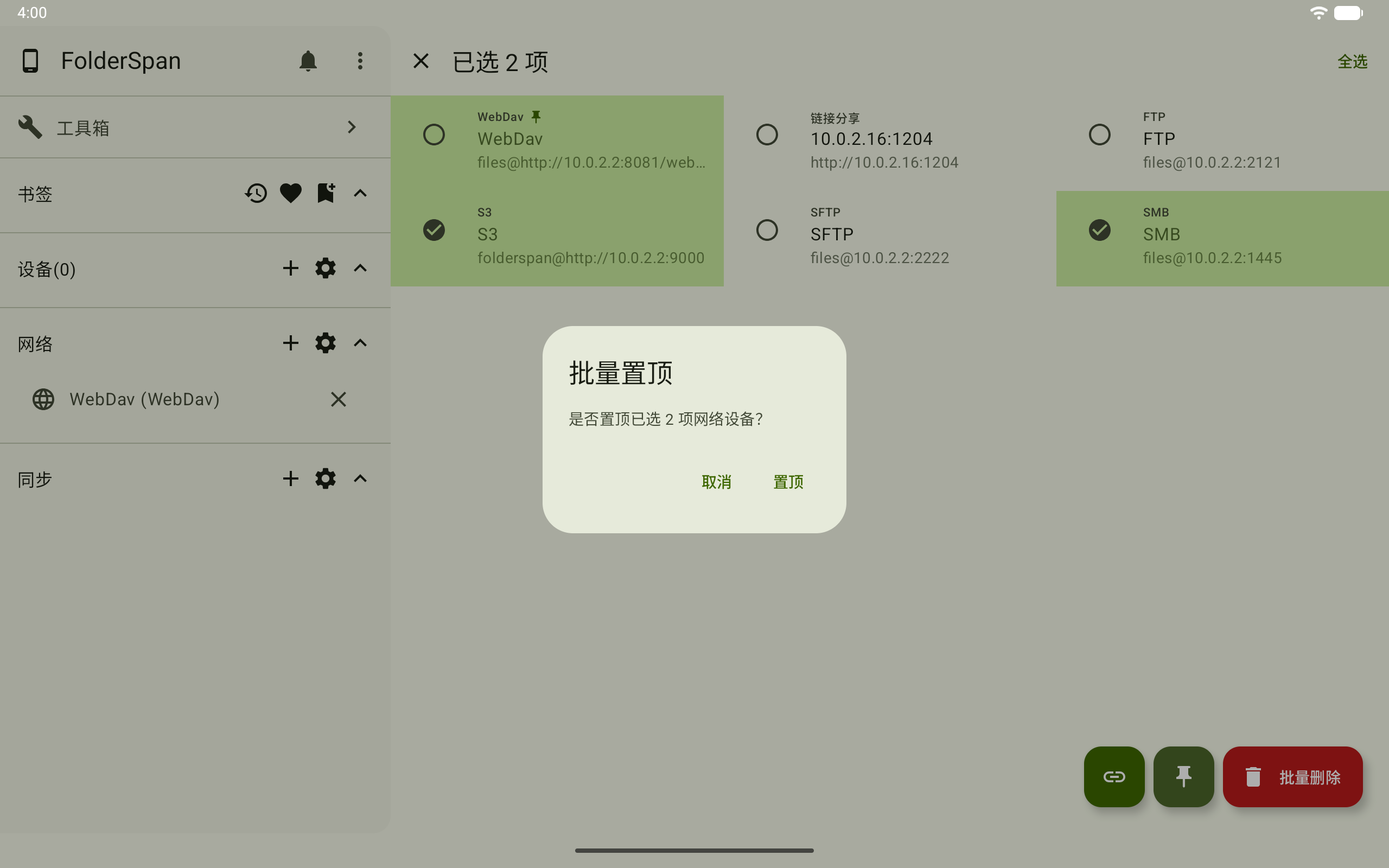
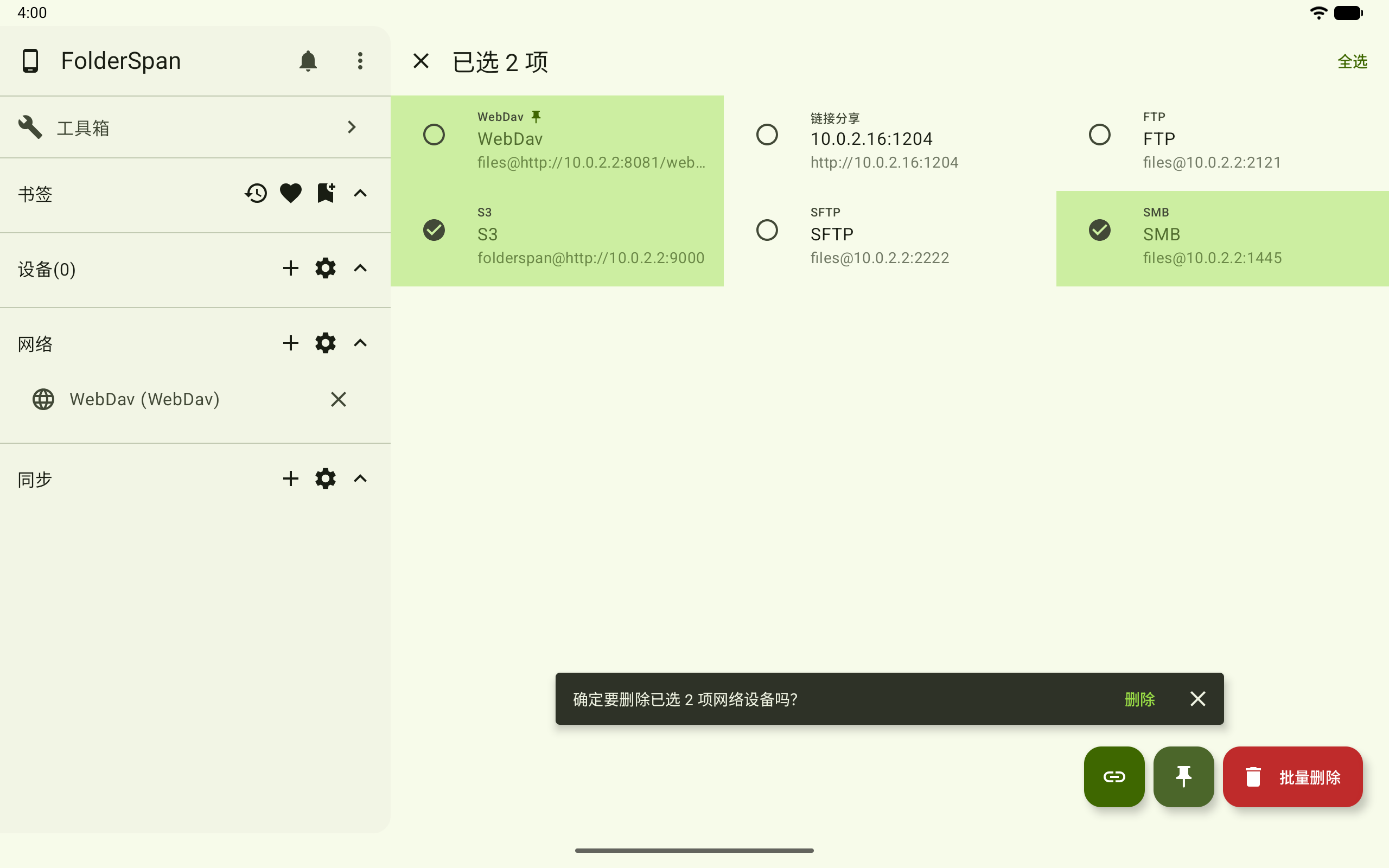
The example selects S3 and SMB and shows 2 items selected. Bottom-right actions, from left to right, are connect, pin, and Batch delete.
Connect in bulk
After selecting entries, use the chain icon to open Batch connect. Check the count and select Connect to connect and leave selection mode, or Cancel to close the dialog.
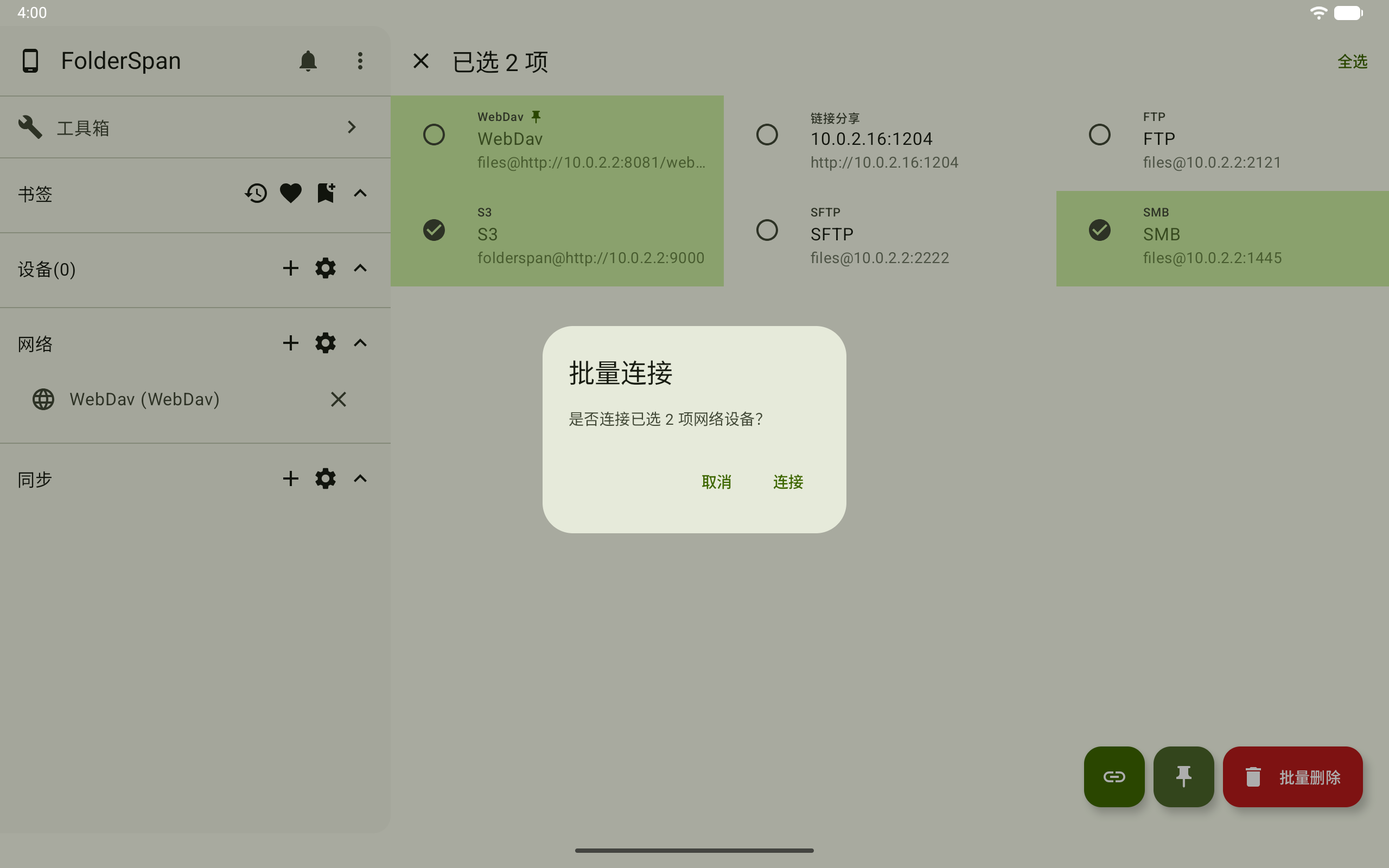
Successful connections appear in the sidebar, where each can be opened separately.
Pin in bulk
Use the pin icon to open Batch pin. Select Pin to move selected entries to the front and leave selection mode, or Cancel to close.
Delete in bulk
Choose Batch delete, check the device count in the bottom prompt, then select Delete to remove the entries. Close the prompt with its cross to cancel.
Connection troubleshooting
What to check when a connection test fails
Read the failure reason first, then check the address, port, and credentials. Test again after making changes. Save after confirming the remote root directory can be read.
| Protocol | Settings to check |
|---|---|
| FTP | Connection address, username, password, and the server's requirements for passive mode and FTPS |
| SFTP | SSH address and port (default 22), password or private key, and the verified server fingerprint |
| SMB | Server address, share name, username, password, and domain |
| S3 | Endpoint, bucket, region, and access keys; temporary credentials also need SessionToken, and the provider may require force path style |
| WebDAV | Full base address, authentication type, and credentials; token authentication also needs the correct header name and prefix |
| Share links | The full sharing address, including its actual port, the sender's running service, and the access password |
Connected, but unable to create or delete files
A successful connection means the root directory is readable. Writing and deleting still require permission. Share-link connections do not provide write operations. For other protocols, check the account and directory permissions on the server, then follow Files.