Share links
Connect to network links shared by FolderSpan. These connections support browsing shared content, copying files, saving favorite paths, and viewing information. They do not support renaming, deleting, or creating files and folders.
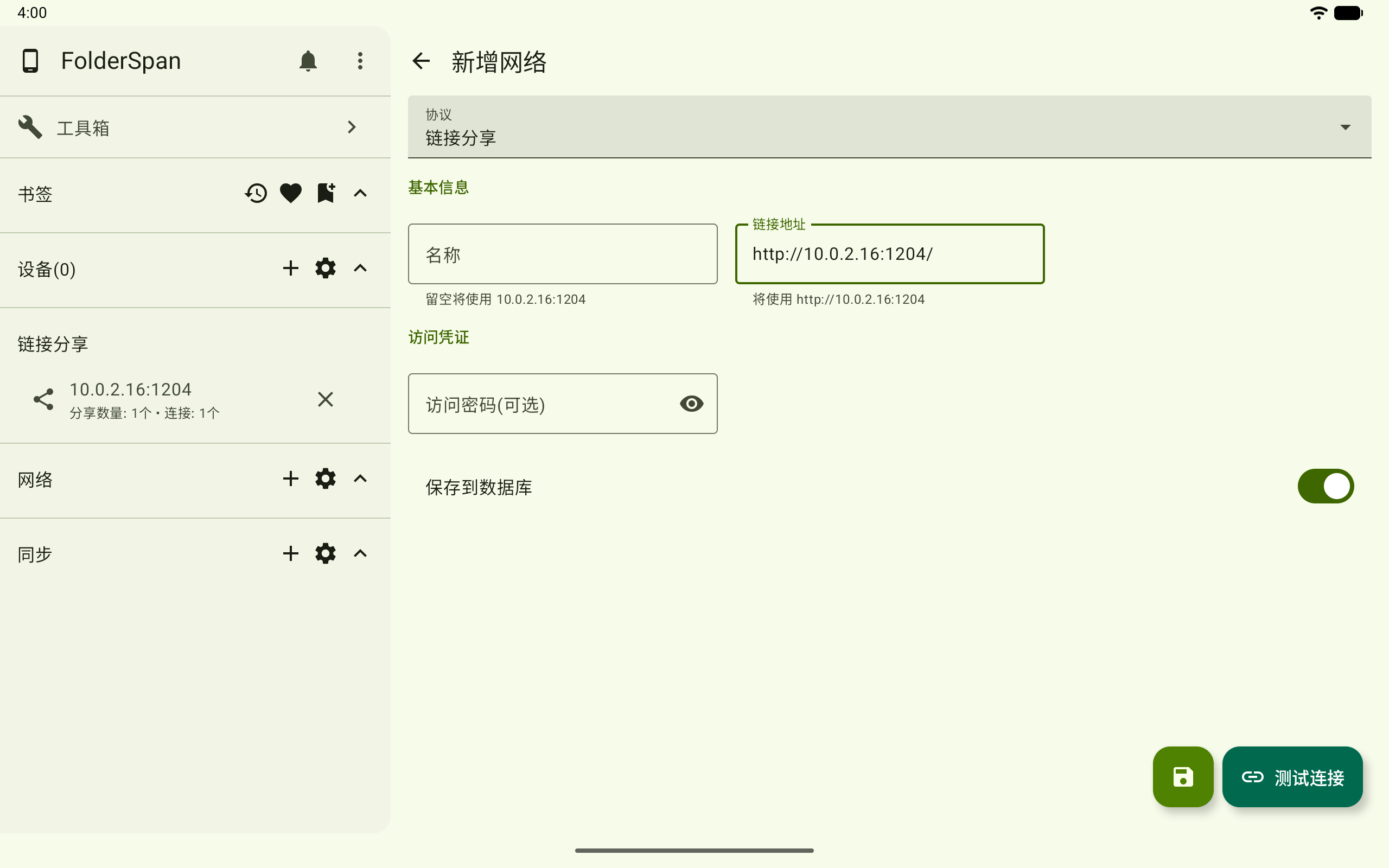
Page layout
- Top bar:
New networkorEdit network, with a back button on the left. - Protocol: choose share links when adding; an existing connection's protocol is fixed.
- Basic information:
NameandConnection address. - Access credentials: optional access password when adding, or access password when editing.
- Actions: save at the bottom right, or use
Test connectionto validate the link.
Fields
- Name: the name shown in the network list. It can be empty when adding; the link's host is used instead.
- Connection address: the sharing link; required. Invalid formats show an error. Without
http://orhttps://, it is parsed ashttp://. The default port is1204if omitted. - Access password (optional): shown when adding. A
pwdquery parameter is detected automatically; a manually entered password takes priority. - Access password: shown when editing an existing share-link connection.
- Save to database: shown for new connections; disable it for a temporary connection only.
Operations
1. Add a share link
Select Add in network management and choose the share-link protocol. Paste the link to see the base address that will be used. Enter an optional access password if required.
2. Test the link
Enter the address and select Test connection. A success message indicates the shared root is readable. Otherwise, a failure reason is shown.
3. Edit a share link
Choose Edit from its network-list menu, update the name, address, or access password, then save.
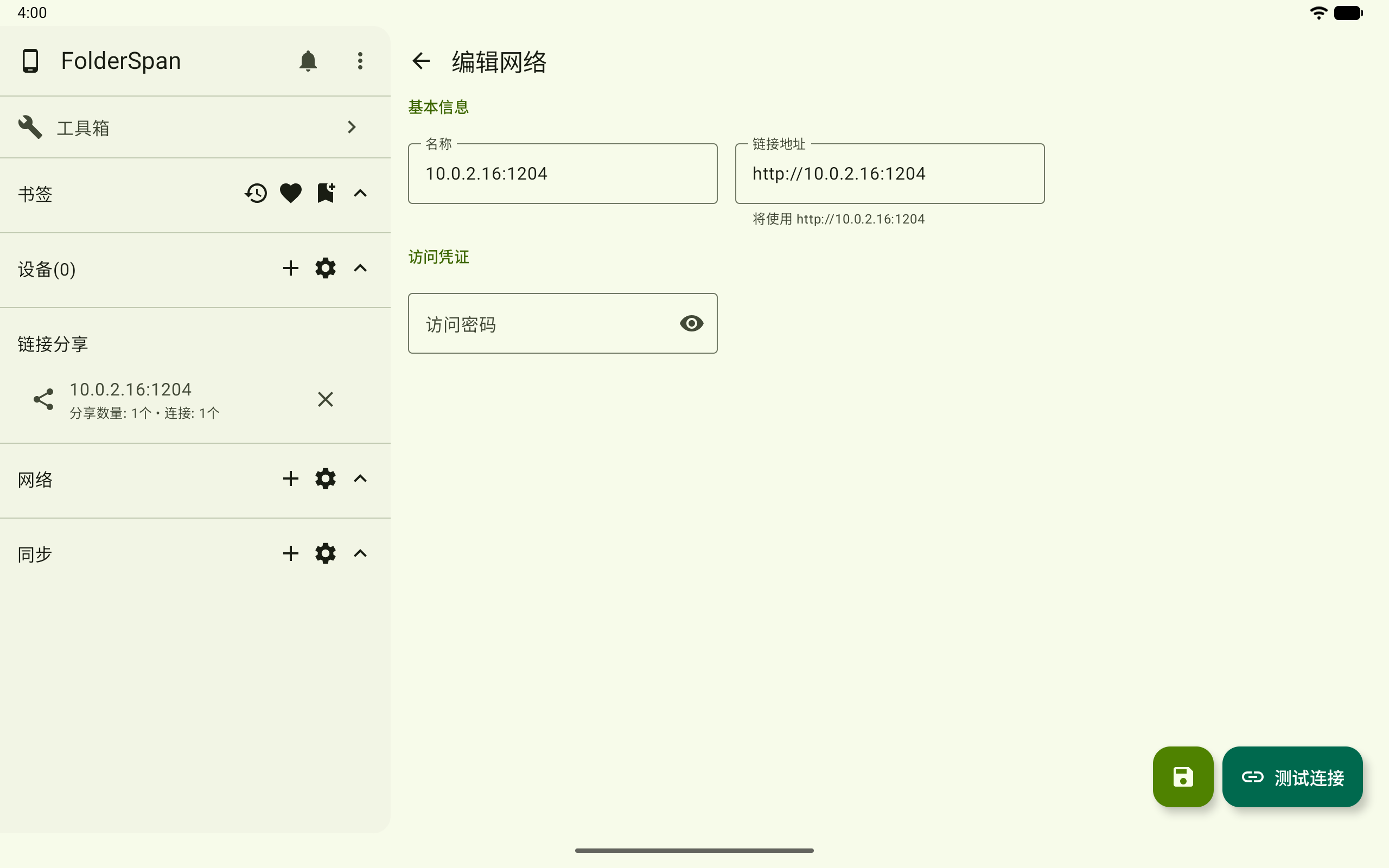
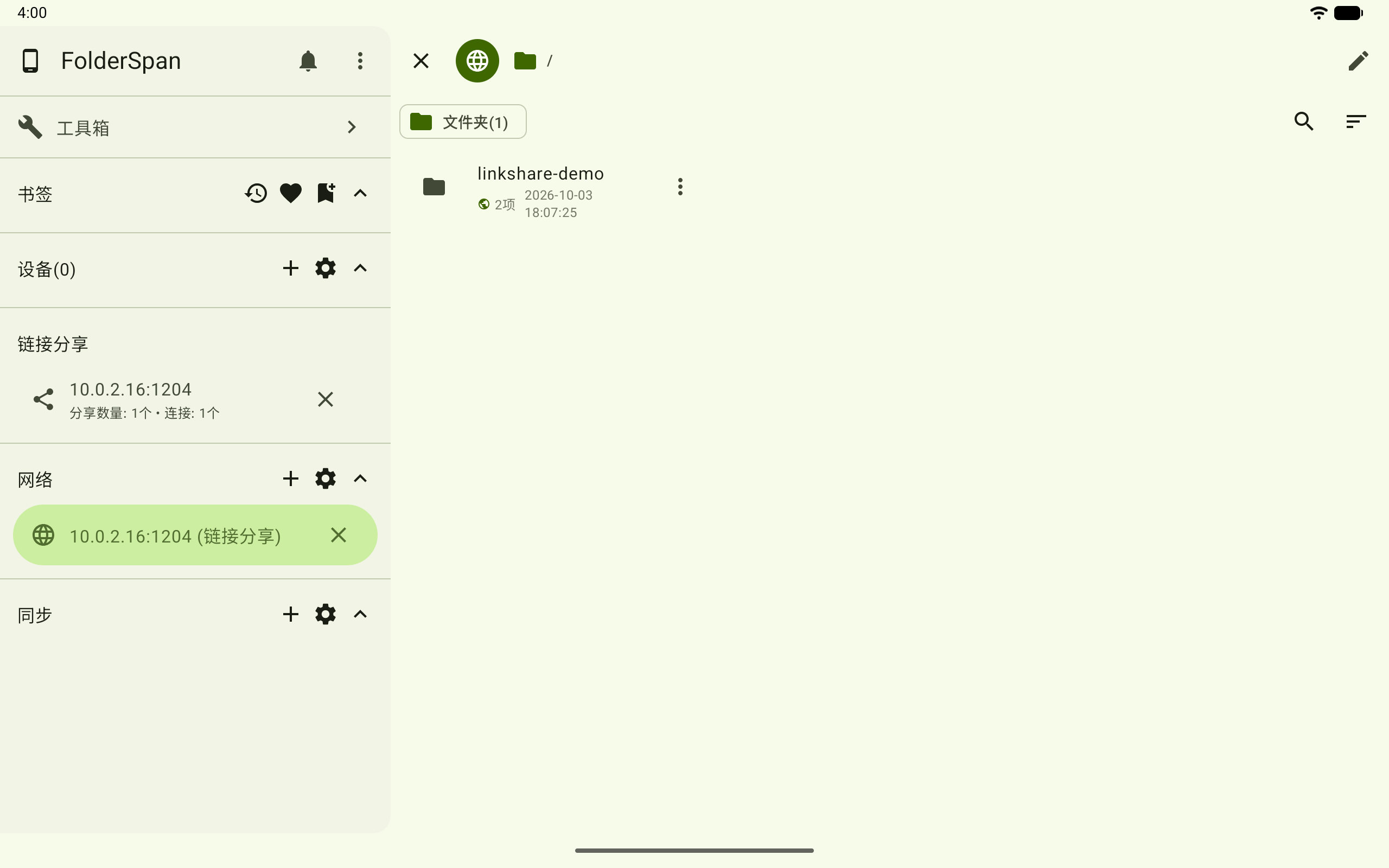
4. Connect and browse shared content
Return to network management, select the share-link entry, and confirm. You can browse, copy, favorite paths, and view information. Write operations are not available.
Related documentation
- Connection troubleshooting: check addresses, authentication, and permissions for each protocol.
- Files: browse remote directories and work with files after connecting.