SFTP
Add or edit an SSH-based file connection. After connecting, browse remote directories and upload, download, create, rename, or delete files.
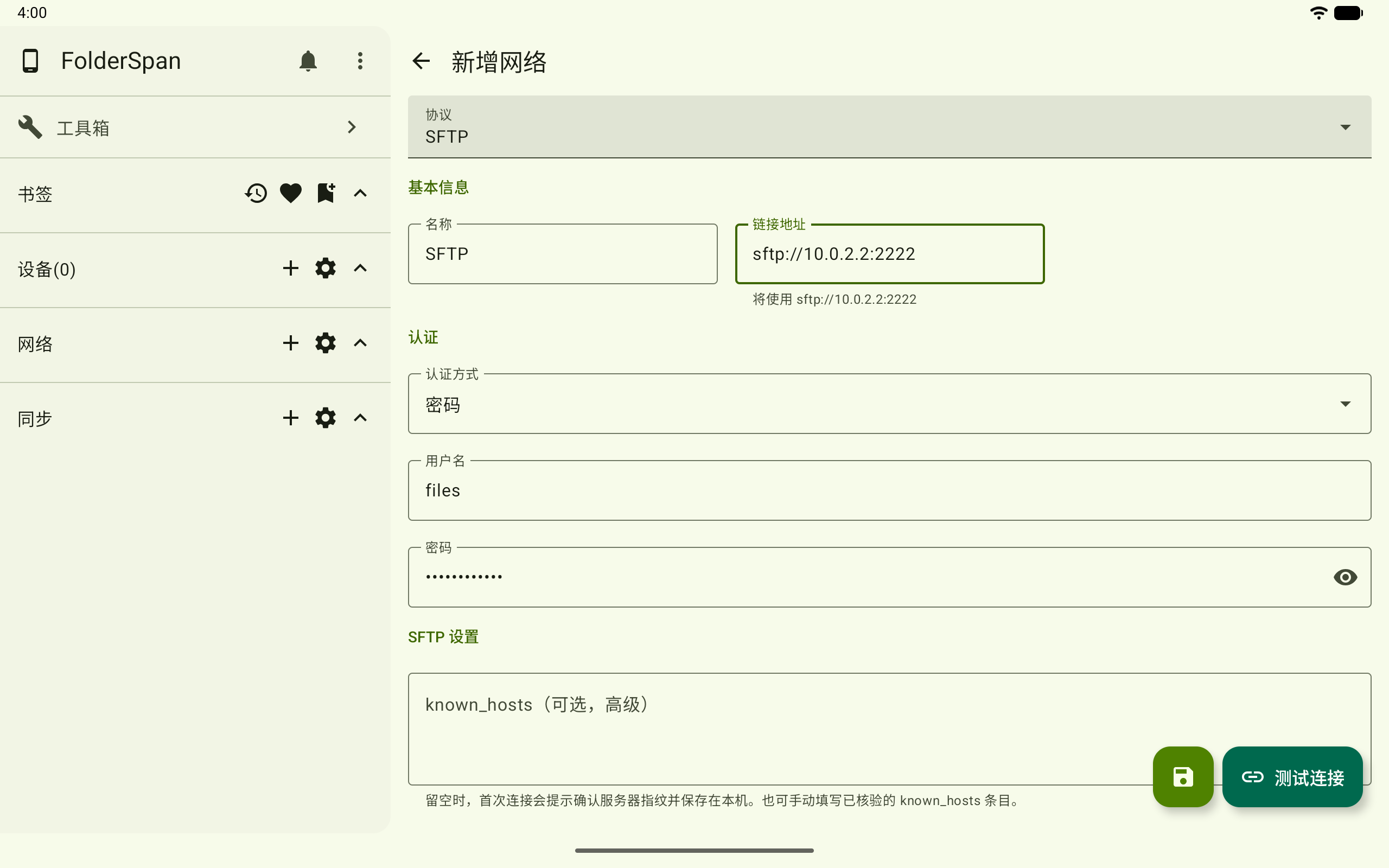
Page layout
- Top bar:
New networkorEdit network, with a back button on the left. - Protocol: choose
SFTPwhen adding; an existing connection's protocol is fixed. - Basic information:
NameandConnection address. - Authentication: choose a method and enter the username, password, or private key.
- SFTP settings: optional advanced
known_hostsentries. - Actions: save at the bottom right, or use
Test connectionto validate the fields.
Fields
- Name: the name shown in the network list; required when saving.
- Connection address: the SFTP server address; required. Invalid formats show an error. The default port is
22if omitted. - Authentication method:
PasswordorPrivate key. - Username: the SSH login username.
- Password: shown for password authentication.
- Private key: shown for private-key authentication; paste the key content here.
- known_hosts (optional, advanced): manually enter verified host-fingerprint entries. If empty, the first connection asks you to confirm the server fingerprint and saves the confirmed fingerprint locally.
- Save to database: shown for new connections; disable it for a temporary connection only.
Operations
1. Add an SFTP connection
Select Add in network management and choose SFTP. Enter a name and address, then select password or private-key authentication to match the server.
2. Test the connection
Enter the address and credentials, then select Test connection. A success message indicates that the remote root directory is readable. Otherwise, a failure reason is shown.
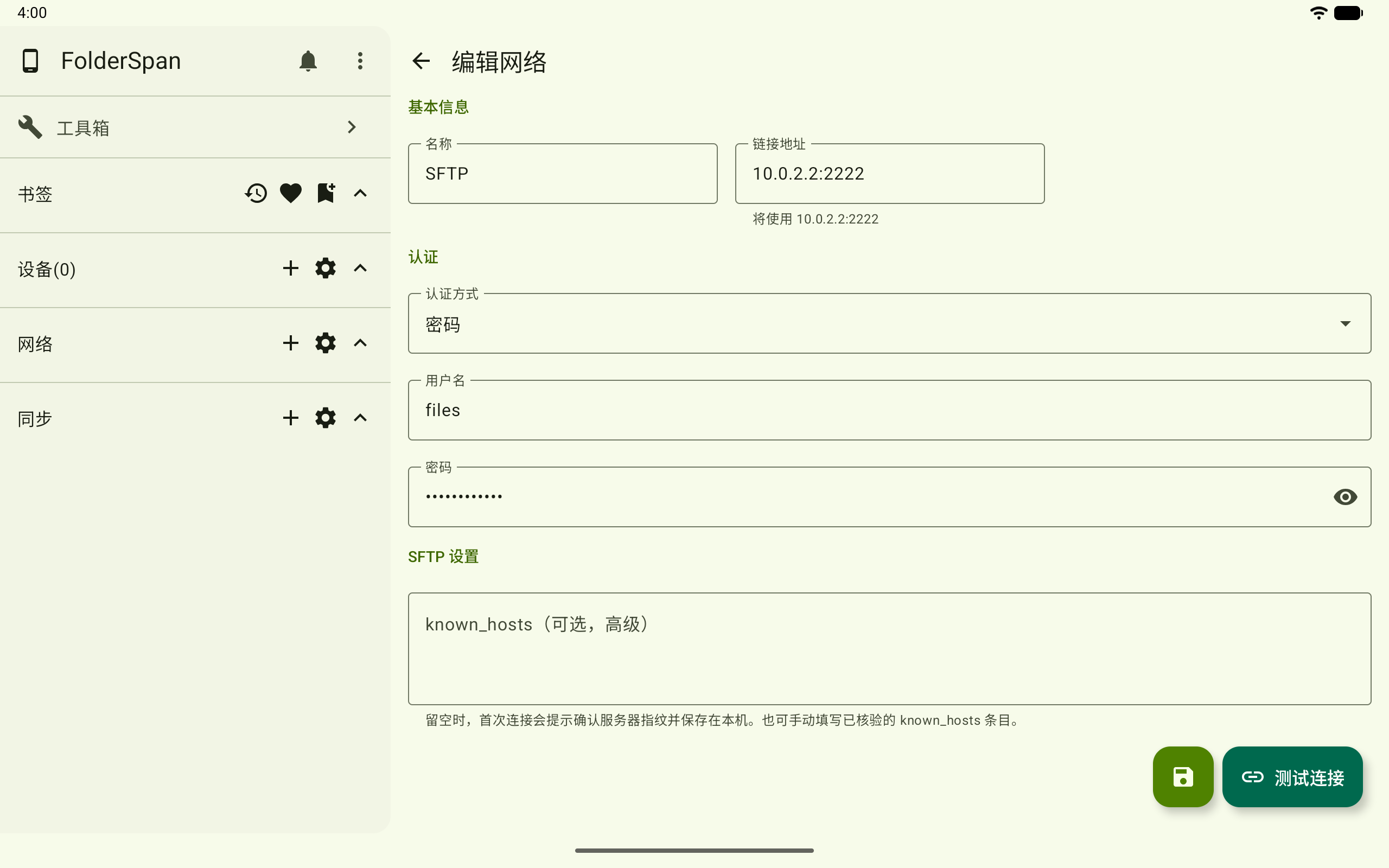
3. Edit a connection
Choose Edit from its network-list menu. Update the address, authentication method, password, private key, or advanced known_hosts entries, then save.
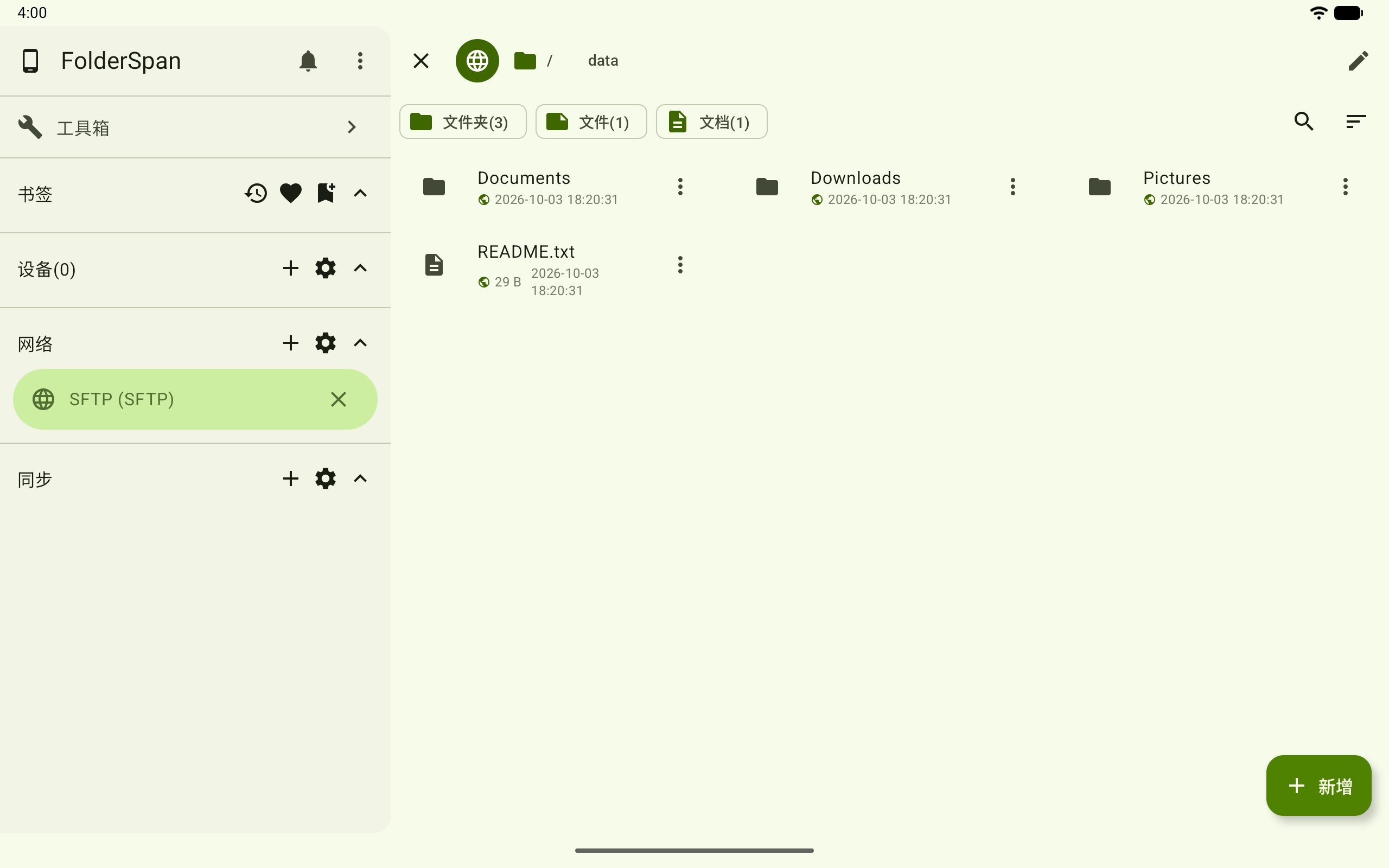
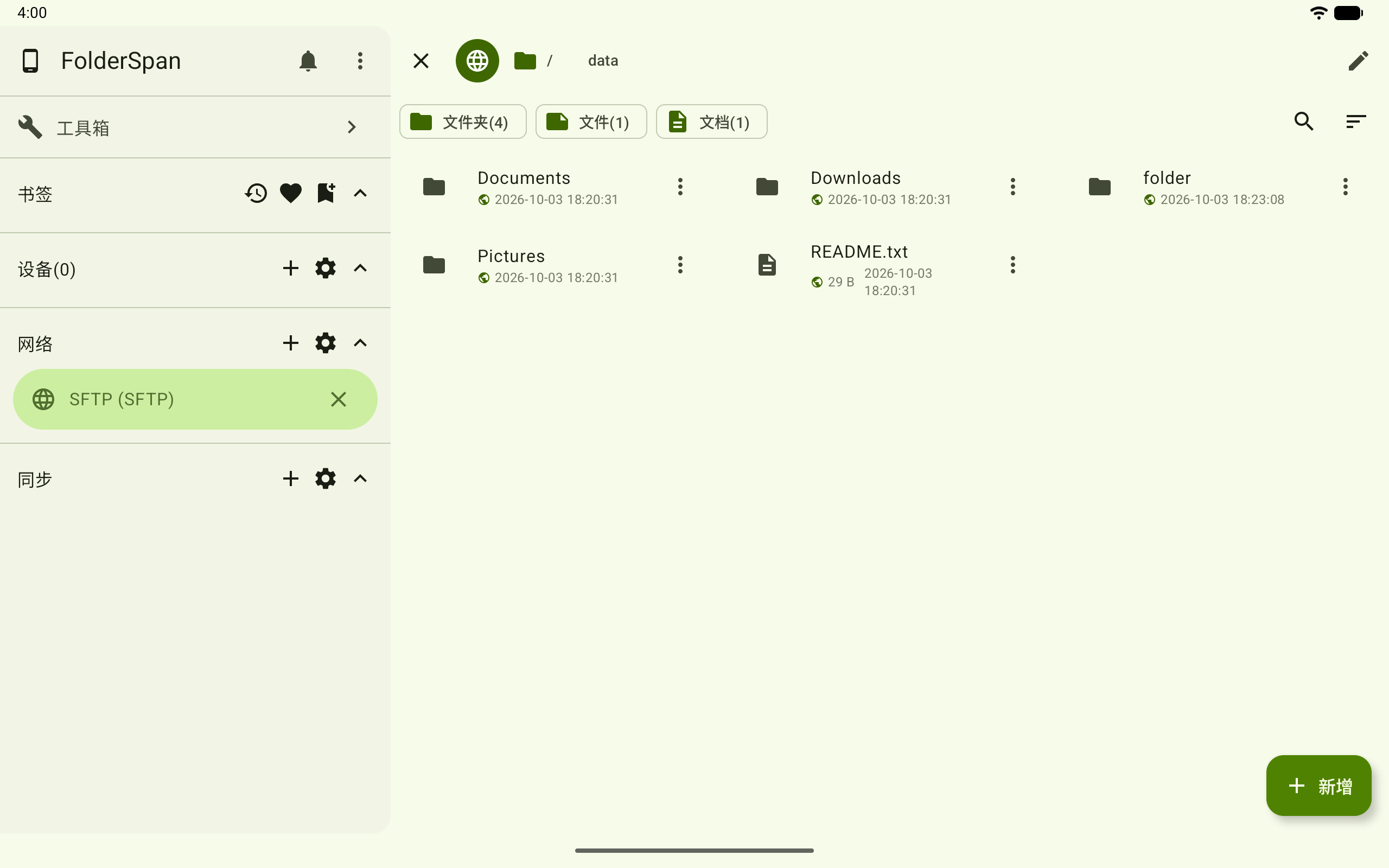
4. Connect and browse
Return to network management, select the SFTP entry, and confirm to open its remote directory.
5. Create a remote folder
After connecting, select the bottom-right add button. Enter a name, choose Folder, and select Confirm.
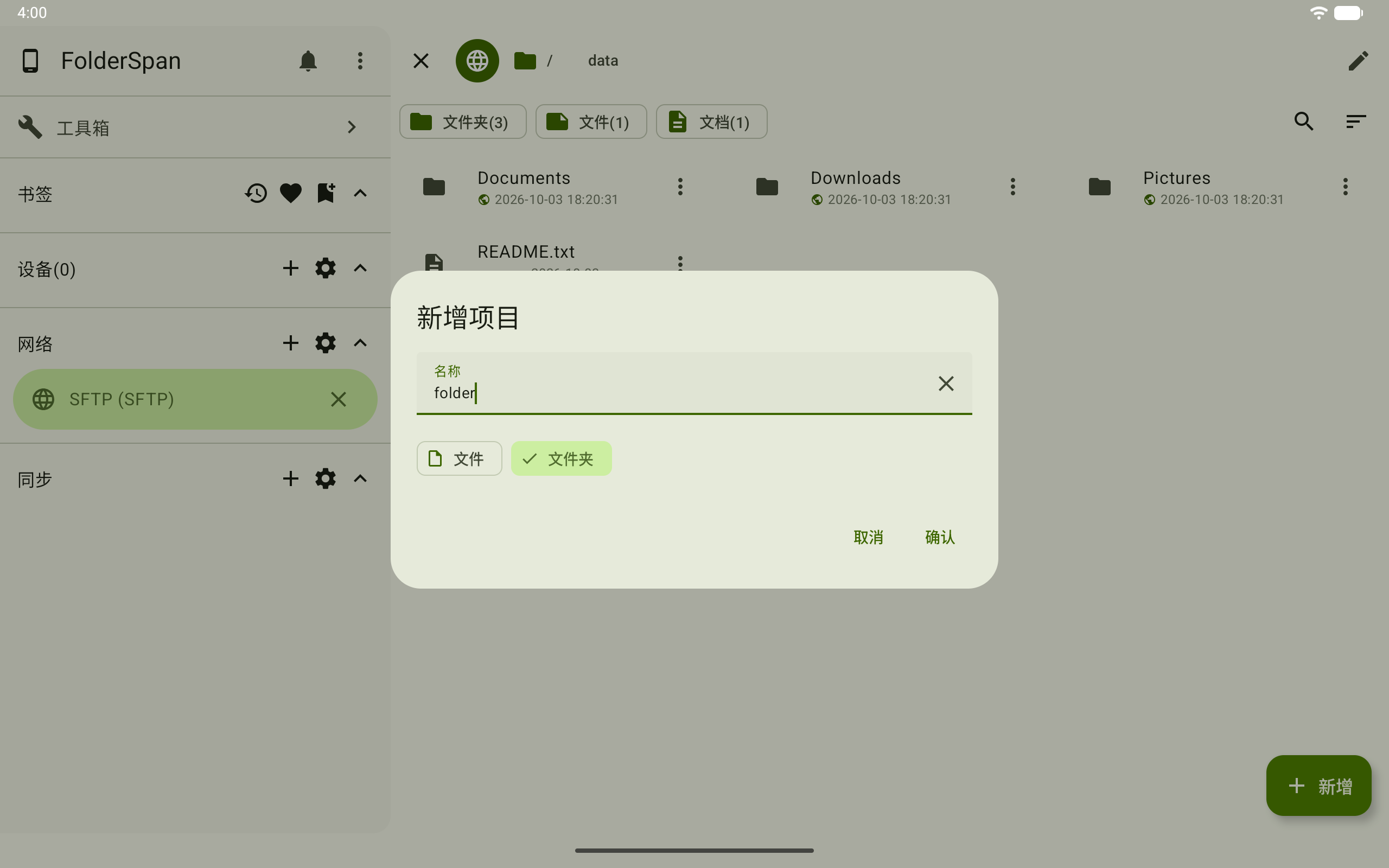
The new folder appears in the current SFTP directory after creation.
Related documentation
- Connection troubleshooting: check addresses, authentication, and permissions for each protocol.
- Files: browse remote directories and work with files after connecting.