WebDAV
Add or edit connections to WebDAV drives and file services. After connecting, browse remote directories and upload, download, create, rename, or delete files.
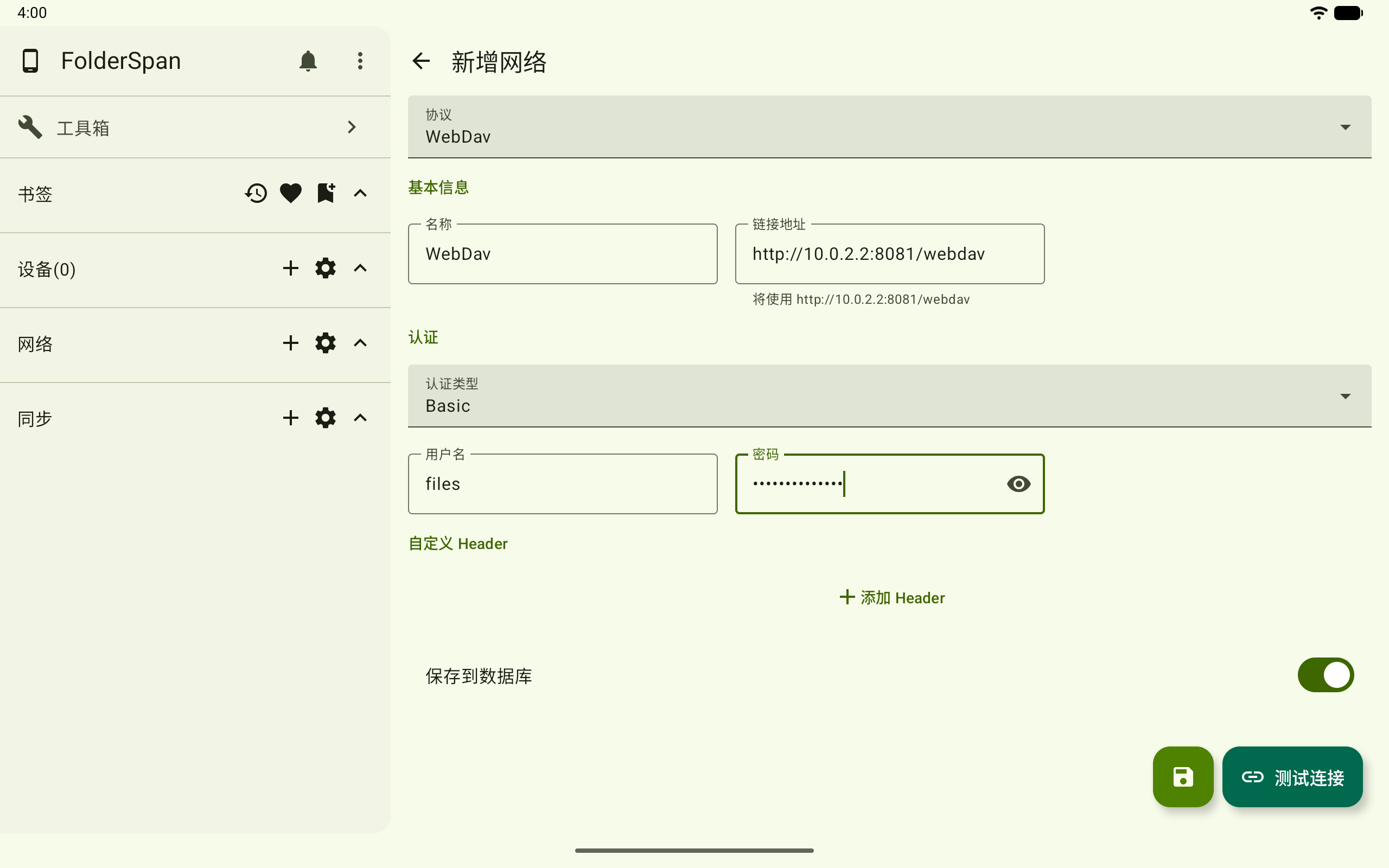
Page layout
- Top bar:
New networkorEdit network, with a back button on the left. - Protocol: choose
WebDavwhen adding; an existing connection's protocol is fixed. - Basic information:
NameandConnection address. - Authentication: choose an authentication type and enter its credentials.
- Custom headers: add any extra headers required by the service.
- Actions: save at the bottom right, or use
Test connectionto validate the fields.
Fields
- Name: the name shown in the network list; required when saving.
- Connection address: the WebDAV base address; required and must use
httporhttps. Extra trailing slashes are removed when saving. - Authentication type:
Basic,Digest, orToken. - Username: shown for Basic or Digest authentication.
- Password: shown for Basic or Digest authentication.
- Token header name: shown for Token authentication; defaults to
Authorizationwhen empty. - Token prefix: shown for Token authentication;
Bearercan be used as the default. - Token: shown for Token authentication.
- Header name / Header value: custom headers. Use
Add headerto add one and the delete icon to remove it. - Save to database: shown for new connections; disable it for a temporary connection only.
Operations
1. Add a WebDAV connection
Select Add in network management and choose WebDav. Enter the name and address, choose authentication, and fill in its credentials. Add headers if the service requires them.
2. Test the connection
Enter the address and credentials, then select Test connection. A success message indicates the remote root is readable. Otherwise, a failure reason is shown.
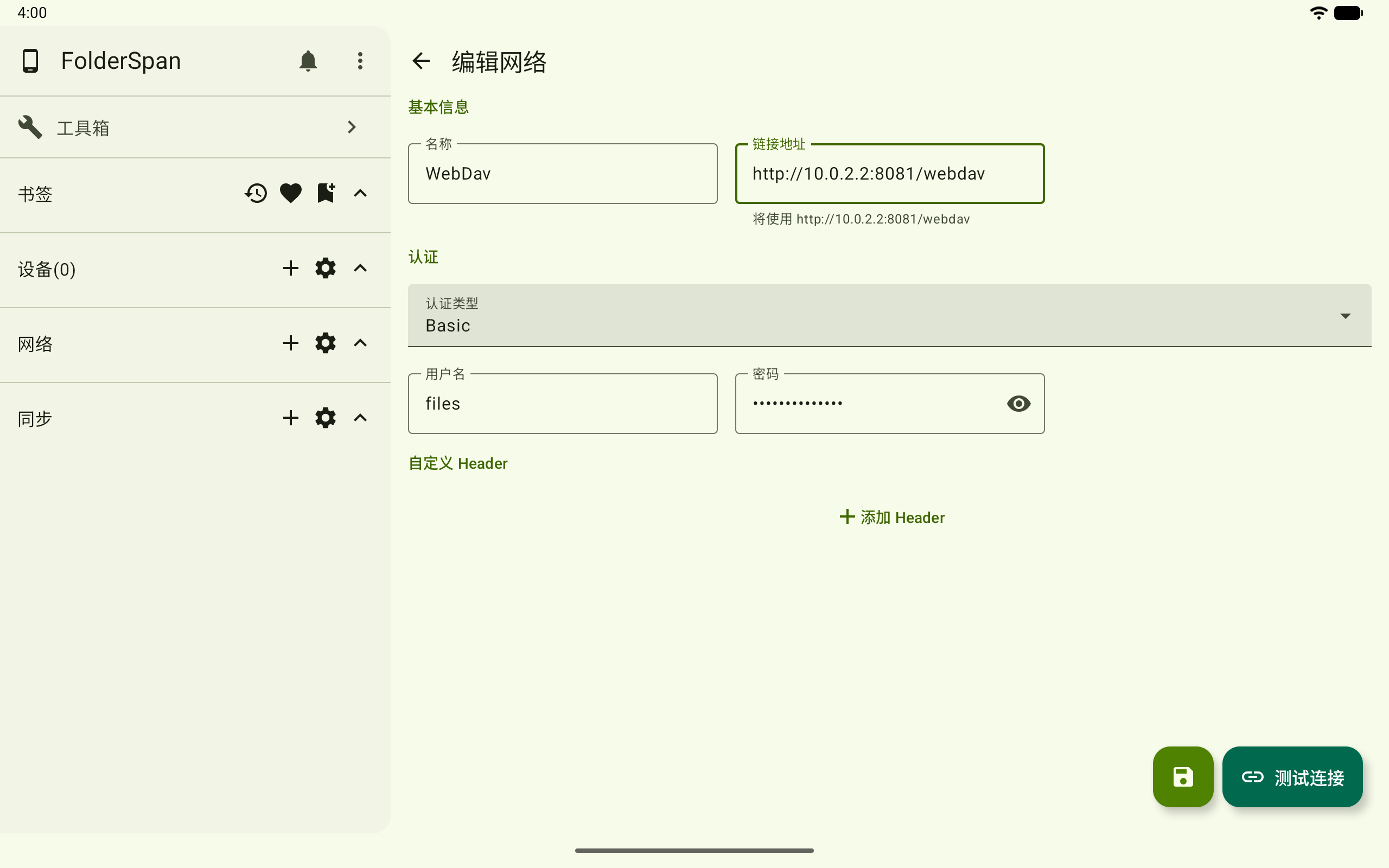
3. Edit a connection
Choose Edit from its network-list menu. Update the address, authentication, token, or custom headers, then save.
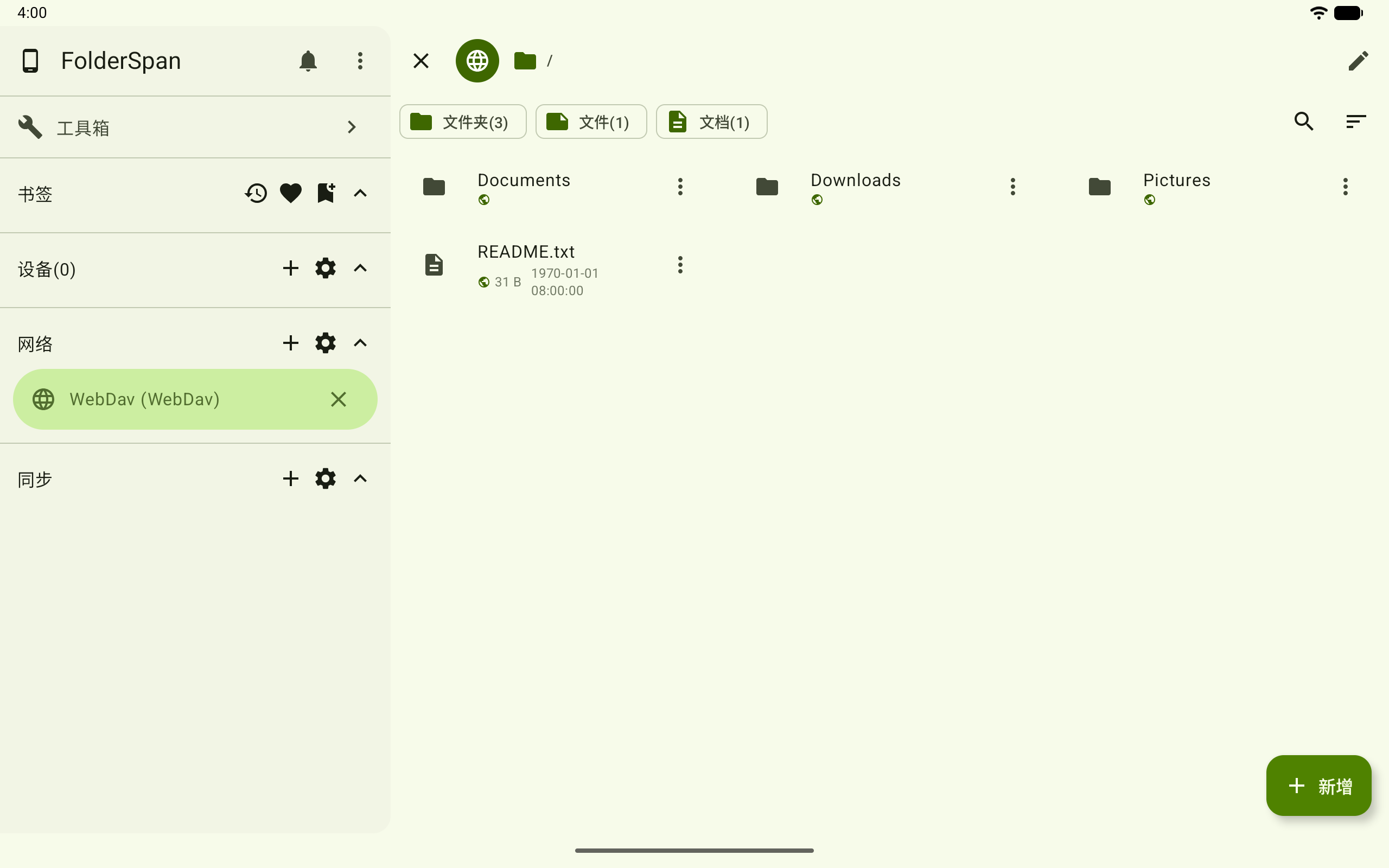
4. Connect and browse
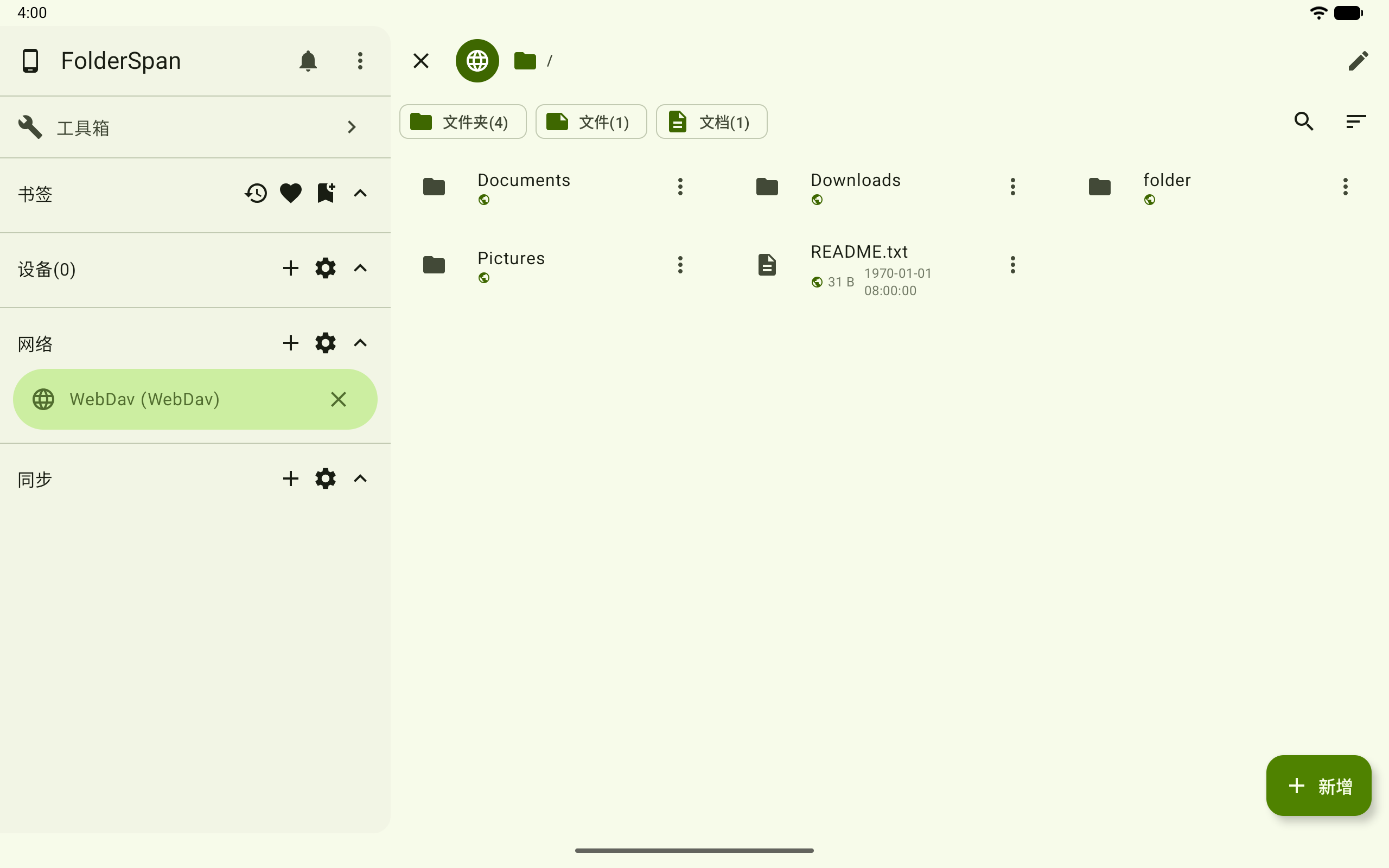
Return to network management, select the WebDAV entry, and confirm to open its remote directory.
5. Create a remote folder
After connecting, select the bottom-right add button. Enter a name, choose Folder, and select Confirm.
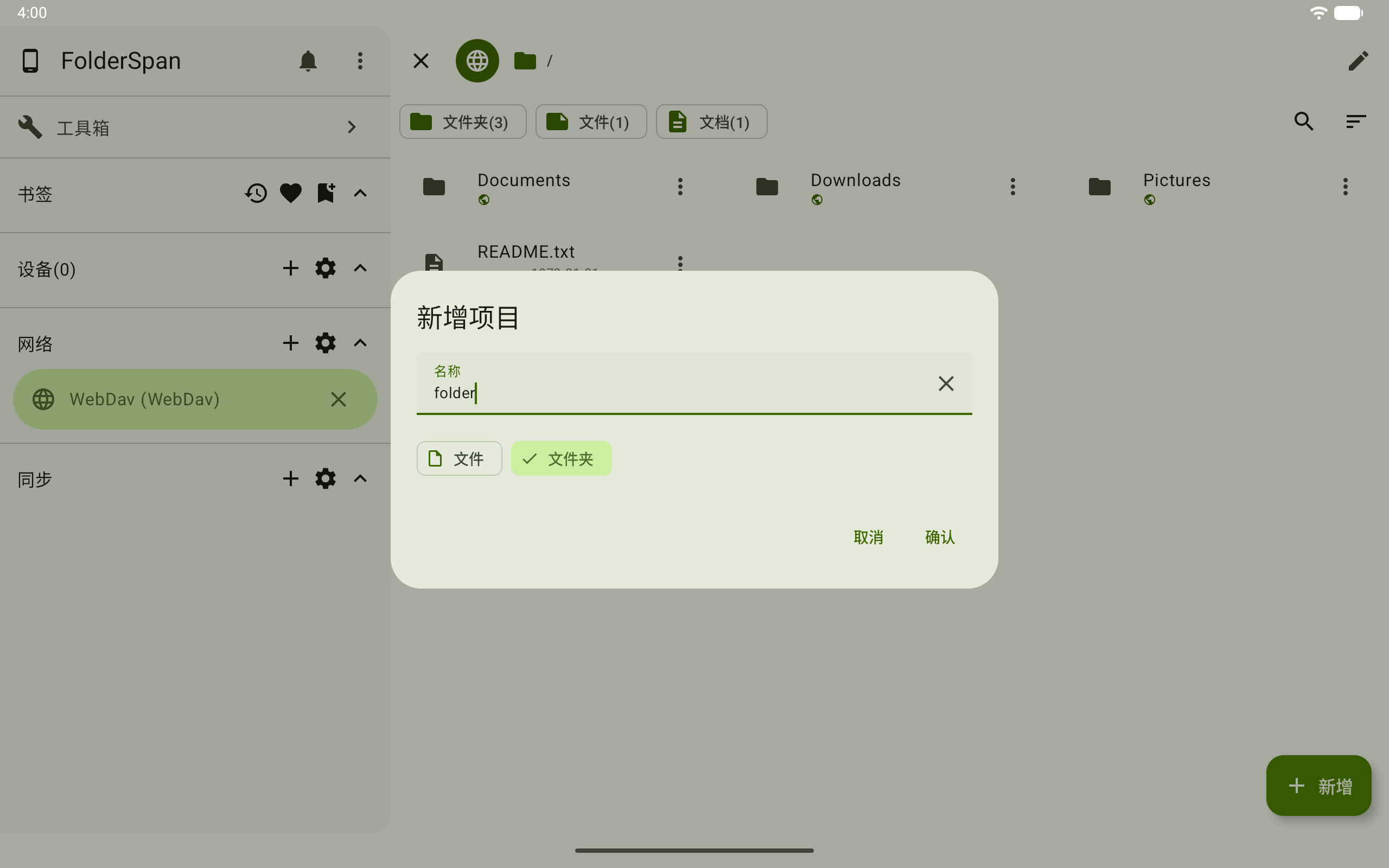
The new folder appears in the current WebDAV directory after creation.
Related documentation
- Connection troubleshooting: check addresses, authentication, and permissions for each protocol.
- Files: browse remote directories and work with files after connecting.