Share to devices
Send files or folders to a chosen device on the same local network. Senders can view request states and history; recipients can save, view, or reject content and configure authorization and receiving directories for each device.
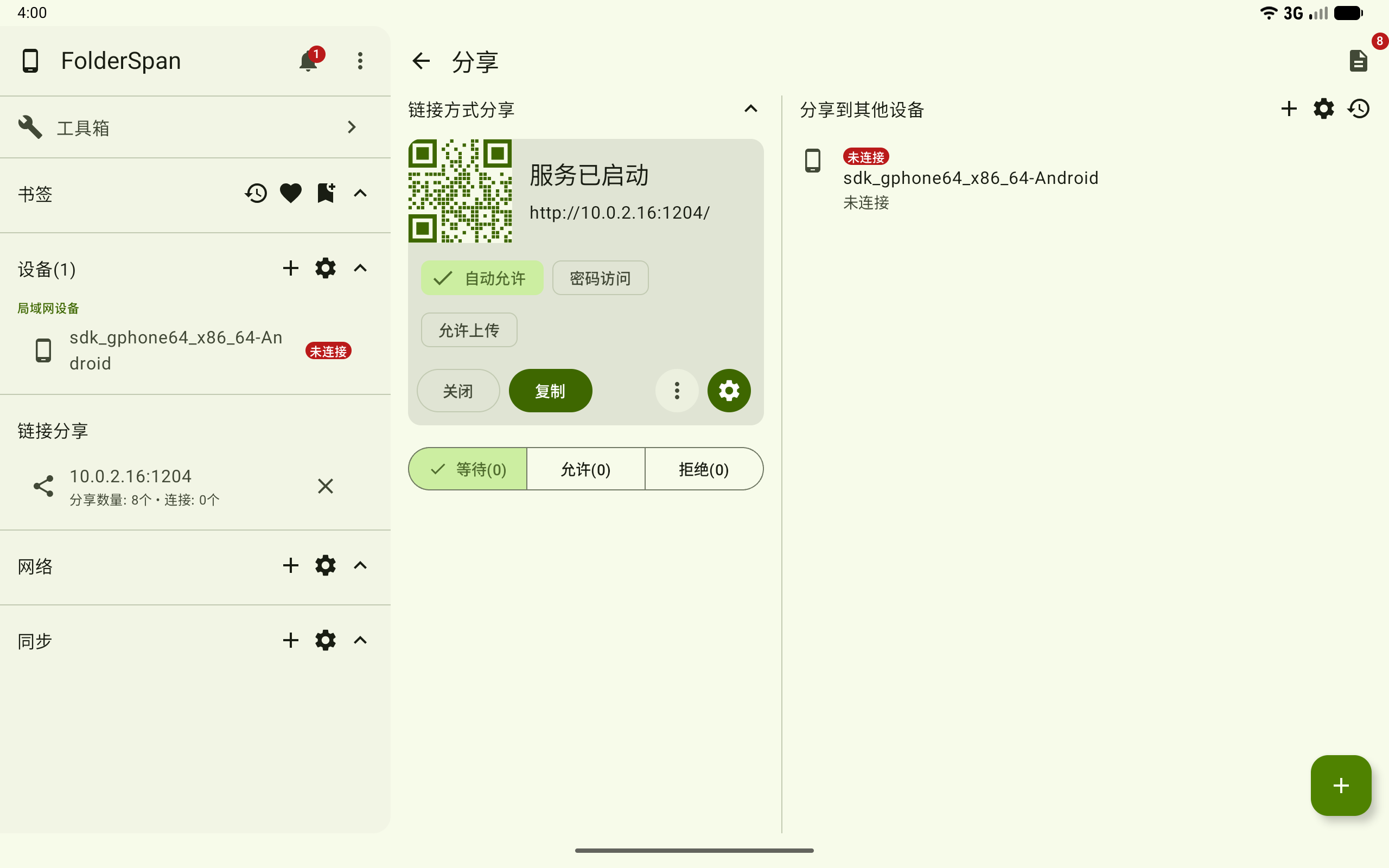
Page layout
- Recipient list: devices that can receive content, their types, and connection states.
- Add device: the top-right add button adds a sharing device.
- Sharing management: settings for device names, authorization, and receiving directories.
- Sharing history: opens sent and received records.
- Start sharing: the bottom-right add button selects files or folders to send.
Send files or folders
Keep both devices on the same local network and ensure the recipient appears in the sharing-device list.
1. Choose a recipient
Select files or folders in the file list, choose Share, then select a target in Share to devices. Alternatively, use the sharing page's bottom-right add button to choose content, then choose the recipient.
After sending a request, the target shows waiting-to-receive states, and a bottom message shows the number of items sent.
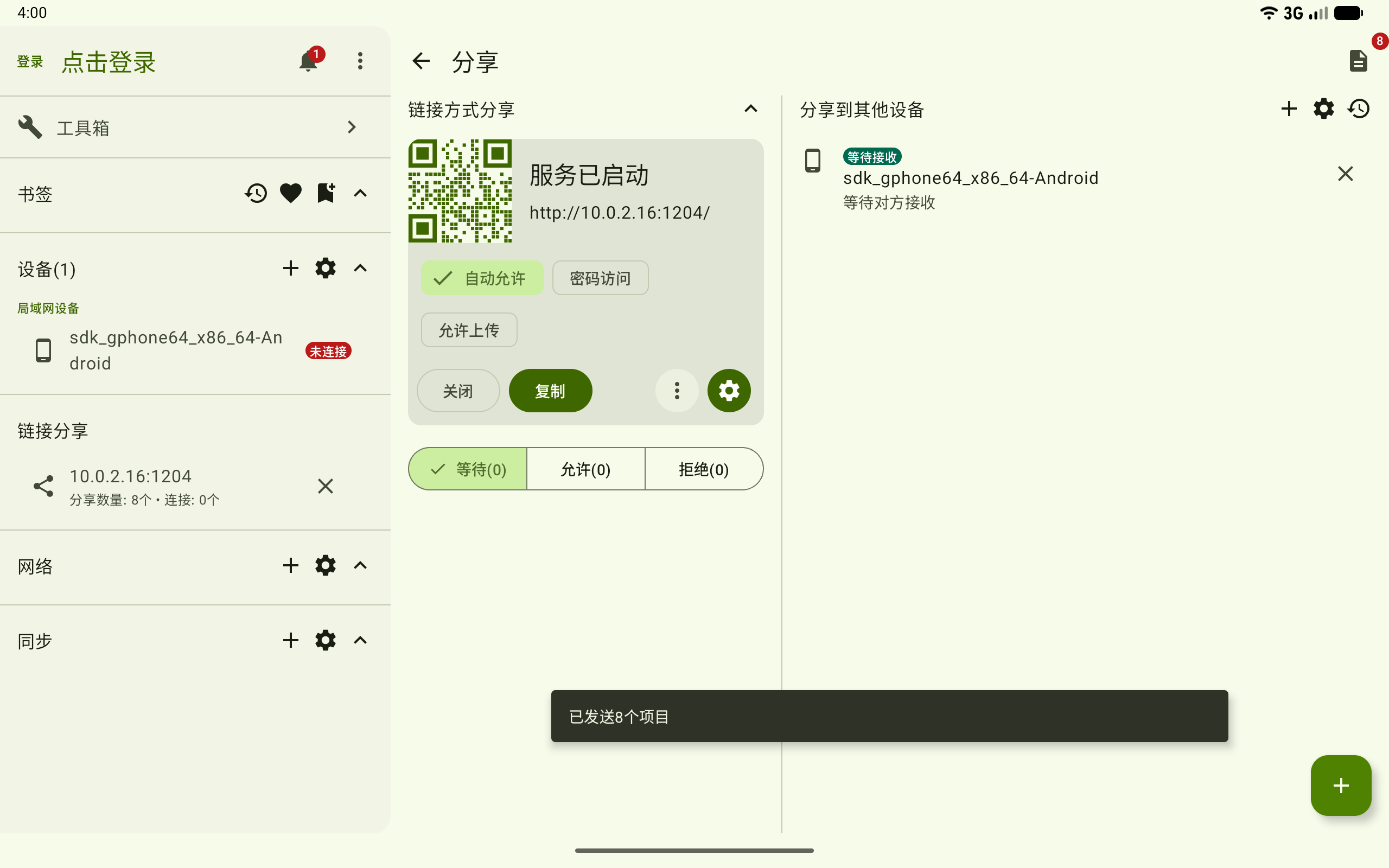
Keep the application open and stay on the network until the recipient handles the request.
Receive a share
2. Open a sharing request
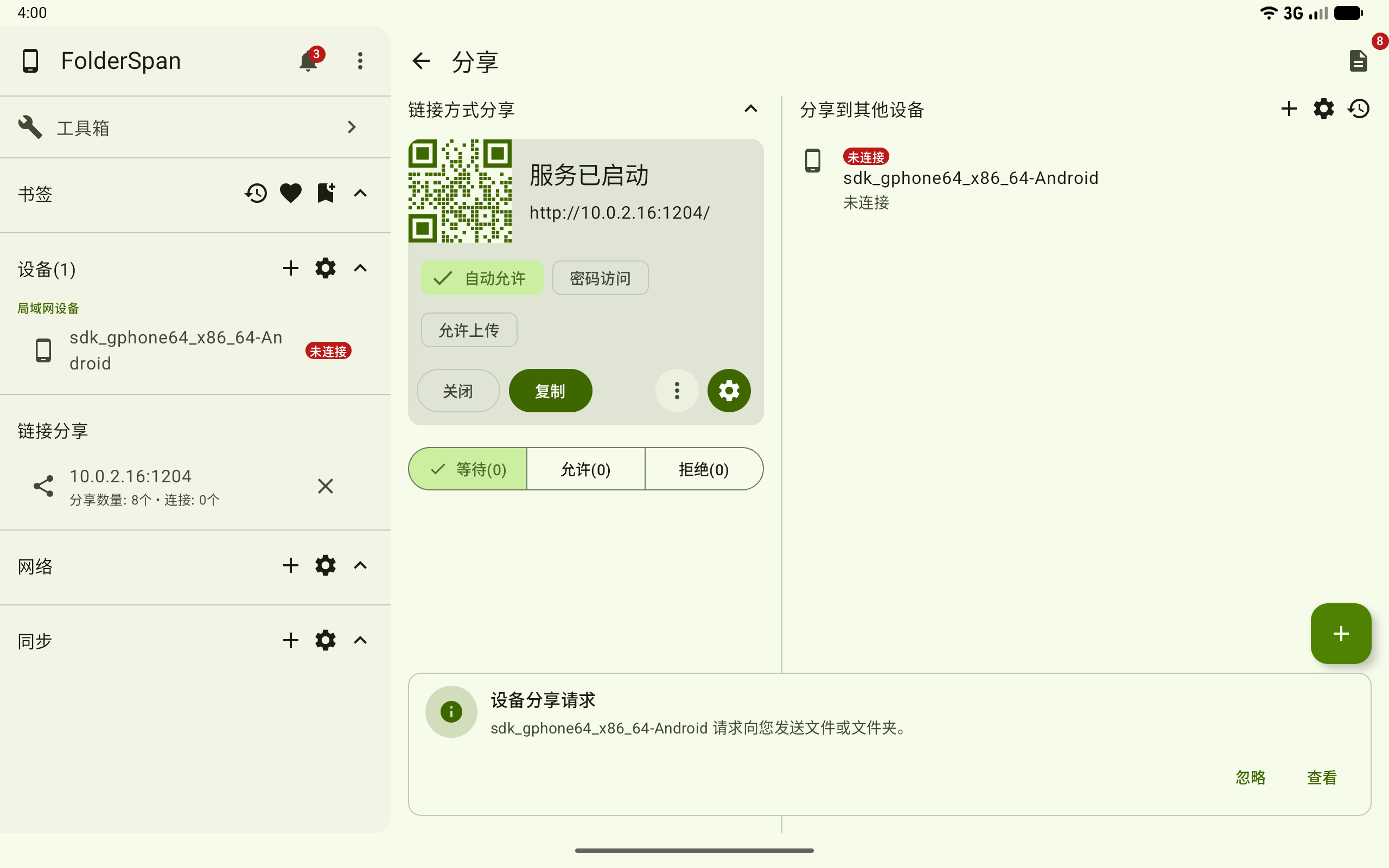
An incoming device-sharing request appears at the bottom. View opens the details; Ignore only dismisses the prompt and does not receive the content.
Details show the sending device, save path, and automatic-rejection time. Choose:
Save: saves the files or folders to the displayed path.View: opens this share without automatically saving it.Reject: declines this request.
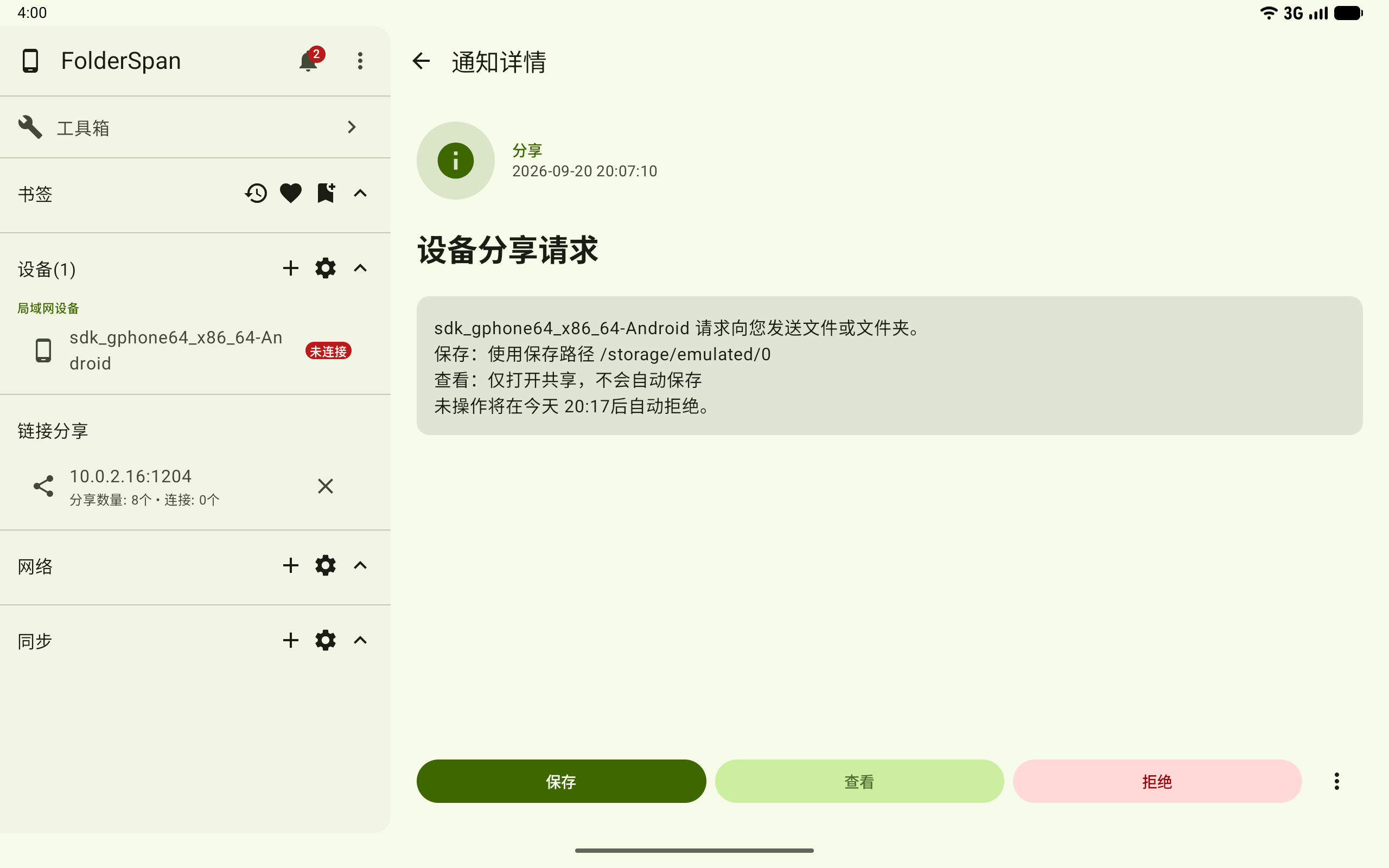
The request is rejected automatically if it is not handled before the displayed deadline.
3. Save shared content
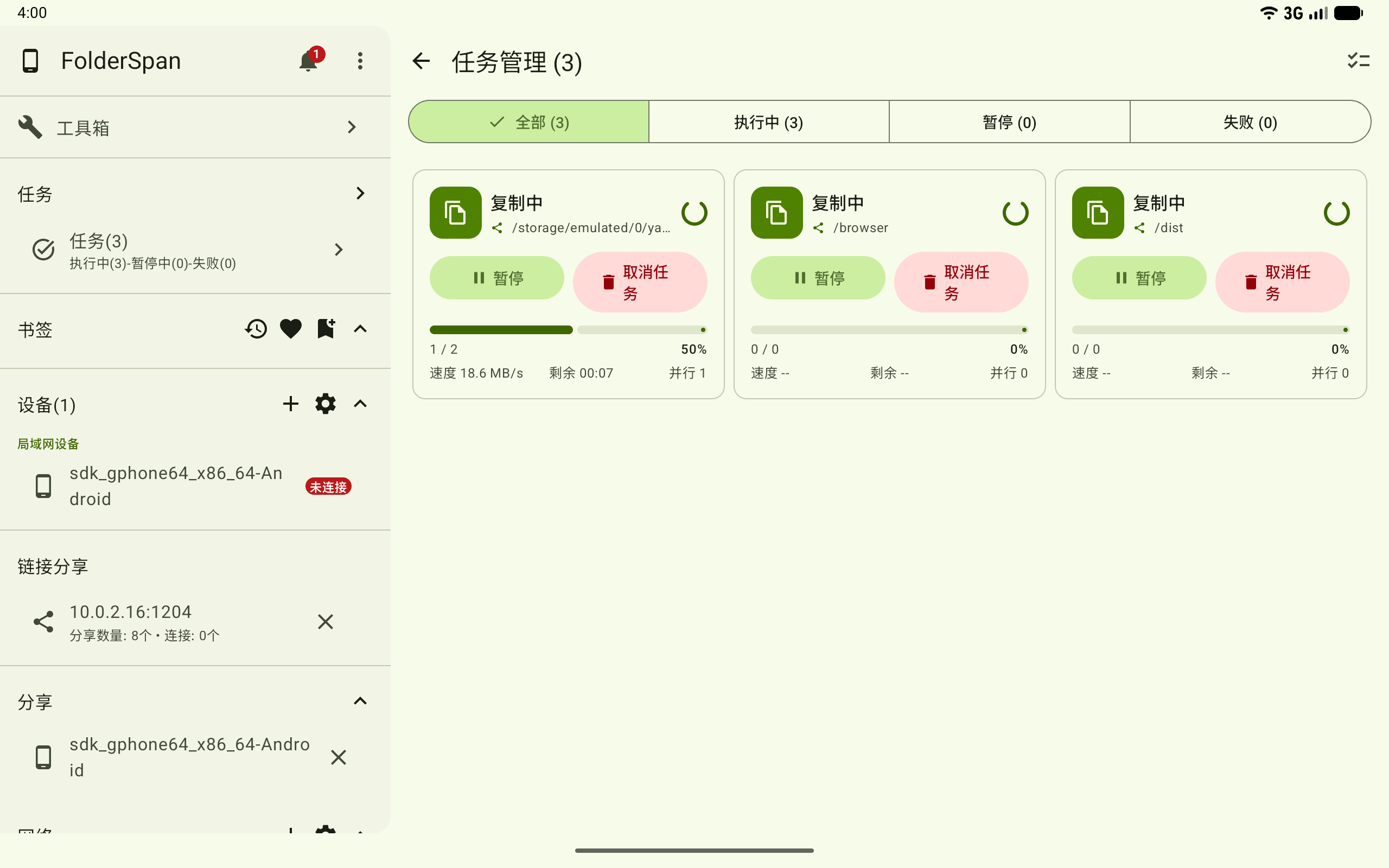
Selecting Save creates a copy task and opens task management. Its card shows progress, speed, remaining time, and parallelism. Use Pause or Cancel task to pause or end the transfer.
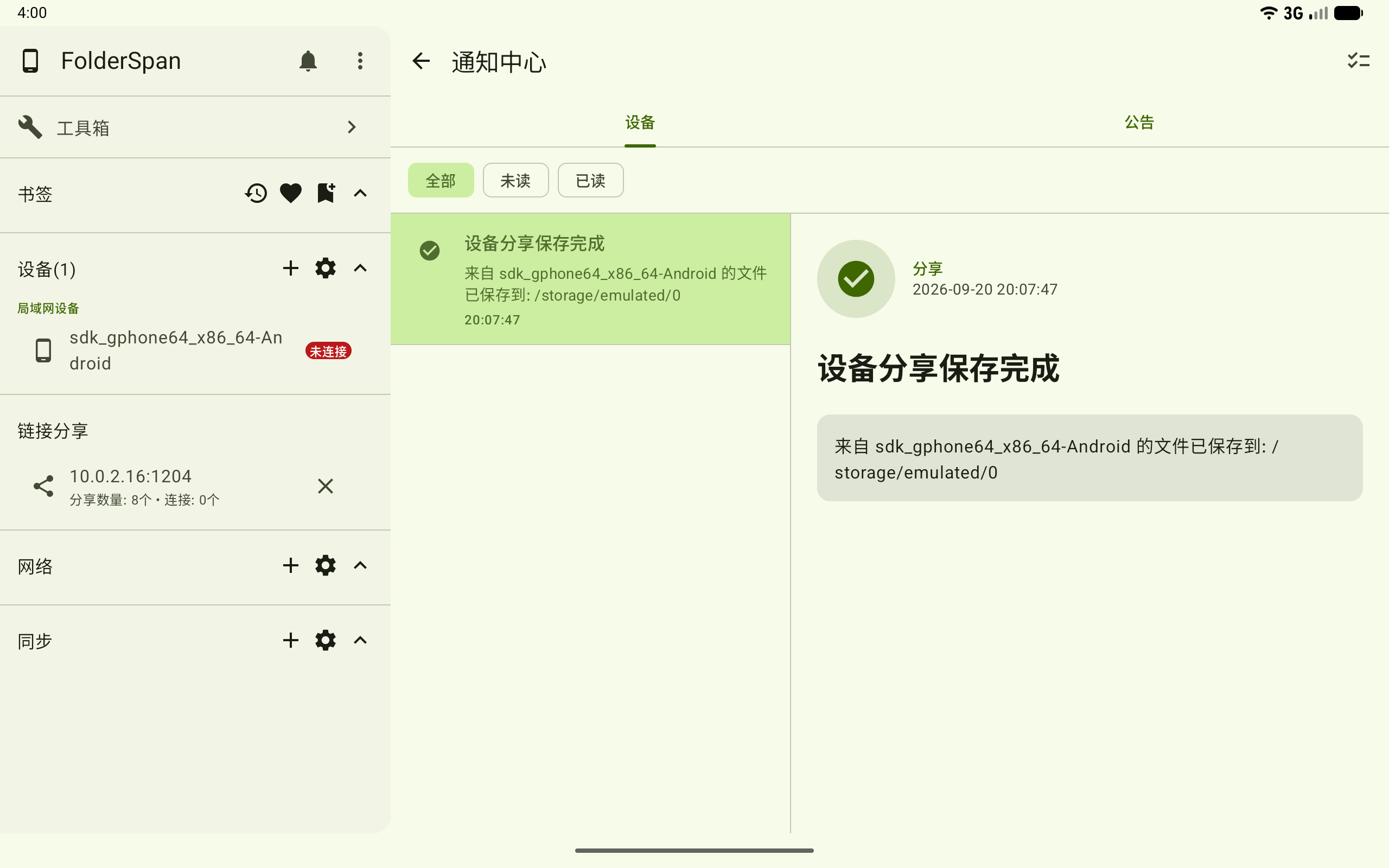
When complete, a notification shows that the share was saved, with the sender and actual save path.
Manage sharing devices
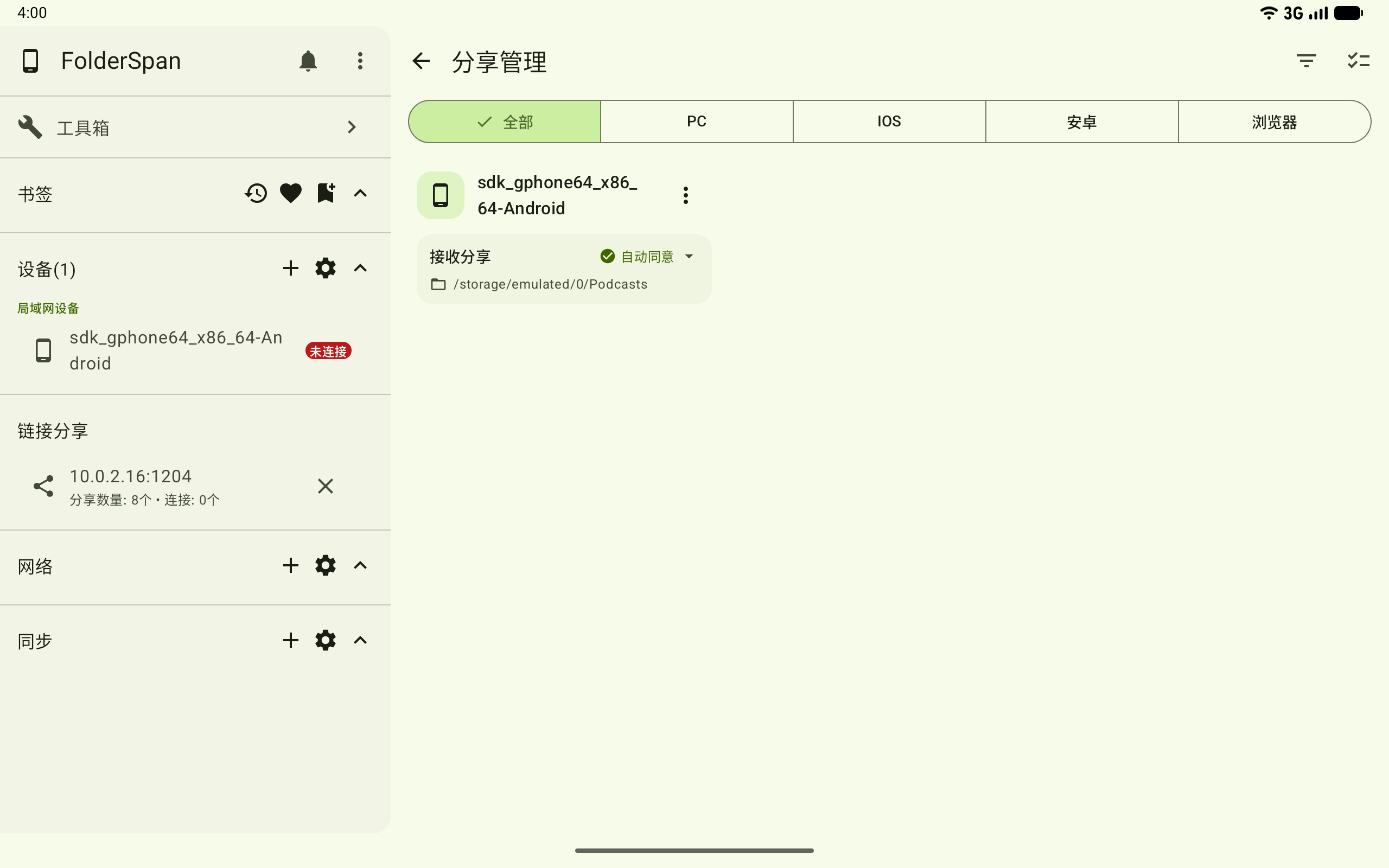
Select the settings button at the top right of Share to devices. Filter by All, PC, IOS, Android, or Browser. Cards show authorization policies and receiving directories.
Authorization policies
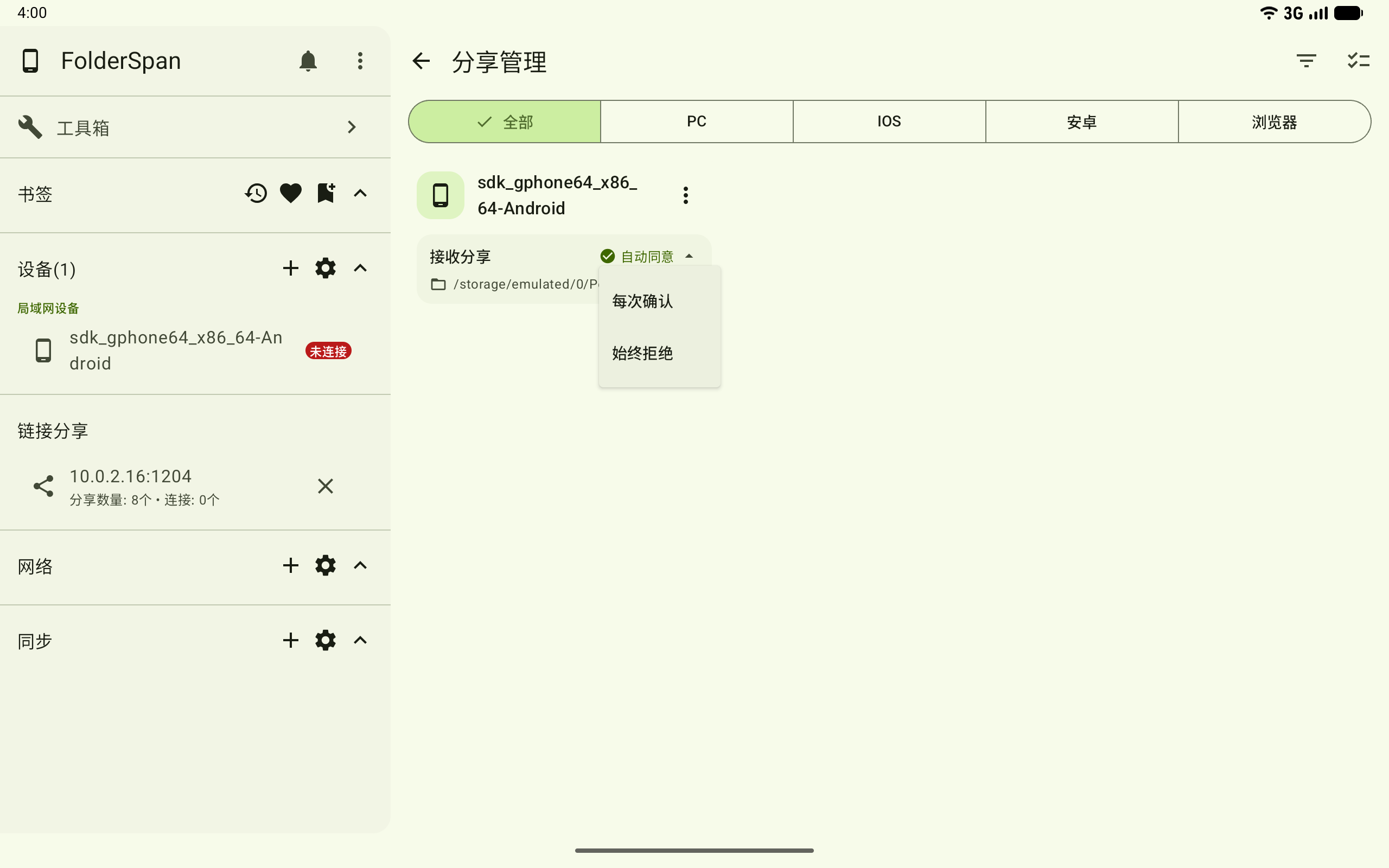
Auto-accept: accepts requests from this device without individual confirmation.Confirm every time: requires choosingSave,View, orRejectfor each request.Always reject: rejects this device's requests automatically.
Select a card's current policy to switch it.
4. Search and filter devices
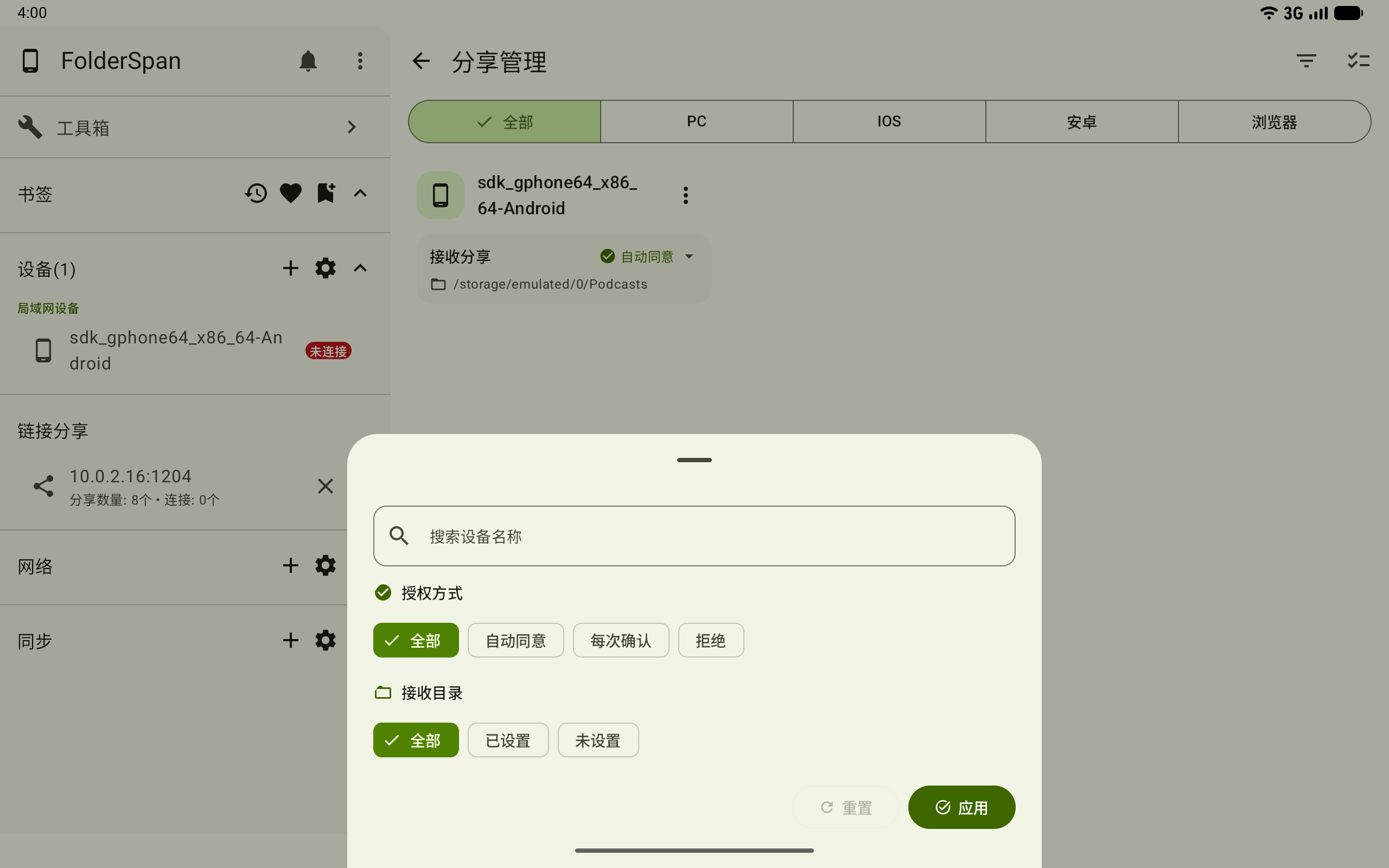
Select the top filter button, enter a device name, and choose conditions:
- Authorization:
All,Auto-accept,Confirm every time, orReject. - Receiving directory:
All,Set, orNot set.
Select Apply, or Reset to clear the conditions.
5. Edit a sharing device
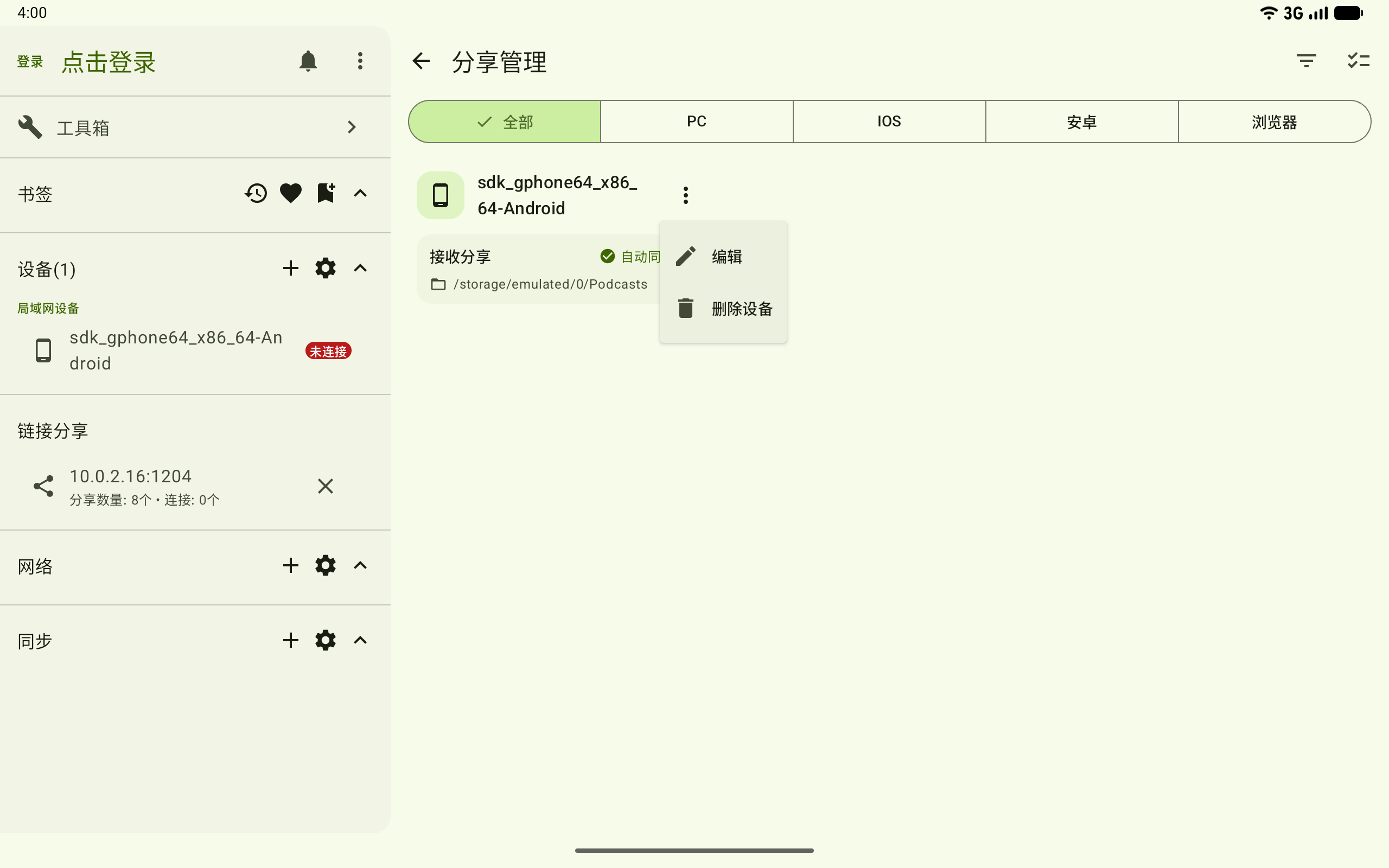
Open its right-hand more menu and choose Edit. The same menu also offers Delete device.
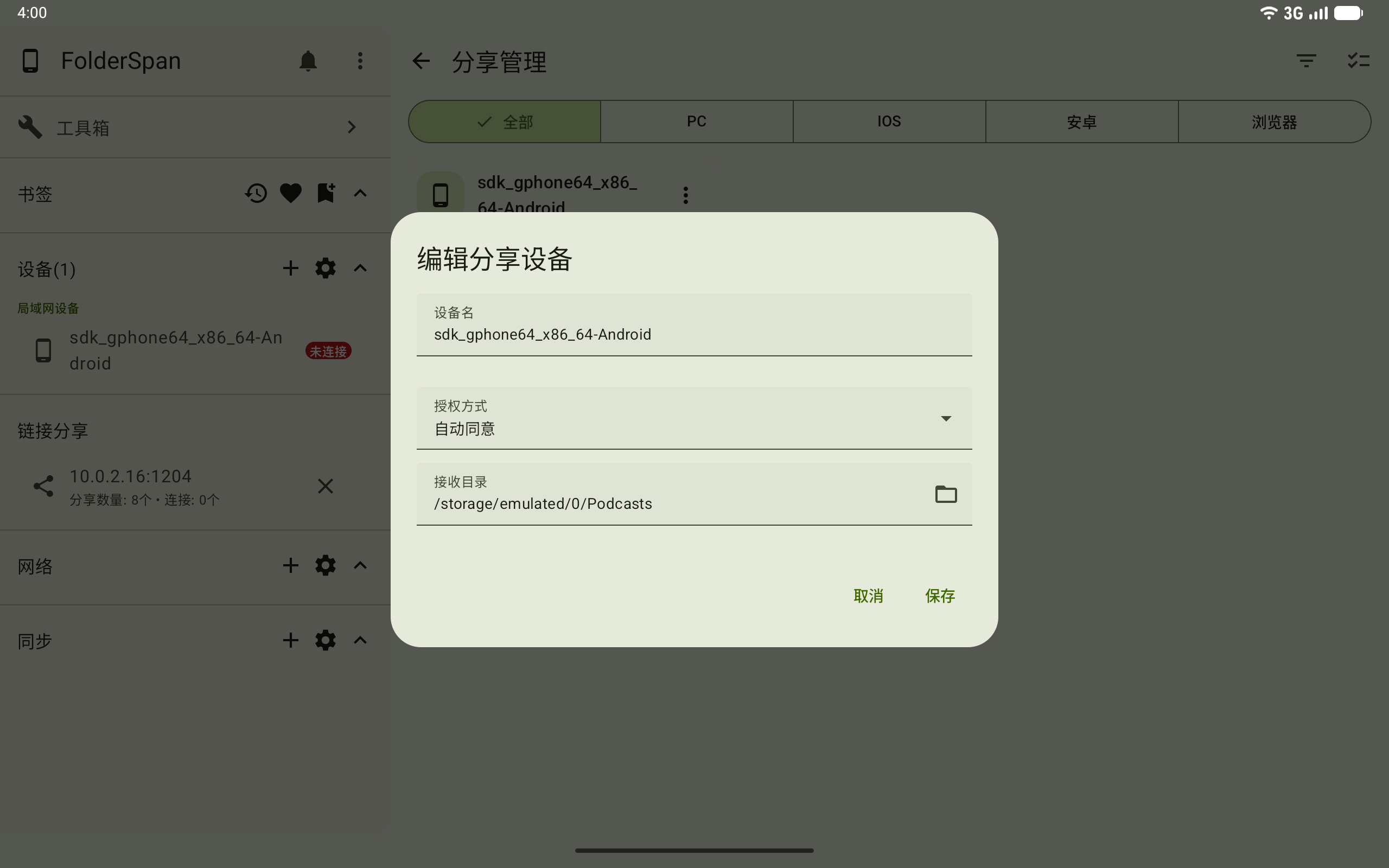
In Edit sharing device, change Device name, Authorization, or Receiving directory. Enter a path or use the folder button to choose it, then select Save.
6. Delete one device
Choose Delete device from its menu. Check the name in the bottom confirmation, then select Delete, or close the prompt to cancel.
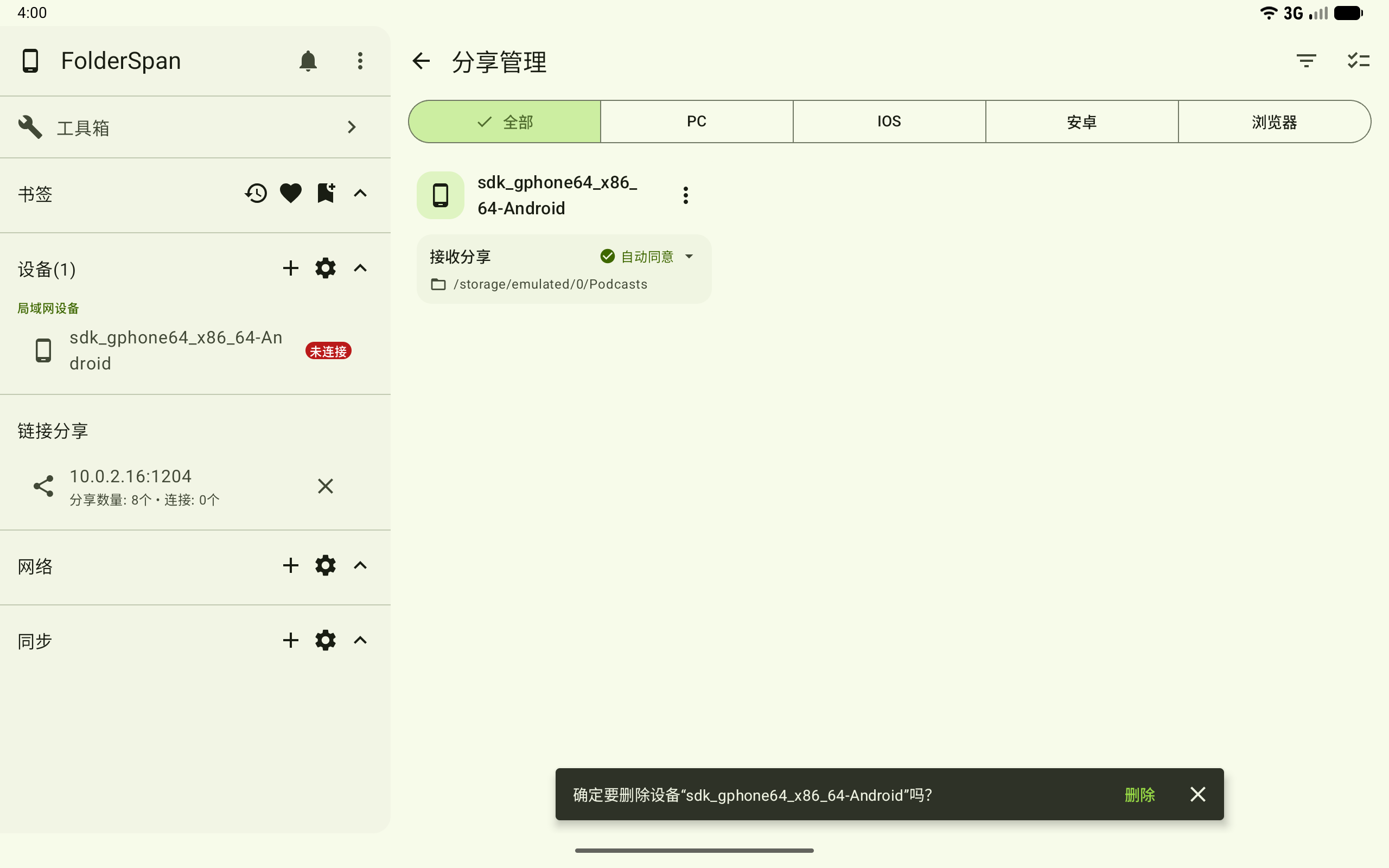
This removes sharing settings for that device only. Files already received are retained.
Manage devices in bulk
Select the batch actions button at the top of sharing management. Select or deselect cards; the header shows the count and the bottom-right buttons edit or delete the selection.
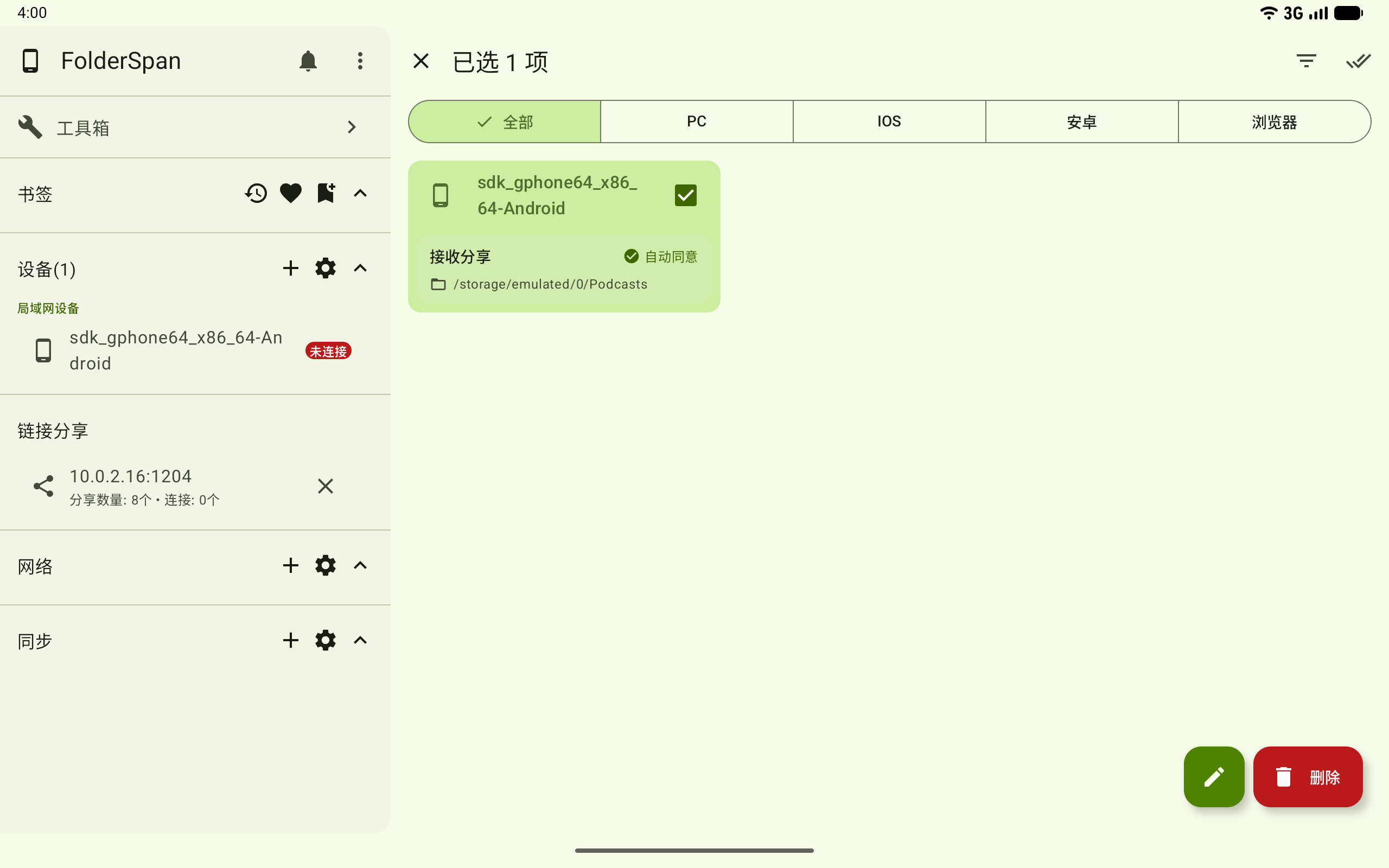
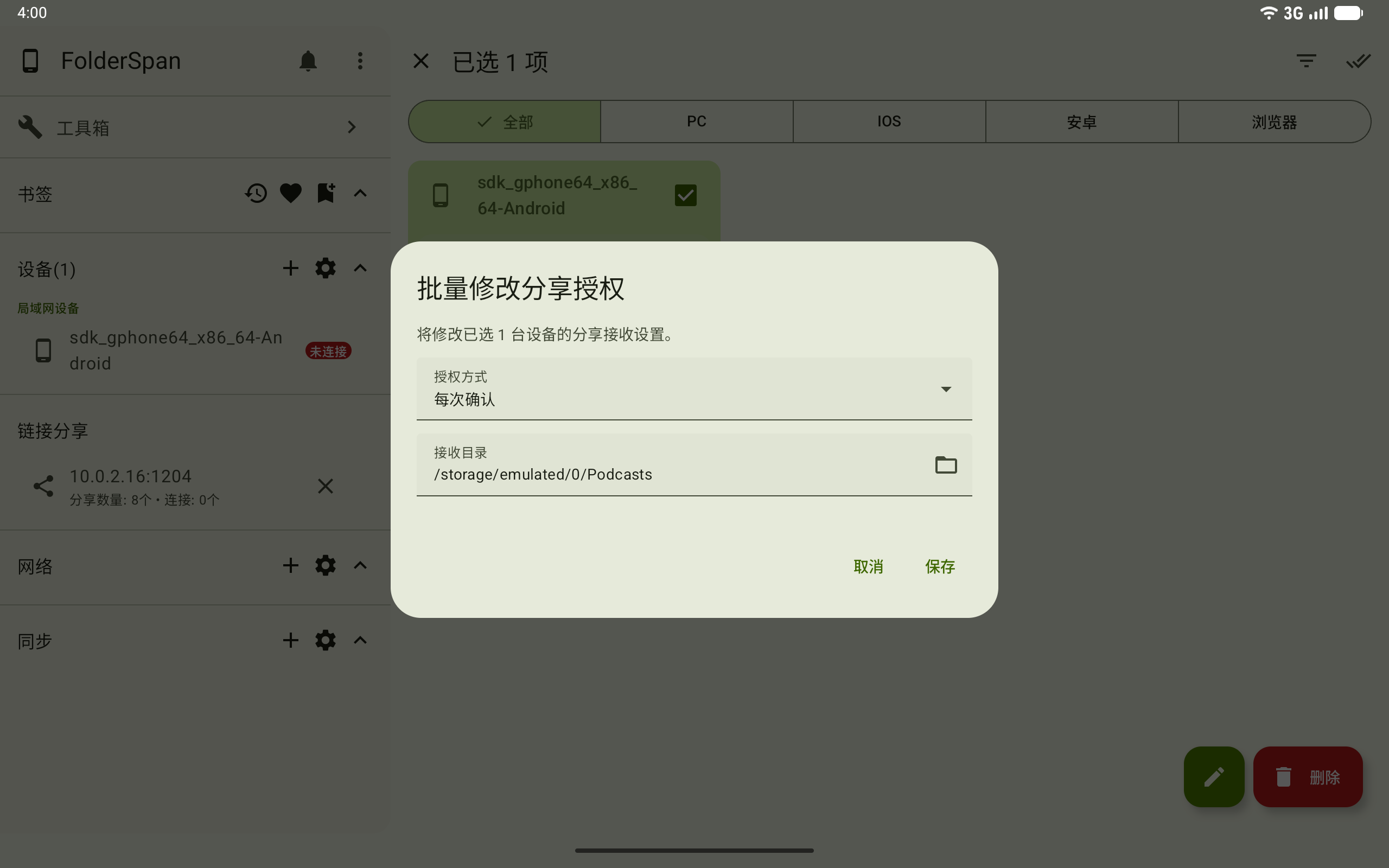
7. Change authorization in bulk
Select devices and use the edit button to open Batch change sharing authorization. Choose Authorization and Receiving directory, then select Save to apply them to all selected devices.
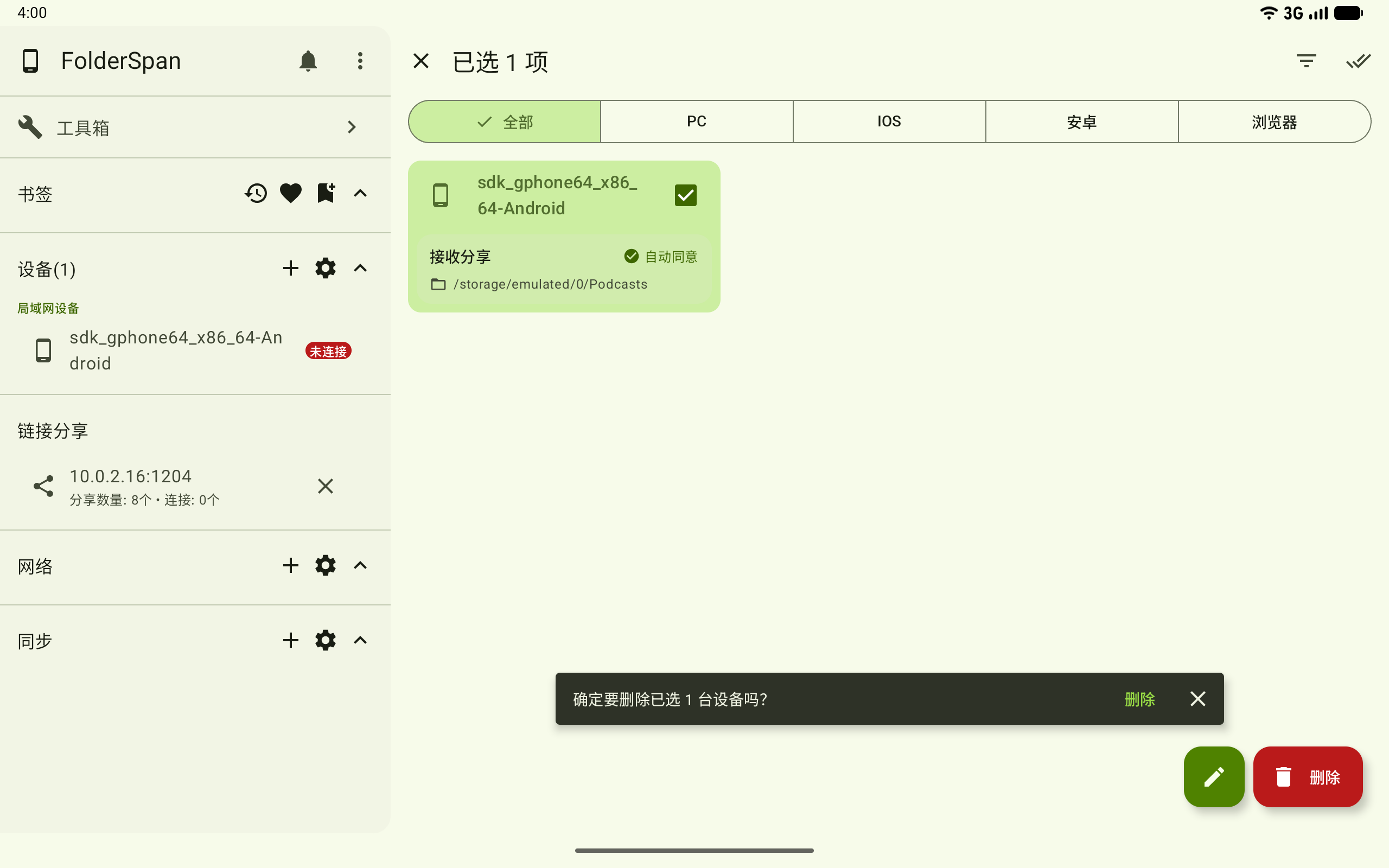
8. Delete devices in bulk
Select devices and choose Delete. Check the selected count in the bottom prompt, then select Delete again to confirm, or close to cancel.
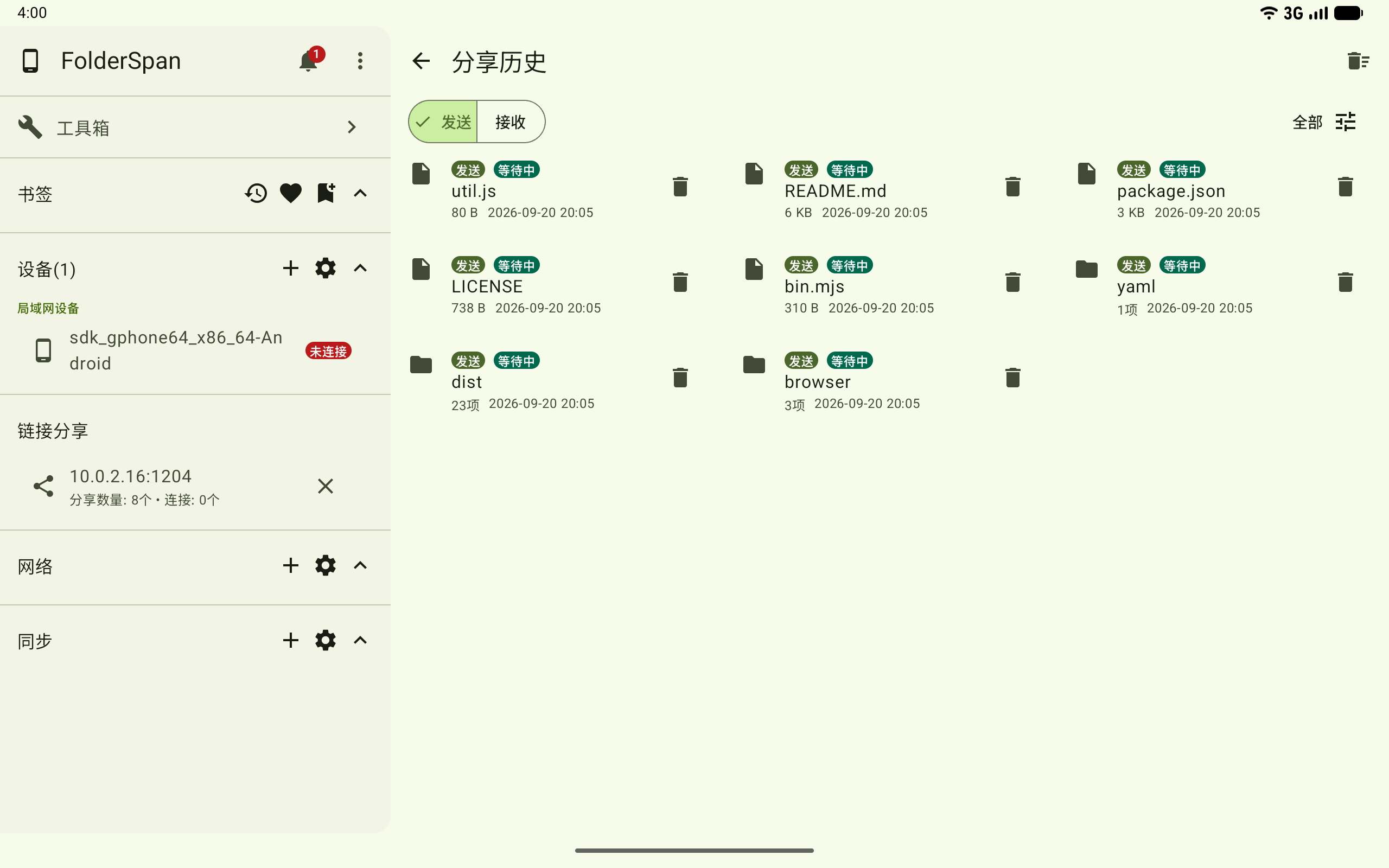
View sharing history
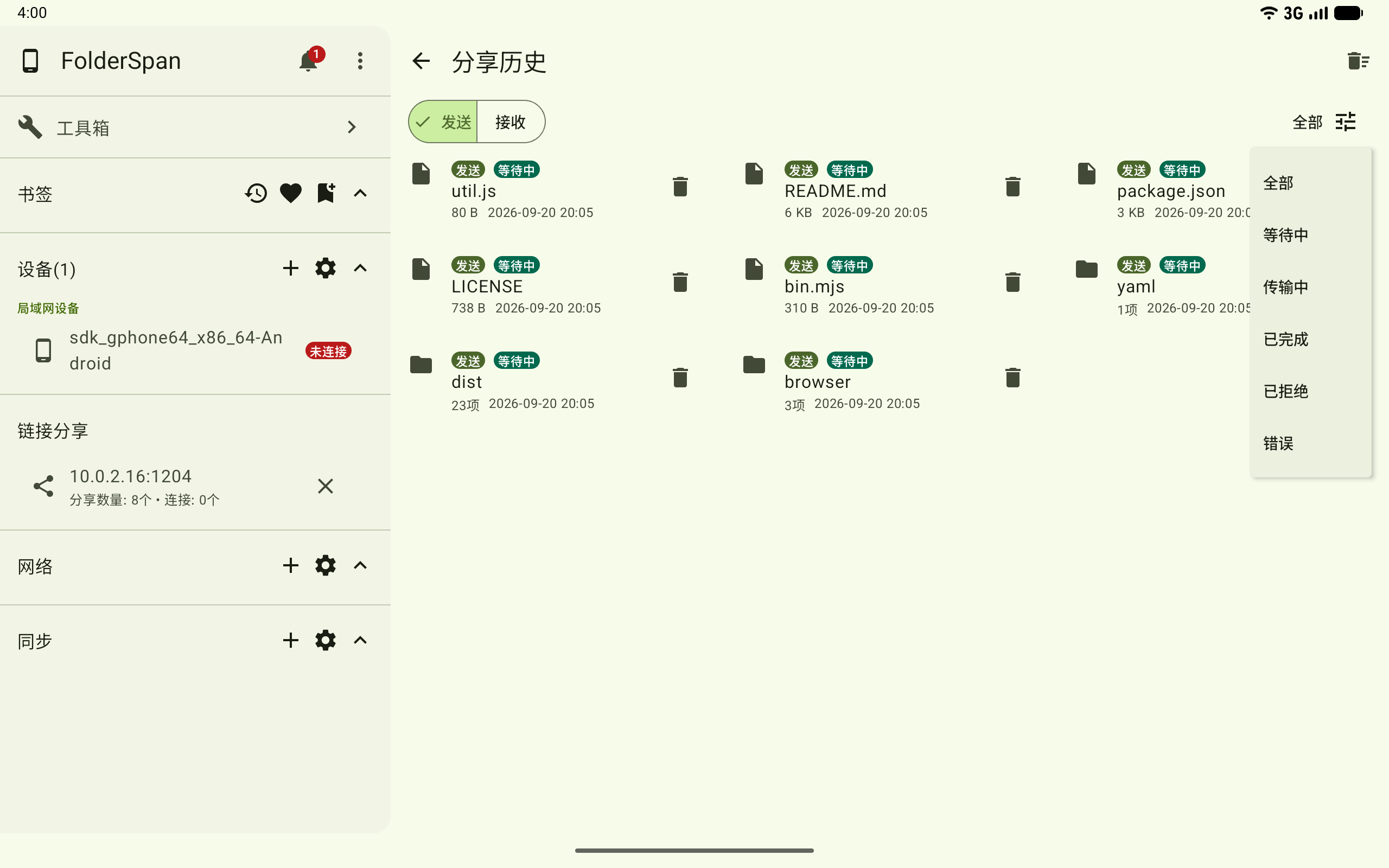
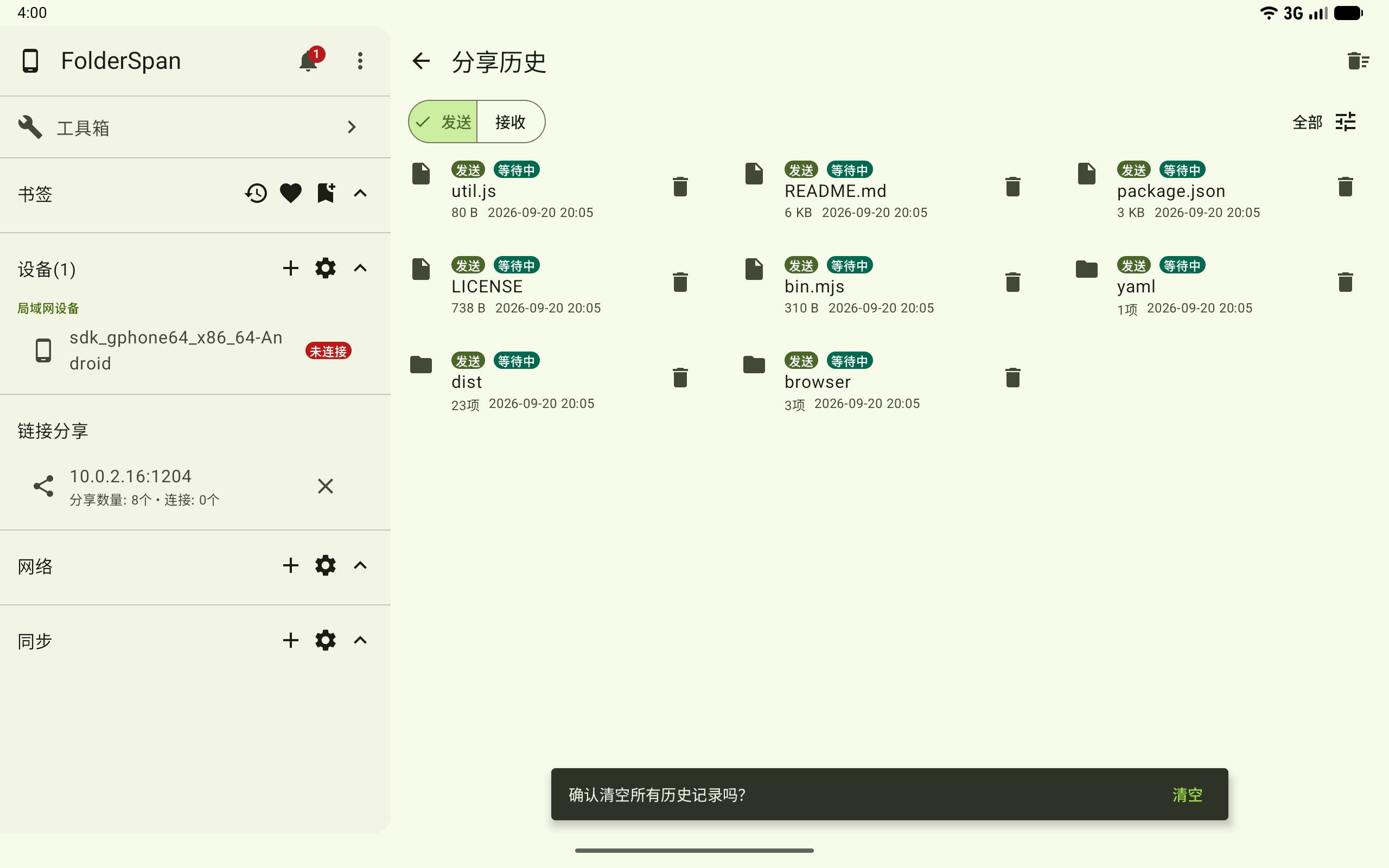
Select the history button at the top right of Share to devices. Sent and Received separate transfer directions. Records show names, sizes or item counts, times, and states.
9. Filter history
Choose Sent or Received, then use the top-right state filter: All, Waiting, Transferring, Completed, Rejected, or Error.
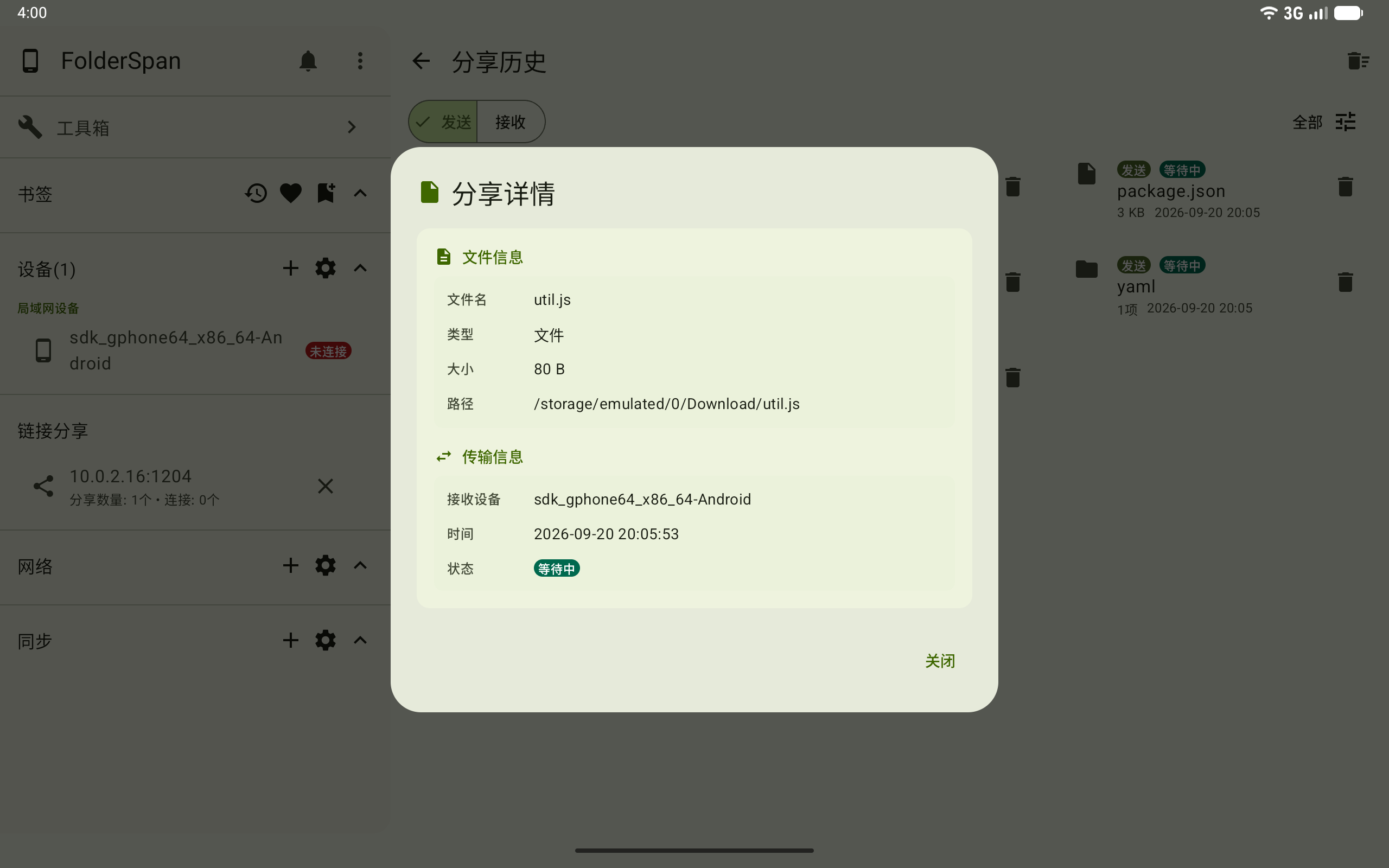
10. View record details
Select a sent record to view the file name, type, size, original path, recipient, time, and state.
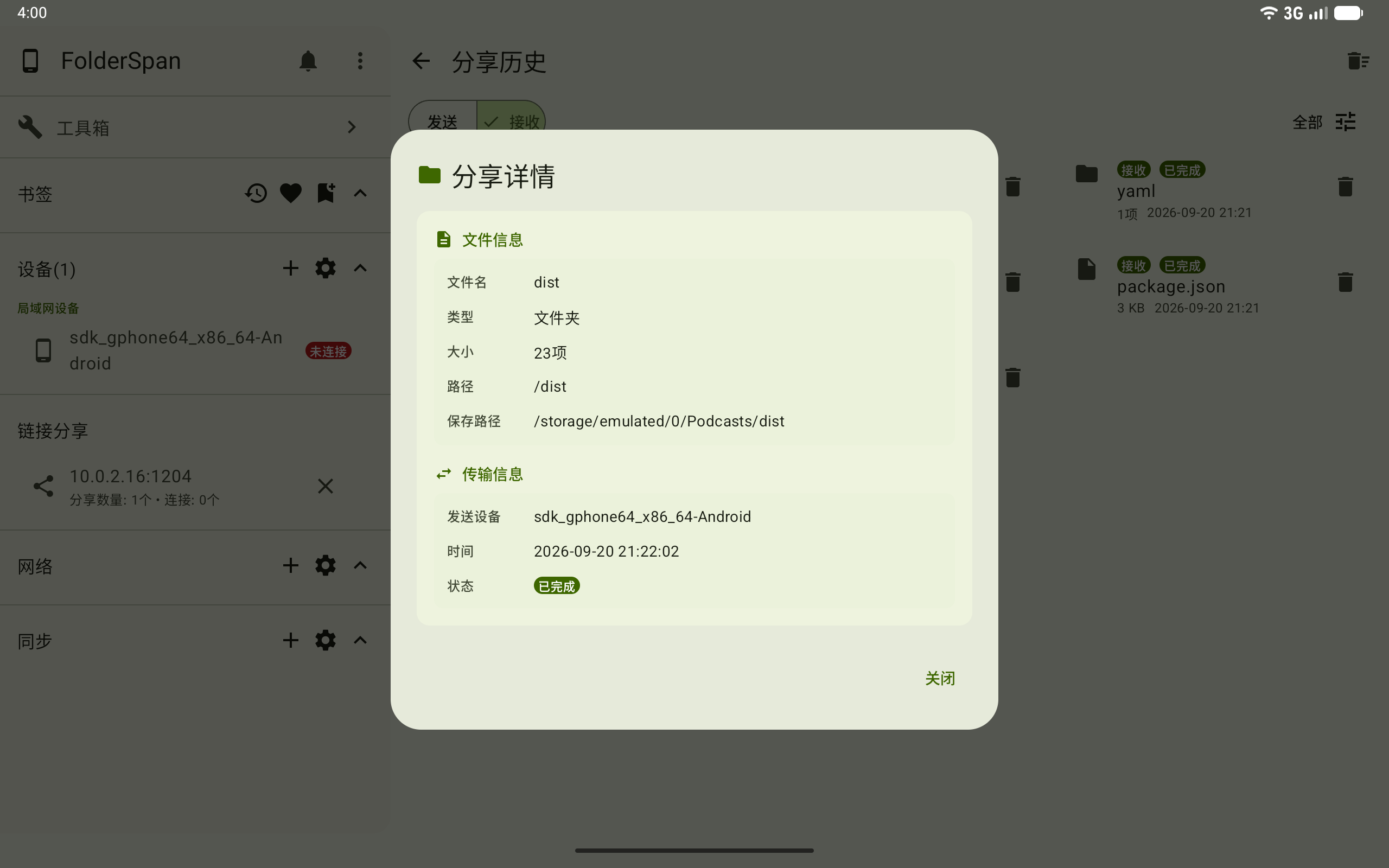
Select a received record to view the original path, save path, sender, time, and state.
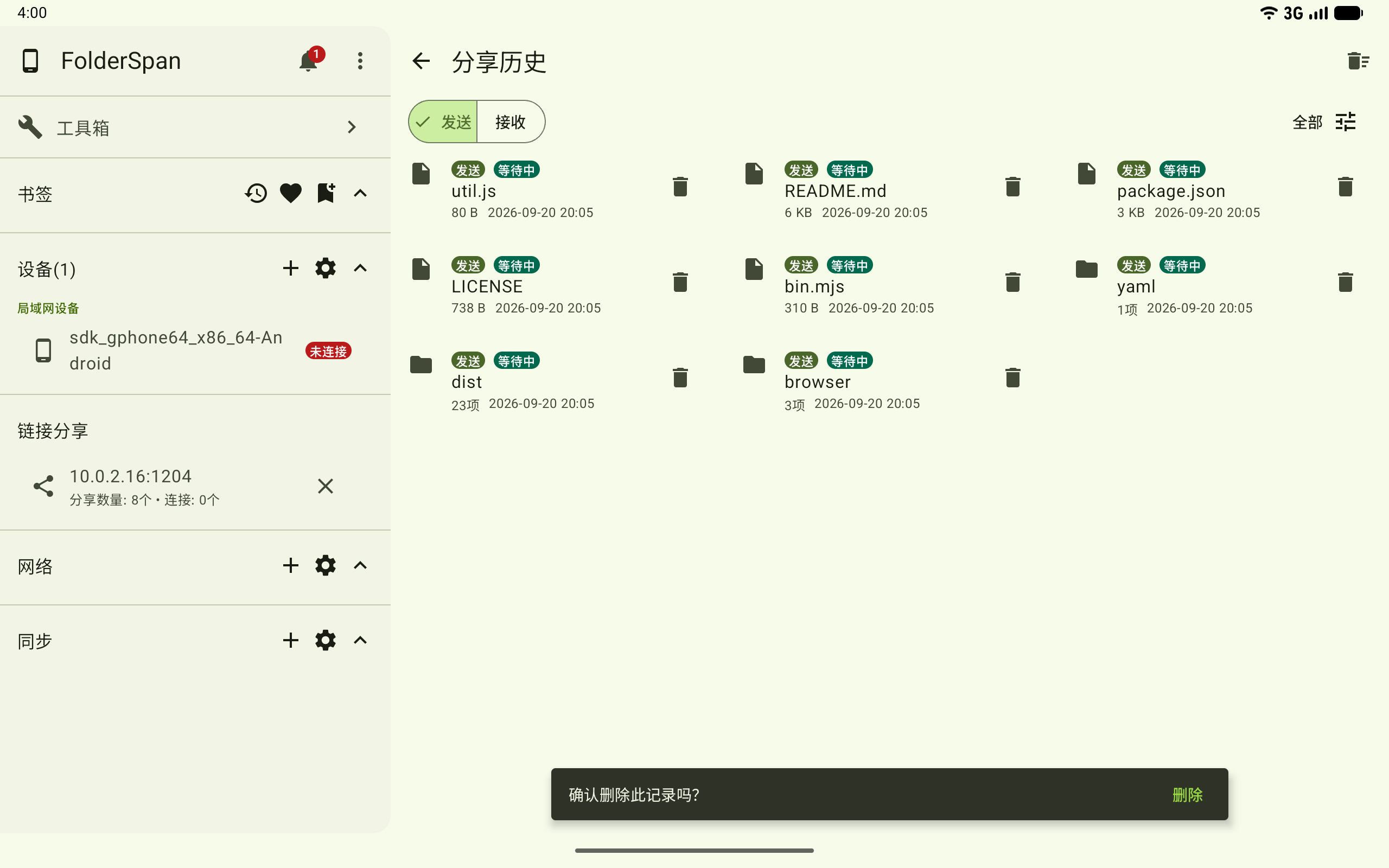
11. Delete history records
Select a record's right-hand delete button. Confirm Delete in the bottom prompt to remove the record.
Use the top-right clear button to remove all history, then select Clear in the confirmation.
Deleting history does not delete files that were sent or saved.
Recommendations
- Use
Auto-acceptonly for trusted devices. For unfamiliar devices, useConfirm every timeorAlways reject. - Check the sender, content, and receiving directory before saving to avoid overwriting or mixing in unwanted files.
- Keep both devices on the same local network and keep the application open until transfers finish.
- Remove unused sharing devices and history periodically. Clearing records does not affect local files.
Related documentation
- Device management: manage participating devices and their connection policies.