Shared files
Manage the files and folders exposed through link sharing. Add content from the sharing page, inspect the shared-items list, and remove one or several entries you no longer need to share.
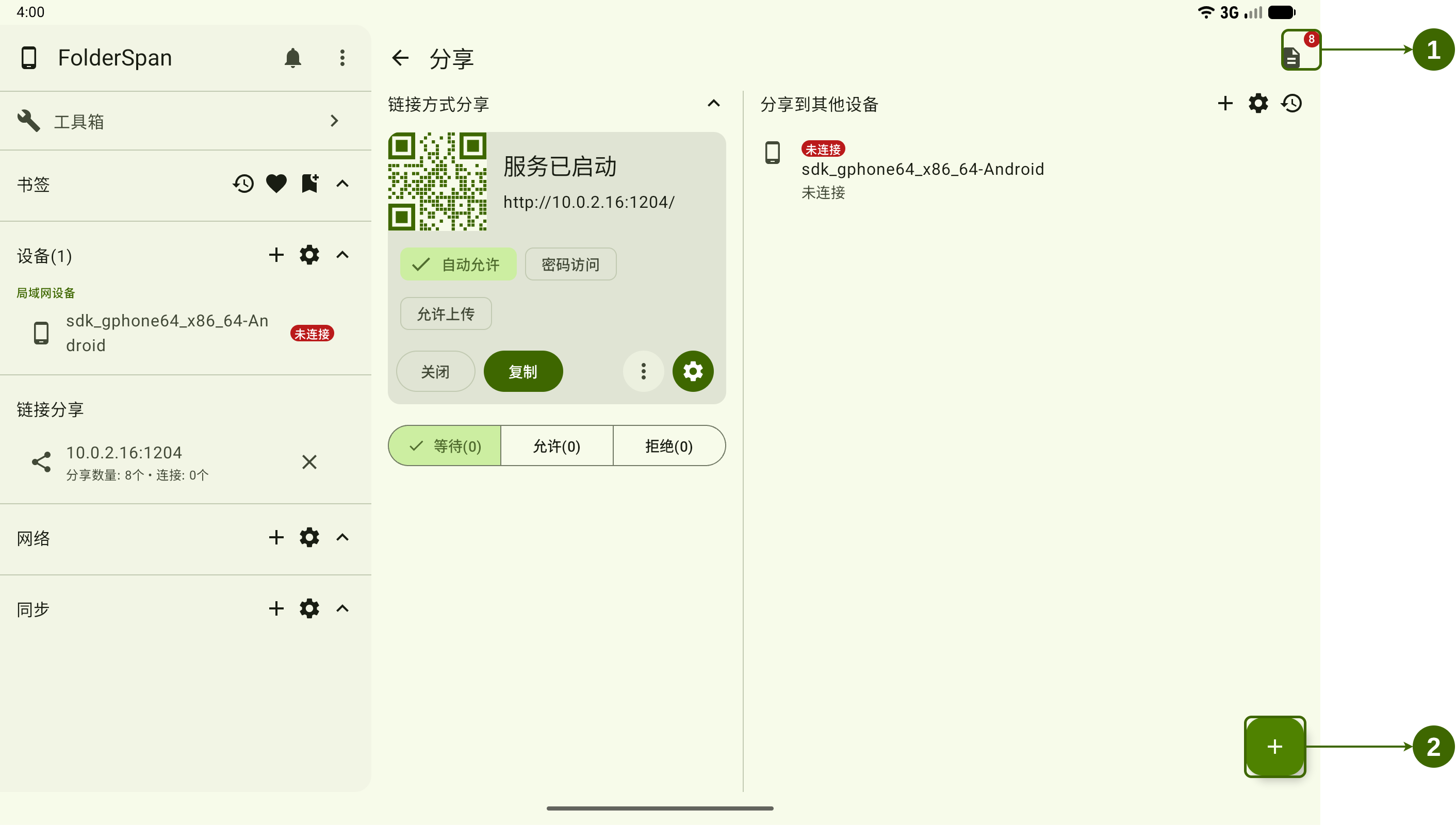
Page layout (screenshot numbers)
- Shared-items list: shows the current item count and opens the full list for management.
- Add shared content: opens file selection to add more files or folders.
Add content
1. Choose files or folders
Select the bottom-right add button and choose files or folders. After adding them, the list icon's badge shows the current count.
Manage the list
2. View shared content
Select the shared-items icon with a count badge at the top right. The title shows the total count; entries show their names, contained-item counts, and times.
Available actions:
Select all: selects every entry.Invert selection: reverses the current selection.- An entry's right-hand delete button: removes that entry.
- The list's top-right delete button: removes selected entries in bulk.
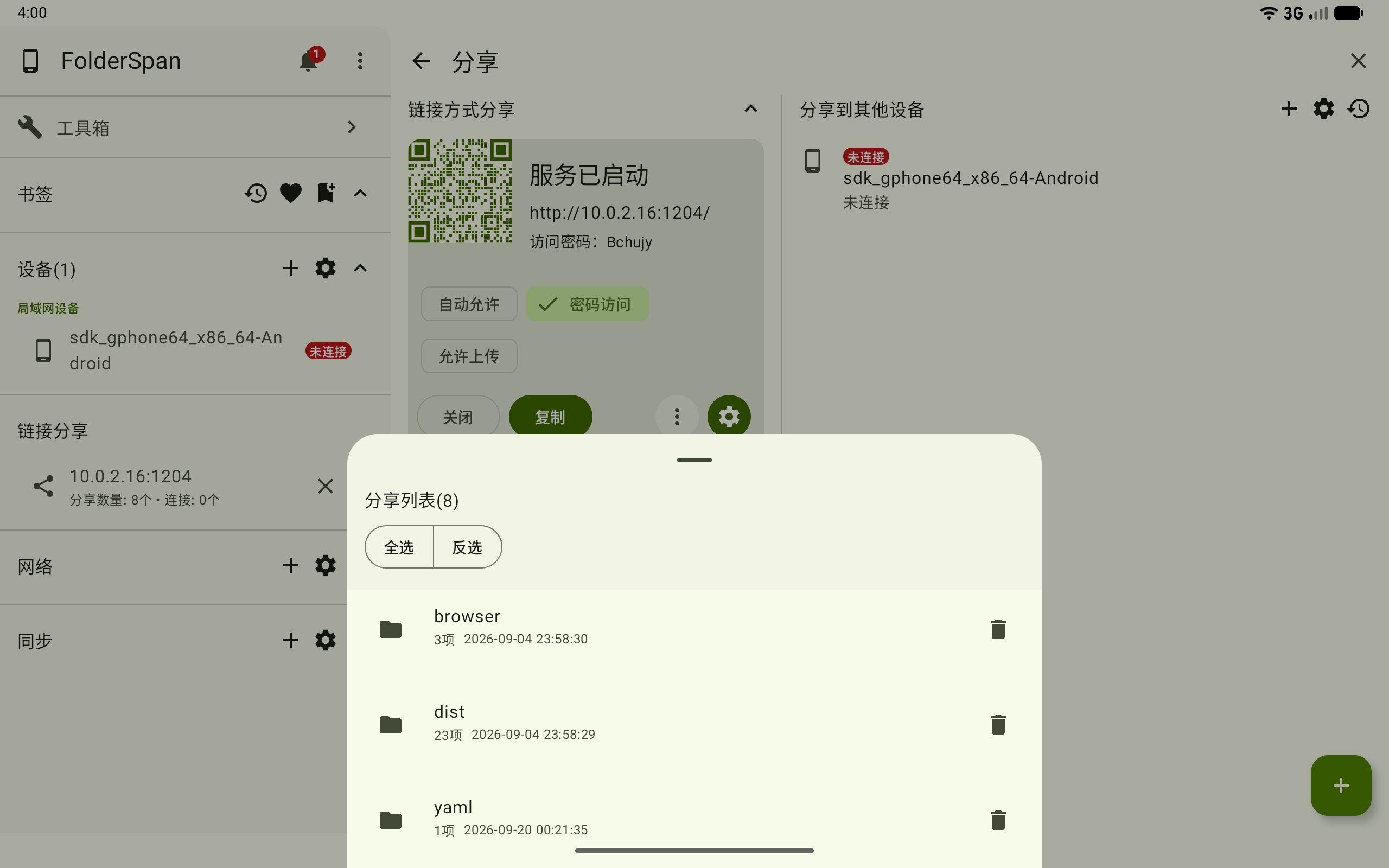
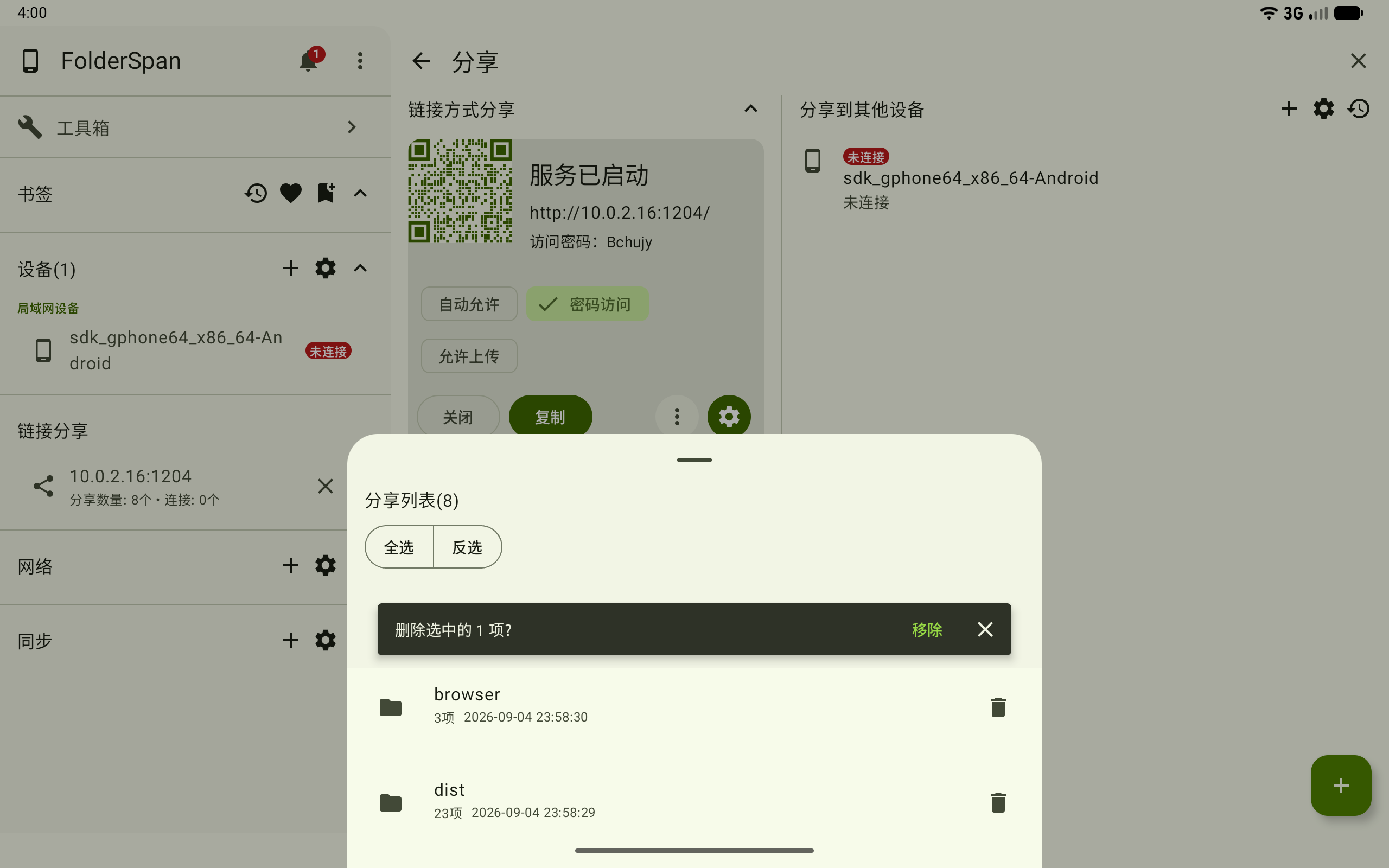
3. Remove one item
Select the delete button beside the item. In the confirmation for the one selected item, choose Remove, or close the prompt to cancel.
4. Remove several items
Use Select all, Invert selection, or the checkboxes to select several items, then use the list's top-right delete button. Check the selected count and choose Remove.
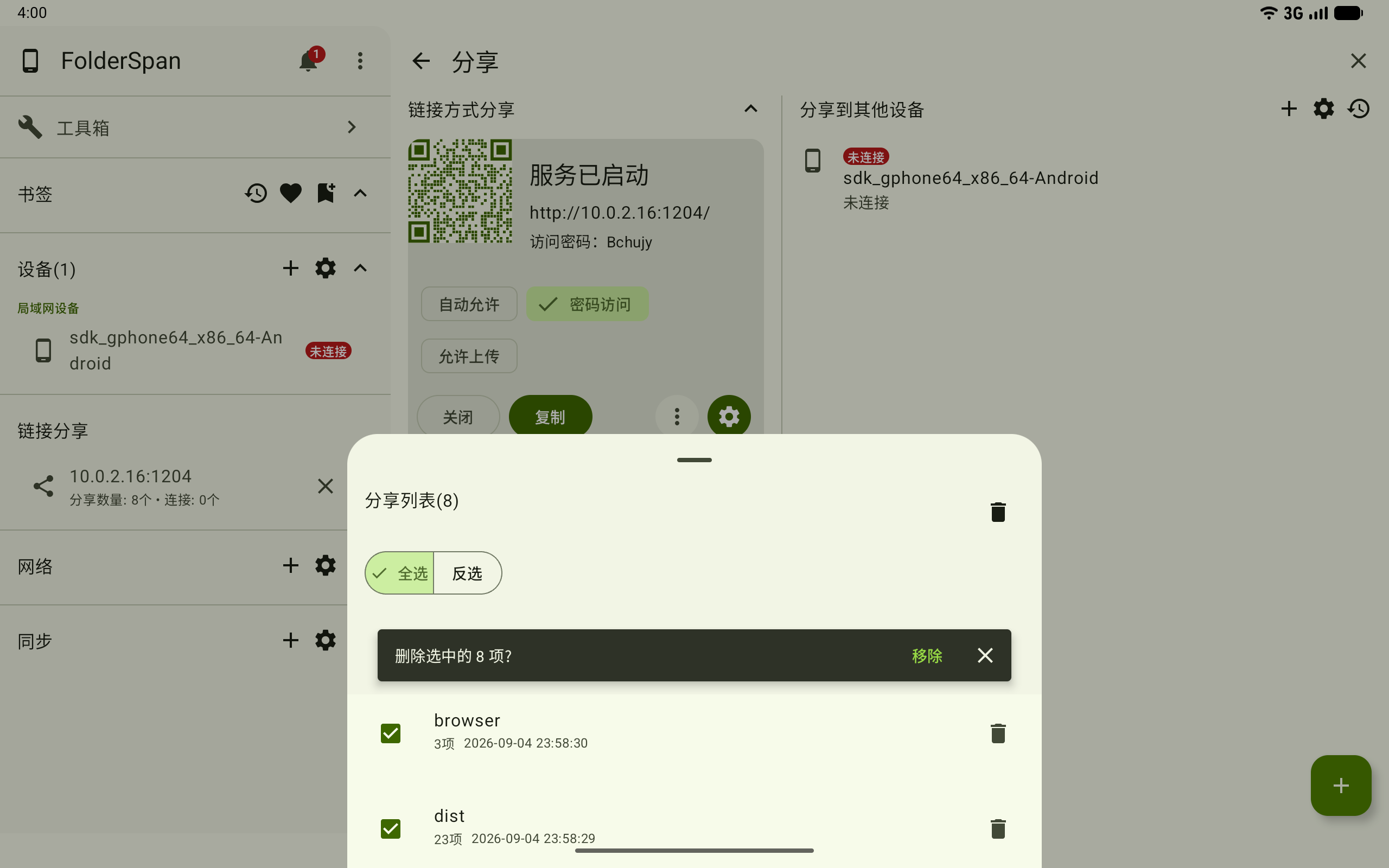
Removal affects only the sharing list. It does not delete the original files or folders on the device.
Related documentation
- Link sharing: start the service and manage access and upload authorization.