Link sharing
Transfer files or folders through a browser on the same local network. The sender starts a sharing service; recipients open its address or scan its QR code, then browse, download, or upload after authorization.
Keep both devices on the same local network and keep the service running until transfers finish.
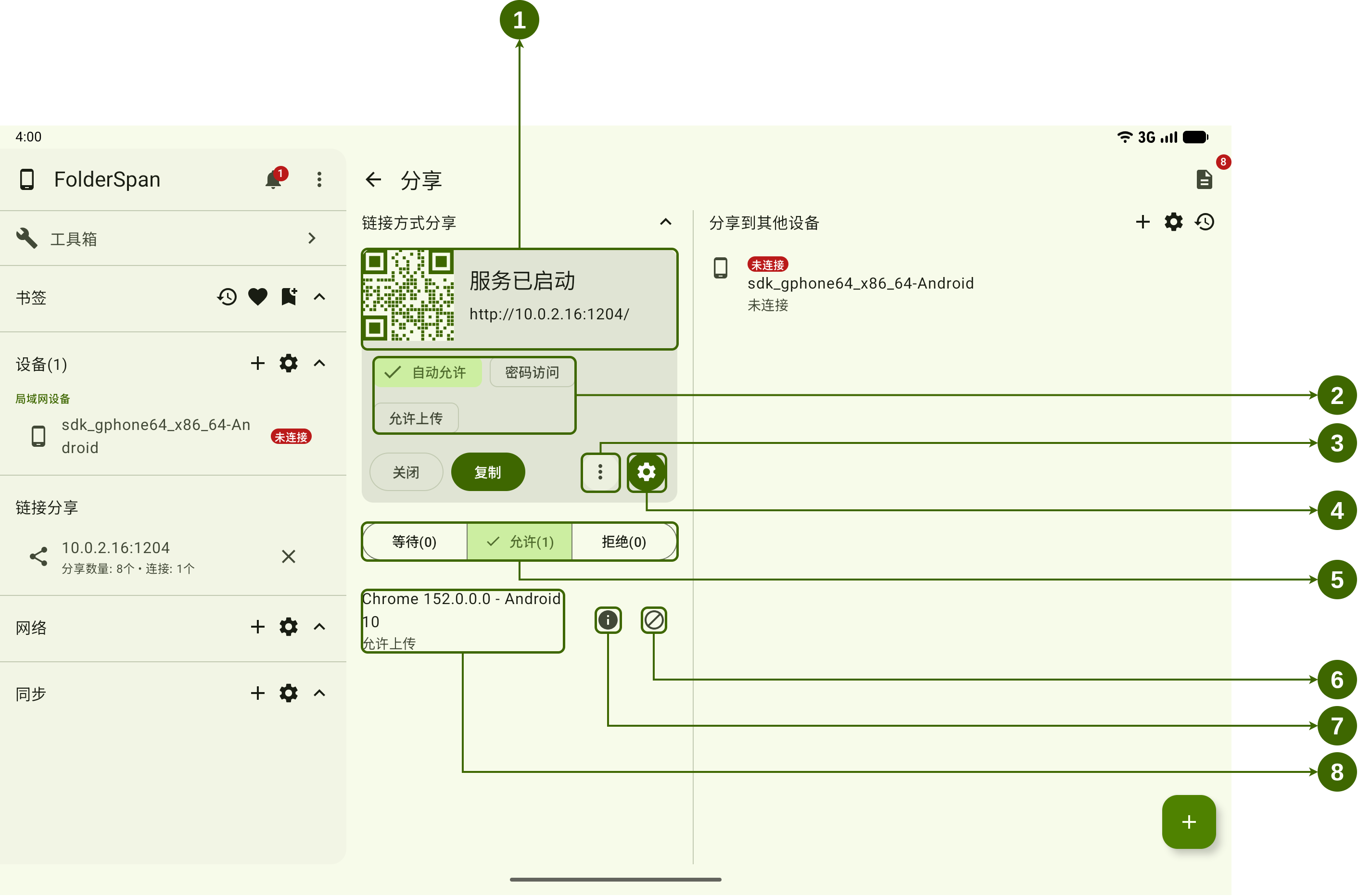
Page layout (screenshot numbers)
- Service information: status, QR code, and browser address.
- Access rules:
Auto-allow,Password access, andAllow uploads. - More actions: additional sharing-service actions.
- Sharing settings: service settings.
- Device states: browse
Waiting,Allowed, andRejecteddevices. - Reject access: stops the corresponding device from accessing shared content.
- Device details: its access and upload permissions.
- Visiting device: browser, operating-system version, and upload-permission state.
Choose content to share
1. Select files or folders
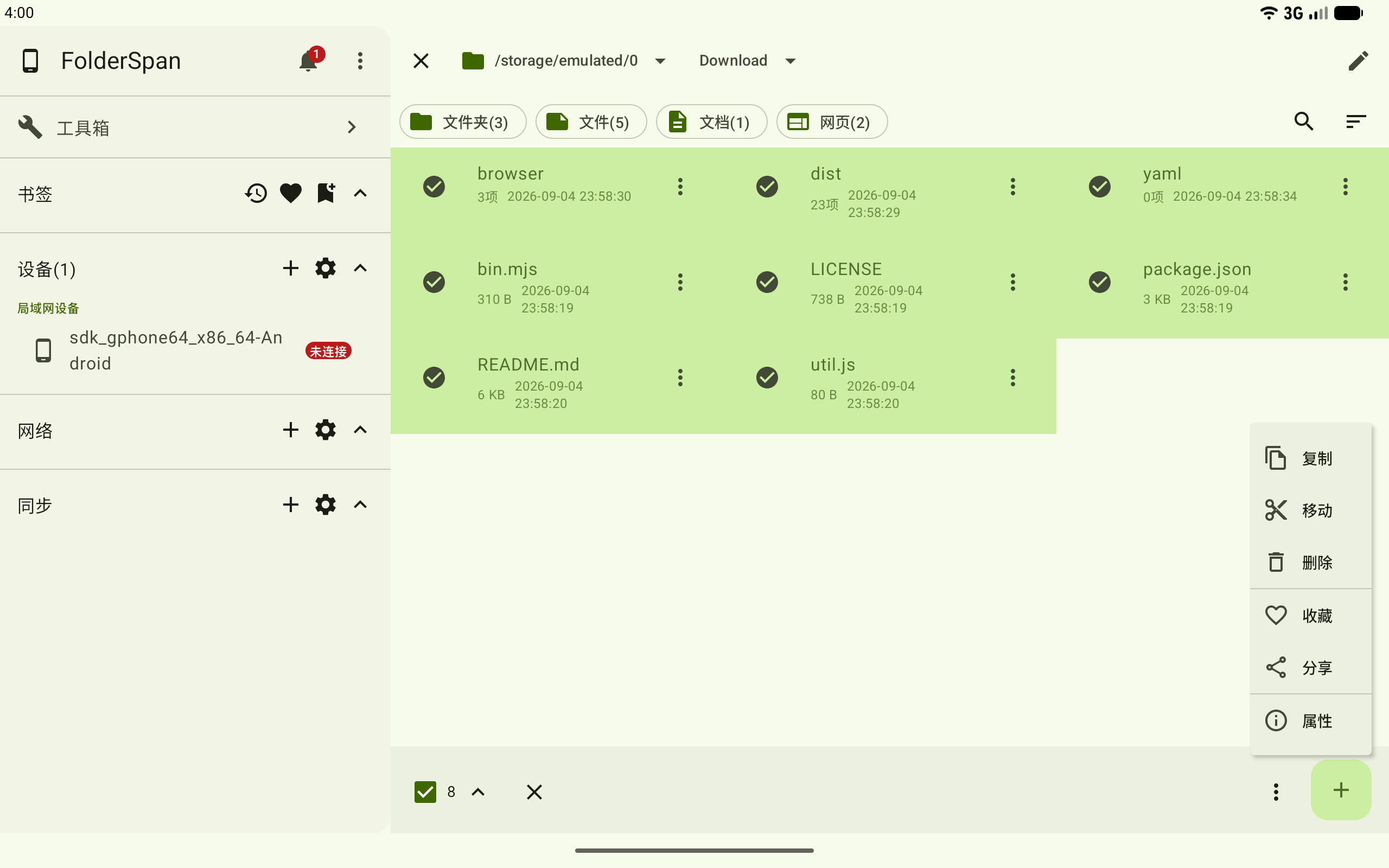
Enter selection mode in the file list, select content, and choose Share from the more menu. The bottom of the page shows the selected count.
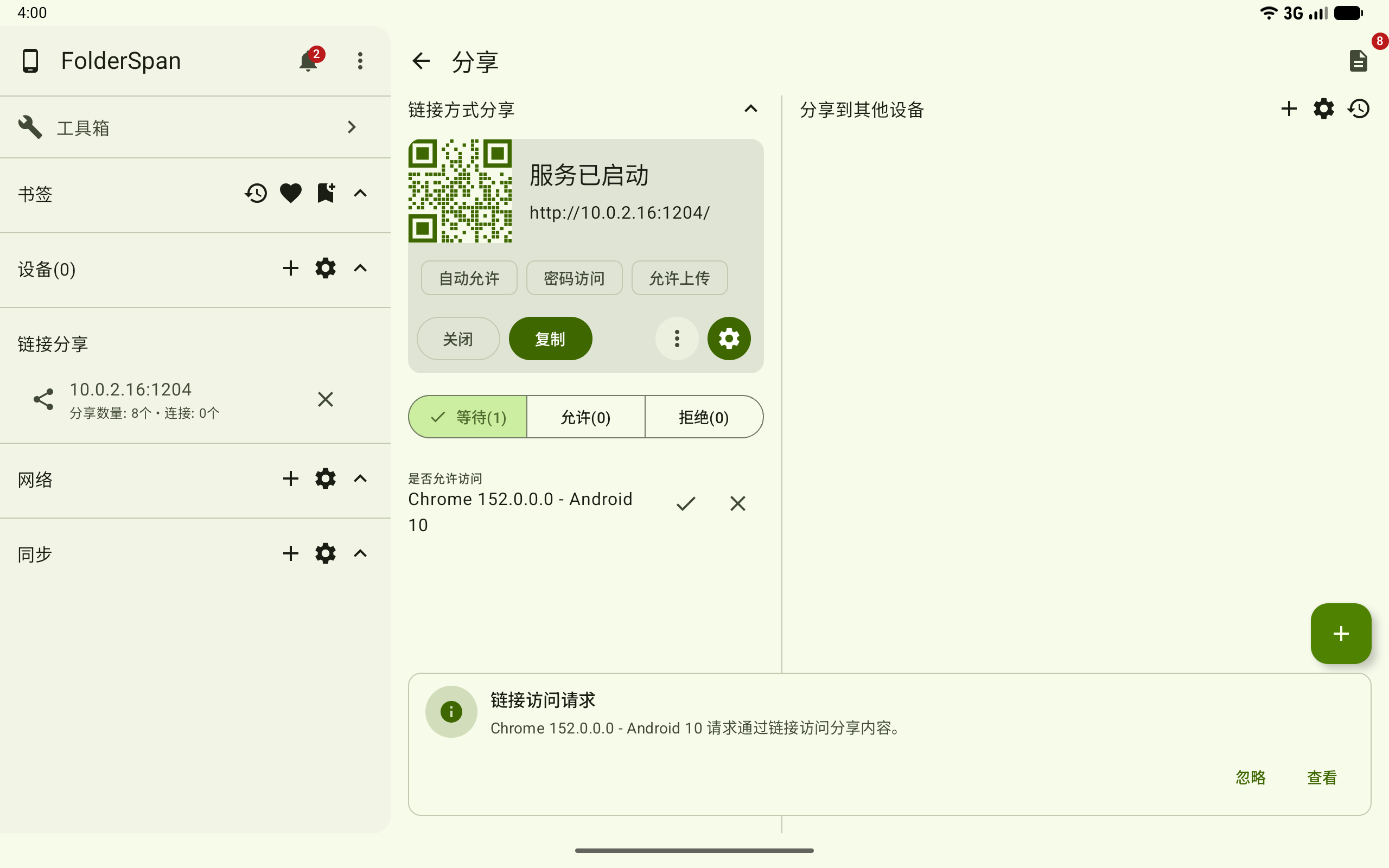
The sharing page's service card shows an address and QR code. Use Copy to copy the address, or let the recipient scan the code. Select Close to stop sharing.
Handle access requests
2. Allow a device
When a recipient opens the address, its request appears in the sender's Waiting list. Use the checkmark to allow it or the close button to reject it. A link-access request notification also offers View to return to the sharing page.
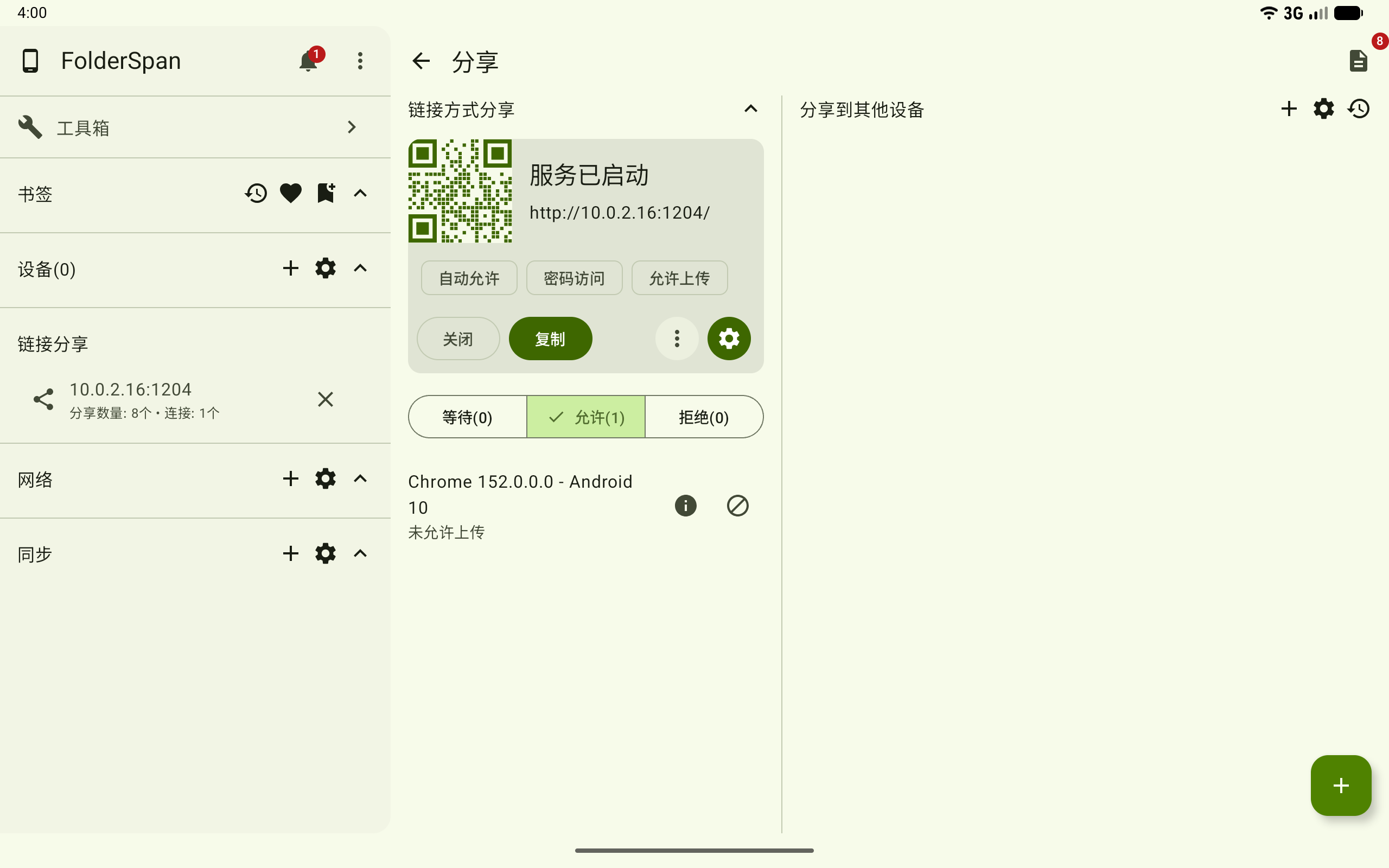
Allowed devices move to the Allowed list. Each entry shows the browser, operating-system version, and whether uploads are allowed.
Browse and download
3. View the browser page
Once access is approved, the browser shows shared content. Search for files or folders with the search box. Main actions are:
Batch download: download all shared content or obtain a batch-download script.- Folder entries: open the folder.
- Open button: preview a file in the browser.
- Download button: download that file.
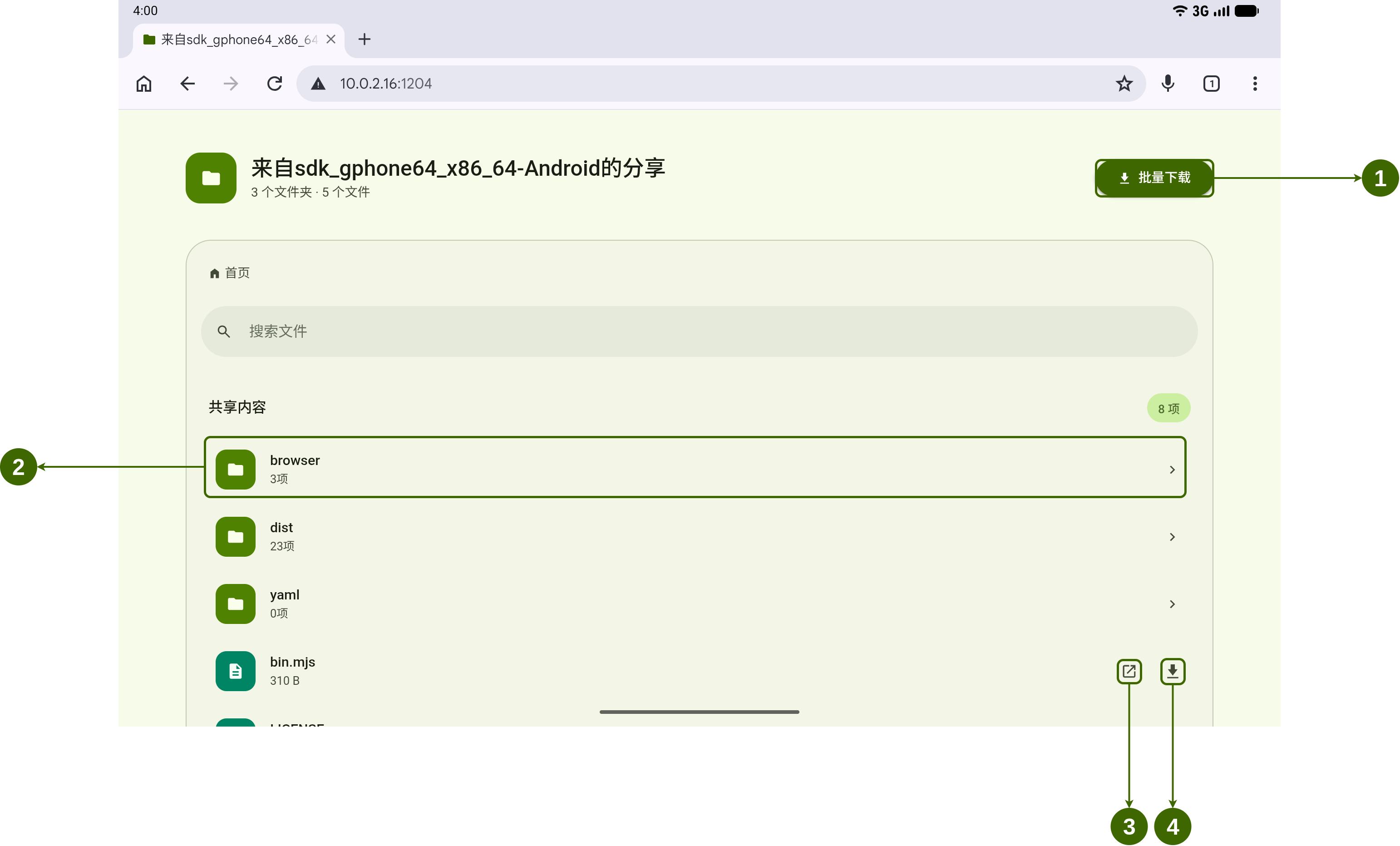
4. Open a folder or file
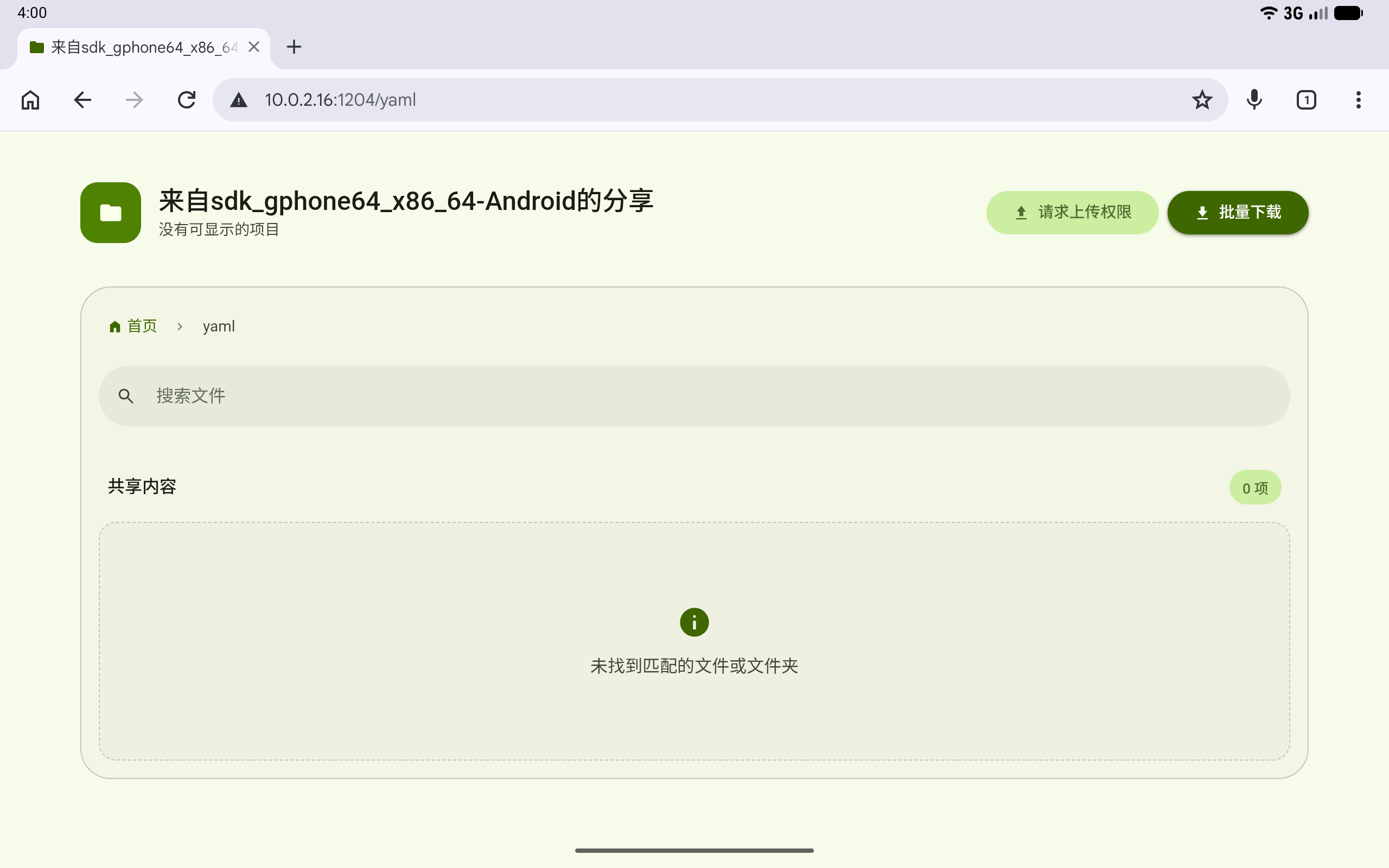
Select a folder to enter it. Breadcrumbs show the current location; Home returns to the shared root.
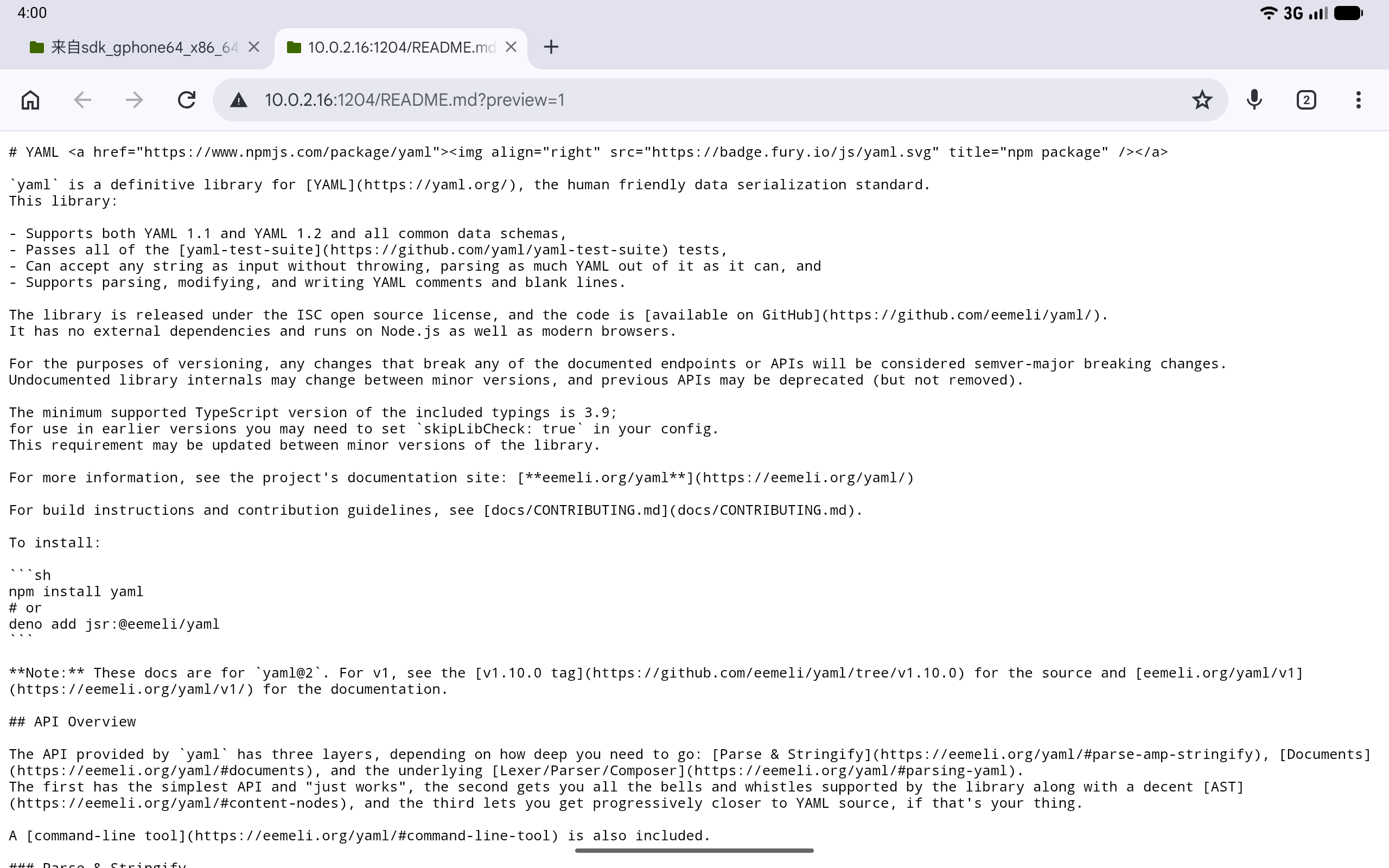
Use a file's open button to view its contents in a new browser tab.
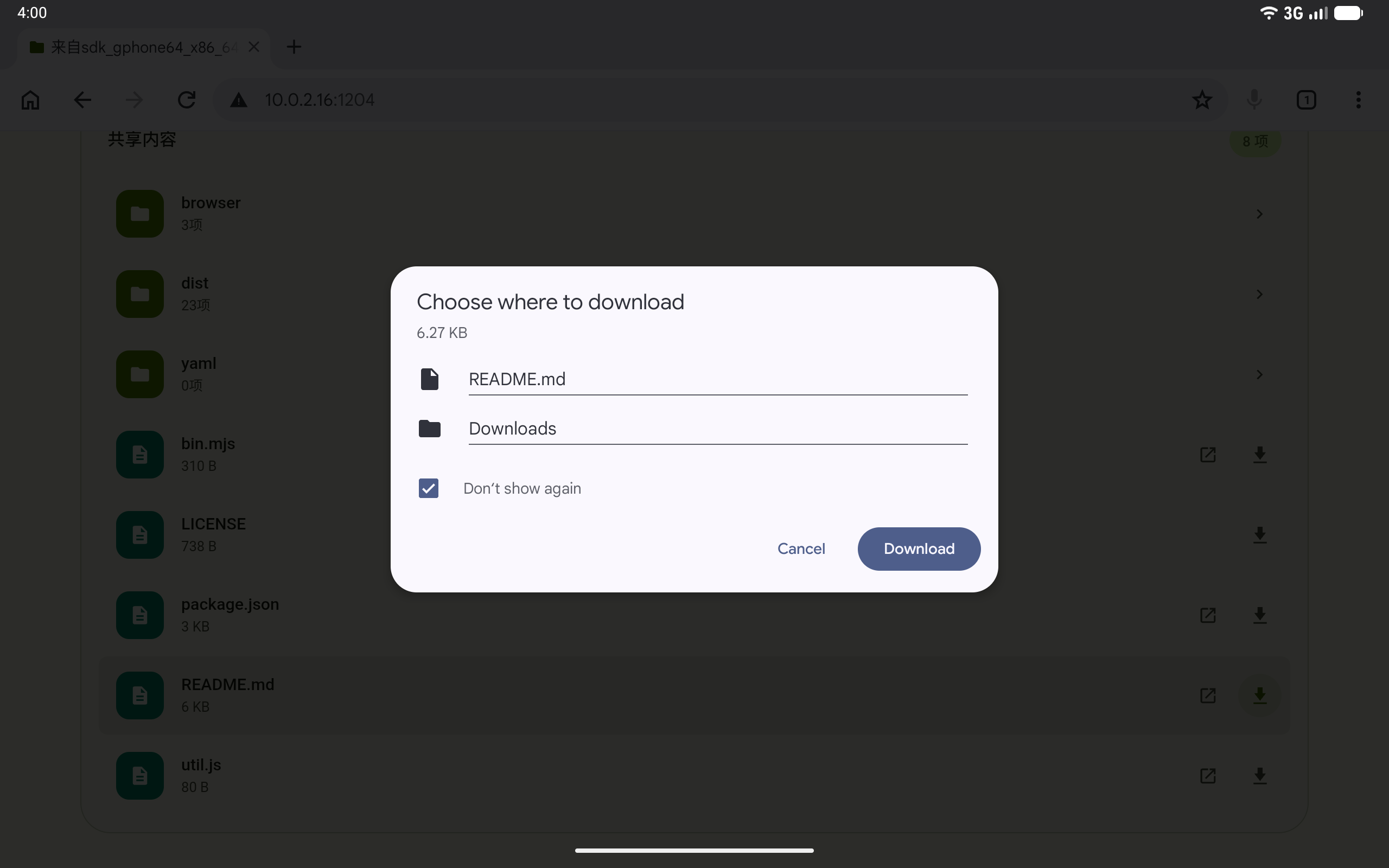
5. Download one file
Select its download button. In the browser's download confirmation, check the name and destination, then select Download.
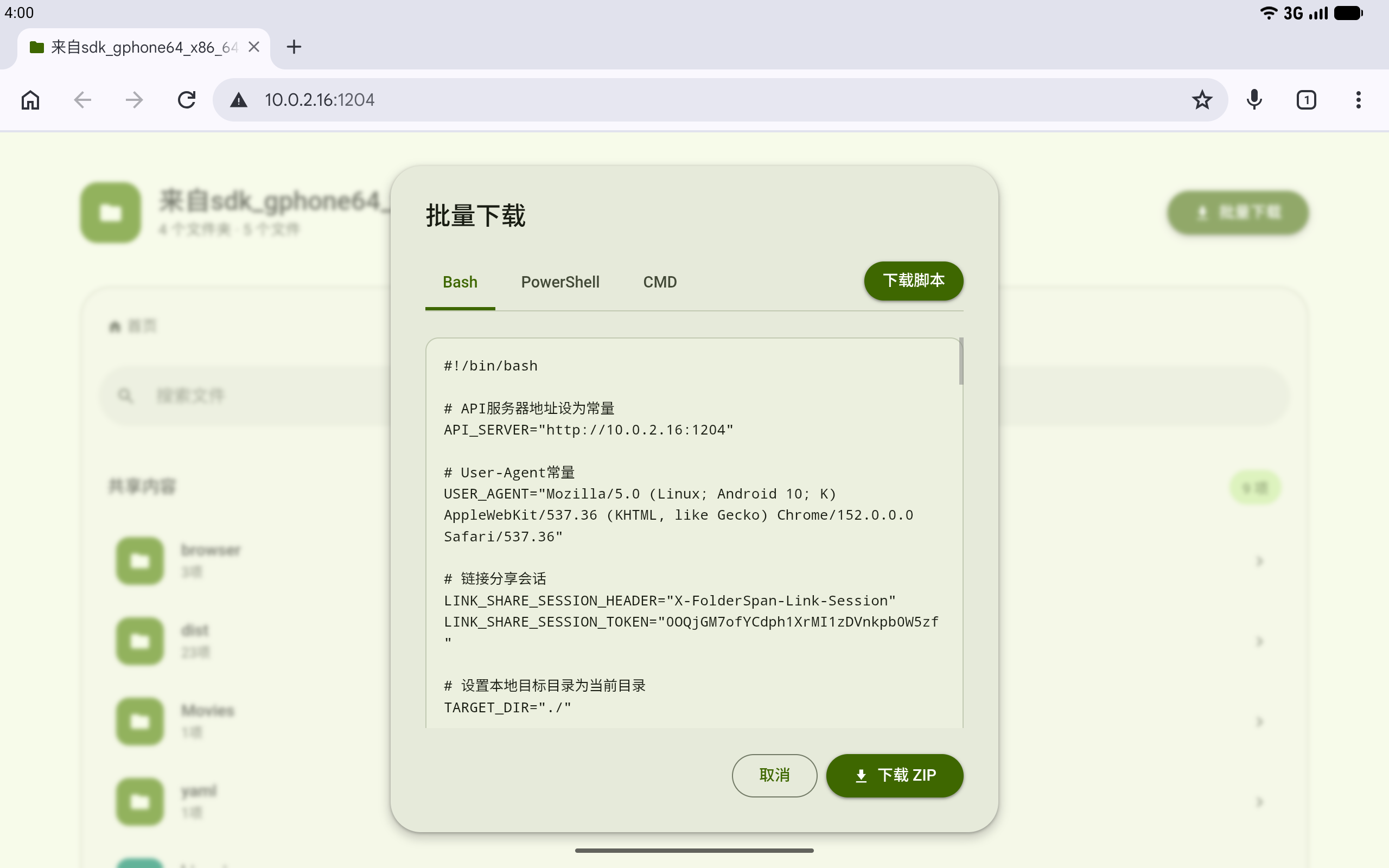
6. Download in bulk
Select Batch download. Choose Bash, PowerShell, or CMD to view the appropriate script, then use Download script to save it. Alternatively, use Download ZIP to download an archive directly.
Manage the shared-items list
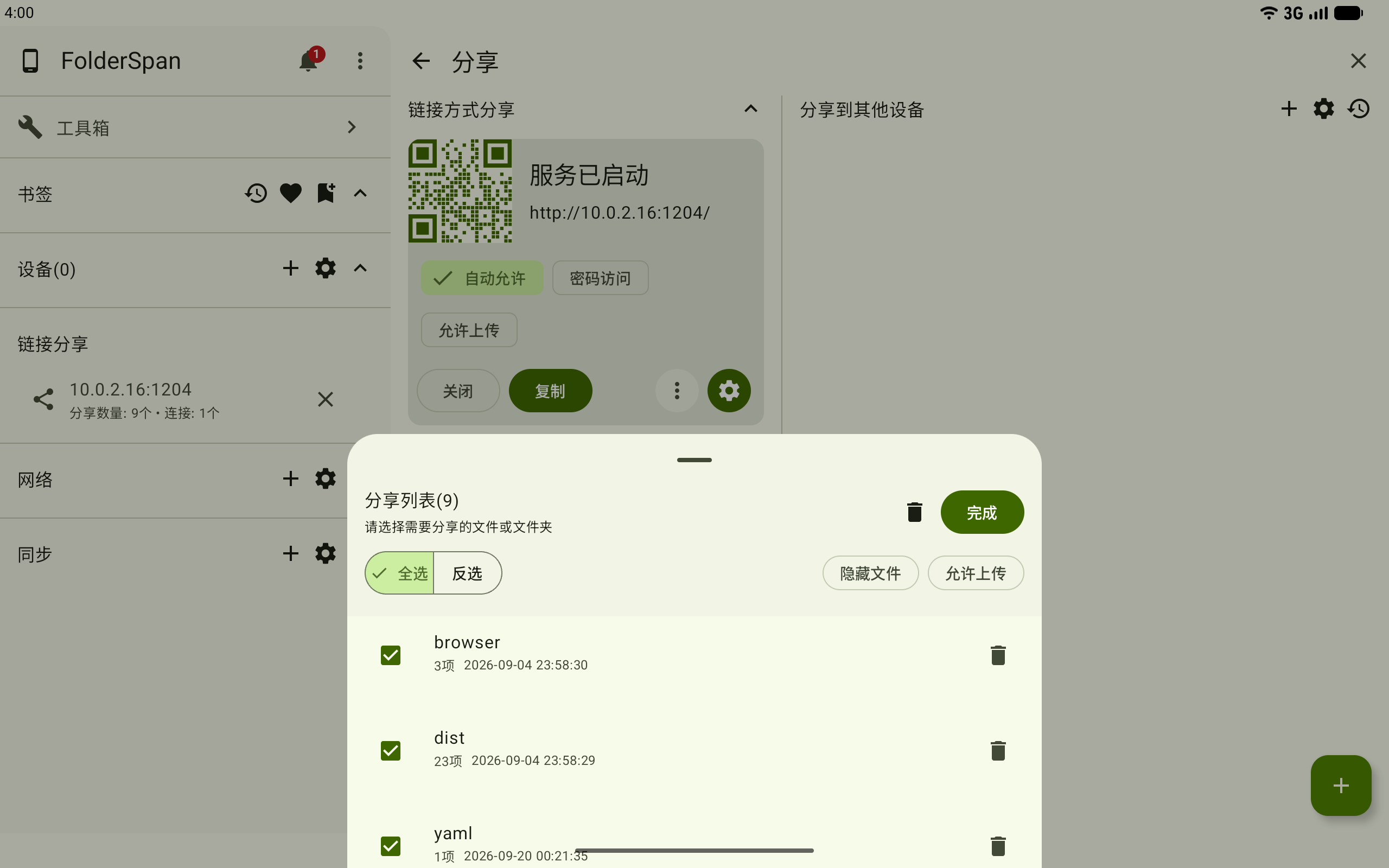
7. Adjust shared content
Select the count-badge list icon at the top right. Use Select all, Invert selection, and removal actions, and adjust Hidden files and Allow uploads as needed. Select Done after changing the list.
Upload authorization and uploads
8. Request upload permission
On the folder page shown earlier, select Request upload permission at the top right. The button becomes temporarily unavailable until the sender handles the request.
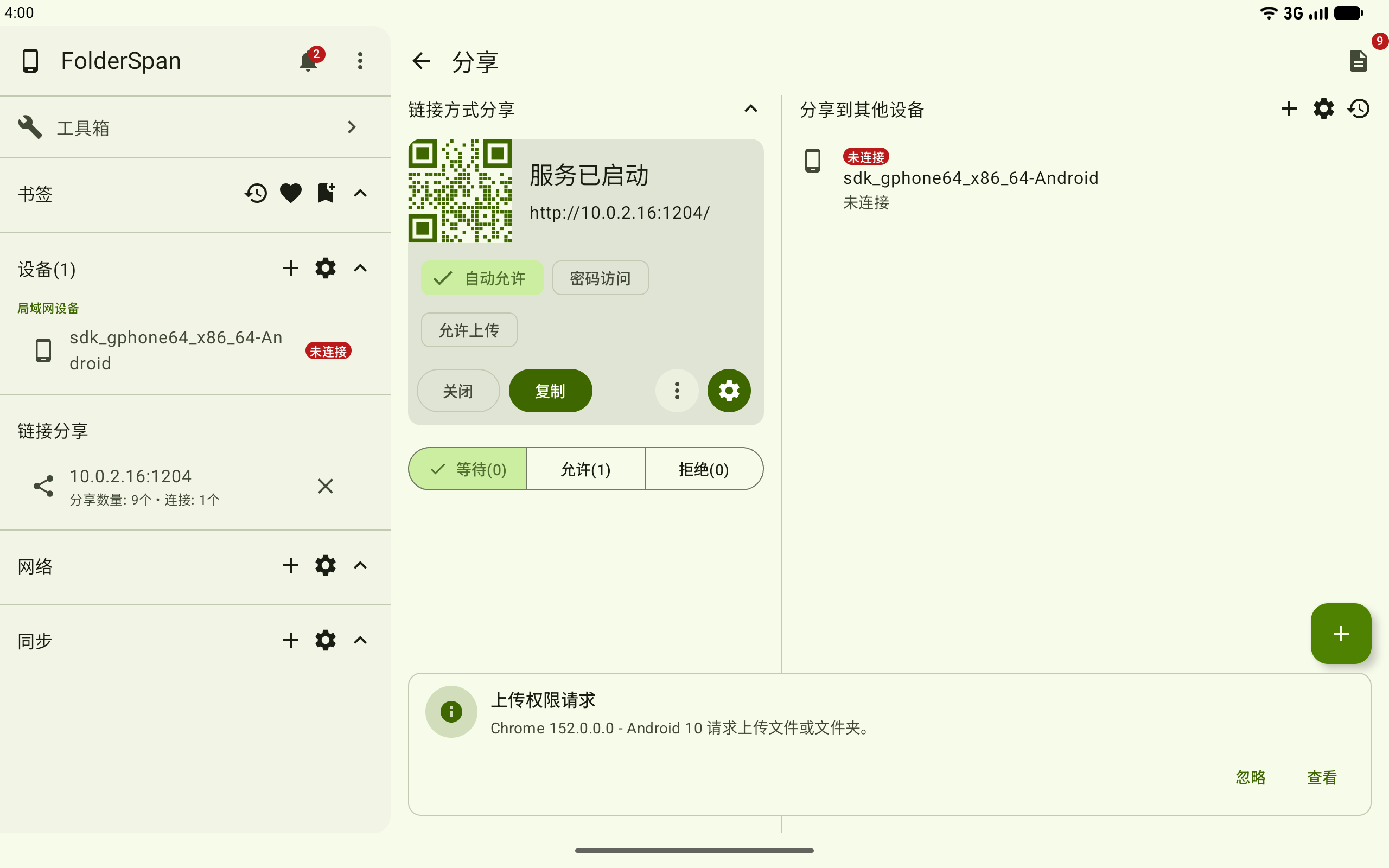
The sender receives an upload-permission request notification. View opens its details; Ignore only dismisses that notification prompt.
9. Approve uploads
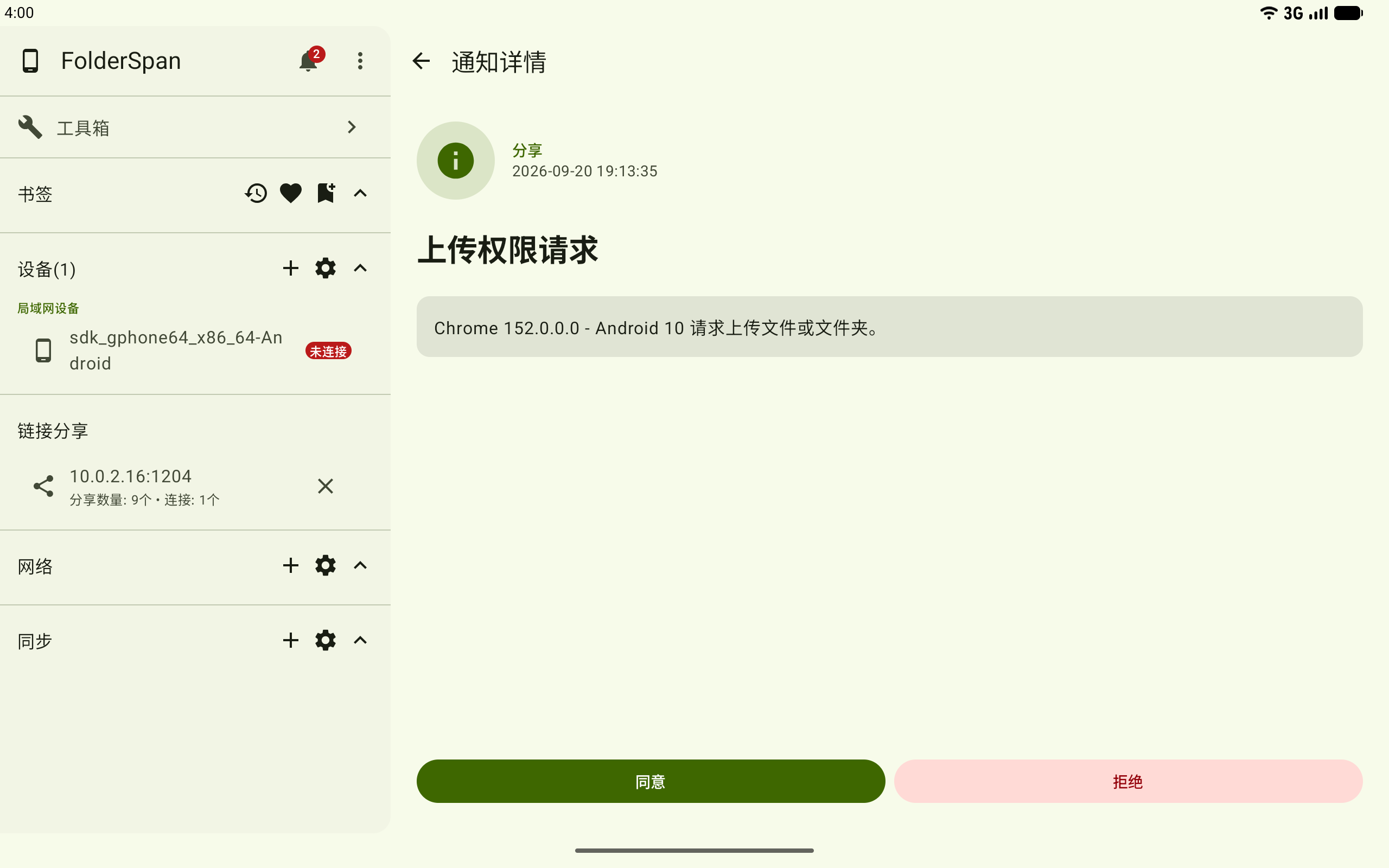
The sender checks the browser and system information in the notification details and selects Accept. Use Reject if the device should not upload.
After approval, the recipient sees Select files and Select folder and can choose content to upload.
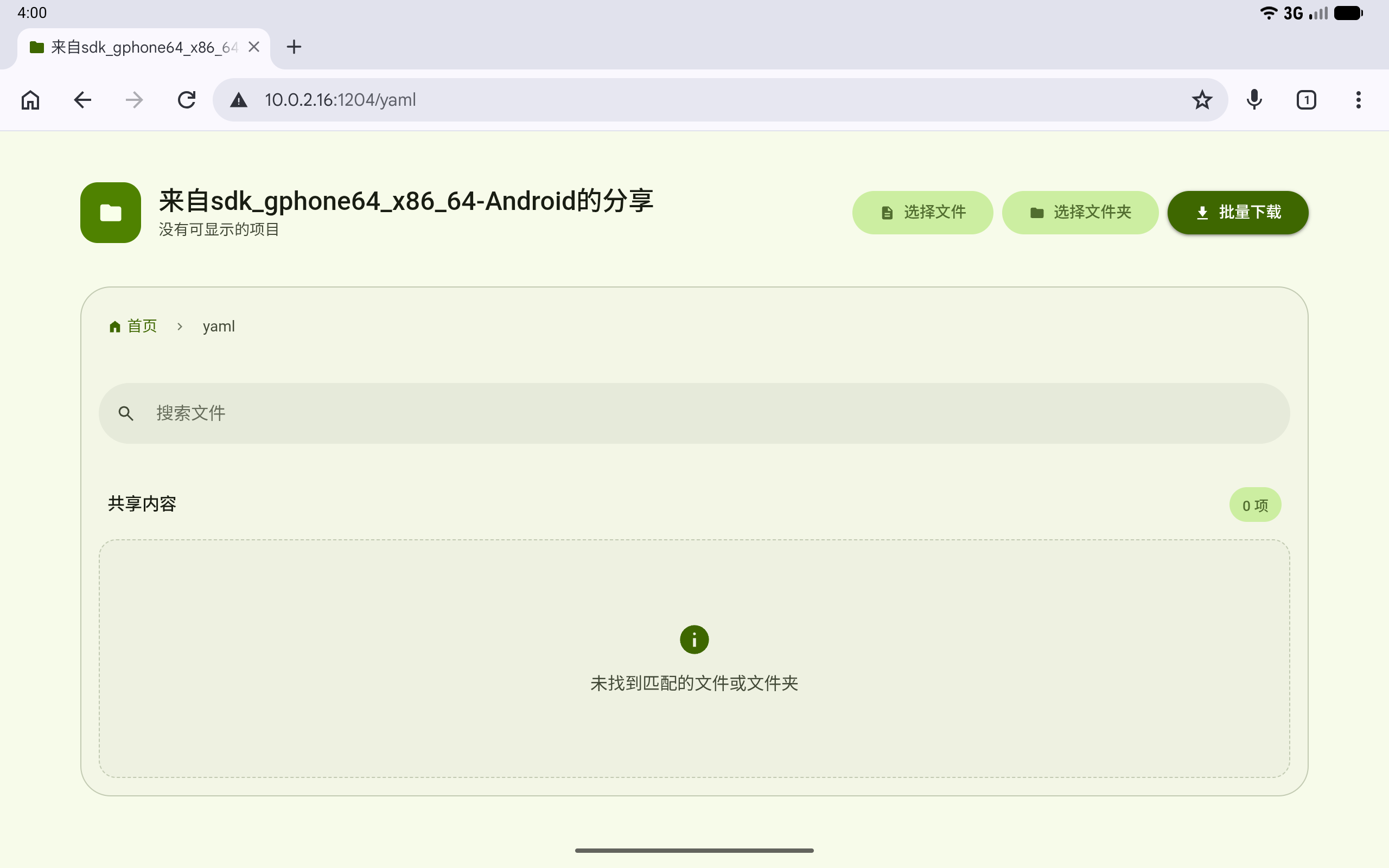
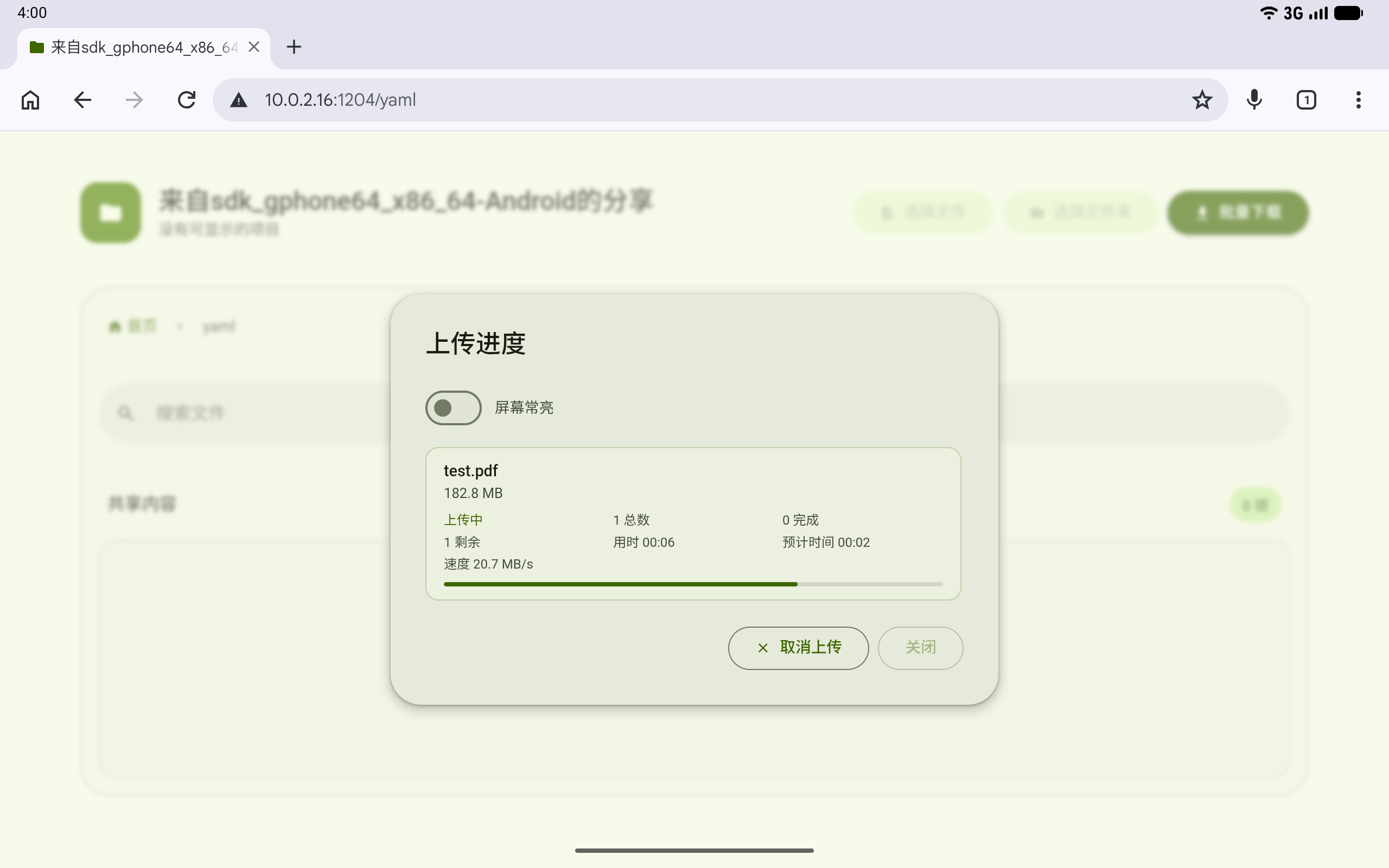
10. Upload files or folders
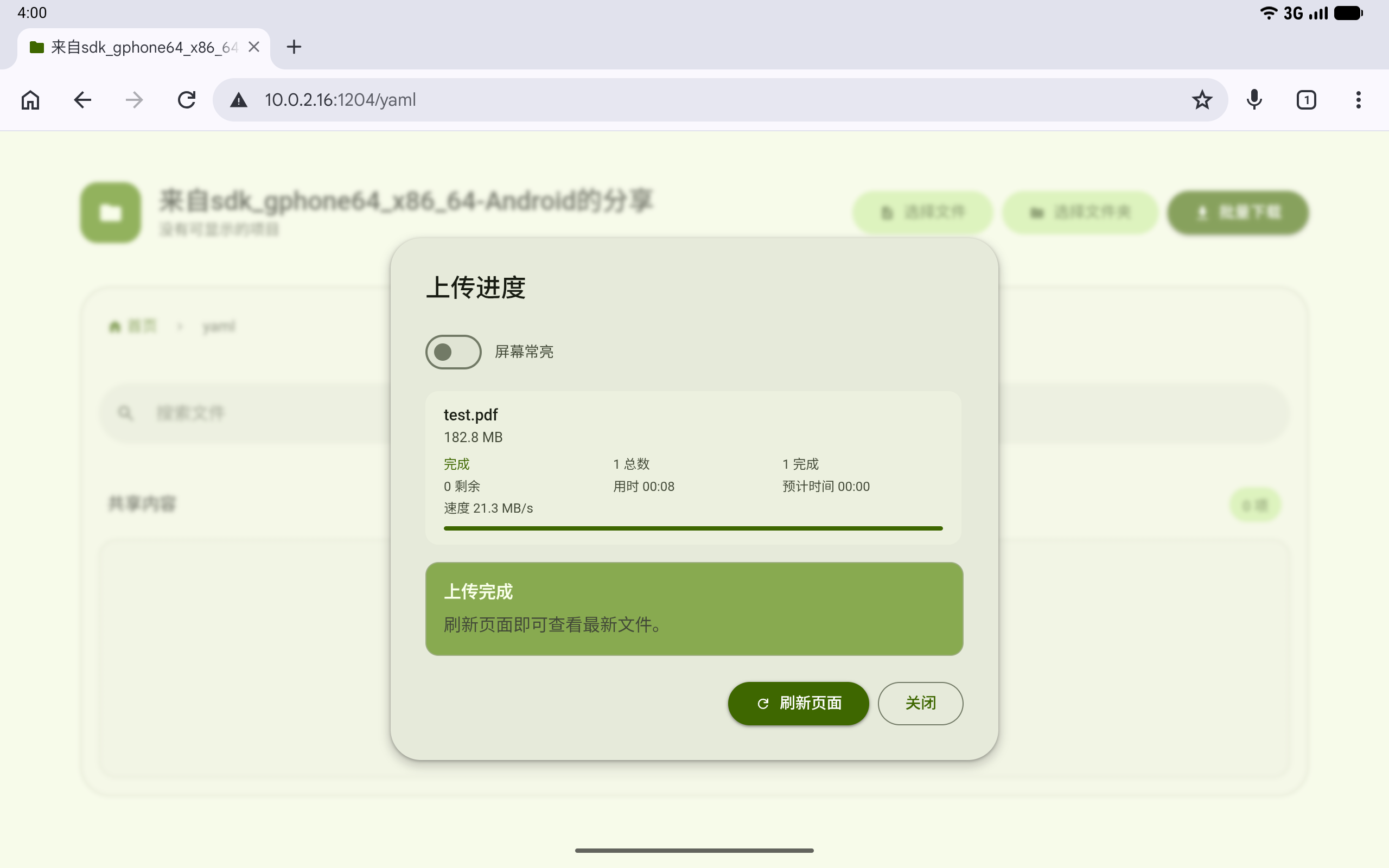
Choose content through Select files or Select folder. Upload progress shows sizes, speed, elapsed time, and completion counts. Use Cancel upload to stop.
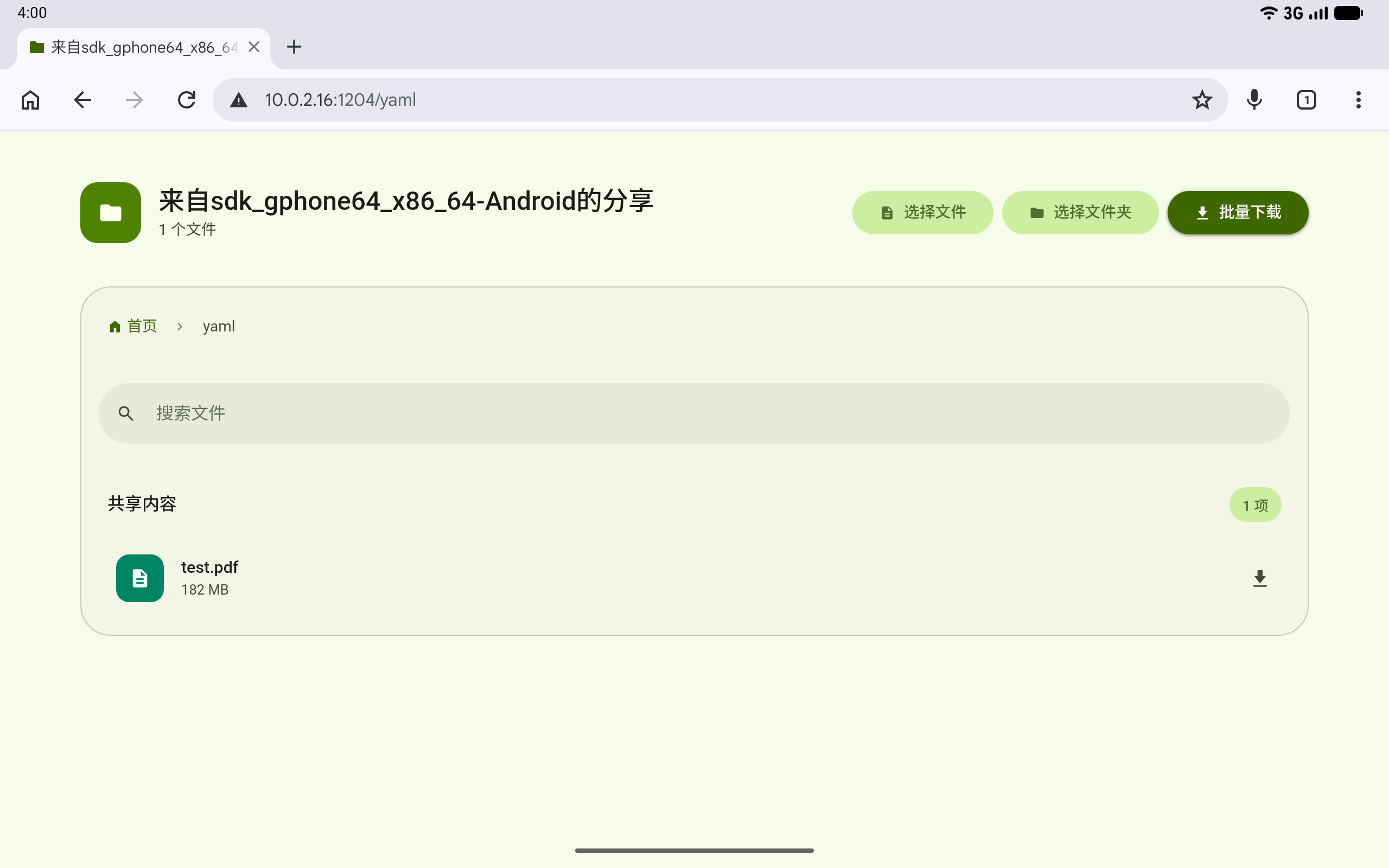
When finished, select Refresh page to see the new content or Close to return to the sharing page.
After refreshing, the uploaded files appear in the shared-content list.
Access control
11. Allow access automatically
With Auto-allow enabled, opening the address immediately shows shared content without individual approval. Use this only on a trusted local network.
If several addresses are available, address choices appear above the service card. Choose a local-network address reachable by the recipient.
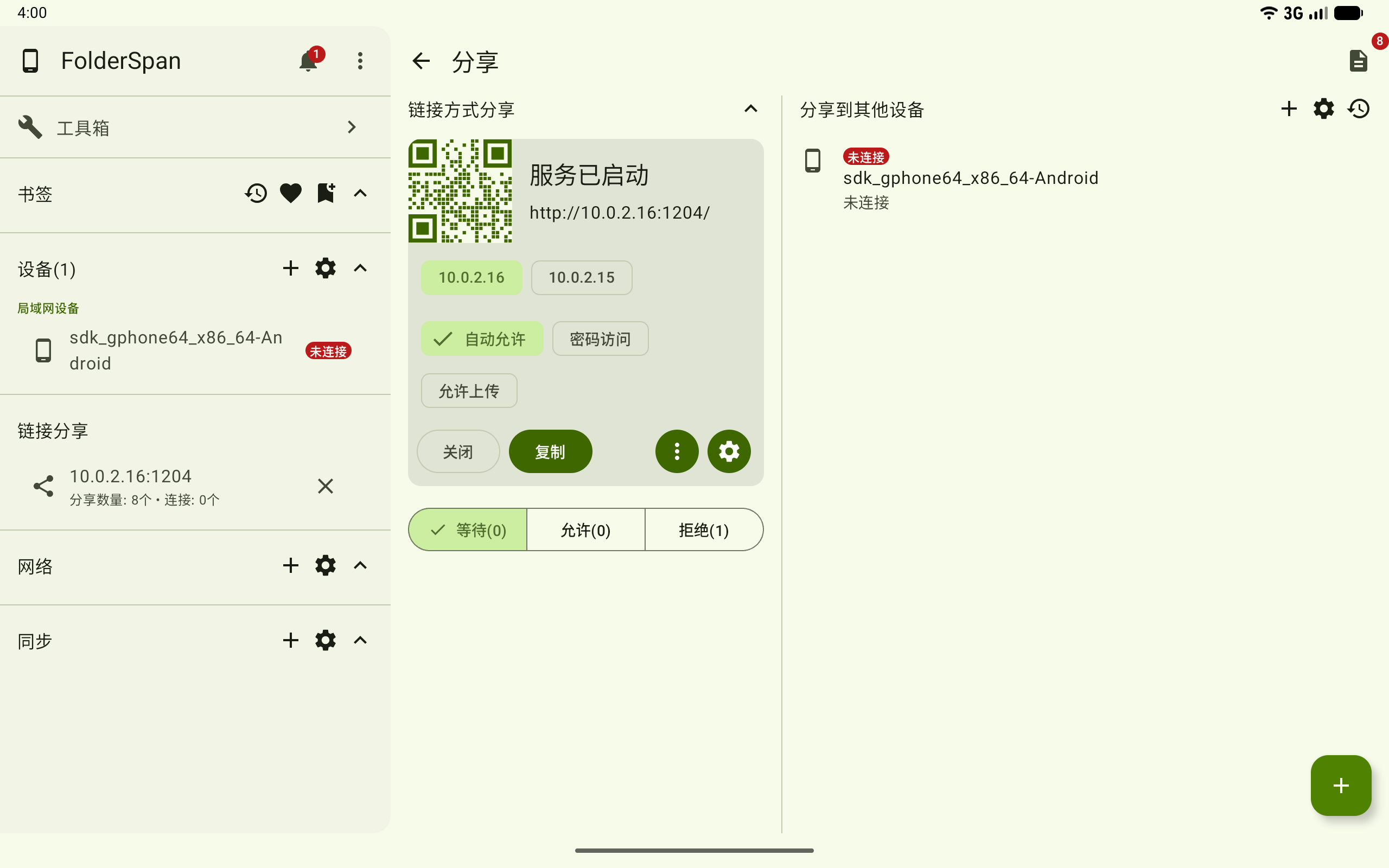
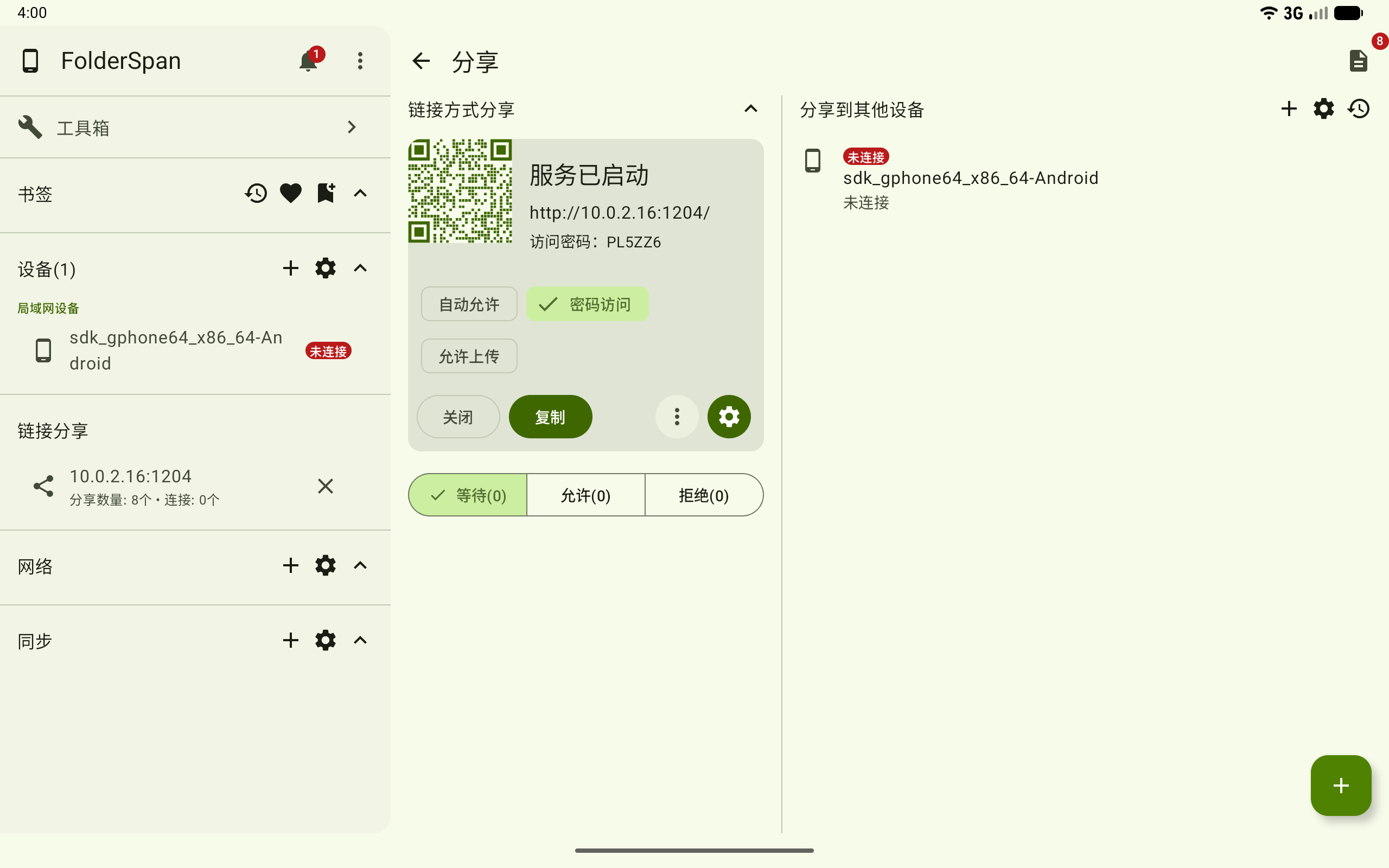
12. Require a password
Enable Password access to display a password on the service card. Give the recipient both the address and password.
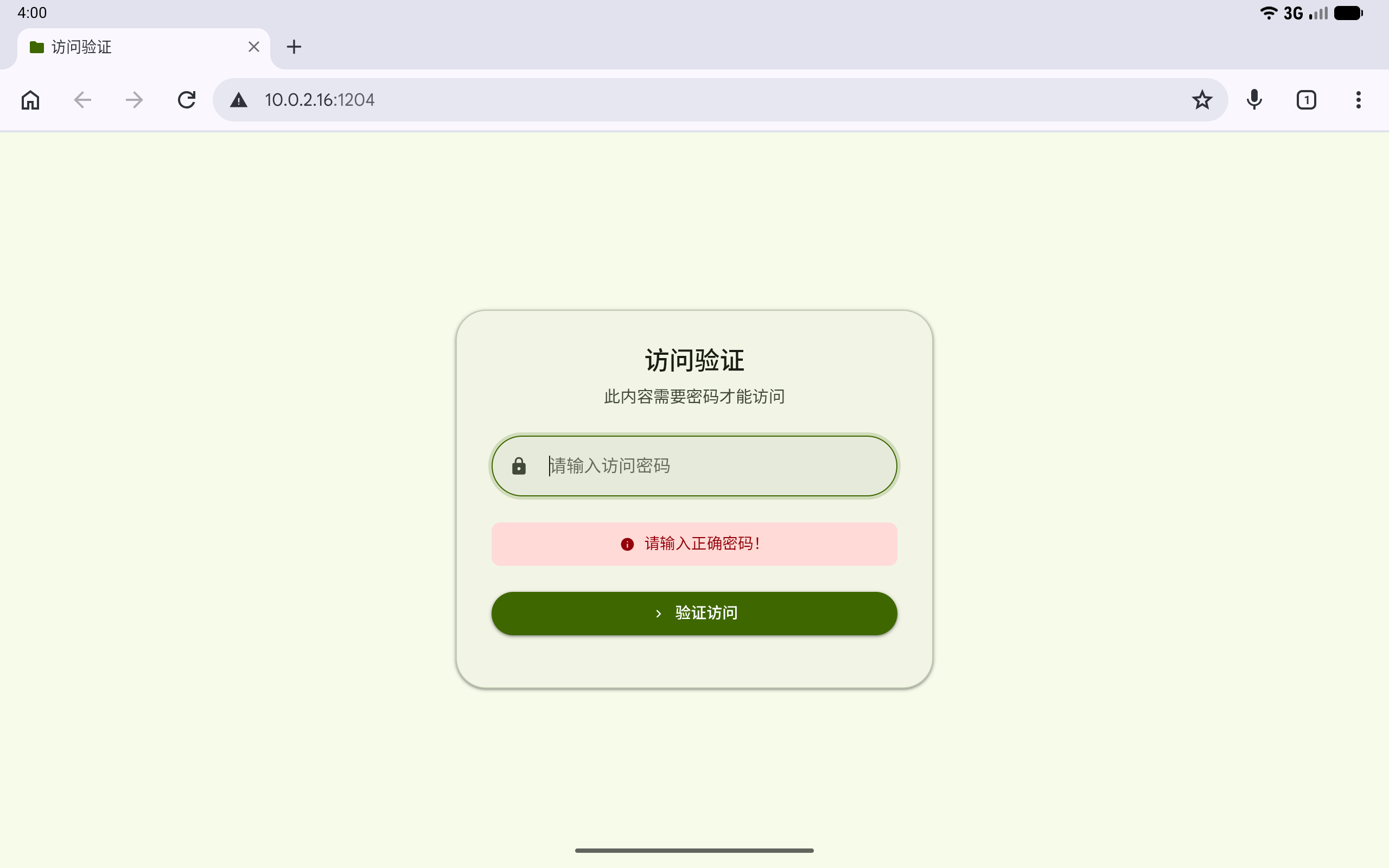
The recipient enters the password and selects Verify access. A missing or incorrect password produces a validation message.
13. Reject a device
Rejected devices appear in the Rejected list with their browser and system information.
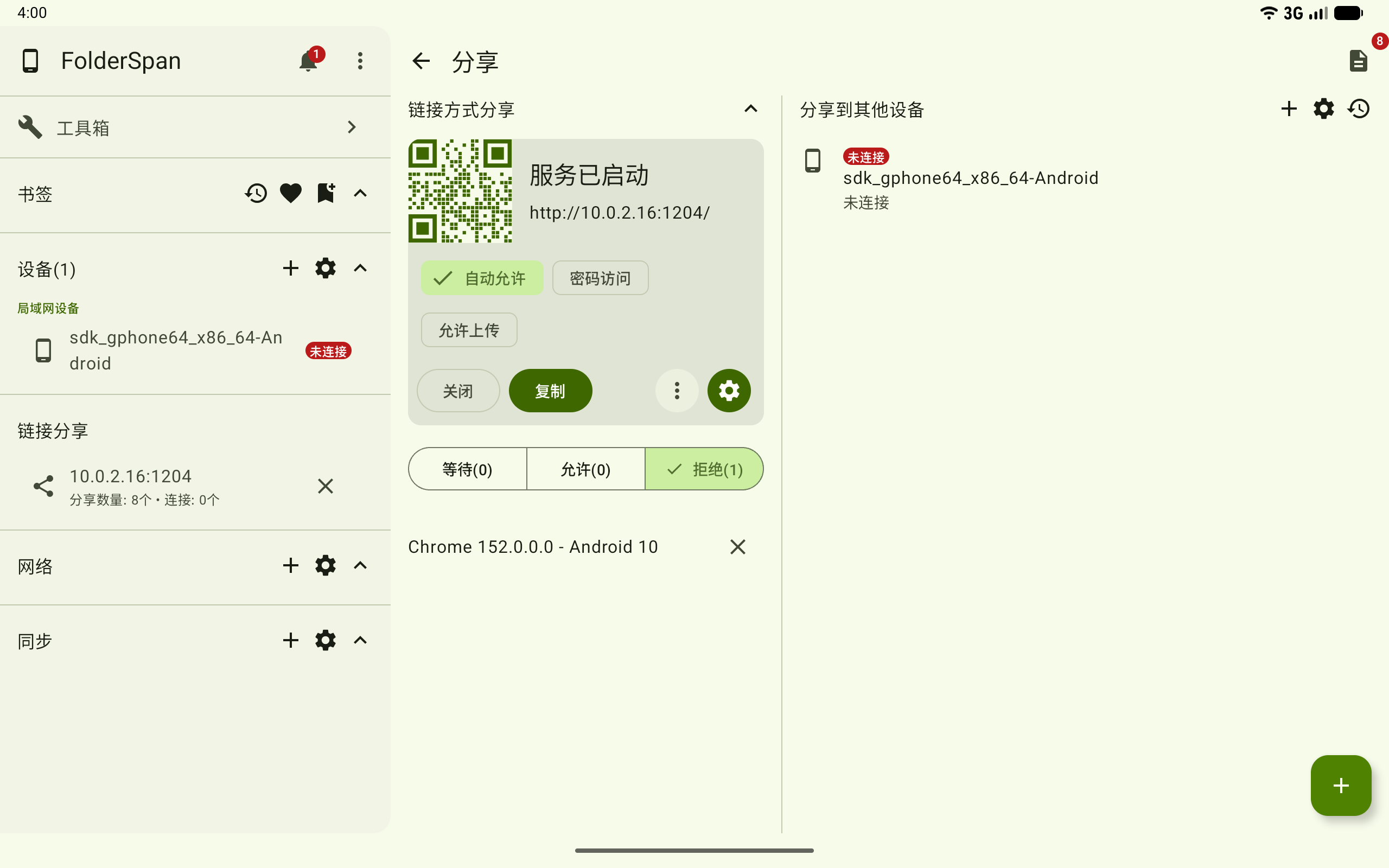
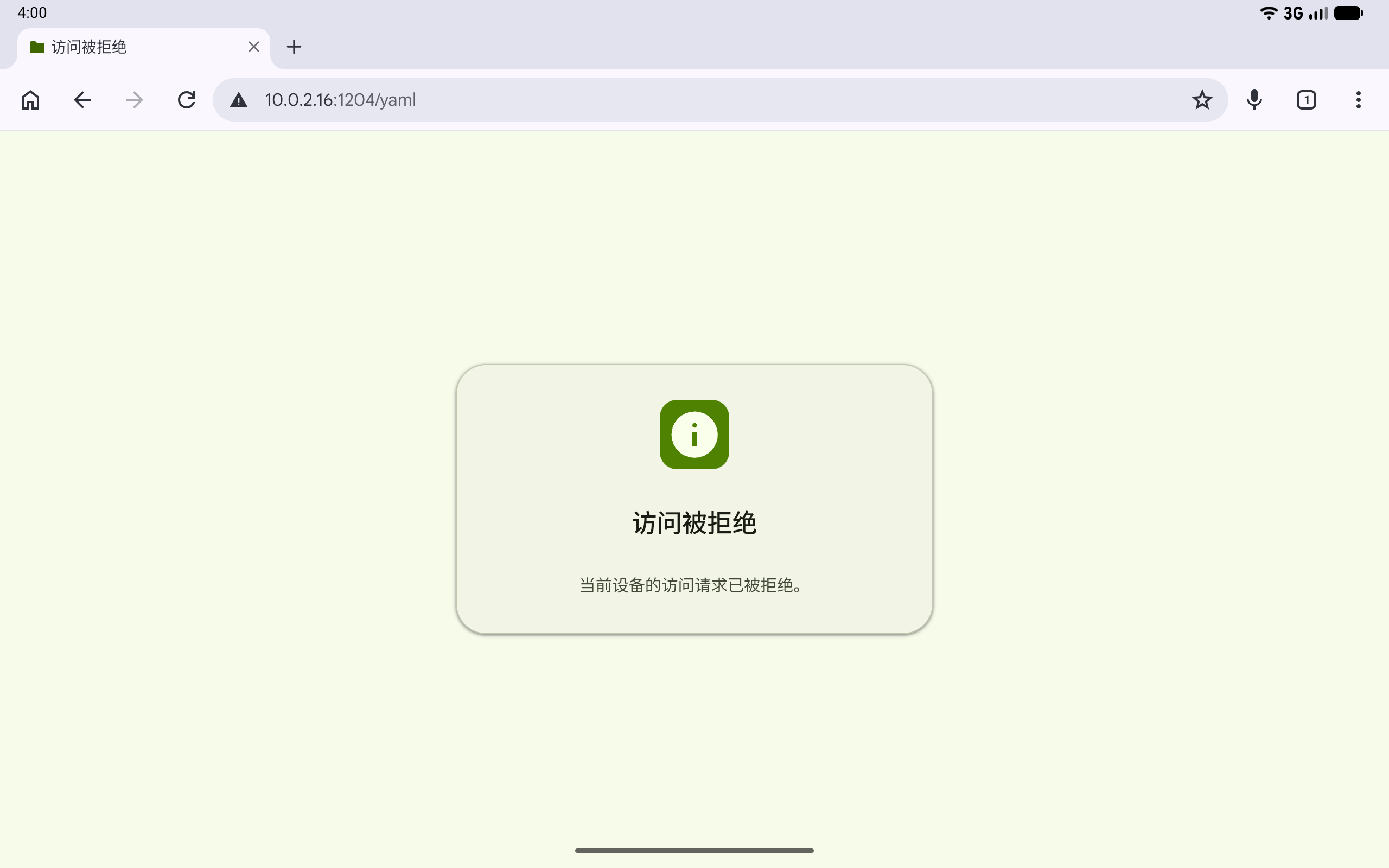
The recipient sees access denied and can no longer view shared content.
Recommendations
- Use
Auto-allowandAllow uploadsonly on trusted local networks. - Do not publish both the sharing address and password publicly.
- For large uploads, you can enable
Keep screen on. Keep the service running until uploads finish. - Select
Closeafter sharing to stop further access.
Related documentation
- Shared files: add content or remove entries from the current sharing list.