Sync management
Sync files from a source to a destination. Create manual or fixed-interval tasks, configure endpoints, conflict handling, and filters, then view run history or manage tasks in bulk.
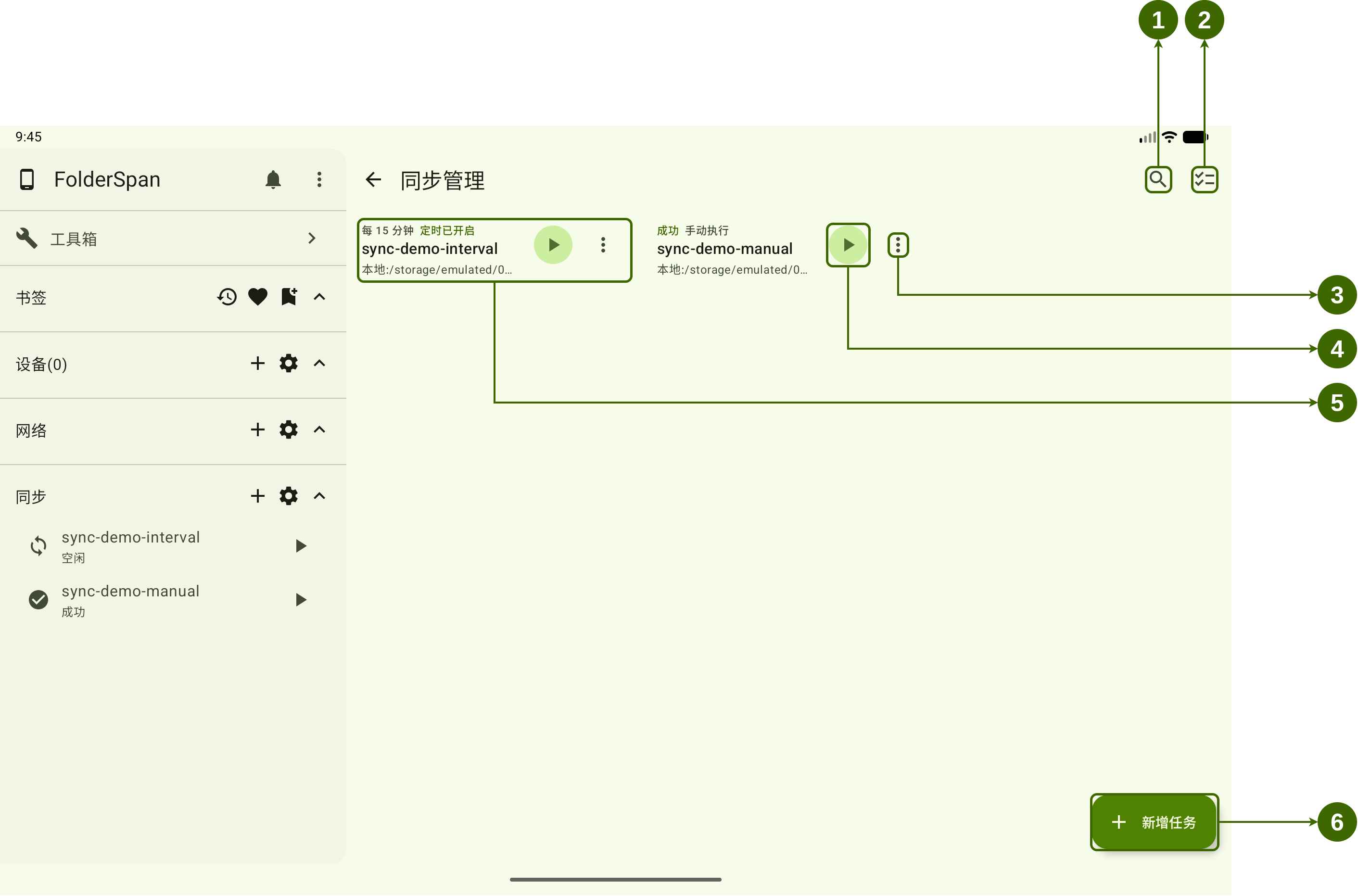
Entry points and page layout
Select the gear beside Sync in the sidebar to open management. The plus button adds a task, the arrow expands or collapses the list, and each task's play button runs it immediately.
Numbers in the overview:
- Search and filters: filter and sort tasks.
- Batch actions: select tasks to run, change scheduling, or delete.
- More actions: details, edit, copy, and delete; interval tasks also offer a scheduling switch.
- Run now: the play button runs a task immediately.
- Task card: shows its name, run state, schedule type, scheduling state, and source-to-destination paths. Select it for details.
- Add task: opens New sync to configure and save a task.
Task configuration
New and existing tasks provide:
- Task name: identifies it in the list, sidebar, and run details.
- Source type / Destination type:
Local,Device, orNetwork. - Source path: the file or directory to read.
- Destination path: where content will be saved. Both paths can be entered manually or chosen with the folder button on the right.
- Policy:
Overwrite,Skip, orRenamewhen same-named content exists at the destination. - Include subdirectories: includes contents of source subdirectories.
- Sync empty directories: creates empty source directories at the destination.
- Advanced Ignore: uses Ignore files in the source directory for advanced filtering.
- Filter rules: excludes content, one rule per line. For example,
*.tmpexcludes files ending in.tmp. - Schedule:
ManualorInterval. Interval tasks also haveEnable scheduled executionandInterval minutes.
Run states
Cards and the sidebar show:
- Idle: no sync is running.
- Running: content is being processed; wait for completion to inspect results.
- Successful: finished with no failed items; open details for the processing records.
- Failed: the run had failures; open details for failure information.
Interval tasks also show an interval such as every 15 minutes and whether scheduling is enabled. The switch controls automatic execution; run history records individual results.
Operations
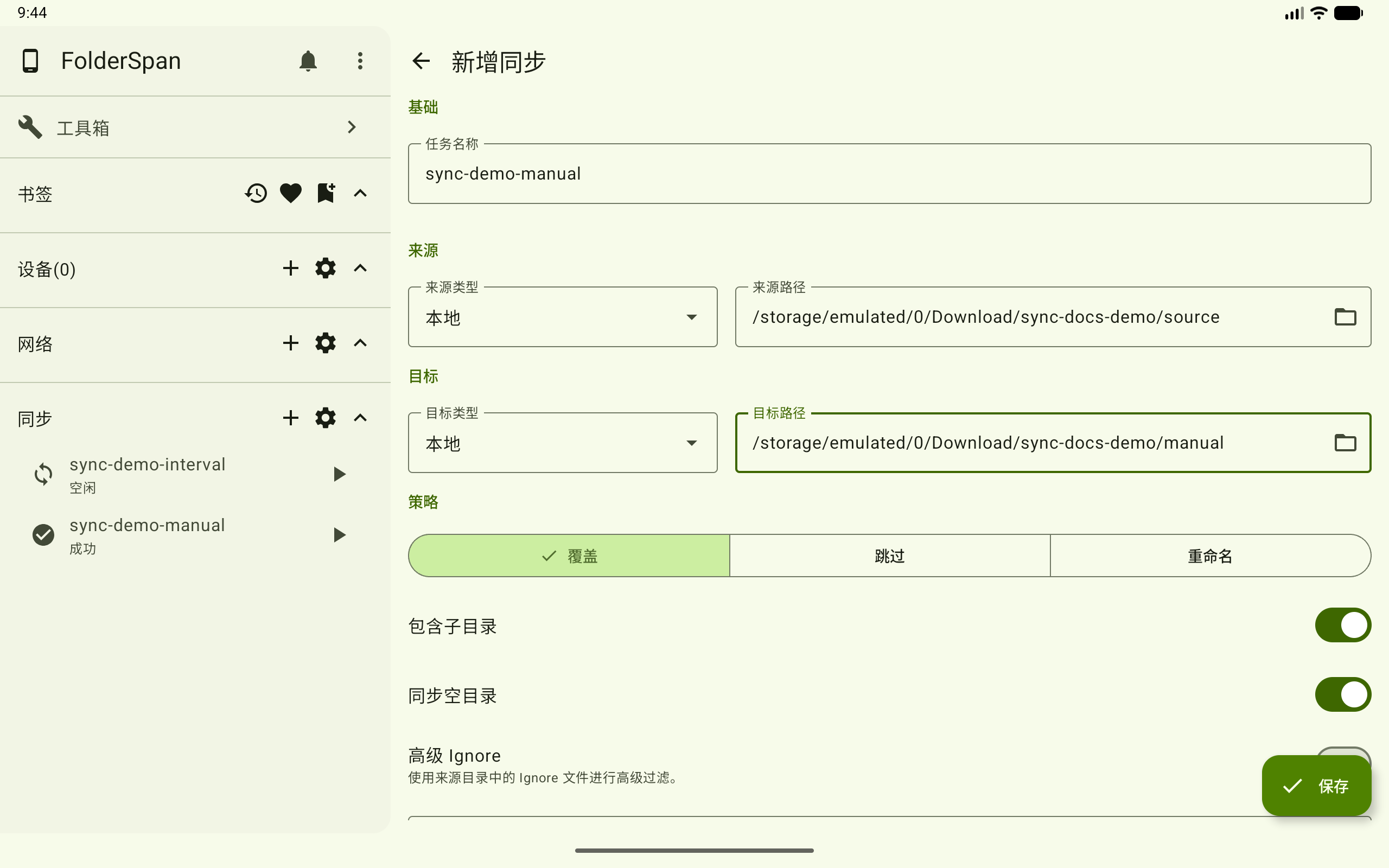
1. Add a manual task
Select Add task at the bottom right (overview number 6).
- Enter a
Task name, such assync-demo-manual. - Choose a source type and enter or select its path.
- Choose a destination type and enter or select its path.
- Select a conflict policy and directory sync options.
The example uses local source and destination directories, with a dedicated destination for the manual task.
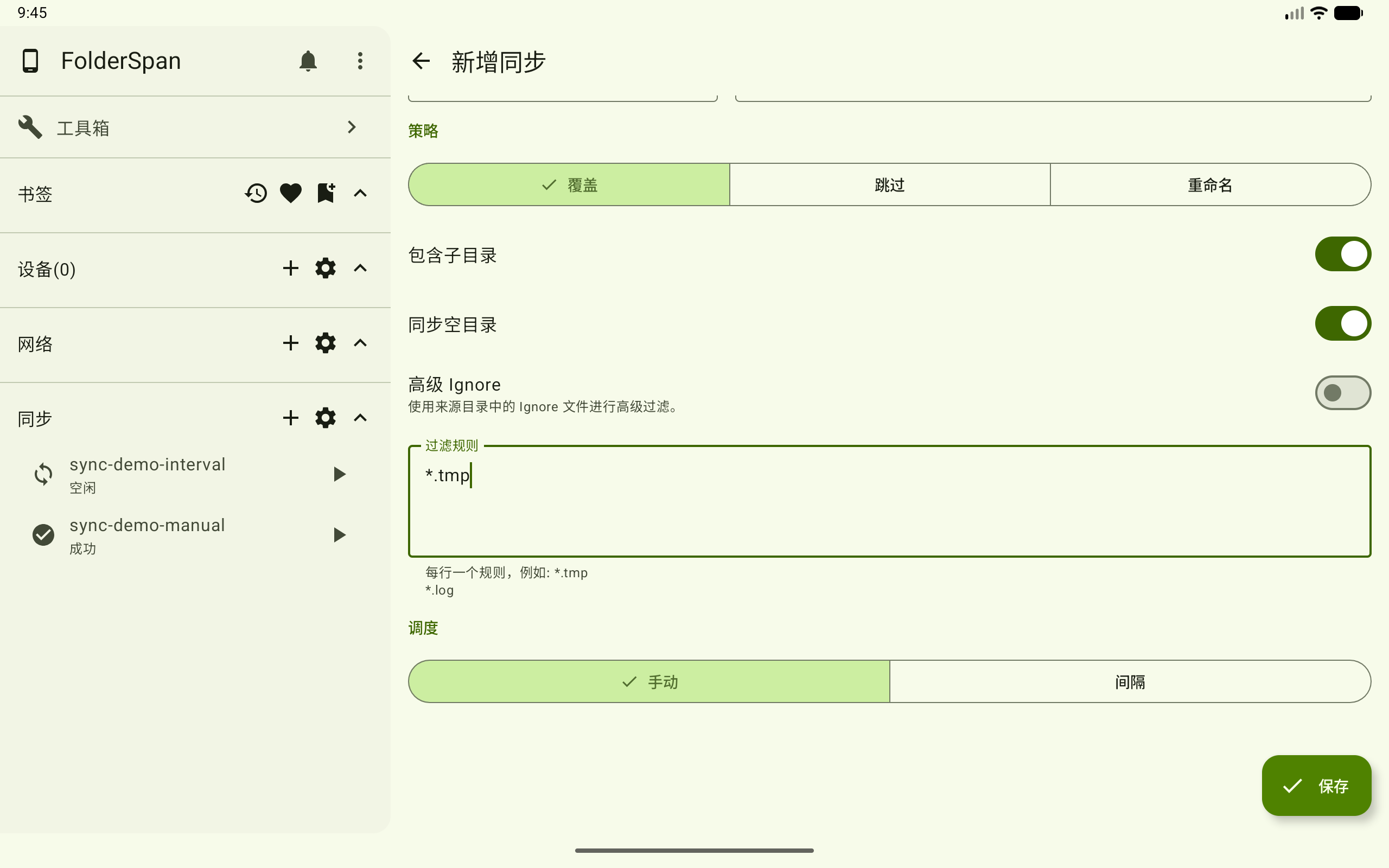
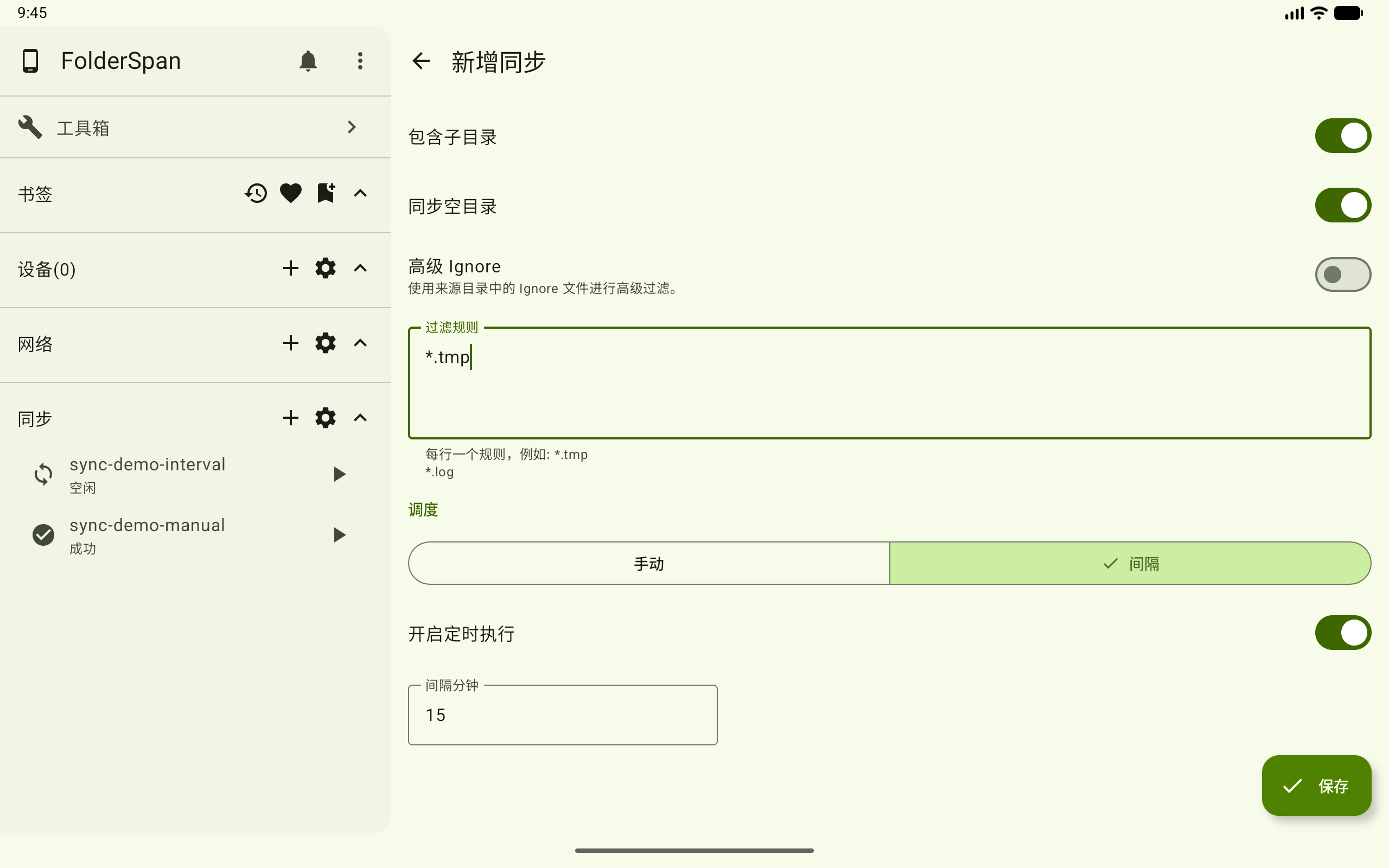
Scroll down to set Advanced Ignore and filter rules as needed. The example uses Overwrite, includes subdirectories and empty directories, and excludes *.tmp.
Keep the schedule Manual and select Save. Run the task later with its play button.
2. Add an interval task
Select Add task and configure its name, endpoints, and policy. The example uses sync-demo-interval and a destination separate from the manual task.
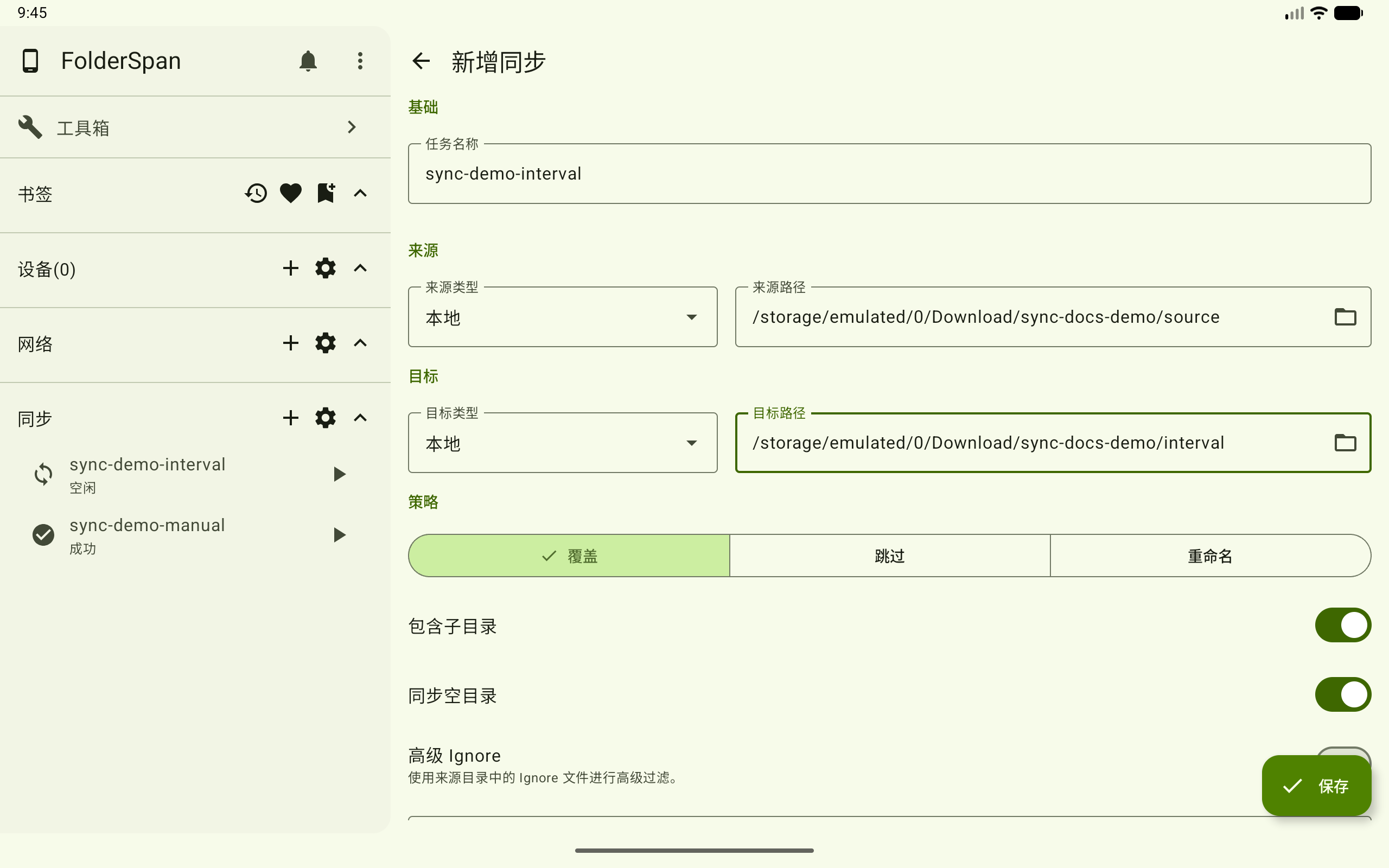
Scroll to Schedule:
- Choose
Interval. - Enable scheduled execution.
- Enter interval minutes; the example uses
15. - Select
Saveto create an automatically repeating task.
Interval tasks also support directory sync options, Advanced Ignore, and filter rules.
3. Search and filter tasks
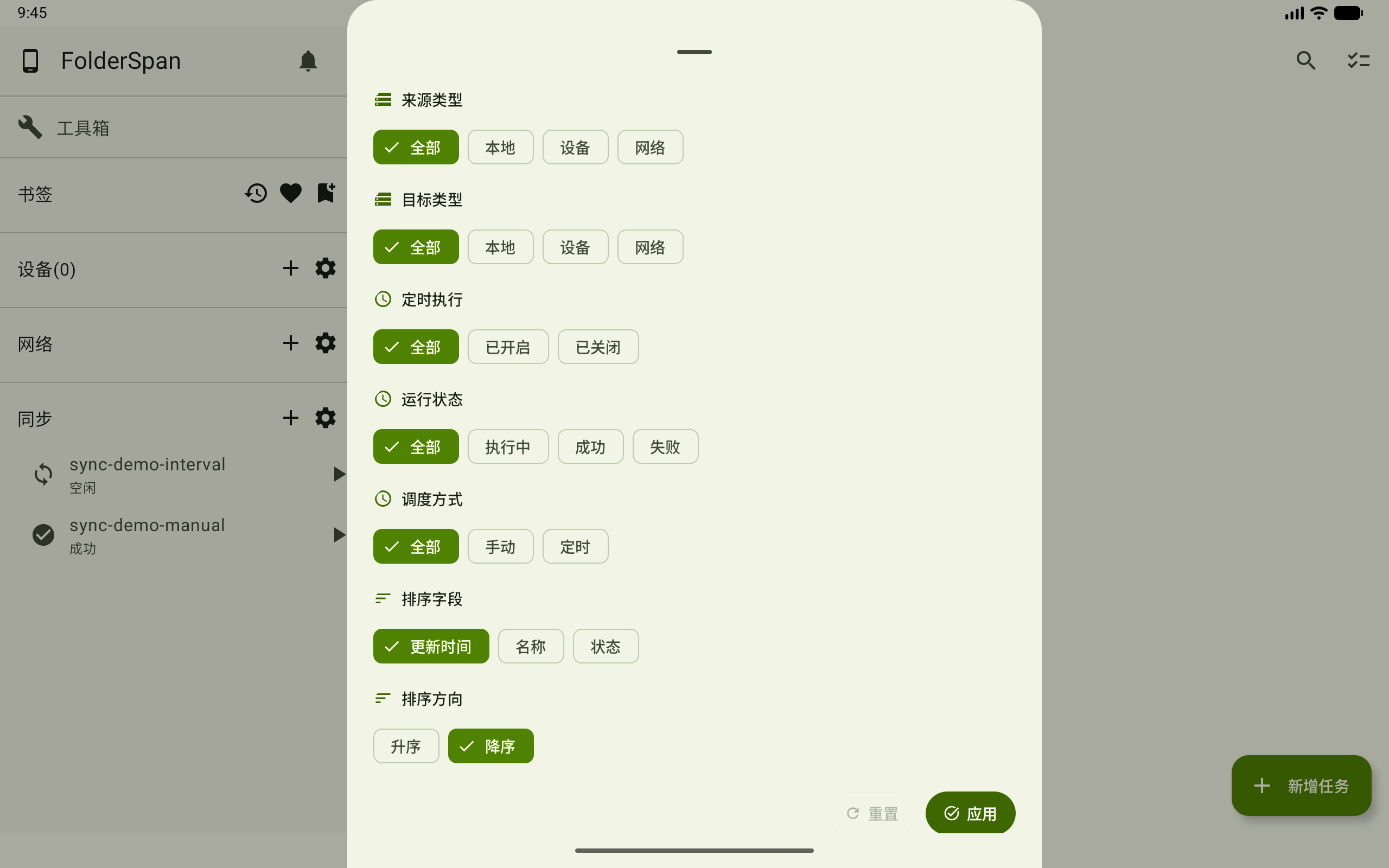
Select the top magnifying glass (overview number 1). Scroll through the panel for filters and sorting:
| Condition | Options |
|---|---|
| Source / Destination type | All, Local, Device, Network |
| Scheduled execution | All, Enabled, Disabled |
| Run state | All, Running, Successful, Failed |
| Schedule type | All, Manual, Scheduled |
| Sort field | Update time, Name, State |
| Sort direction | Ascending, Descending |
Scheduled in this panel corresponds to interval tasks on the creation page. Select Apply to update the list, or Reset to restore defaults.
4. Run a task now
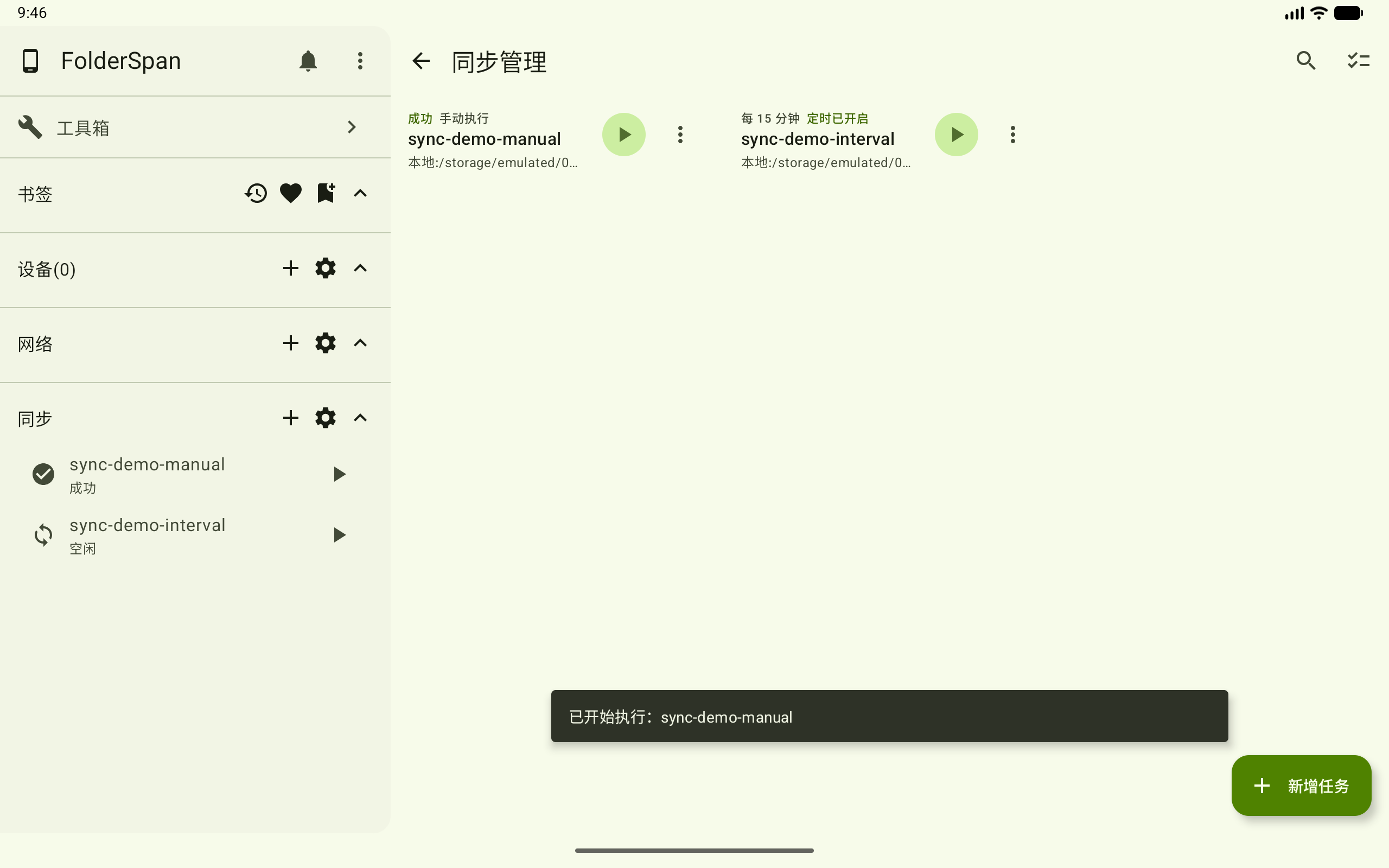
Select the play button beside a task (overview number 4), or its sidebar play button.
A bottom message announces the run, and card and sidebar states update with the result. The example's sync-demo-manual has succeeded.
5. View task details
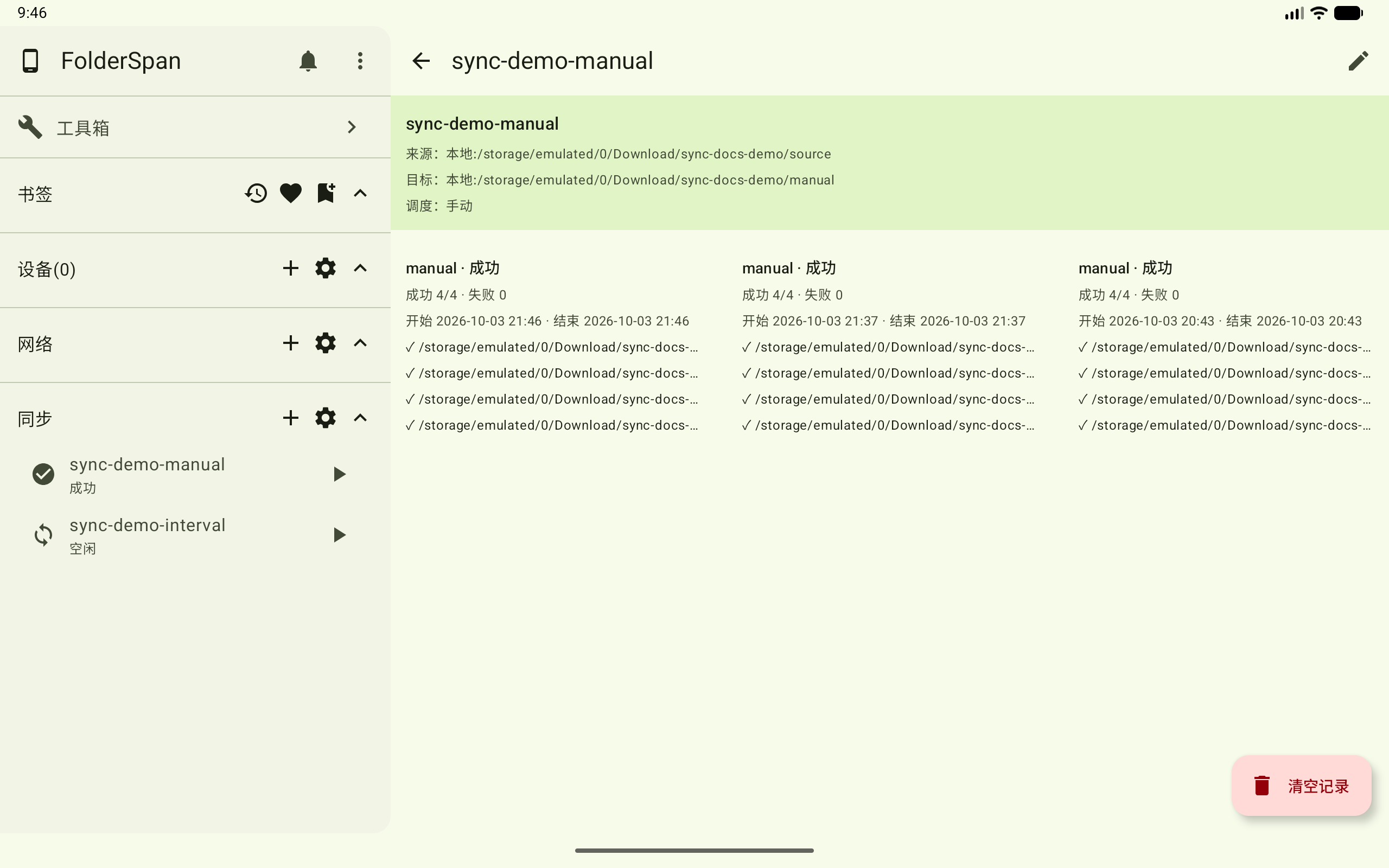
Select a card or choose Details from its menu.
The page heading shows the task name, with editing at the top right. Endpoints and schedule appear above the run records. Each record includes its trigger, state, success and failure counts, start and end times, item results, and paths.
In the example, manual with a successful state means a manually triggered successful run. A success count of 4/4 and failure count of 0 means all four processed items succeeded.
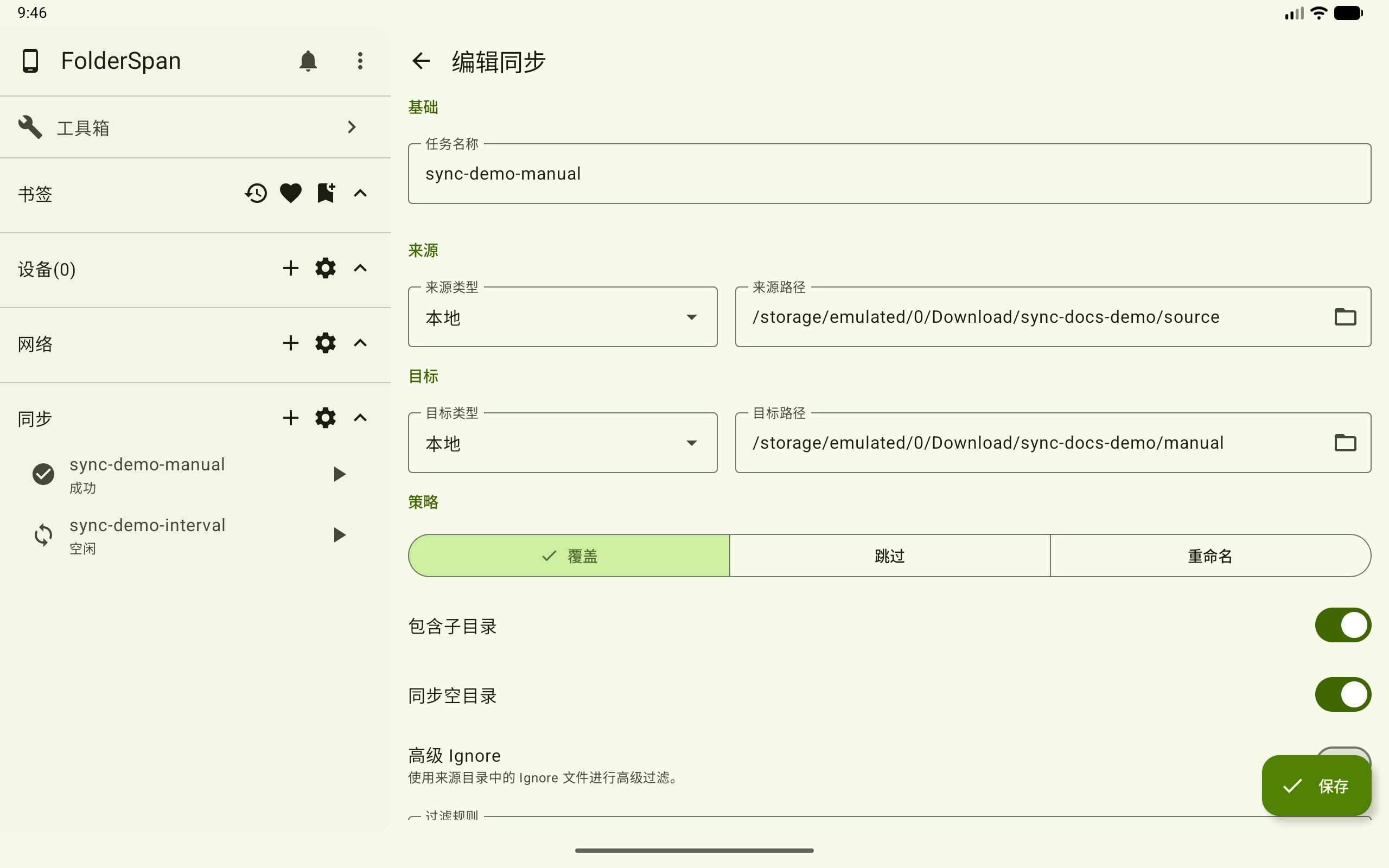
6. Edit a task
Choose Edit in its menu or select the pencil at the top right of its details.
The form contains the existing configuration. Change the name, endpoints, policy, filters, or schedule, then select Save.
7. Copy a task
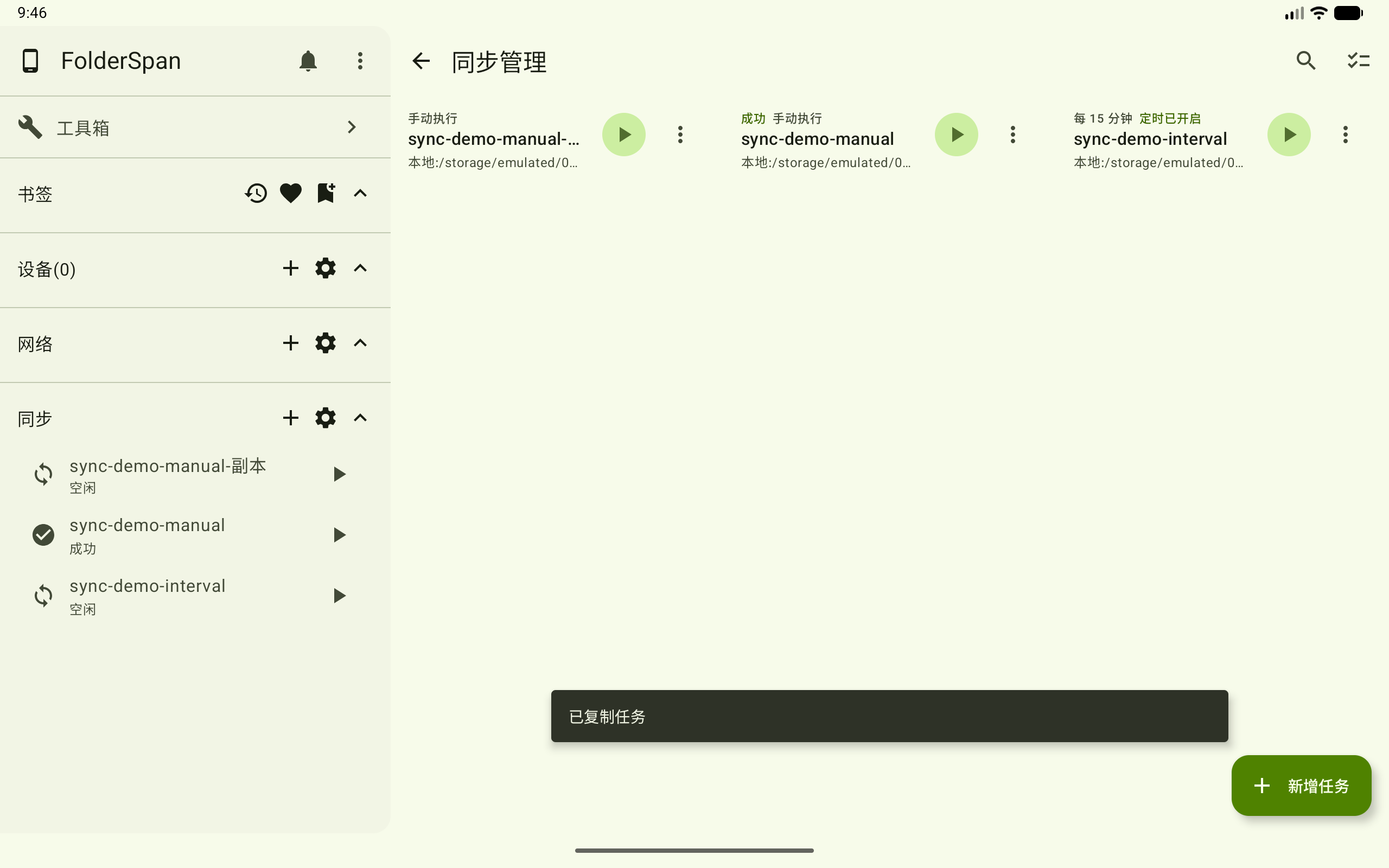
Choose Copy in the task menu. A confirmation appears, and a new task is added to the list and sidebar.
The example's copy has a copy suffix and an idle state. Choose Edit on the copy to adjust its configuration.
8. Delete a task
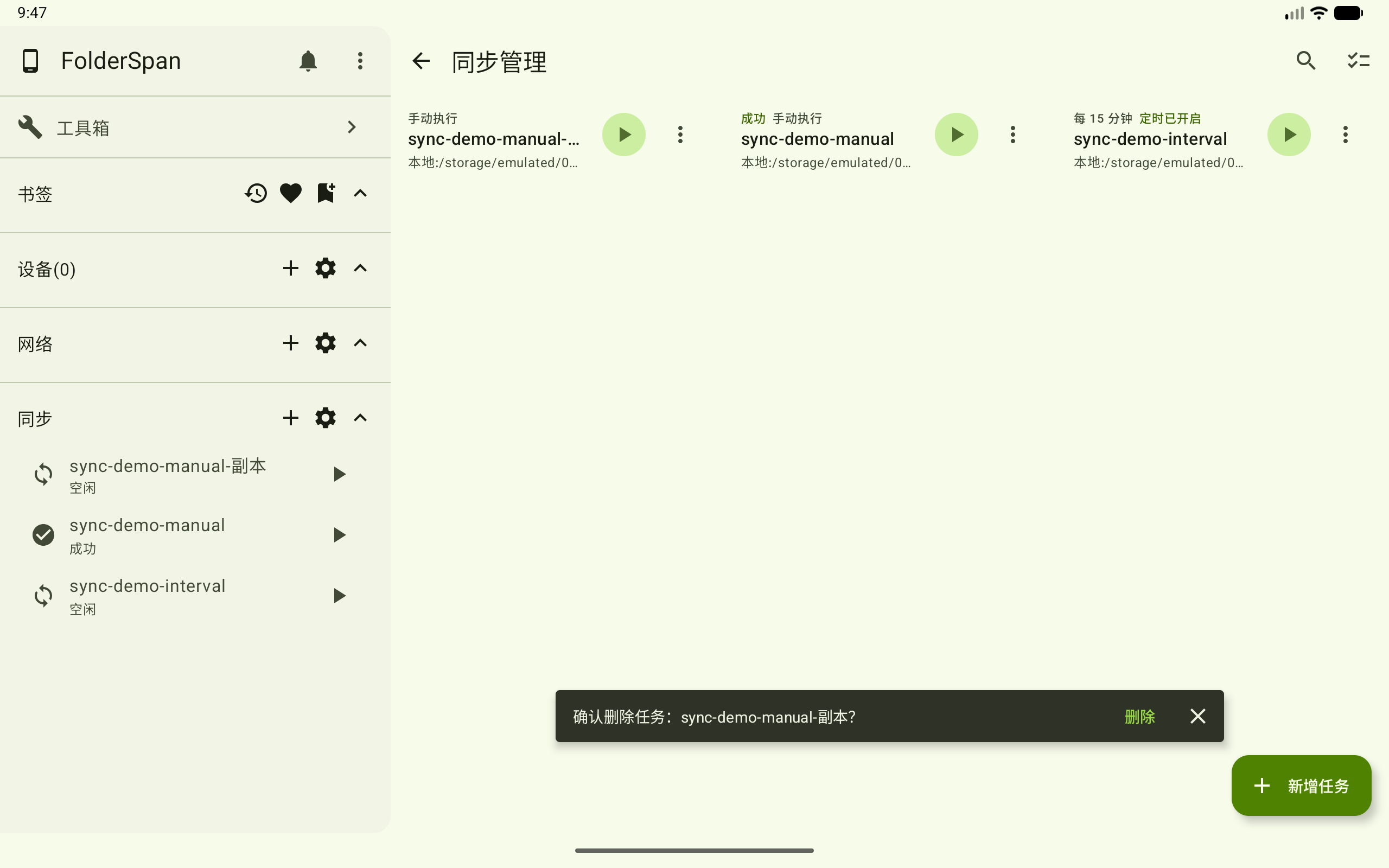
Choose Delete in its menu. Check the task name in the bottom prompt, then select Delete to remove it, or close the prompt to cancel.
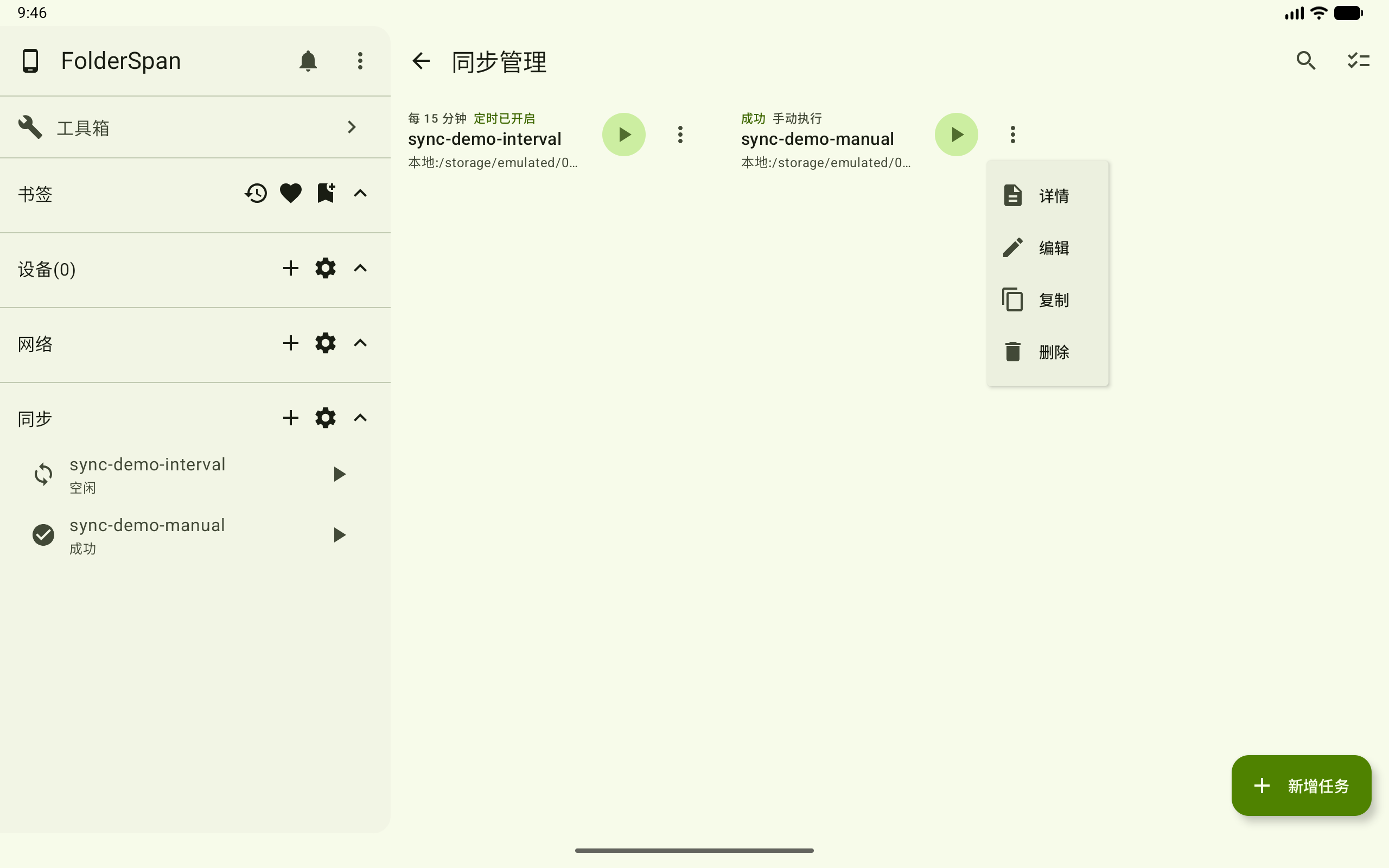
9. Enable or disable scheduling
An interval task's menu offers Enable scheduled execution or Disable scheduled execution, according to its current state.
Scheduling is enabled in the example, so the menu offers disabling it.
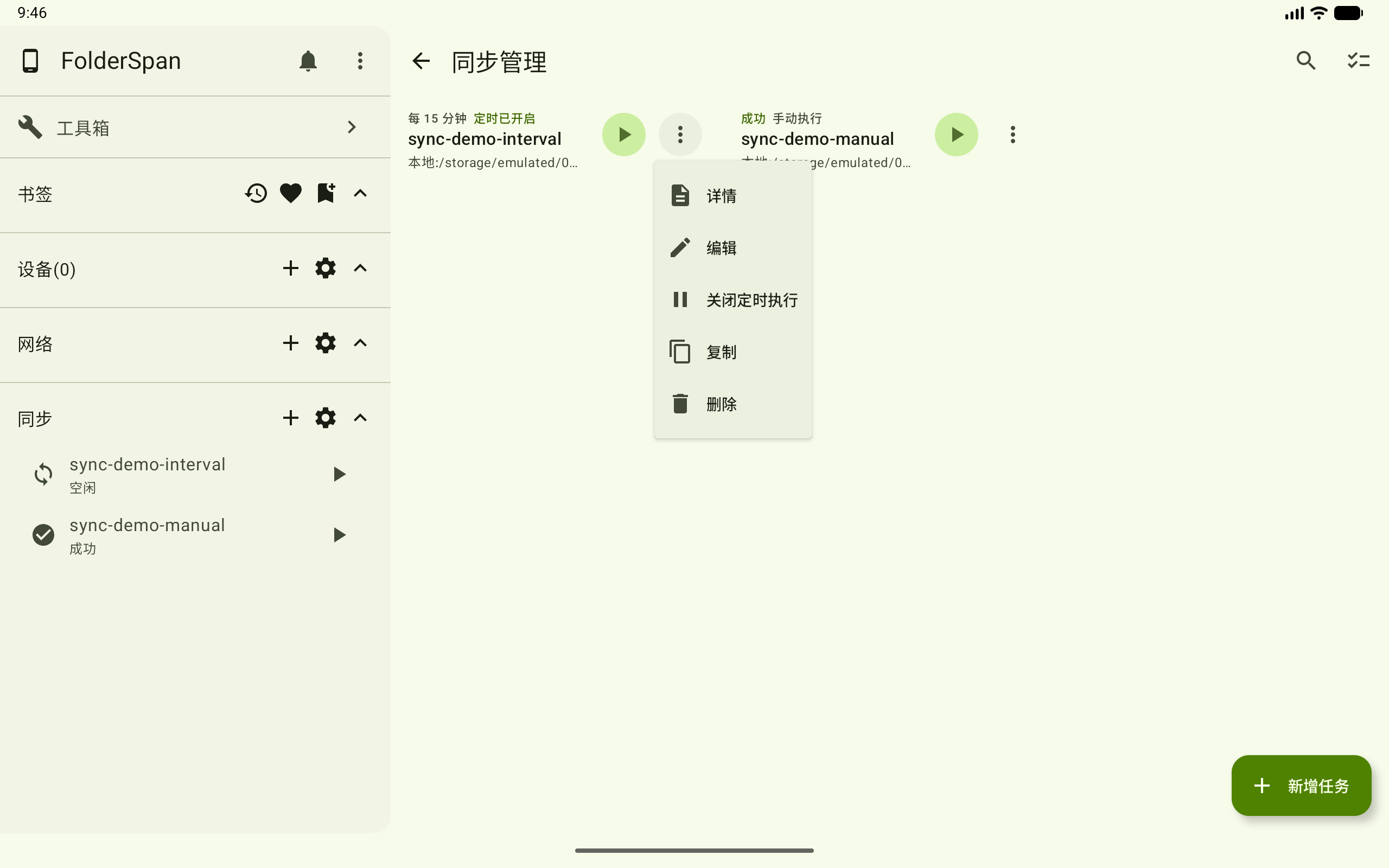
Manual tasks offer Details, Edit, Copy, and Delete.
10. Clear run history
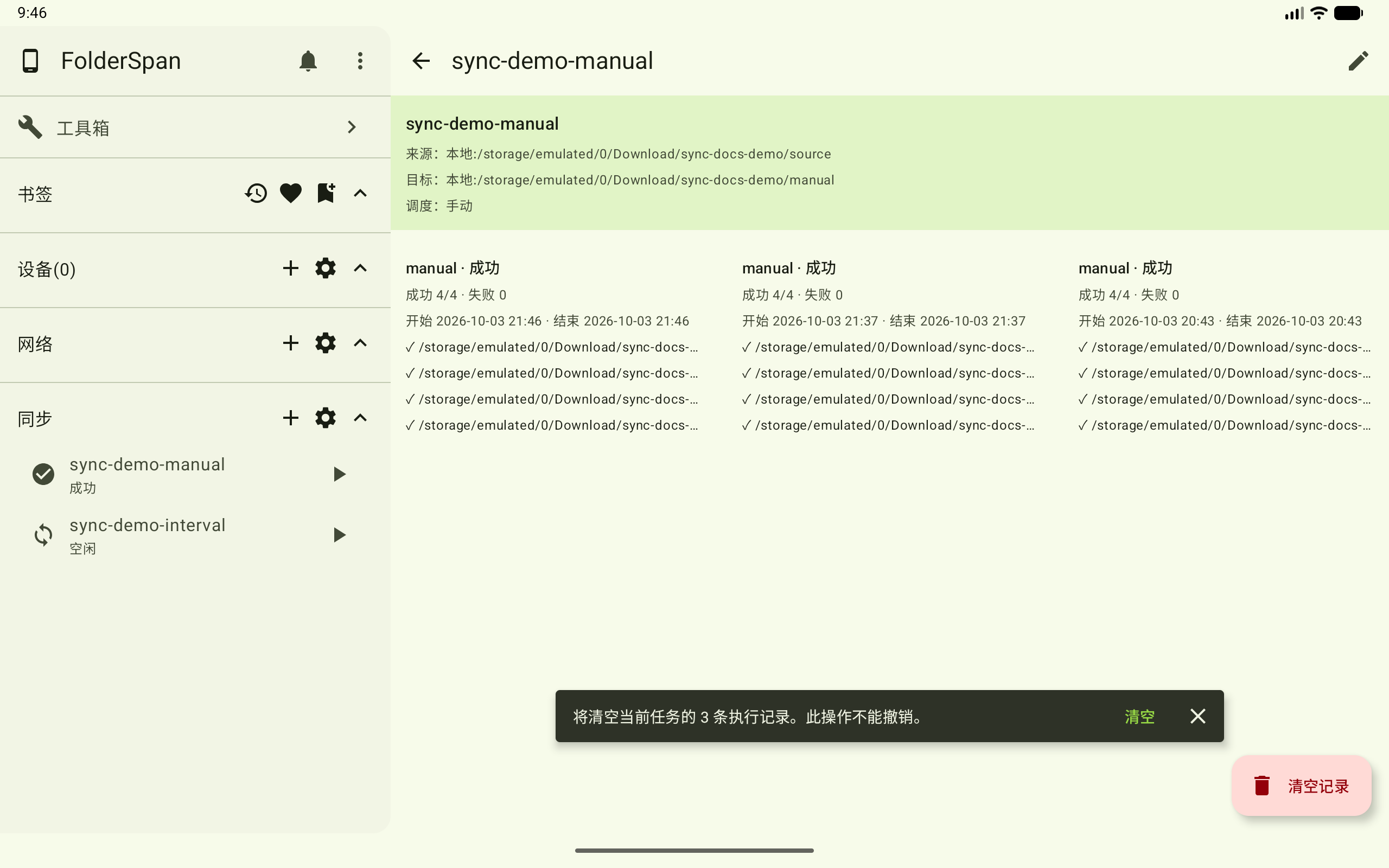
Open a task with run records and select Clear records at the bottom right.
The prompt shows the record count and states that clearing cannot be undone. The example clears three records for the current task. Check the count and select Clear, or close the prompt to cancel.
Batch actions
1. Enter selection mode
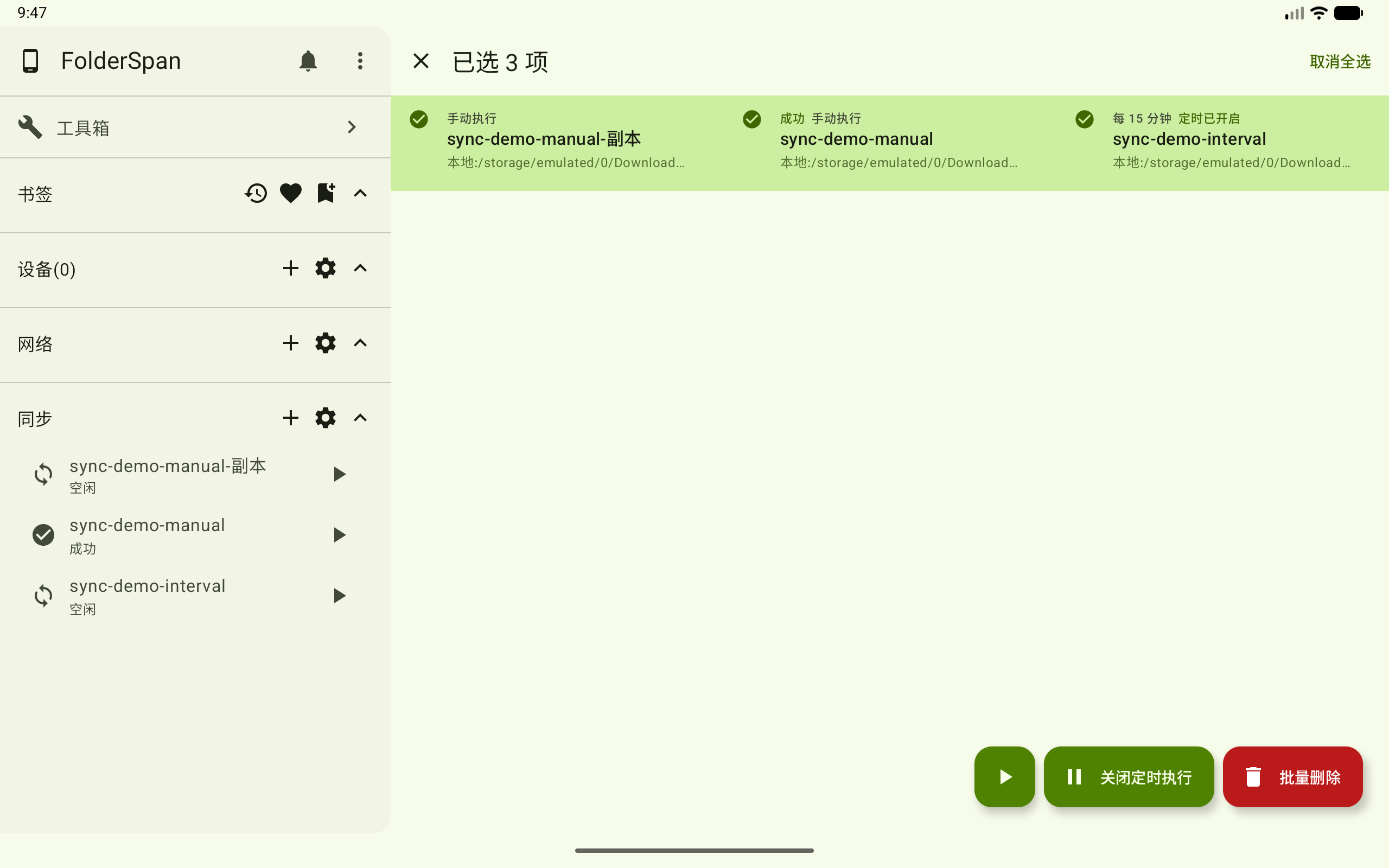
Select batch actions at the top (overview number 2).
- Select task cards to select or deselect them. Selected cards show a checkmark and green background.
- The header shows the count; the example selects three tasks.
Select allat the top right selects the current list and then becomesDeselect all.- Close at the top left to leave selection mode.
Bottom-right actions for the selection:
- Run in bulk: the play icon runs selected tasks.
- Scheduling switch: enables or disables scheduling for selected interval tasks. The example includes an enabled interval task and offers disabling scheduling.
- Batch delete: opens a confirmation prompt.
2. Delete tasks in bulk
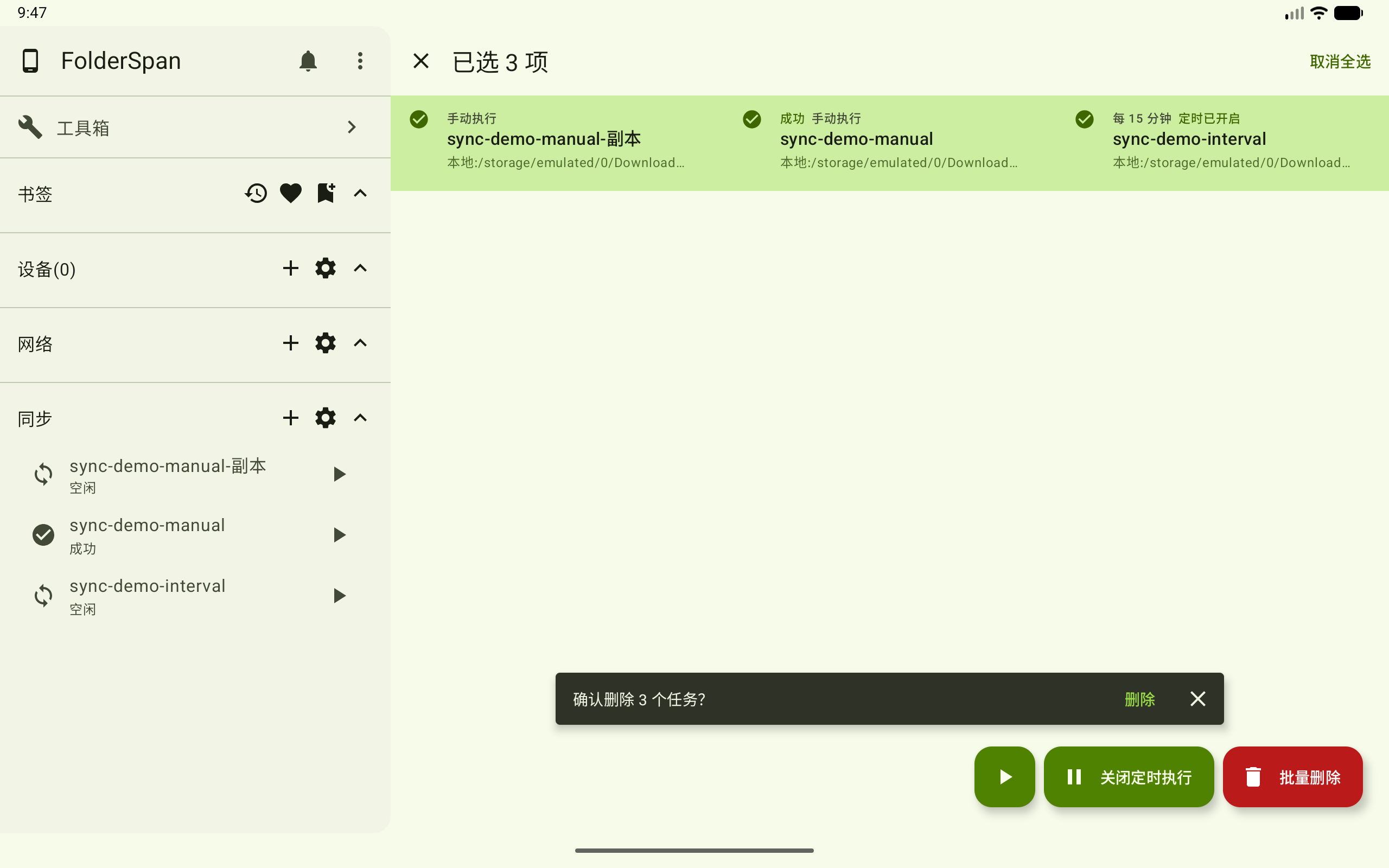
Select tasks and choose Batch delete at the bottom right.
Check the count in the bottom confirmation; the example deletes three tasks. Select Delete to remove all selected tasks, or close the prompt to cancel.
Recommendations
- Start with a manual run to verify the source, destination, and policy before enabling an interval schedule.
- Use
SkiporRenameif same-named destination content must be retained. - Exclude temporary files with filter rules, or use Advanced Ignore for more filtering.
- Inspect success and failure counts and item results in run details after execution.
Related documentation
- Network management: configure remote endpoints first.
- Device management: manage devices used as endpoints and their access scope.
- Files: check source and destination contents.