Cross-network management
Use WebRTC rooms to connect devices on different networks and browse remote files. Connect to a room first, then to a device in that room. Once the device connection is ready, open file browsing.
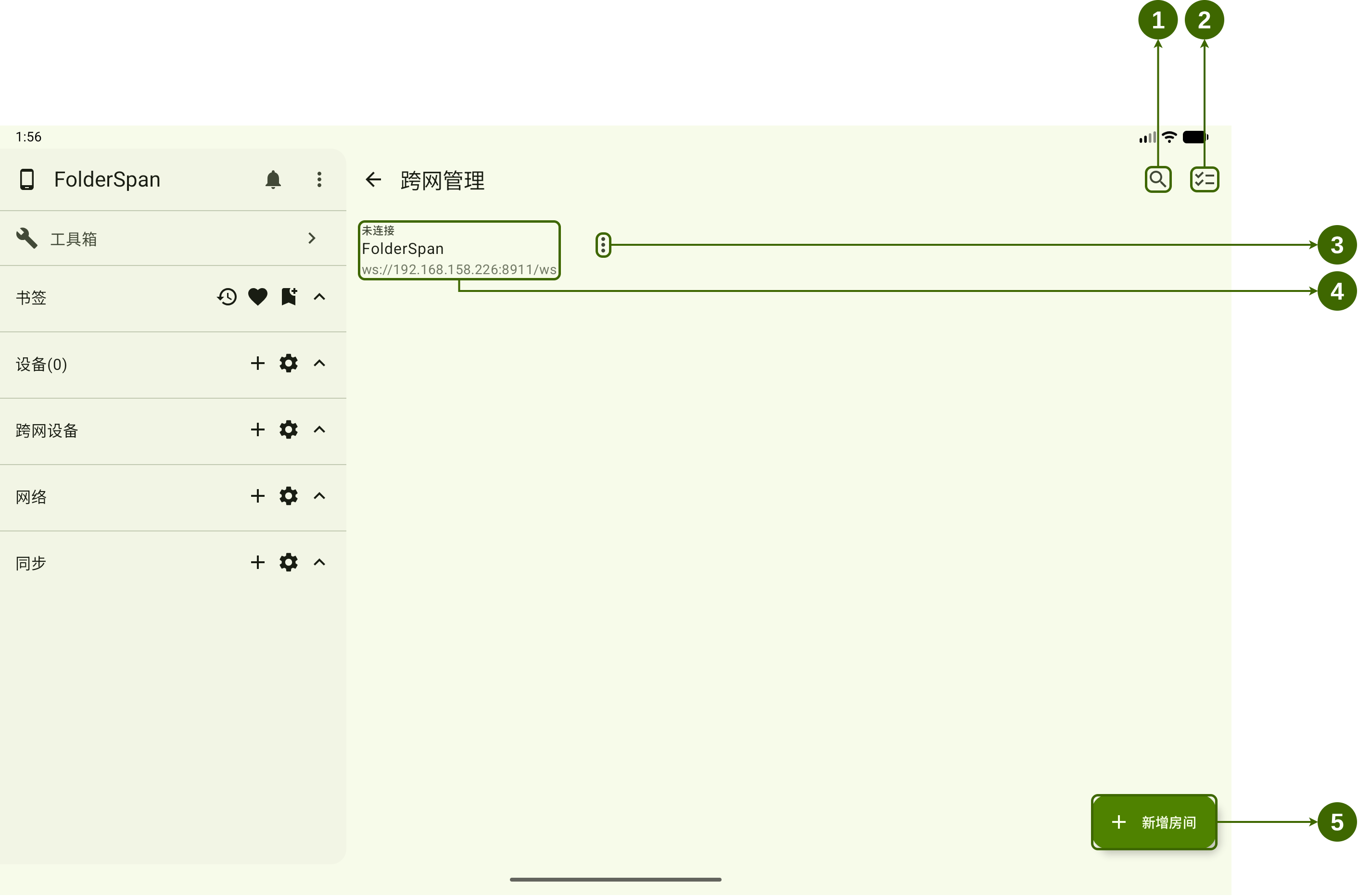
Entry points and page layout
Numbers in the overview:
- Search and filters (
1): search rooms and filter by connection and pinned state. - Batch actions (
2): connect, pin, unpin, or delete selected rooms. - Room menu (
3): actions that depend on the room's connection state. - Room entry (
4): connection state, room name, and WebSocket address. Connected rooms also show the online-device count. - Add room (
5): opens New room.
To show the sidebar entry, open Settings → Pages and enable Cross-network devices in the Sidebar area. Its description indicates that it shows cross-network devices in the sidebar.
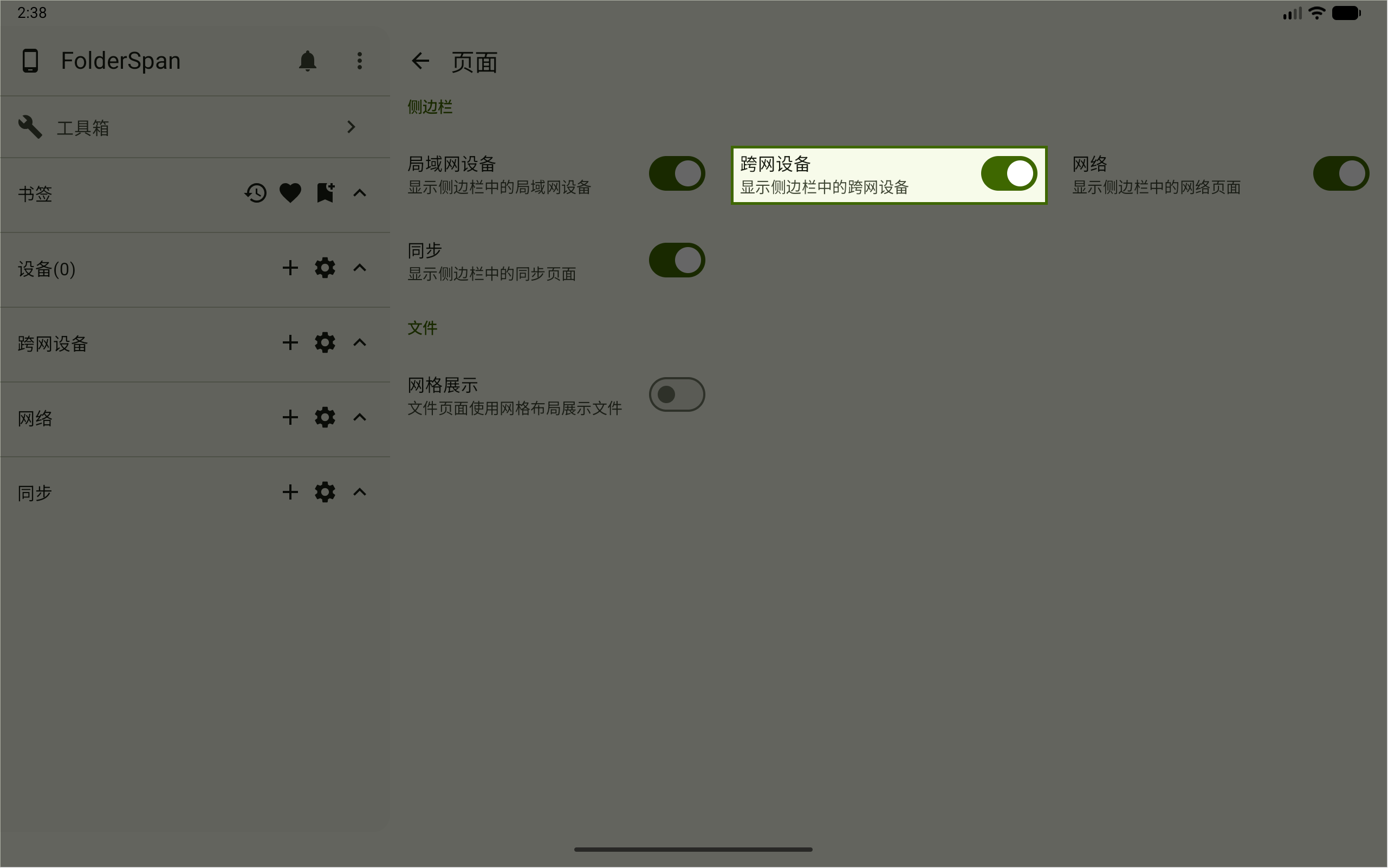
The sidebar then shows a Cross-network devices group. Its plus button adds a room, the gear opens management, and the arrow expands or collapses the list.
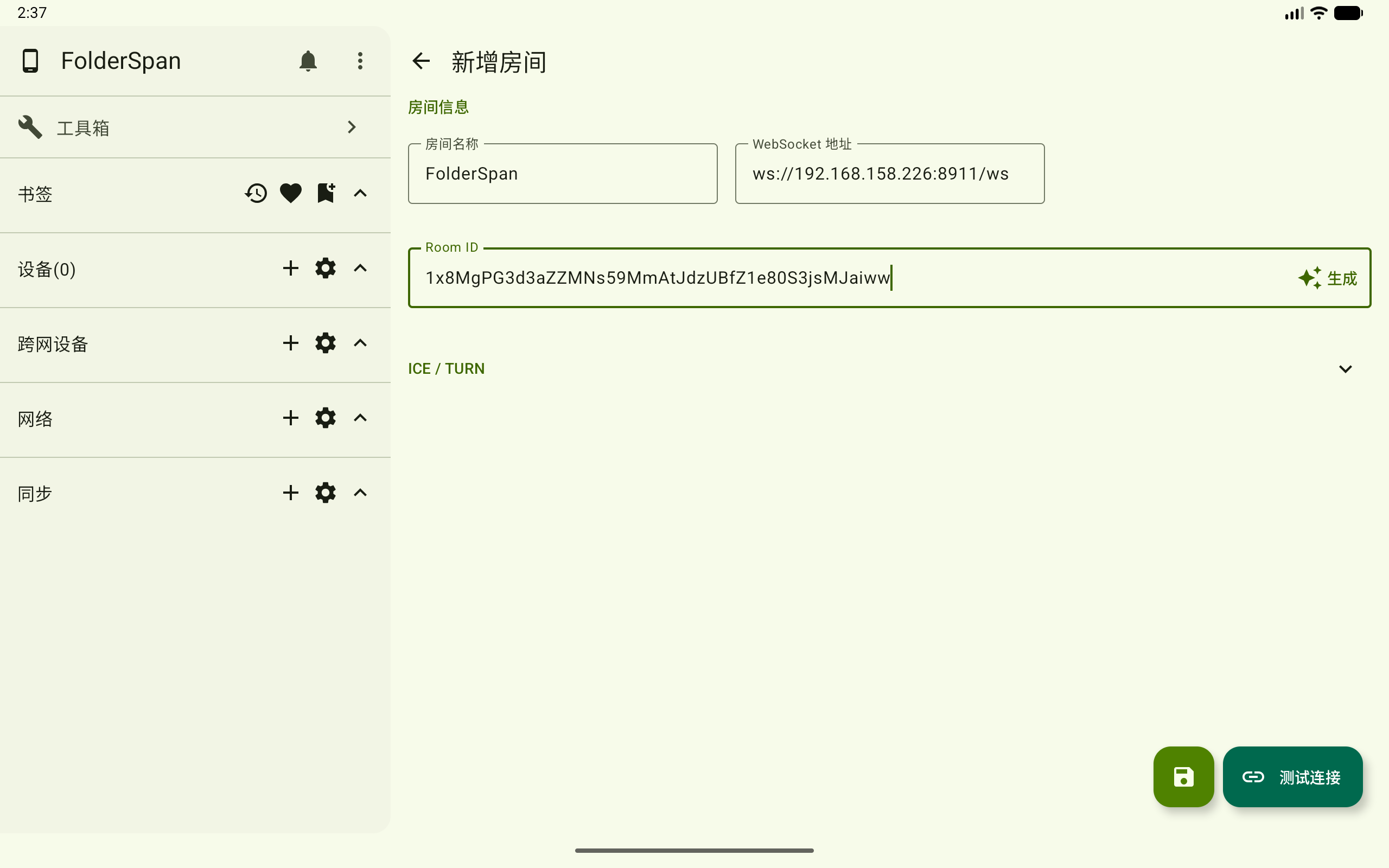
Room configuration
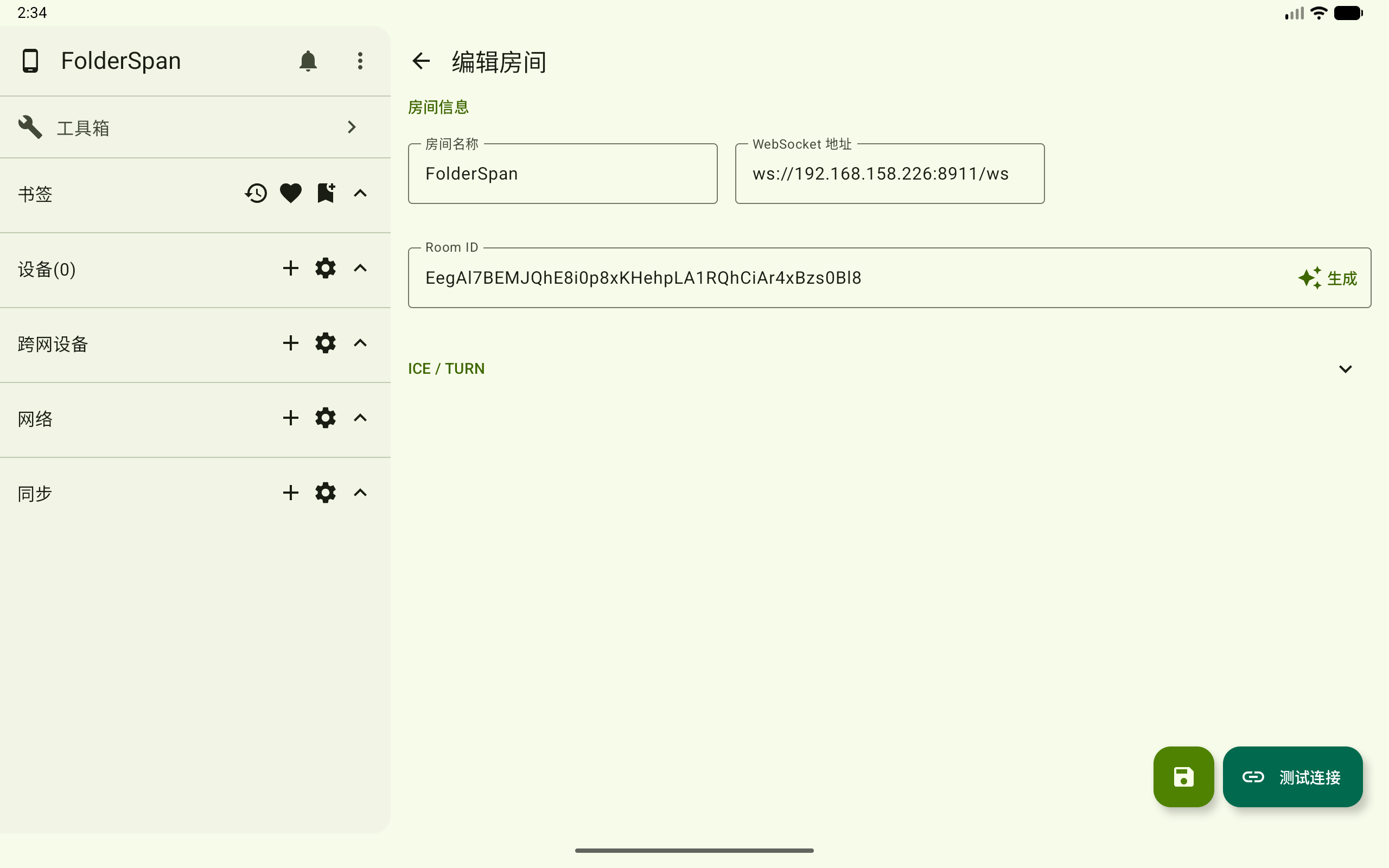
- Room name: identifies it in the list and sidebar.
- WebSocket address: the signaling-service address. The screenshot uses
ws://192.168.158.226:8911/ws; use your own service address. - Room ID: enter it manually or select
Generatebeside the input. - ICE / TURN: expandable connection settings, filled in as needed for the room.
- Test connection: at the bottom right of creation and editing pages.
- Save button: the disk icon to the left of Test connection saves the configuration.
- Source: shown in the connection confirmation and searchable by keyword. The screenshot uses Other.
Connection states
Rooms and devices have separate states. Connecting a room does not connect its devices; connect a target device before browsing its files.
| Object | State or message | Meaning and action |
|---|---|---|
| Room | Not connected | Select the room to start connecting. |
| Room | Connected, 1 online | Shows the online-device count; open its device list. |
| Device | Not connected, signaling and connection approval | Use the chain icon on the right to request a connection. |
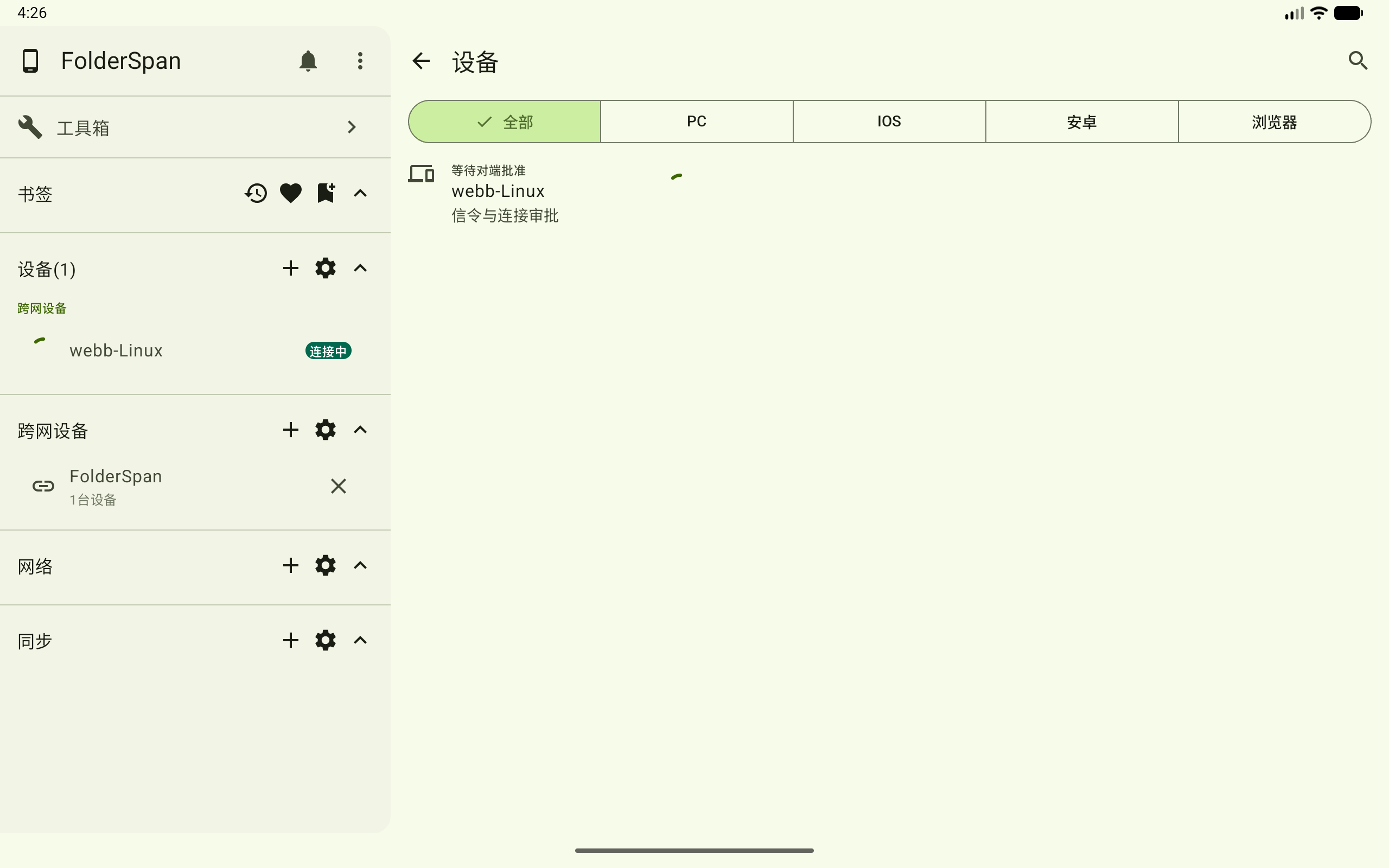
| Device | Waiting for peer approval | The request awaits approval; the sidebar shows Connecting. |
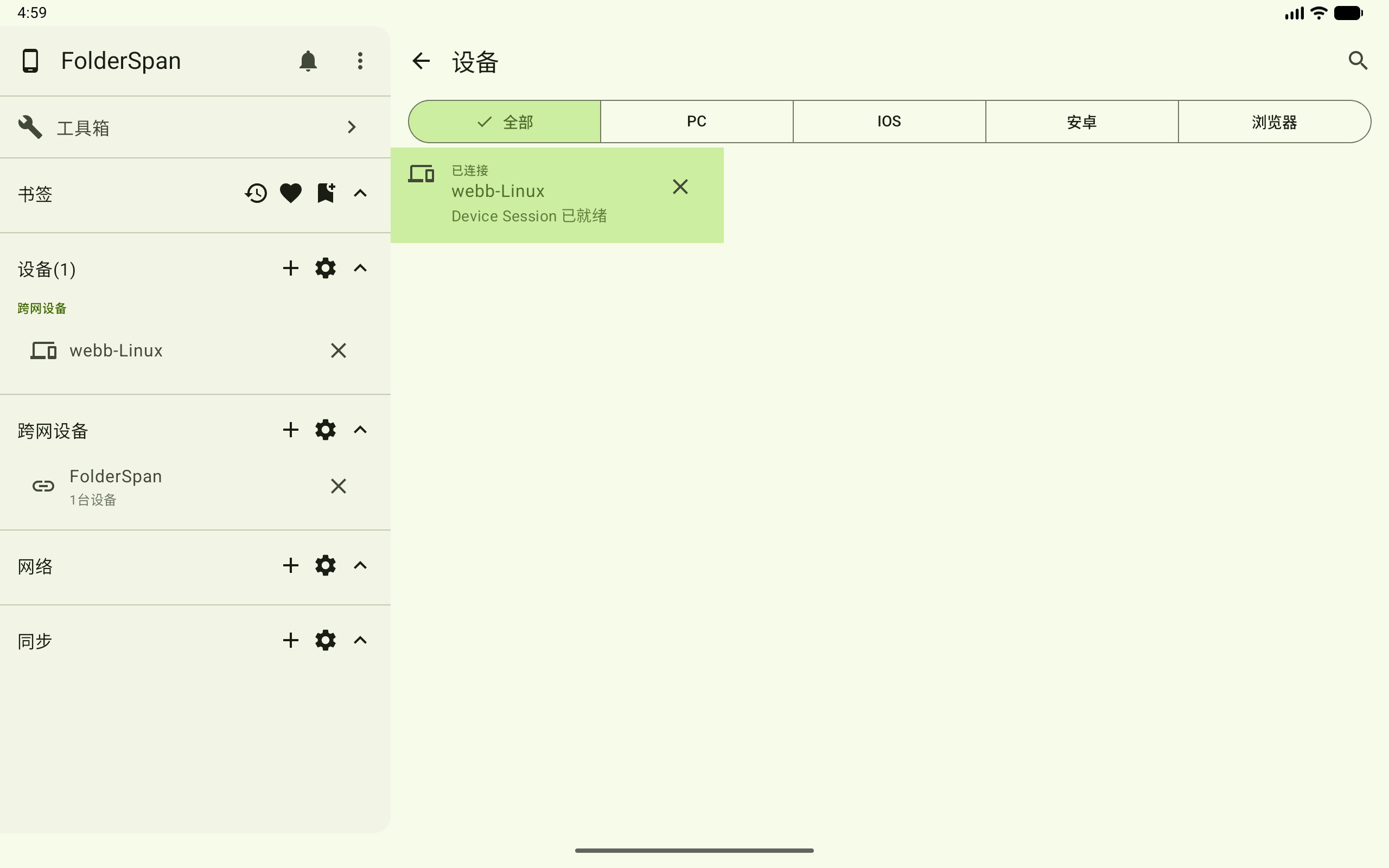
| Device | Connected, Device Session ready | Select the device to open its remote files. |
Operations
1. Add a room
- Select the sidebar group's plus button, or
Add room(overview number5). - Enter a room name, WebSocket address, and Room ID. Use
Generatefor an automatically generated ID. - Expand ICE / TURN if extra configuration is needed.
- Optionally test the configuration, then select the save icon to its left.
The saved room appears in management with a not-connected state, as shown in the overview.
2. Search and filter rooms
- Select the top search button (overview number
1). - Search by room name, WebSocket address, Room ID, or source.
- Choose a connection state:
All,Connected, orNot connected. - Choose a pinned state:
All,Pinned, orUnpinned. - Select
Applyto update the list. Reopen and useResetto clear conditions.
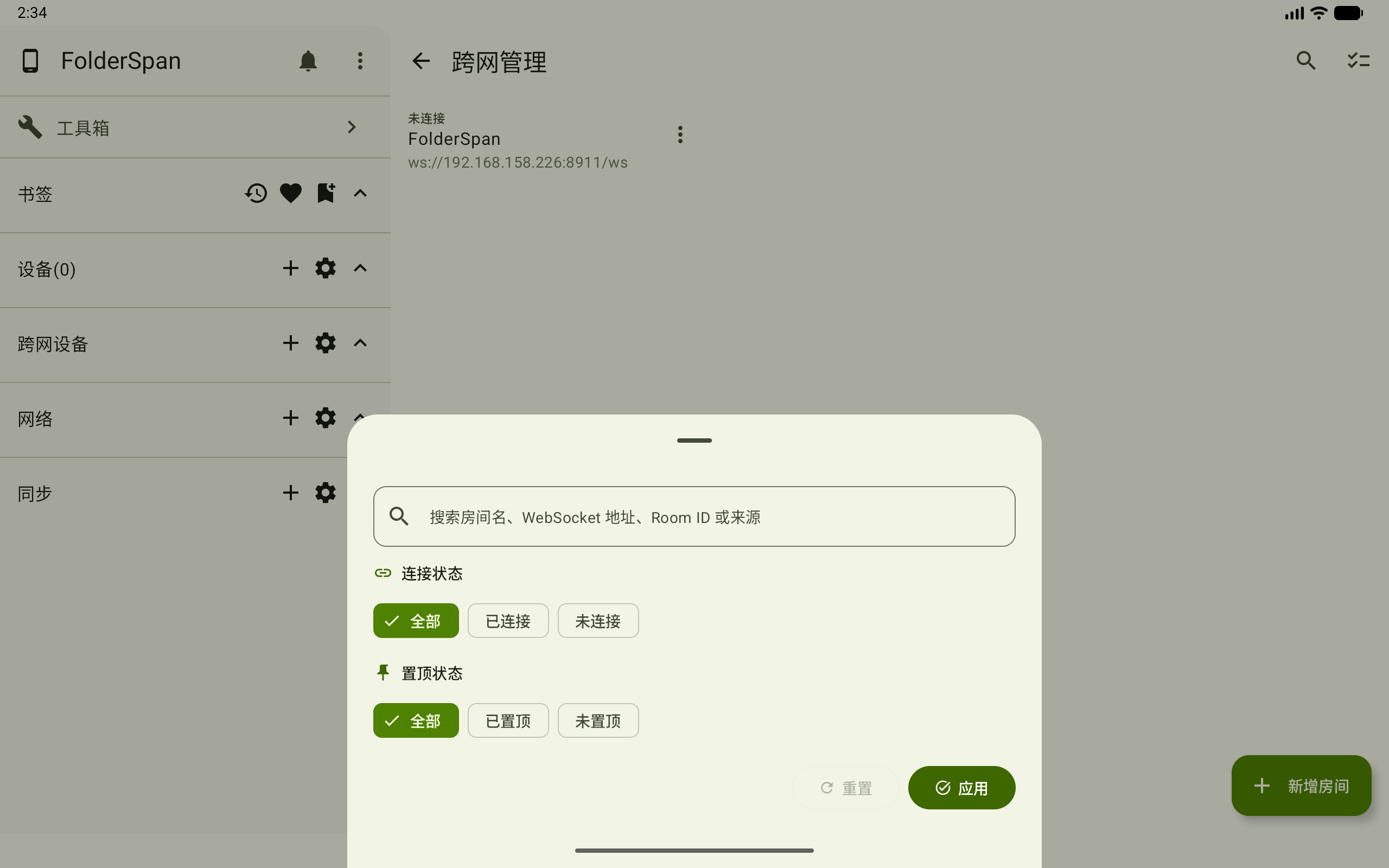
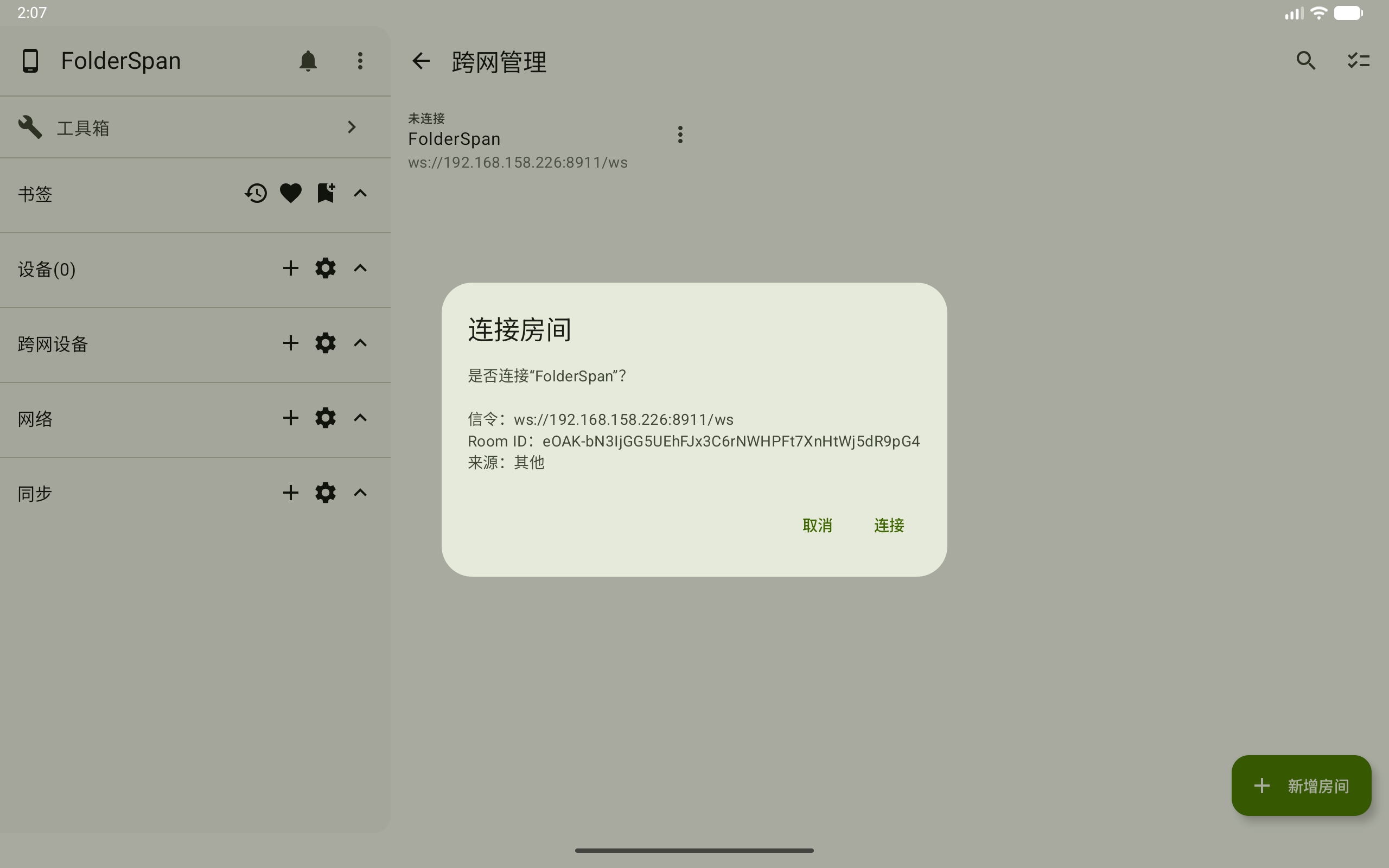
3. Connect to a room
Select a disconnected room (overview number 4). In the confirmation, check its name, signaling address, Room ID, and source, then select Connect, or Cancel to stop.
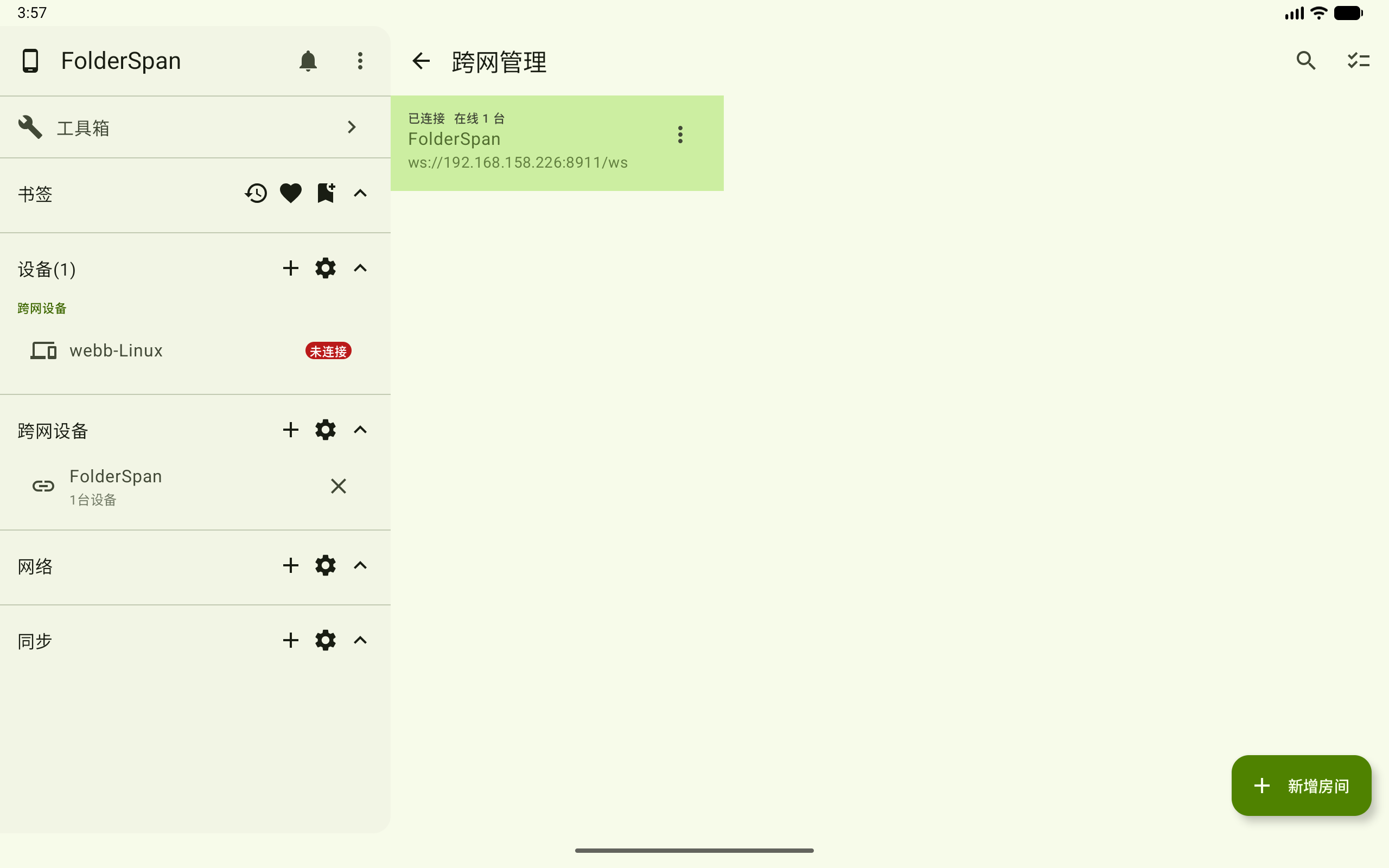
The connected room is highlighted and shows its online-device count. The example has one online device, which remains disconnected at this stage.
A connected room's menu offers Pin, Edit, Devices, and Close. Choose Devices to open its device list. Close disconnects the room; the sidebar's room cross does the same.
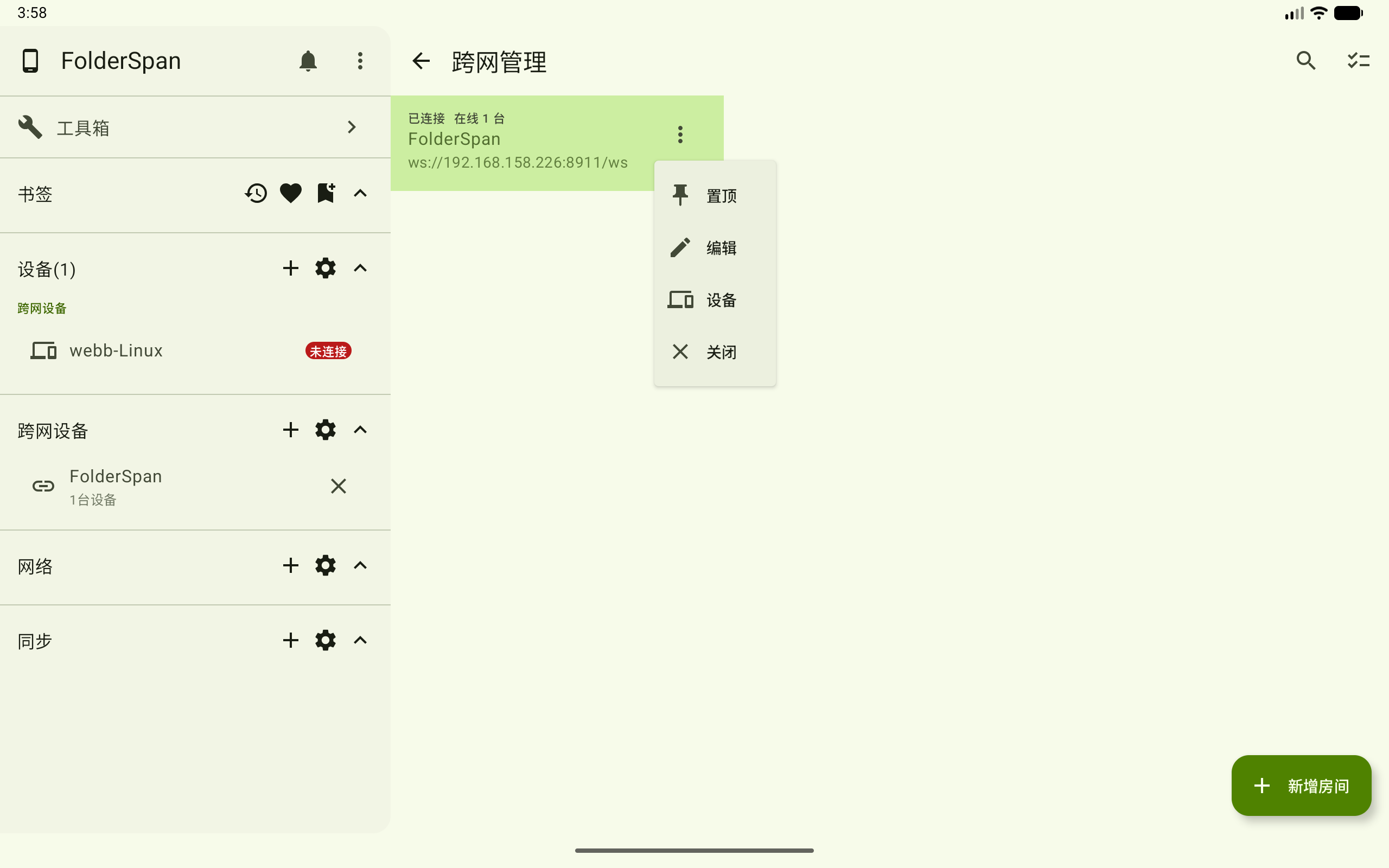
4. View and connect room devices
Choose Devices from the connected room's menu. The list shows names, type icons, connection states, and progress. Filter by All, PC, IOS, Android, or Browser, or use the top-right search.
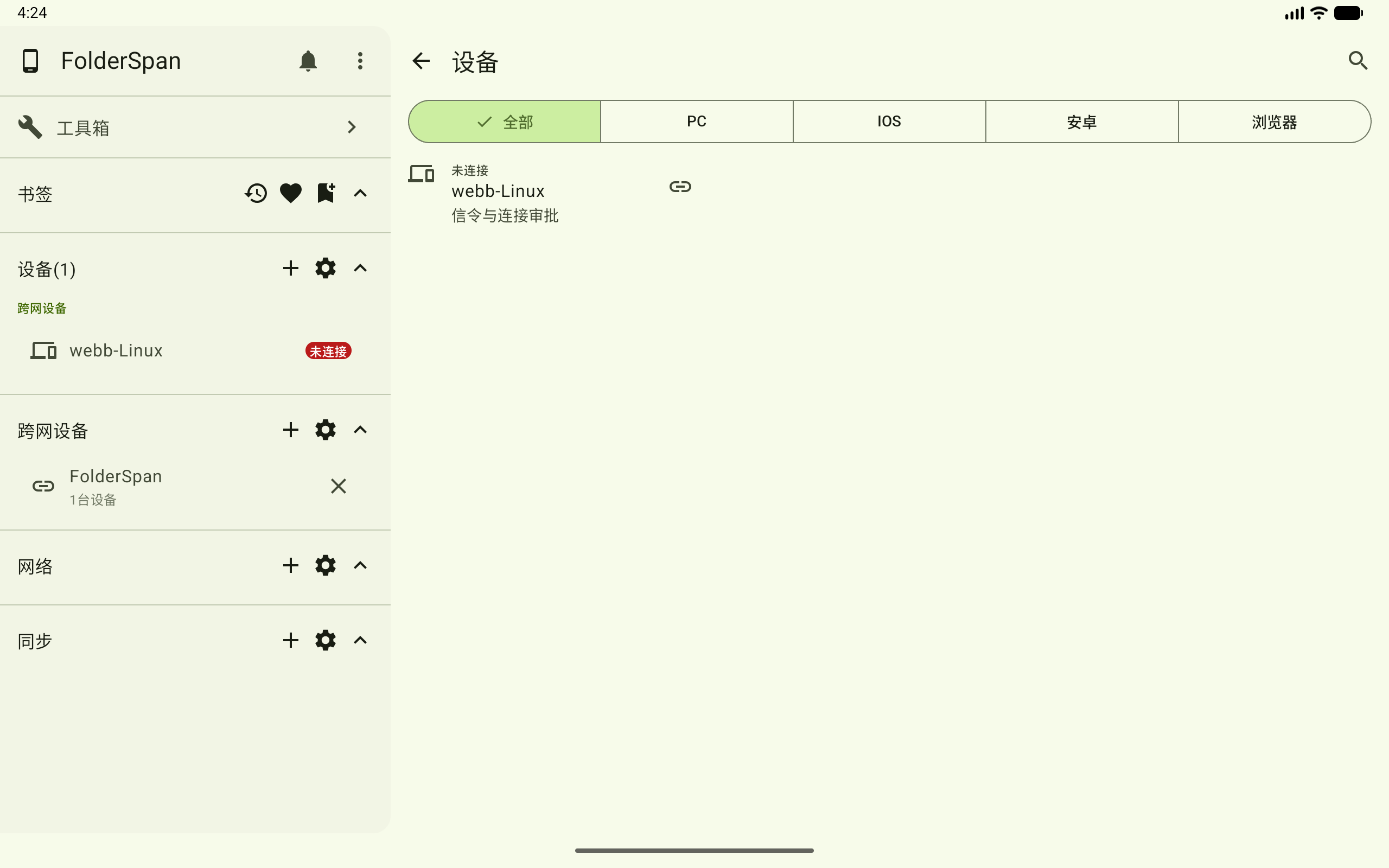
A disconnected device has a chain icon. Select it to request a connection. While awaiting the other party, the list shows waiting-for-approval text and a loading indicator; the sidebar shows Connecting.
Once approved and connected, the device entry is highlighted and shows Connected and Device Session ready. Its right-hand cross disconnects that device.
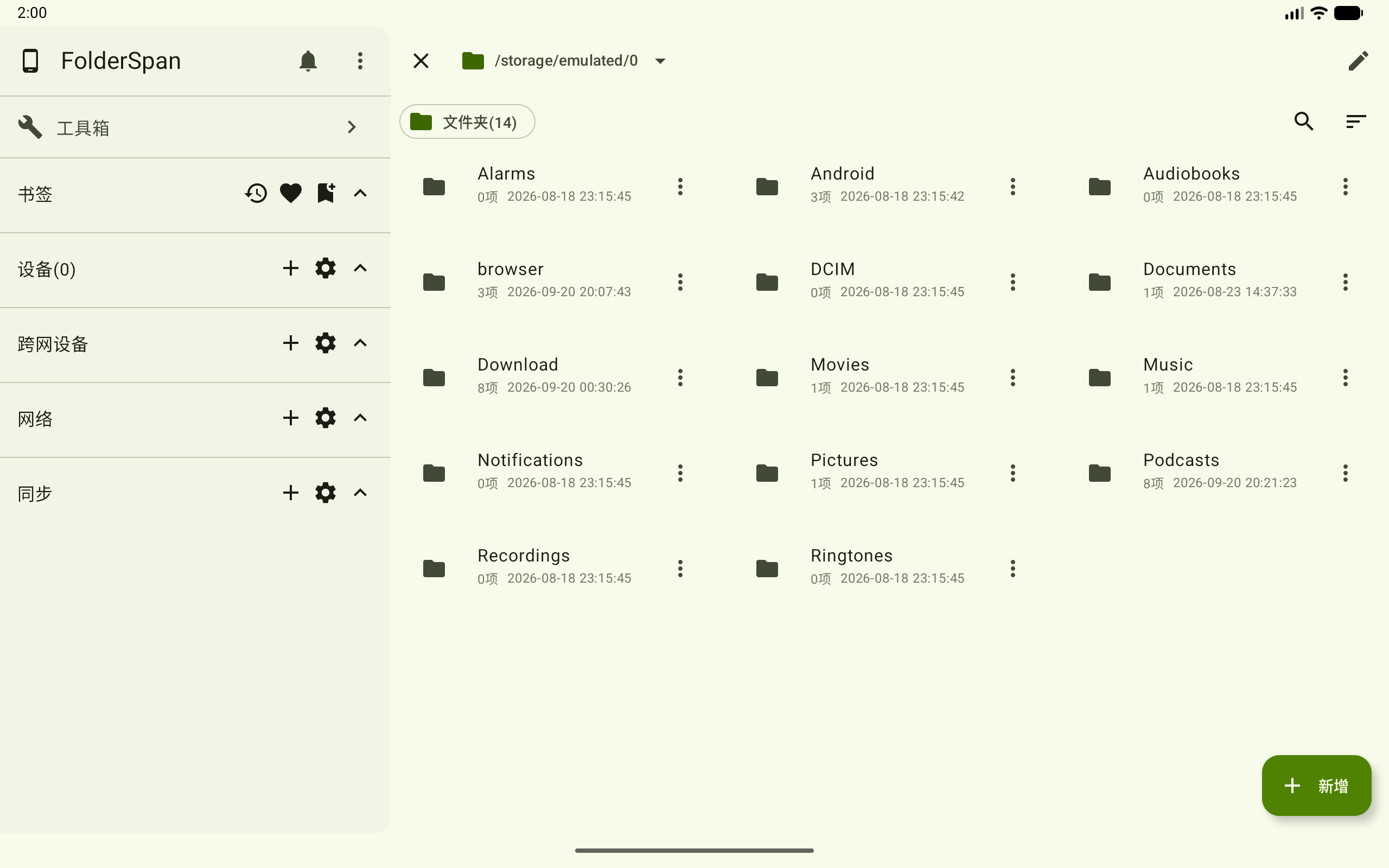
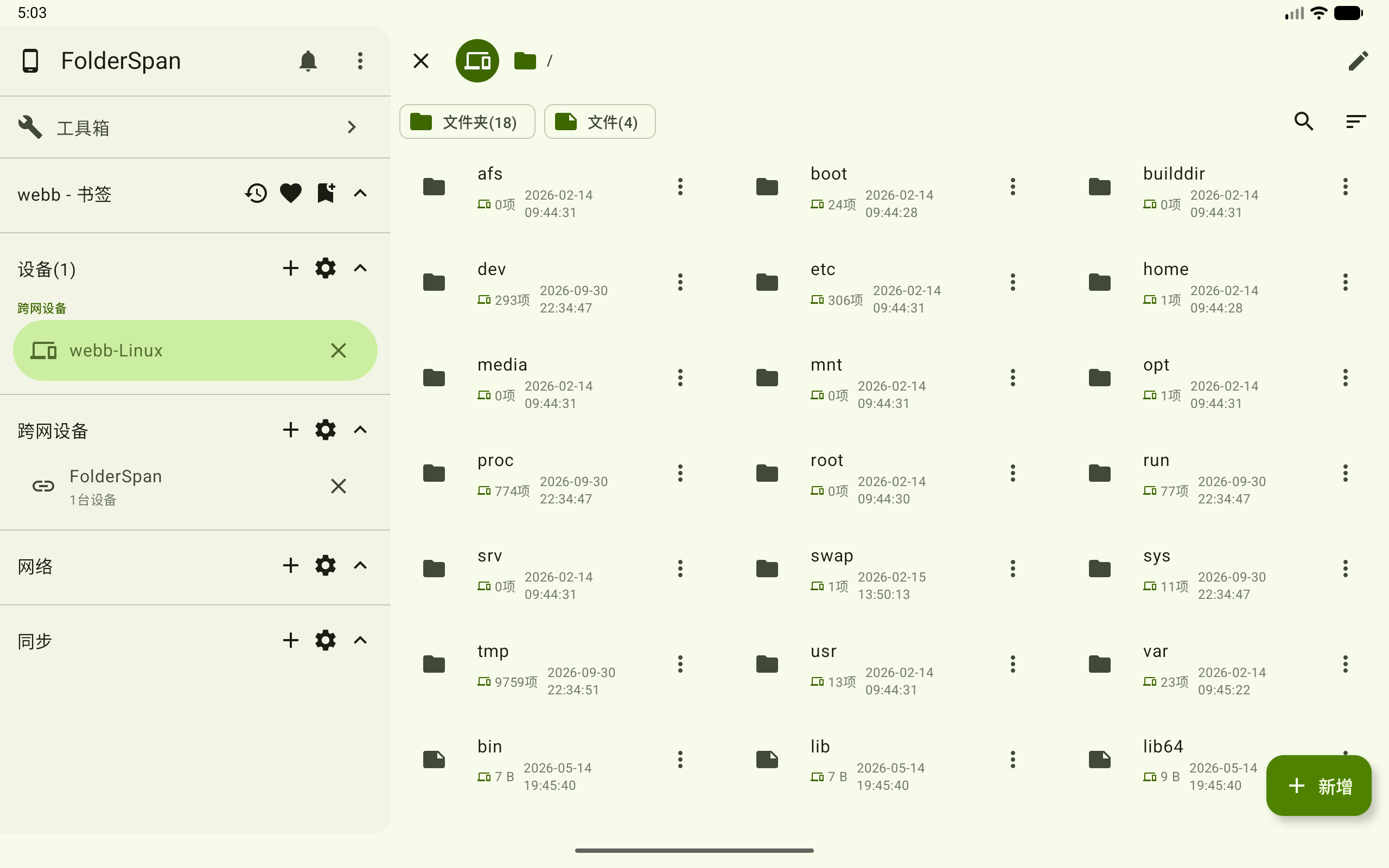
Select the connected device to browse remote files. The top shows the path and folder/file counts. Open folders to continue browsing, or use search, sorting, and Add. The screenshot opens / on webb-Linux.
5. Edit a room
Open its more button (overview number 3). A disconnected room offers Pin, Edit, and Delete.
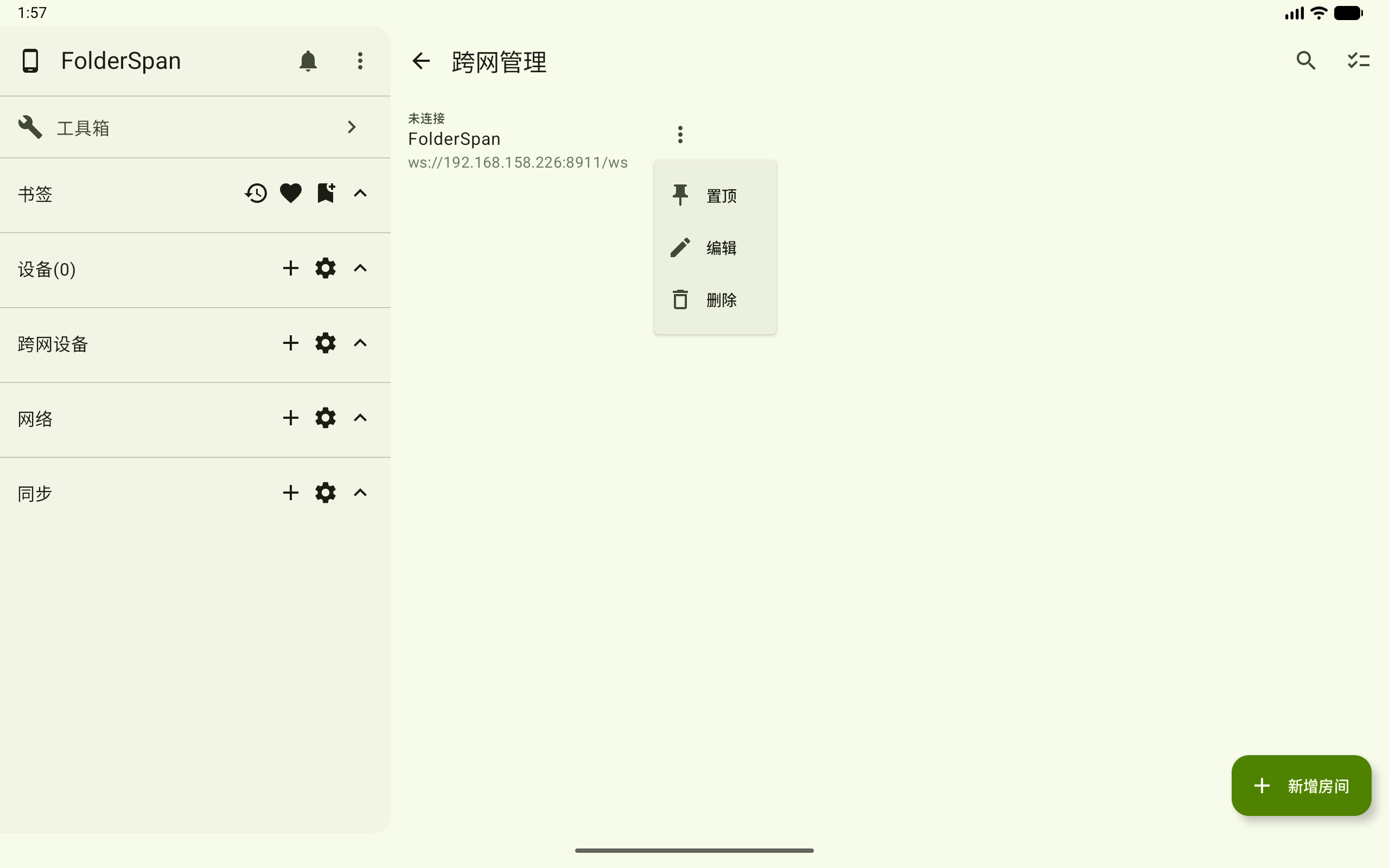
Choose Edit to change its name, WebSocket address, Room ID, and ICE / TURN configuration. Test if needed, then save with the disk icon.
6. Pin or unpin a room
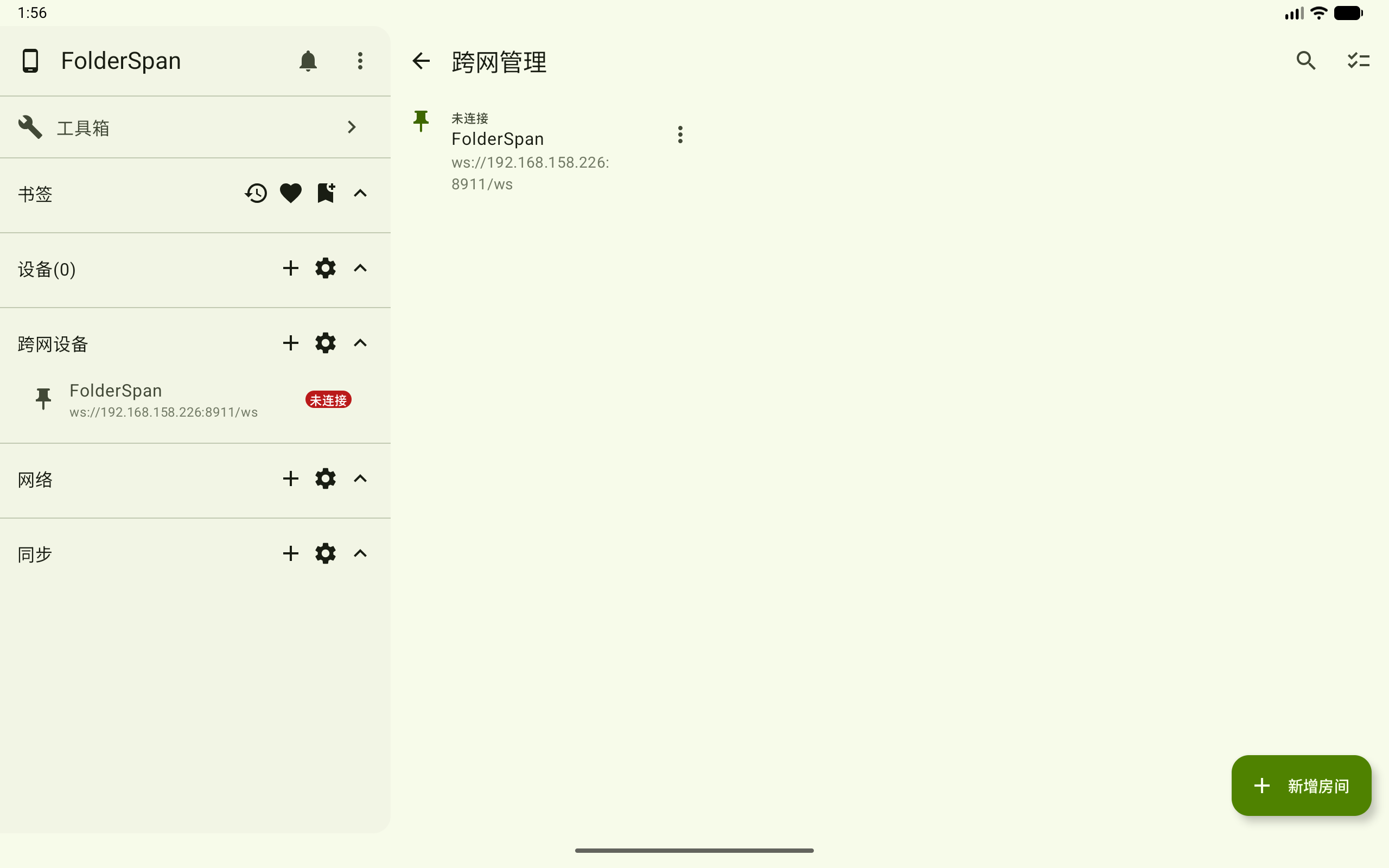
Choose Pin in the room menu. A pin icon identifies frequently used rooms in the list. The screenshot also shows the pinned room in the sidebar. Choose Unpin later, or use batch actions.
7. Delete a room
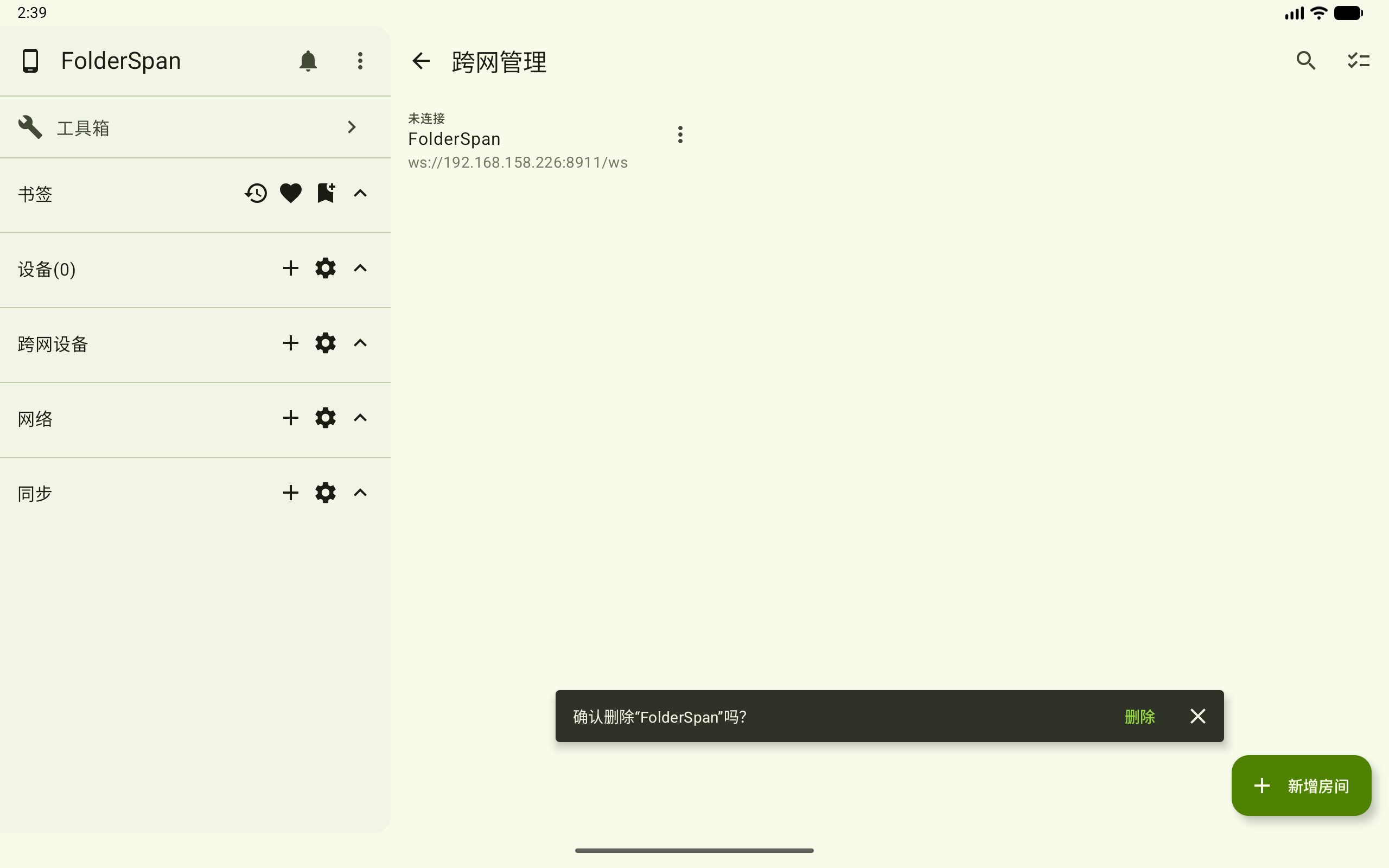
Choose Delete in a disconnected room's menu. Check the name in the bottom prompt, then select Delete, or close the prompt to cancel. For a connected room, use Close first and then delete it.
8. Batch room actions
- Select the top batch-actions entry (overview number
2). - Select room entries to select or deselect them. Selected entries are highlighted with checkmarks, and the heading shows the count.
- Use the top-right select-all entry as needed. Once all are selected, it becomes Deselect all.
- Choose a bottom action and follow its prompts.
Available actions:
- Connect: connects selected rooms.
- Pin: moves selected rooms to the front.
- Unpin: clears their pinned state.
- Delete: deletes selected rooms.
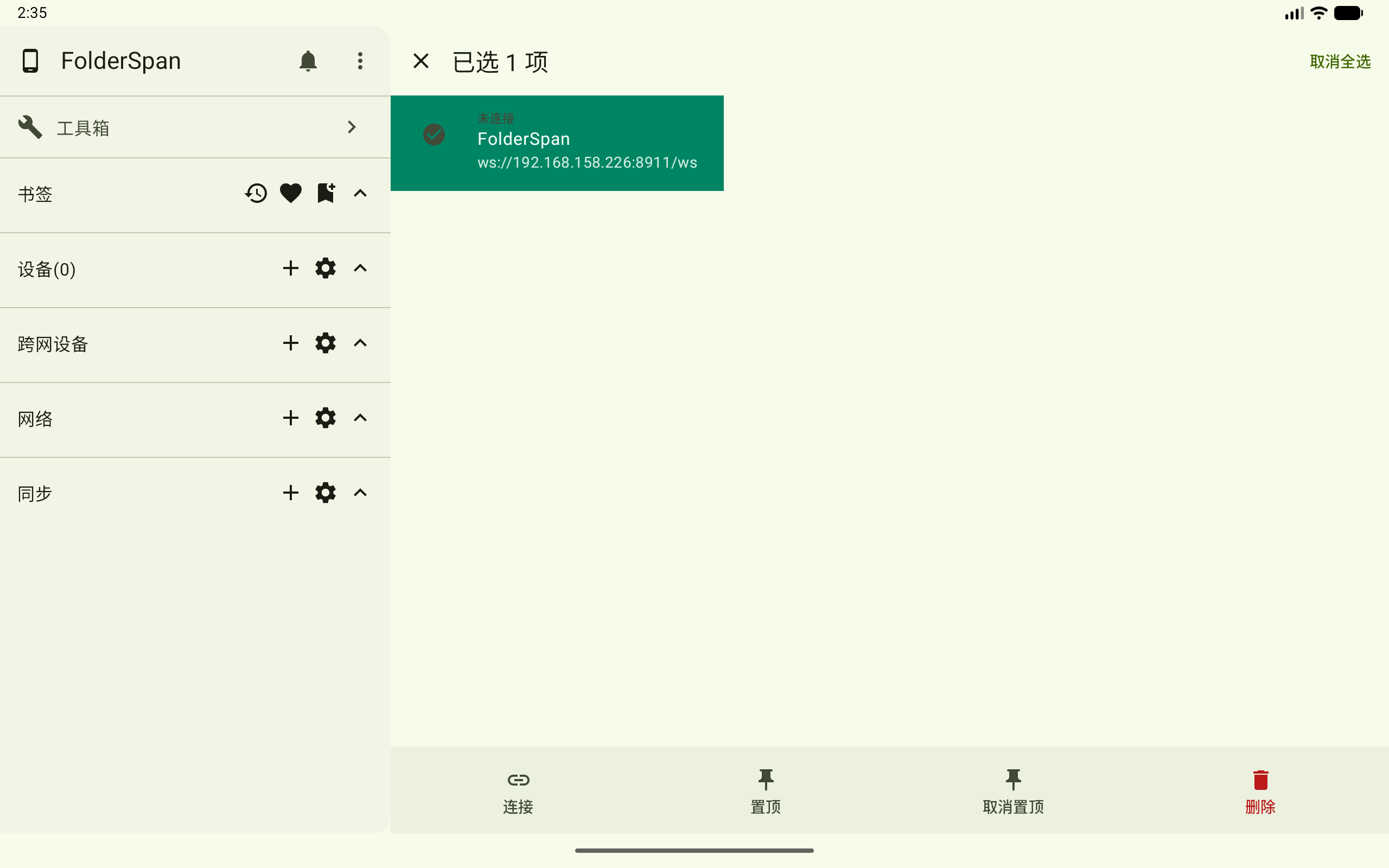
Close beside the heading to leave selection mode.
Recommendations
- Check the signaling address and Room ID when creating or editing a room; test the configuration first if needed.
- After the room connects, check the target device separately. Its state must be Connected before opening remote files.
- When waiting for peer approval, the other party must handle the request before the connection can complete.
- Pin frequently used rooms to find them in the list and sidebar.
- Check room names and selection counts before deletion or batch actions.
Related documentation
- Device management: connection policies, roles, and path permissions.
- Files: browse and manage remote files after connecting.